
1. Introduction
The Arturia MatrixBrute is a powerful analog matrix synthesizer designed for advanced sound creation and performance. This manual provides essential information for setting up, operating, maintaining, and troubleshooting your instrument. Please read this manual thoroughly to ensure proper use and to maximize your experience with the MatrixBrute.
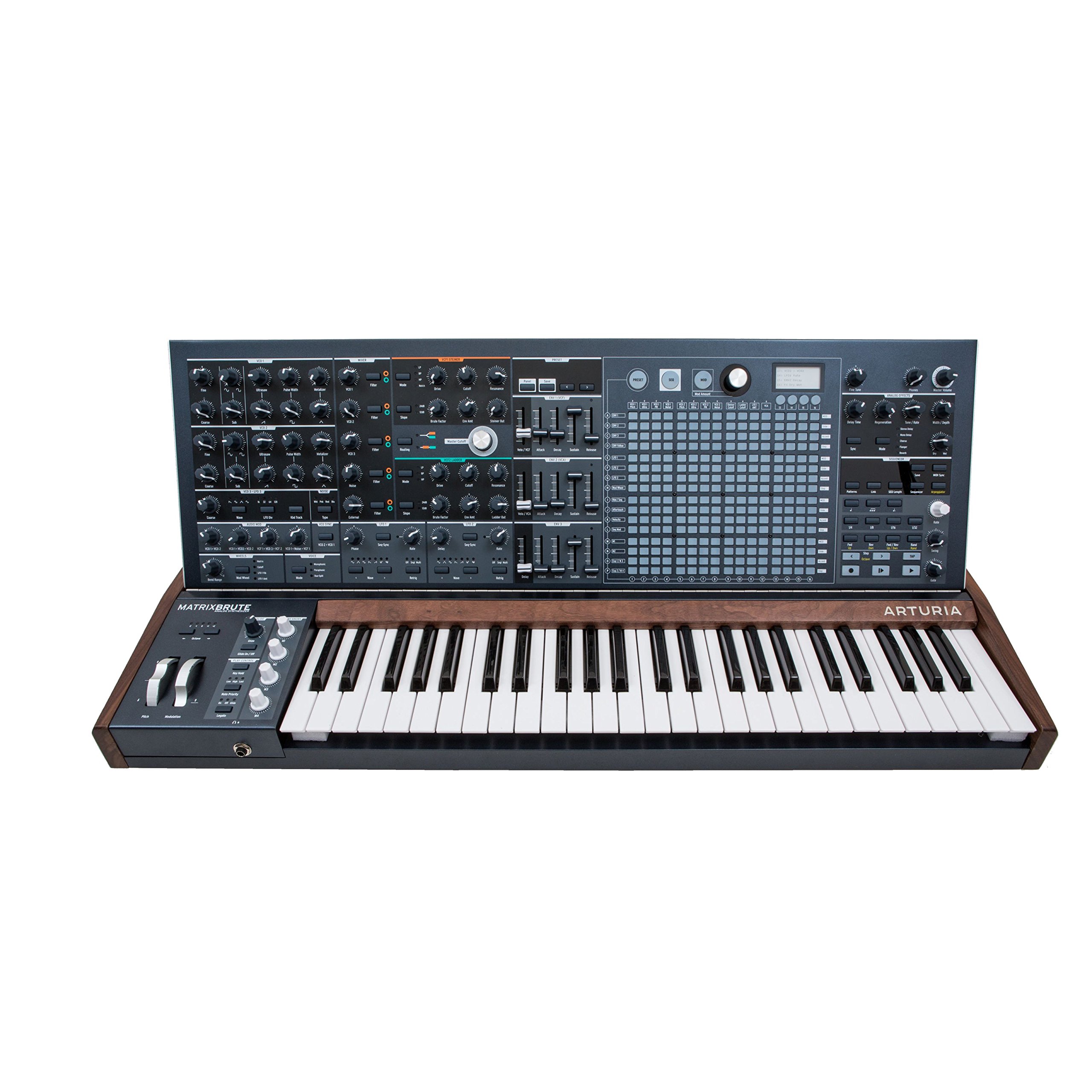
Figure 1: Front view of the Arturia MatrixBrute Analog Matrix Synthesizer.
2. Setup
2.1 Unpacking
Carefully remove the MatrixBrute from its packaging. Retain all packaging materials for future transport or storage. Verify that all included components are present:
- Arturia MatrixBrute Synthesizer
- Power Cable
- User Manual (this document)
- Registration Card
2.2 Connections
Before connecting the MatrixBrute, ensure all audio equipment is powered off. Connect cables firmly to prevent signal loss or damage.

Figure 2: Rear panel showing various input and output connections.
- Power Connection: Connect the supplied power cable to the AC IN socket on the rear panel and then to a suitable power outlet.
- Audio Output: Connect the main audio outputs (LEFT/MONO, RIGHT) to your mixer, audio interface, or amplifier using 1/4-inch TS cables.
- MIDI Connections: Use standard 5-pin DIN MIDI cables to connect the MIDI IN, OUT, and THRU ports to other MIDI devices.
- USB Connection: Connect a USB Type B cable from the MatrixBrute's USB port to your computer for MIDI communication and firmware updates.
- CV/Gate Connections: Utilize the various CV/Gate inputs and outputs for integration with modular synthesizers and other compatible equipment.
- Headphones: Connect headphones to the 1/4-inch stereo headphone jack for private monitoring.
2.3 Initial Power On
After all connections are made, power on your audio system first, then the MatrixBrute using the power switch on the rear panel. The display will illuminate, indicating the unit is ready for use.
3. Operating the MatrixBrute
The MatrixBrute offers extensive control over its analog synthesis engine. This section covers the primary operational aspects.

Figure 3: Detailed view of the control panel, showing knobs, faders, and the matrix interface.
3.1 Basic Controls
- Keyboard: The 49-key velocity-sensitive keyboard with aftertouch is your primary interface for playing notes.
- Oscillators: The MatrixBrute features three voltage-controlled oscillators (VCOs) with various waveforms (Saw, Square, Triangle) and sub-oscillators. Adjust the Wave, Pulse Width, and Tune controls to shape the initial sound.
- Filters: Two filters (Steiner-Parker and Ladder) provide distinct tonal characteristics. Use the Cutoff, Resonance, and Drive controls to sculpt the sound.
- Envelopes: Three ADSR (Attack, Decay, Sustain, Release) envelopes control the amplitude, filter cutoff, and other parameters over time.
- LFOs: Three Low-Frequency Oscillators (LFOs) can modulate various parameters, adding movement and complexity to your sounds.
3.2 Using the Matrix
The central matrix is a versatile tool for sequencing, arpeggiation, and modulation routing.
- Sequencer: The 64-step sequencer allows for complex melodic and rhythmic patterns. Use the dedicated sequencer controls to record, edit, and playback sequences.
- Arpeggiator: Create dynamic arpeggios from held notes.
- Modulation Matrix: The matrix serves as a powerful modulation router, allowing you to assign sources (e.g., LFOs, envelopes) to destinations (e.g., filter cutoff, oscillator pitch) with adjustable intensity.
3.3 Onboard Effects
The MatrixBrute includes analog effects such as Delay, Chorus, and Flanger. Adjust the dedicated controls in the effects section to integrate them into your sound design.
3.4 CV/MIDI Integration
The MatrixBrute offers extensive connectivity for integrating with other gear:
- MIDI: Control the MatrixBrute from an external MIDI controller or sequence it from a DAW via MIDI IN. Send MIDI data from the MatrixBrute via MIDI OUT/THRU.
- CV/Gate: Connect to modular synthesizers using the dedicated CV/Gate inputs and outputs for pitch, gate, and modulation control.
4. Maintenance
4.1 Cleaning
To maintain the appearance and functionality of your MatrixBrute, follow these guidelines:
- Wipe the surface with a soft, dry cloth.
- For stubborn dirt, use a slightly damp cloth with mild soap, then wipe dry immediately.
- Avoid abrasive cleaners, solvents, or waxes, as these can damage the finish.
- Do not spray liquids directly onto the instrument.
4.2 Software Updates
Arturia periodically releases firmware updates to improve performance, add features, or fix bugs. Visit the official Arturia website (www.arturia.com) for the latest firmware and instructions on how to update your MatrixBrute.
4.3 Storage
When not in use for extended periods, store the MatrixBrute in a dry, dust-free environment. If possible, use the original packaging or a dedicated flight case for protection during transport or storage.
5. Troubleshooting
This section addresses common issues you might encounter. If you experience problems not covered here, please contact Arturia support.
| Problem | Possible Cause | Solution |
|---|---|---|
| No sound output |
|
|
| MIDI not responding |
|
|
| Unexpected behavior / Glitches |
|
|
6. Specifications
| Feature | Detail |
|---|---|
| Brand | Arturia |
| Model Name | Arturia MatrixBrute |
| Model Number | 550101 |
| Item Dimensions (L x W x H) | 40.5 x 22.5 x 7.5 inches |
| Item Weight | 19 Kilograms |
| Body Material | Metal |
| Included Components | Cymbal (Note: This may be a listing error, typically includes power cable and documentation.) |
| UPC | 779177280095, 713803231419 |
| Connector Type | USB Type C (Note: Product images show USB Type B, please verify.) |
Note: Specifications are subject to change without notice. Please refer to the official Arturia website for the most up-to-date information.
7. Warranty & Support
7.1 Product Warranty
Arturia products are covered by a limited warranty against defects in materials and workmanship. The specific terms and duration of the warranty may vary by region. Please register your product on the Arturia website to activate your warranty and for detailed information regarding warranty coverage.
7.2 Customer Support
For technical assistance, troubleshooting, or any questions regarding your Arturia MatrixBrute, please visit the official Arturia support page:
You can find FAQs, knowledge base articles, and contact information for direct support.


