
1. Product Overview
The Paddsun AW-NU231 is a Wireless USB Wi-Fi Adapter designed to provide wireless internet connectivity to compatible devices, primarily certain LG TV models and desktop computers. This adapter supports the IEEE 802.11n standard, operating on the 2.4GHz frequency band with a maximum data transfer rate of 300Mbps. It enables your device to connect to a wireless network for streaming content, browsing, and other internet-dependent functions.
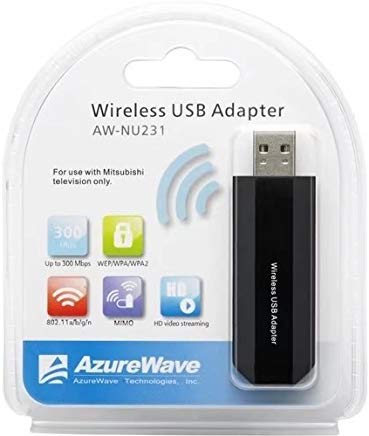
Image: The Paddsun AW-NU231 Wireless USB Wi-Fi Adapter, a compact dongle designed for easy connectivity.
2. Setup Instructions
- Power Off Device: Ensure your television or desktop computer is powered off before proceeding with the installation.
- Insert Adapter: Locate an available USB port on your compatible device. Carefully insert the Paddsun AW-NU231 USB Wi-Fi Adapter into the USB port.
- Power On Device: Power on your television or desktop computer.
- Driver Installation (for Desktops):
- For most modern operating systems, the adapter may be recognized automatically (plug-and-play).
- If not, you may need to install drivers. Refer to your operating system's device manager or the manufacturer's support website for driver downloads.
- Access Network Settings:
- For LG TVs: Navigate to the TV's settings menu, usually found under "Network" or "Connection" settings.
- For Desktops: Access your operating system's network settings.
- Connect to Wi-Fi: Select "Wireless Connection" or "Wi-Fi" from the network options. Your device should scan for available wireless networks. Select your desired network from the list and enter the Wi-Fi password if prompted.
- Verify Connection: Once connected, your device should indicate a successful internet connection.
3. Operating Instructions
Once the Paddsun AW-NU231 adapter is successfully installed and connected to a Wi-Fi network, your device will have internet access. The operation of the Wi-Fi connection is managed through your device's operating system or TV interface.
- Automatic Reconnection: The adapter is designed to automatically reconnect to the last known Wi-Fi network when the device is powered on, provided the network is available and the password has not changed.
- Changing Networks: To connect to a different Wi-Fi network, navigate to your device's network settings and select a new network from the available list.
- Compatibility: This adapter is specifically designed for compatibility with various LG TV models including LM6200-CE, LA6200-CN, LM6400-CE, LM6400-CA, LM6450-CA, LA6500-CC, LM6600-CE, LW5500, LV5700, LW6500, and can also be used with desktop computers.
4. Maintenance
Proper care ensures the longevity and optimal performance of your Paddsun AW-NU231 Wi-Fi adapter.
- Cleaning: Gently wipe the adapter with a soft, dry cloth. Avoid using liquid cleaners or solvents, which can damage the device.
- Storage: When not in use, store the adapter in a cool, dry place away from direct sunlight and extreme temperatures.
- Handling: Avoid dropping the adapter or subjecting it to strong impacts. Do not bend or force the USB connector.
- Software Updates: For desktop use, ensure your operating system and any relevant drivers are kept up-to-date to maintain compatibility and performance. For TVs, ensure your TV's firmware is updated.
5. Troubleshooting
If you encounter issues with your Paddsun AW-NU231 Wi-Fi adapter, refer to the following common solutions:
- Adapter Not Detected:
- Ensure the adapter is fully inserted into the USB port.
- Try a different USB port on your device.
- Restart your television or computer.
- For desktops, check Device Manager to see if the adapter is listed and if there are any driver issues.
- Cannot Connect to Wi-Fi Network:
- Verify that your Wi-Fi network is active and broadcasting.
- Double-check the Wi-Fi password for accuracy.
- Ensure the adapter is within range of your wireless router.
- Restart your wireless router and modem.
- Slow Internet Speed:
- Ensure the adapter is not obstructed and has a clear line of sight to the router if possible.
- Check for other devices consuming bandwidth on your network.
- Restart your router and modem.
- Update drivers for desktop computers.
- Intermittent Connection:
- Move the device closer to the wireless router.
- Check for sources of interference (e.g., microwaves, cordless phones).
- Ensure your router's firmware is up-to-date.
6. Specifications
| Feature | Detail |
|---|---|
| Brand | Paddsun |
| Model | AW-NU231 |
| Hardware Interface | USB |
| Compatible Devices | Desktop, Specific LG TV Models (e.g., LM6200-CE, LA6200-CN, LM6400-CE, LM6400-CA, LM6450-CA, LA6500-CC, LM6600-CE, LW5500, LV5700, LW6500) |
| Data Transfer Rate | 300 Megabits Per Second (Mbps) |
| Wireless Standard | IEEE 802.11n |
| Frequency Band | 2.4 GHz |
| Package Dimensions | 12.2 x 10.2 x 1.4 cm |
| Item Weight | 20 g |
7. Warranty Information
The Paddsun AW-NU231 Wireless USB Wi-Fi Adapter comes with a 1 Year Warranty from the date of purchase. This warranty covers manufacturing defects and malfunctions under normal use. It does not cover damage caused by misuse, accidents, unauthorized modifications, or improper installation.
Please retain your proof of purchase for warranty claims. For detailed terms and conditions, refer to the warranty card included with your product or contact customer support.
8. Support
For further assistance, technical support, or warranty inquiries regarding your Paddsun AW-NU231 Wireless USB Wi-Fi Adapter, please refer to the following resources:
- Manufacturer's Website: Visit the official Paddsun website for updated drivers, FAQs, and support contact information.
- Customer Service: Contact the retailer or manufacturer's customer service department directly.
- Online Resources: Search online forums or support communities for solutions to common issues.