
Rockville RDM18
Rockville RDM18 Digital Media Receiver User Manual
Model: RDM18 | Brand: Rockville
Introduction
The Rockville RDM18 is a single-DIN in-dash digital media receiver designed for car audio systems. It offers a range of features including Bluetooth connectivity for hands-free calling and audio streaming, USB and SD card inputs for music playback, an AM/FM tuner, and an auxiliary input. This manual provides comprehensive instructions for the setup, operation, and maintenance of your RDM18 receiver.
What's in the Box:
- RDM18 Receiver Unit
- Wiring Harness
- Owner's Manual
- Wireless Remote Control
- Removal Keys (2)
- Product Warranty Card

Image: Contents of the Rockville RDM18 package, showing the main receiver unit, wireless remote control, wiring harness, owner's manual, and product warranty card.
Video: An unboxing video of the Rockville RDM18 receiver, demonstrating the contents of the package and initial presentation of the unit.
Key Features
- Built-in Bluetooth: Enables hands-free calling and audio streaming from compatible devices.
- Illuminated Buttons: Blue illuminated button lighting for enhanced visibility.
- High Power Output: Peak Power Output of 50 watts x 4 channels; RMS Power Output of 17 watts x 4 channels.
- Wireless Remote Control: Included for convenient operation.
- Display Information: Song text information display and MP3 ID3 Tag display for Title/Artist/Album names.
- AM/FM Tuner: Features 18 FM and 12 AM presets for easy station access.
- Equalizer: 5 selectable tone curves (e.g., Rock, Pop, Flat) for audio customization.
- Media Inputs: 32GB SD Card reader, Front Auxiliary Input (3.5mm jack), and Dual USB ports (one for music playback, one for charging).
- Clock Function: Integrated digital clock.
- Color LCD Display: Clear and vibrant display.
- Standard Size: Universal single DIN size (2” tall) for broad compatibility.
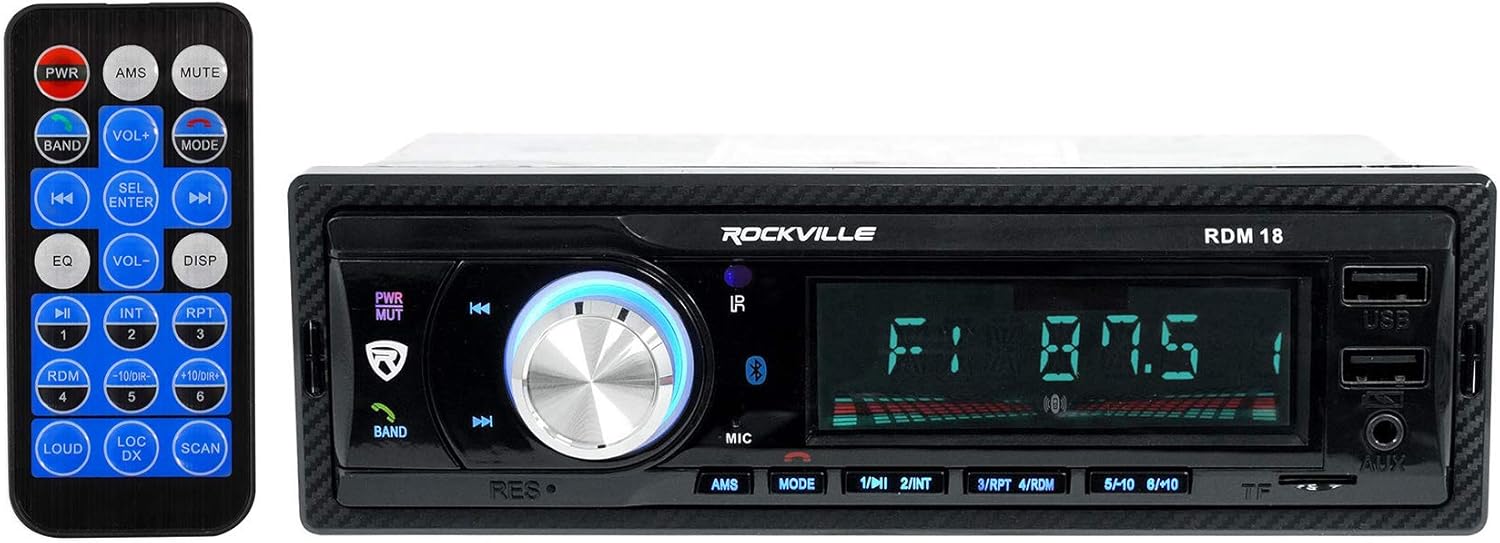
Image: Front view of the Rockville RDM18 digital media receiver, showcasing its illuminated buttons, display, and the included wireless remote control.
Setup and Installation
Proper installation is crucial for optimal performance and safety. It is recommended that installation be performed by a qualified professional. Before beginning, disconnect the vehicle's negative battery terminal to prevent electrical shorts.
Wiring Connections:
Refer to the included wiring harness and your vehicle's wiring diagram. Common connections include:
- Yellow Wire: Constant 12V (Battery)
- Red Wire: Switched 12V (Accessory)
- Black Wire: Ground
- Blue Wire: Remote Turn-On (for external amplifier)
- Speaker Wires: Connect to corresponding vehicle speakers (e.g., White/White-Black for Front Left, Gray/Gray-Black for Front Right, Green/Green-Black for Rear Left, Purple/Purple-Black for Rear Right).
- RCA Outputs: Connect to external amplifiers for front and rear channels.
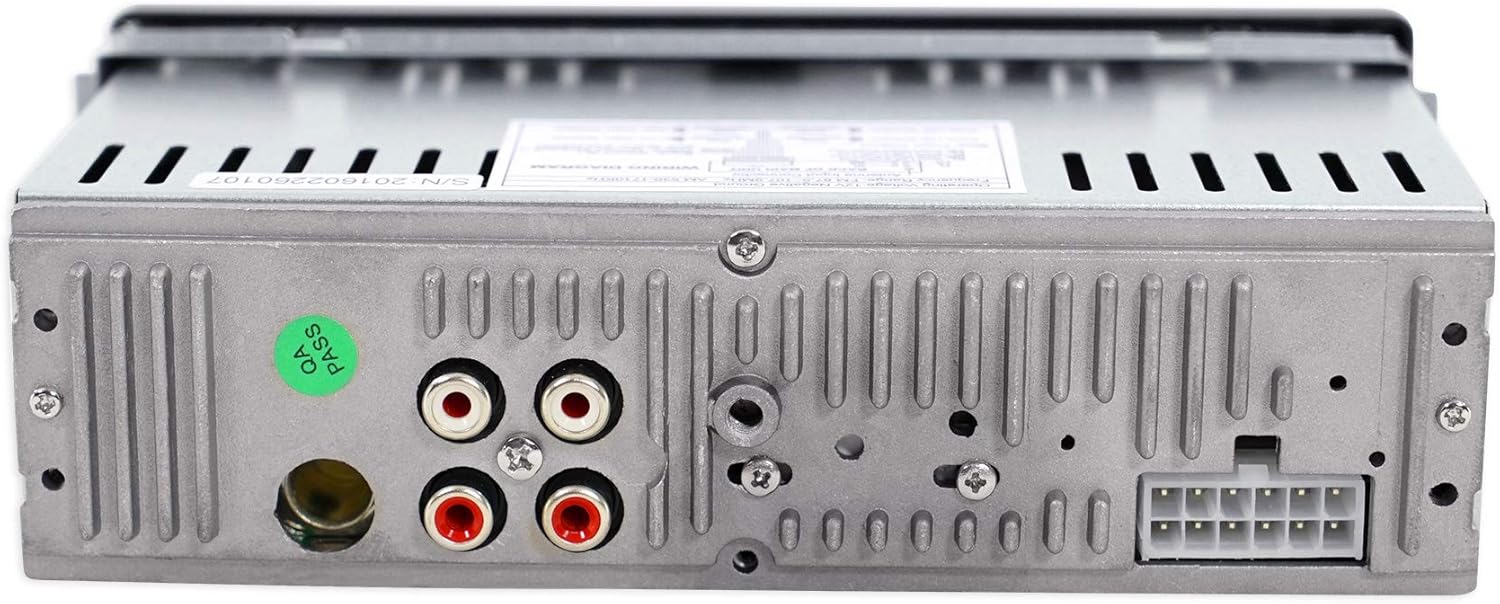
Image: Rear view of the Rockville RDM18 receiver, highlighting the various input and output ports for wiring connections, including RCA outputs and the main power harness connector.
Mounting:
The RDM18 is a single DIN unit. Securely mount the receiver in your vehicle's dashboard using the provided mounting sleeve and hardware. Ensure adequate ventilation around the unit.
Operating Instructions
This section covers the basic operation of your Rockville RDM18 receiver.
Power On/Off and Volume:
- Press the PWR/MUTE button to turn the unit on or off.
- Rotate the large central knob to adjust the volume.
Source Selection:
- Press the MODE button to cycle through available sources: FM, AM, Bluetooth, USB, SD, and AUX.

Image: The front panel of the Rockville RDM18 receiver displaying "AUX" mode, indicating the auxiliary input is active.
Bluetooth Operation:
- Pairing: Select Bluetooth mode. On your mobile device, search for "RDM18" and connect. No password is required.
- Audio Streaming: Once paired, audio from your device will stream to the receiver.
- Hands-Free Calling: Use the built-in microphone for calls. Answer/end calls using the phone button on the unit or remote.

Image: The Rockville RDM18 receiver's display showing "BT ON," indicating that Bluetooth is active and ready for pairing or connection.
USB/SD Playback:
- Insert a USB drive into the USB port or an SD card into the SD slot. The unit will automatically switch to the corresponding mode and begin playback.
- Use the SKIP buttons (Previous/Next) to navigate tracks.
- The unit supports MP3 ID3 Tag display for song information.
AM/FM Radio:
- Select FM or AM mode.
- Press the BAND button to switch between FM1, FM2, FM3, AM1, and AM2 bands.
- Press and hold the SCAN button to auto-scan and store strong stations.
- Manually tune using the TUNE buttons.
- Use the numbered preset buttons (1-6) to recall stored stations.
Audio Settings (Equalizer):
- Press the EQ button to cycle through preset equalizer curves: POP, CLASSICAL, ROCK, FLAT, and OFF.
Video: A detailed overview of the Rockville RDM18 Digital Media Receiver, demonstrating its features, sound quality, and various operational modes including Bluetooth, USB, and equalizer settings.
Maintenance
To ensure the longevity and optimal performance of your RDM18 receiver, follow these maintenance guidelines:
- Cleaning: Use a soft, dry cloth to clean the unit's exterior. For stubborn dirt, dampen the cloth lightly with water. Avoid abrasive cleaners, solvents, or strong detergents, as they can damage the finish.
- Ventilation: Ensure that the ventilation openings on the unit are not blocked. Proper airflow prevents overheating.
- Environmental Conditions: Avoid exposing the unit to extreme temperatures, direct sunlight for prolonged periods, or high humidity.
- Connections: Periodically check all wiring connections to ensure they are secure and free from corrosion.
Troubleshooting
If you encounter issues with your RDM18 receiver, consult the table below for common problems and their solutions. If the problem persists, contact Rockville customer support.
| Problem | Possible Cause | Solution |
|---|---|---|
| No Power | Blown fuse; incorrect wiring; loose power connection. | Check and replace fuse; verify wiring connections (constant 12V, switched 12V, ground); ensure secure connections. |
| No Sound | Volume too low; incorrect source selected; speaker wires disconnected or shorted. | Increase volume; select correct source; check speaker wiring for proper connection and no shorts. |
| Bluetooth Not Connecting | Device not in pairing mode; RDM18 not in Bluetooth mode; interference. | Ensure RDM18 is in Bluetooth mode; put mobile device in pairing mode; try restarting both devices. |
| USB/SD Not Playing | Unsupported file format; corrupted files; incompatible device. | Ensure files are MP3 format; try a different USB/SD card; check card capacity (max 32GB for SD). |
| Poor Radio Reception | Antenna not connected; weak signal; interference. | Check antenna connection; try "LOC DX" setting for local/distant stations; move away from interference sources. |
Specifications
| Feature | Detail |
|---|---|
| Product Dimensions | 8.27 x 6.5 x 3.35 inches |
| Item Weight | 9.3 ounces |
| Item Model Number | RDM18 |
| Wireless Communication Technologies | Bluetooth, Infrared |
| Connectivity Technologies | Bluetooth, Auxiliary, USB |
| Special Features | Equalizer |
| Display Technology | LCD |
| Compatible Devices | Smartphone, Speaker |
| Connector Type | USB, 3.5mm Jack |
| Audio Output Mode | Stereo, Surround |
| Surround Sound Channel Configuration | 4 channel |
| Output Power | 50 Watts (Peak) |
| RMS Power Output | 17 watts x 4 channels |
| Wattage | 200 watts (Total Peak) |
| Manufacturer | Audiosavings |
| Date First Available | July 5, 2016 |
Warranty and Support
The Rockville RDM18 receiver comes with a Product Warranty Card included in the box. Please refer to this card for detailed information regarding warranty coverage, terms, and conditions.
For technical support, troubleshooting assistance beyond what is provided in this manual, or warranty claims, please contact Rockville customer service. Contact information can typically be found on the Product Warranty Card or on the official Rockville website (www.rockvilleaudio.com).
Always retain your proof of purchase for warranty validation.
Ask a question about this manual
Ask about setup, troubleshooting, compatibility, parts, safety, or missing instructions. Manuals+ will review the question and use this page’s manual context to help answer it.