
1. Introduction
The Yamaha MusicCast WX-010 Wireless Speaker is designed to provide high-quality audio throughout your home. This compact, space-saving speaker integrates seamlessly with your existing Wi-Fi network, allowing for wireless music streaming. It can function as a standalone unit or be integrated into a larger MusicCast multi-room audio system. This manual provides essential information for setting up, operating, and maintaining your WX-010 speaker to ensure optimal performance and enjoyment.
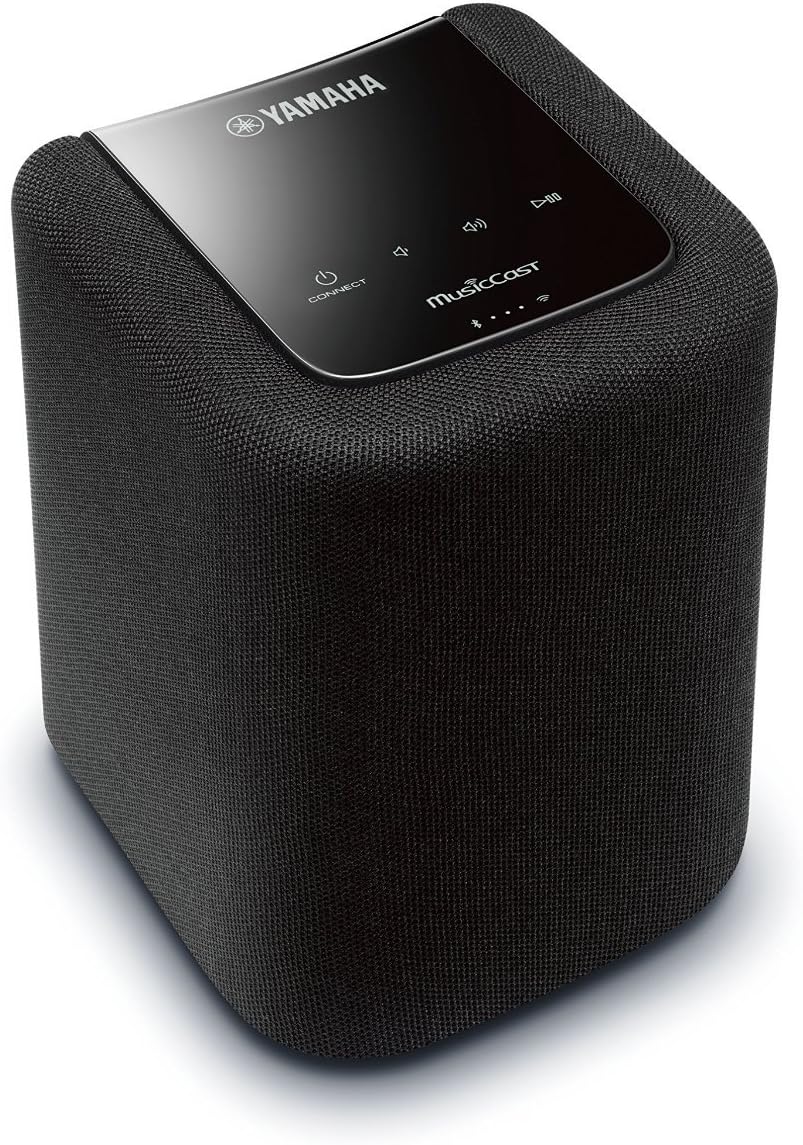
Figure 1.1: Front view of the Yamaha MusicCast WX-010 Wireless Speaker.
2. What's in the Box
Upon unpacking your Yamaha MusicCast WX-010, please verify that all the following items are included:
- Wireless Speaker (WX-010)
- Remote Control
- User Manual (this document)
- Registration Card
- MusicCast Brochure
- Power Cable (10-ft)
3. Setup
3.1 Power Connection
Connect the provided 10-ft AC power cable to the power inlet on the rear of the WX-010 speaker and then to a standard AC power outlet. Ensure the connection is secure.

Figure 3.1: Rear view of the WX-010 with power connection point.
3.2 Network Setup with MusicCast App
The WX-010 speaker requires the Yamaha MusicCast CONTROLLER app for initial setup and control. This app is available for both Apple iOS and Android devices.
- Download the MusicCast CONTROLLER app from the App Store (iOS) or Google Play Store (Android).
- Ensure your mobile device is connected to the Wi-Fi network you intend to use for the speaker.
- Open the MusicCast CONTROLLER app and follow the on-screen instructions to add a new device.
- The app will guide you through connecting the WX-010 to your home Wi-Fi network.
For a visual guide on setting up and using your MusicCast speaker, please refer to the video below:
Video 3.1: Overview of Yamaha MusicCast WX-010 setup and multi-room functionality. This video demonstrates the ease of connecting the speaker to your home network and integrating it into a MusicCast system.
4. Operating Instructions
4.1 Basic Controls
The WX-010 features intuitive controls located on its top panel for quick access to essential functions.
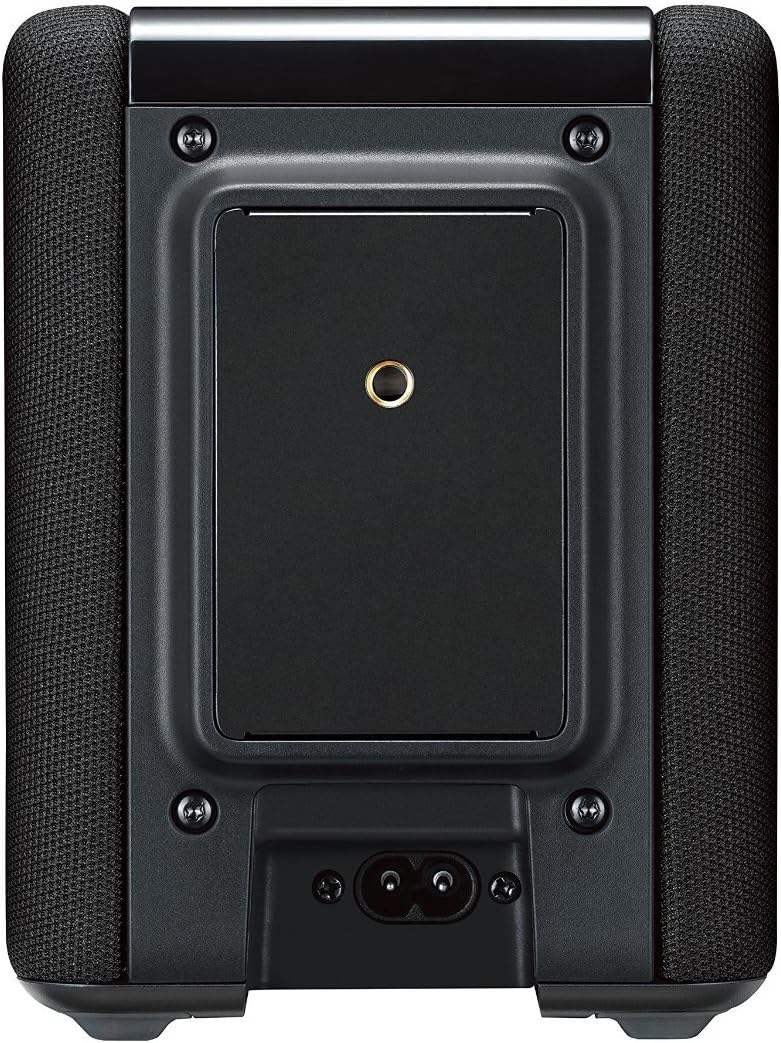
Figure 4.1: Top panel controls of the WX-010 speaker.
- Power Button: Press to turn the speaker on or off.
- Connect Button: Used for network setup and linking with other MusicCast devices.
- Volume Up/Down: Adjusts the playback volume.
- Play/Pause: Controls media playback.
4.2 MusicCast App Control
The MusicCast CONTROLLER app provides comprehensive control over your WX-010 speaker and any other MusicCast-enabled devices in your home.
- Room Selection: Easily select individual rooms or groups of rooms to play music.
- Source Selection: Choose from various sources including streaming services (Spotify, Pandora, Rhapsody, SiriusXM), network music libraries, or connected devices via Bluetooth/AirPlay.
- Multi-Room Audio: Link multiple MusicCast devices to play the same music simultaneously across different rooms, or play different music in each room.
- Stereo Pairing: Use two WX-010 speakers in stereo mode for a wider soundstage and enhanced audio experience. This is configured within the MusicCast app.
4.3 Bluetooth and AirPlay
The WX-010 supports Bluetooth and AirPlay for direct streaming from compatible mobile devices or computers.
- Bluetooth Pairing: Activate Bluetooth on your mobile device and select "WX-010" from the list of available devices.
- AirPlay: For Apple devices, select the WX-010 as an AirPlay speaker from your device's audio output options.
5. Key Features
The Yamaha MusicCast WX-010 Wireless Speaker offers a range of features designed to enhance your audio experience:
- Voice Control Compatibility: Works with Amazon Alexa for convenient voice control (Alexa device sold separately).
- Compact and Versatile Design: Its space-saving design allows it to fit seamlessly into any room in your home.
- Extensive Music Access: Provides access to your personal music library, popular streaming services like Pandora, Spotify, Rhapsody, and more.
- Multiple Connectivity Options: Features Wi-Fi, Bluetooth, AirPlay, and Spotify Connect for flexible audio streaming.
- MusicCast Multi-Room Audio: Create a whole-home audio system with other MusicCast products, all controlled via a free app for Apple iOS and Android devices.
- High-Quality Sound: Equipped with a two-way speaker design and passive radiator enhancement for deep, rich bass and clear audio.
- Stereo Pairing: Combine two WX-010 units to function as a stereo pair, delivering a more expansive and immersive soundstage.

Figure 5.1: The WX-010's compact design allows for flexible placement in various home environments.
6. Specifications
| Feature | Specification |
|---|---|
| Brand | Yamaha |
| Model Name | MusicCast WX-010 |
| Model Number | WX-010BL |
| Speaker Maximum Output Power | 25 Watts |
| Connectivity Technology | Bluetooth, Wi-Fi |
| Audio Output Mode | Stereo |
| Mounting Type | Tabletop Mount |
| Speaker Type | Surround |
| Controller Type | Amazon Alexa, Android, iOS |
| Color | Black |
| Control Method | Voice |
| Number of Audio Channels | 2.0 |
| Item Weight | 3 Pounds |
| Power Source | AC |
| Compatible Devices | Home Theater, Laptop, Smartphone, Tablet, Television |
| UPC | 027108954653 |
7. Maintenance
To ensure the longevity and optimal performance of your Yamaha MusicCast WX-010 speaker, follow these simple maintenance guidelines:
- Cleaning: Gently wipe the exterior of the speaker with a soft, dry cloth. Avoid using abrasive cleaners, waxes, or solvents as they may damage the finish.
- Placement: Place the speaker on a stable, level surface away from direct sunlight, heat sources, and excessive moisture. Ensure adequate ventilation around the unit.
- Power: Disconnect the power cable from the wall outlet if the speaker will not be used for an extended period.
8. Troubleshooting
If you encounter issues with your WX-010 speaker, refer to the following common troubleshooting steps:
- No Power:
- Ensure the power cable is securely connected to both the speaker and a working AC outlet.
- Verify the power outlet is functional by plugging in another device.
- No Sound:
- Check the volume level on both the speaker and your source device (e.g., smartphone, MusicCast app).
- Confirm the correct input source is selected in the MusicCast app.
- Ensure the speaker is properly connected to your Wi-Fi network.
- Cannot Connect to Wi-Fi:
- Restart your Wi-Fi router and the WX-010 speaker.
- Ensure your mobile device is connected to the same Wi-Fi network you are trying to connect the speaker to.
- Try repeating the network setup process via the MusicCast app.
- Move the speaker closer to your Wi-Fi router to rule out signal strength issues.
- Music Stuttering/Dropping Out:
- Check your Wi-Fi network's stability and signal strength.
- Reduce the distance between the speaker and your Wi-Fi router.
- Minimize interference from other wireless devices.
- Ensure your internet connection is stable if streaming from online services.
- MusicCast App Issues:
- Ensure the app is updated to the latest version.
- Restart the app or your mobile device.
- If issues persist, try reinstalling the MusicCast app.
For more detailed troubleshooting, please refer to the comprehensive user manual provided with your product or visit the official Yamaha support website.
9. Warranty and Support
The Yamaha MusicCast WX-010 Wireless Speaker comes with a Limited Manufacturer's Warranty. Please refer to the registration card and the detailed warranty information included in your product packaging for specific terms and conditions.
For technical support, service, or additional product information, please visit the official Yamaha website or contact Yamaha customer service. Keep your proof of purchase for warranty claims.
Online Support: www.yamaha.com/support/