
1. Introduction
The JAM Rhythm WiFi Home Audio Speaker (Model HX-W09901) utilizes WiFi technology to stream music throughout your home. This speaker integrates with Amazon Alexa Voice Service and can be controlled via a dedicated smartphone application. It features 2.1 stereo sound with a built-in subwoofer, suitable for mid-sized rooms. Multiple JAM WiFi speakers can be synced for a comprehensive home audio solution without complex wiring.
2. Package Contents
Verify that all items are present in the package:
- JAM Rhythm WiFi Home Audio Speaker (HX-W09901)
- Charging Cable
- Quick Start Guide
- Instruction Book (English)
- Instruction Book (Spanish)
- Warranty Information
3. Product Overview
Familiarize yourself with the components and controls of your JAM Rhythm speaker.
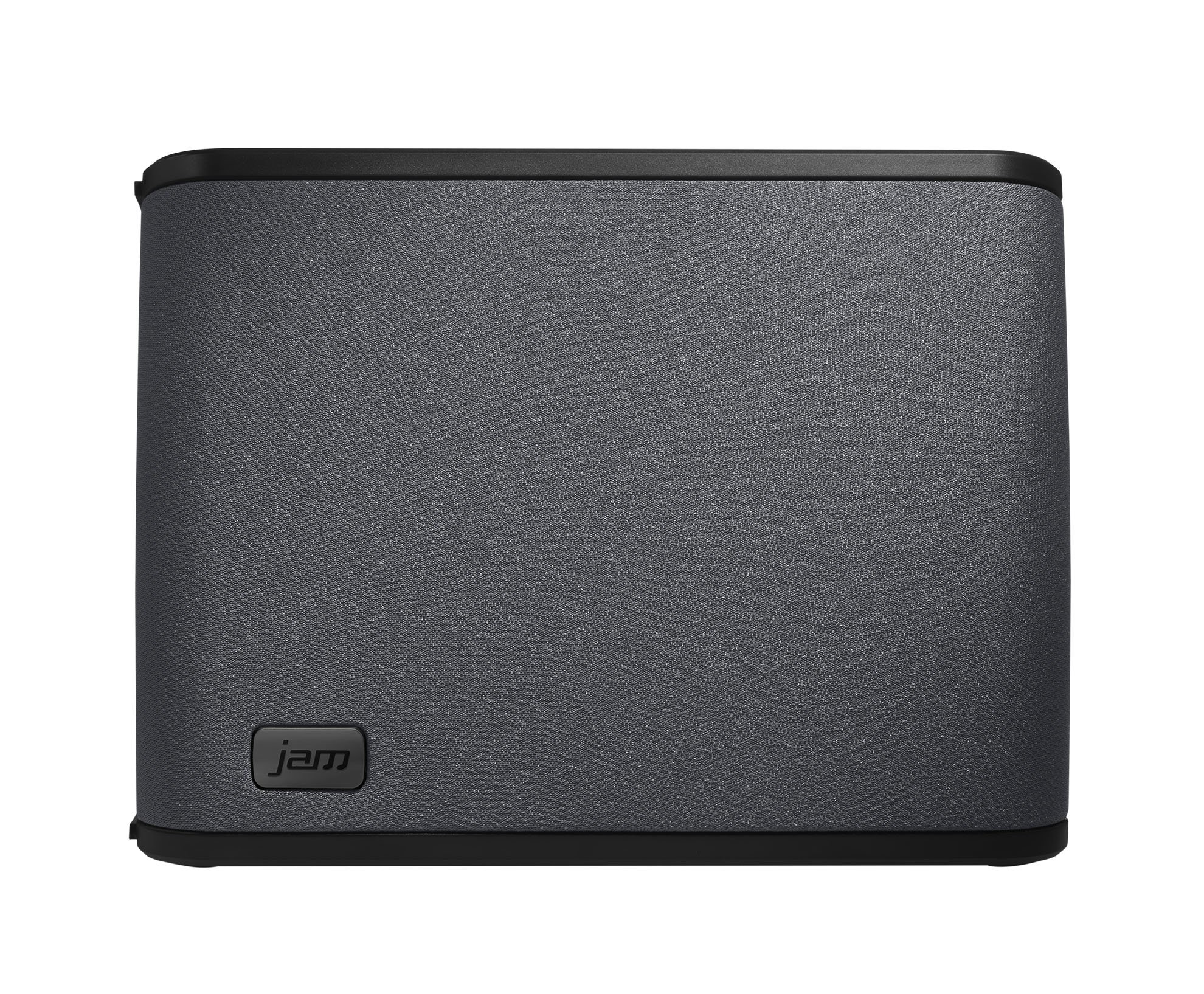
Figure 3.1: Front view of the JAM Rhythm speaker. The speaker features a dark grey fabric grille with the 'jam' logo on the bottom right.
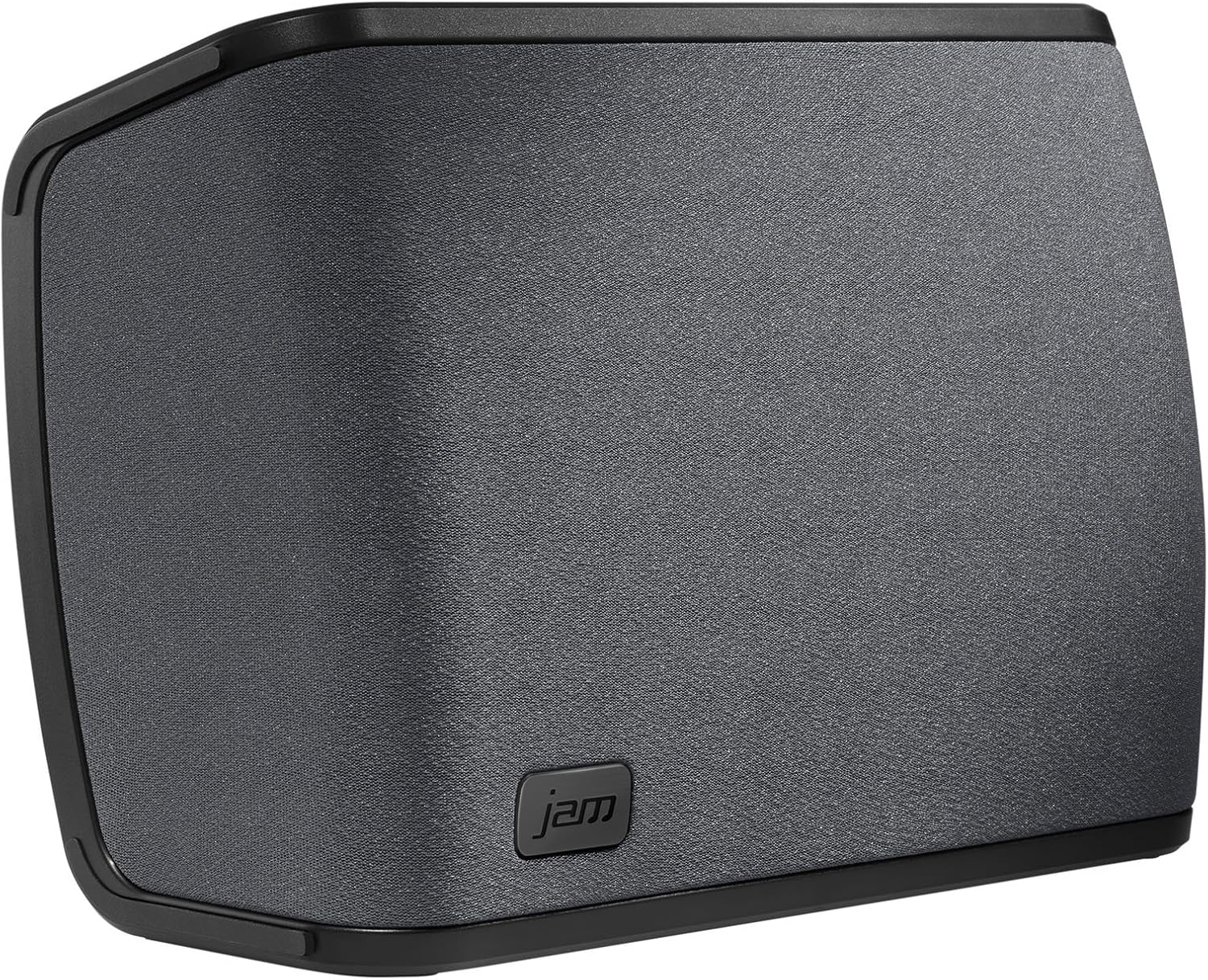
Figure 3.2: Angled view of the JAM Rhythm speaker, highlighting the top panel with control buttons. These buttons typically include power, volume, and playback controls.

Figure 3.3: Top view of the JAM Rhythm speaker, clearly showing the array of control buttons for power, volume adjustment, play/pause, and potentially mode selection.
4. Setup
4.1 Powering On
- Connect the charging cable to the DC power input port on the speaker.
- Plug the other end of the charging cable into a power outlet.
- Press and hold the Power button on the top of the speaker until the indicator light illuminates.
4.2 App Installation
The JAM Wi-Fi App is required for full functionality and control of your speaker.
- Download the "JAM Wi-Fi App" from your device's app store (e.g., Apple App Store for iOS, Google Play Store for Android).
- Ensure your smartphone or tablet is connected to the same Wi-Fi network you intend to use for the speaker.

Figure 4.1: Screenshot of the JAM Wi-Fi App interface, displaying options for various music streaming services such as Spotify, TuneIn, iHeartRadio, and Tidal, along with an Amazon Alexa integration button.
4.3 Connecting to Wi-Fi
- Open the JAM Wi-Fi App on your smartphone or tablet.
- Follow the on-screen instructions within the app to connect your JAM Rhythm speaker to your home Wi-Fi network. This typically involves selecting the speaker from a list of available devices and entering your Wi-Fi password.
- Once connected, the speaker's Wi-Fi indicator light will confirm the connection status.
4.4 Pairing Multiple Speakers (Multi-Room Audio)
You can sync up to 8 JAM Wi-Fi speakers for a multi-room audio experience.
- Ensure all JAM Wi-Fi speakers are powered on and connected to the same Wi-Fi network via the JAM Wi-Fi App.
- Within the JAM Wi-Fi App, navigate to the speaker grouping or multi-room audio section.
- Select the speakers you wish to group together. You can create different groups for various rooms (e.g., "Living Room," "Bedroom").
- Adjust individual speaker volumes or group volumes as desired within the app.

Figure 4.2: Screenshot of the JAM Wi-Fi App demonstrating multi-room control, allowing users to manage music playback and volume for speakers in different locations like "BEDROOM" and "OFFICE".
5. Operating Instructions
5.1 Music Streaming
Stream music from various services through the JAM Wi-Fi App:
- Open the JAM Wi-Fi App.
- Select your desired music service (e.g., Spotify, iHeartRadio, TuneIn, Tidal) or access your personal music library.
- Choose the music you wish to play and select the JAM Rhythm speaker (or a speaker group) as the output device.
- Use the app or the physical buttons on the speaker to control playback (play/pause, skip tracks, adjust volume).
5.2 Amazon Alexa Voice Service
The JAM Rhythm speaker supports Amazon Alexa Voice Service via the JAM Wi-Fi App.
- Open the JAM Wi-Fi App.
- Locate and tap the Alexa icon within the app.
- Press and hold the Alexa icon to speak your command or question.
- Release the icon once you have finished speaking. Alexa will process your request and respond through the speaker.

Figure 5.1: Screenshot of the JAM Wi-Fi App interface, illustrating the Intercom and Alexa voice command features. Users can press and hold the Alexa icon to issue commands.
5.3 Intercom Feature
Use the built-in intercom feature to communicate through your connected JAM Wi-Fi speakers.
- Open the JAM Wi-Fi App.
- Select the Intercom feature.
- Speak into your smartphone's microphone. Your voice will be broadcast through the selected JAM Wi-Fi speakers.
5.4 One-Touch Music Presets
Access your favorite music or stations quickly using one-touch presets configured within the JAM Wi-Fi App.
- Refer to the JAM Wi-Fi App's settings to configure and manage your one-touch music presets.
- Once configured, these presets can be activated directly from the app.
6. Maintenance
- Cleaning: Use a soft, dry cloth to clean the exterior of the speaker. Do not use liquid cleaners or abrasive materials.
- Storage: Store the speaker in a cool, dry place away from direct sunlight and extreme temperatures when not in use for extended periods.
- Water Exposure: This product is not waterproof. Avoid exposing the speaker to water or moisture.
7. Troubleshooting
| Problem | Possible Cause | Solution |
|---|---|---|
| Speaker does not power on. | No power supply or faulty cable. | Ensure the charging cable is securely connected to both the speaker and a working power outlet. Try a different outlet. |
| Cannot connect to Wi-Fi. | Incorrect Wi-Fi password, speaker out of range, or network issue. | Verify the Wi-Fi password. Move the speaker closer to the Wi-Fi router. Restart your router and the speaker. Ensure your smartphone is on the same Wi-Fi network during setup. |
| No sound from speaker. | Volume too low, speaker muted, or incorrect audio source selected. | Increase volume on the speaker and in the JAM Wi-Fi App. Check if the speaker is muted. Ensure the correct speaker is selected as the output device in your app. |
| Alexa not responding. | Microphone not activated, internet connectivity issue, or app not open. | Ensure you are pressing and holding the Alexa icon in the app while speaking. Verify stable internet connection. Ensure the JAM Wi-Fi App is open and active. |
| Multi-room audio not syncing. | Speakers not on the same network or grouping error. | Confirm all speakers are connected to the same Wi-Fi network. Re-create the speaker group in the JAM Wi-Fi App. |
8. Specifications
| Model Number | HX-W09901 |
| Brand | JAM |
| Connectivity | Wi-Fi |
| Audio Output Mode | Stereo (2.1 channel with built-in subwoofer) |
| Control Method | Voice (via Alexa), App (JAM Wi-Fi App) |
| Compatible Devices | Smartphone, Tablet, Laptop |
| Power Source | DC |
| Product Dimensions | 16 x 21.21 x 19.05 cm (6.3 x 8.35 x 7.5 inches) |
| Item Weight | 1.81 kg (4 lbs) |
| Material | Plastic |
| Color | Black |
| Waterproof | No |
| Maximum Speaker Power Output | 100 Watts |
9. Warranty and Support
9.1 Warranty Information
This JAM Rhythm WiFi Home Audio Speaker comes with a One Year Limited Warranty. Please refer to the included "Warranty - One Year Limited" document in your package for detailed terms and conditions regarding warranty coverage, limitations, and how to make a claim.
9.2 Customer Support
For technical assistance, troubleshooting beyond this manual, or warranty inquiries, please contact JAM customer support. Contact information can typically be found on the manufacturer's official website or within the warranty document provided with your product.