
1. Product Overview
The Excelvan Wireless Weather Station (Model AOK-5061A) is designed to provide accurate indoor and outdoor temperature and humidity readings, along with weather forecasts and an alarm clock function. It features a large, colorful LCD display with LED backlight for easy readability.
Key Features:
- Indoor/Outdoor Temperature and Humidity Measurement
- Weather Forecast with 5 Icons (Sunny, Partially Sunny, Cloudy, Rain, Heavy Rain)
- DCF Radio-Controlled Clock with Manual Setting
- Alarm with Snooze Function
- Large Color LCD Display with LED Backlight
- DST (Daylight Saving Time) Automatic Update
- Wireless Outdoor Sensor with up to 50m range

Figure 1: Front view of the Excelvan Wireless Weather Station main unit, displaying weather forecast, outdoor/indoor temperature and humidity, and time.
2. Setup Guide
2.1 Package Contents
Before proceeding with the setup, ensure all items are present in the package:
- 1 x Weather Station Main Unit
- 1 x Wireless Remote Sensor
- 1 x AC Power Adapter
- 1 x User Manual

Figure 2: The complete package contents, including the main weather station unit, wireless remote sensor, power adapter, and user manual.
2.2 Powering the Main Unit
- Battery Installation (Optional): Open the battery compartment on the back of the main unit. Insert 3 x 1.5V AA batteries (not included), ensuring correct polarity. The LED backlight will stay on for 5 minutes when powered by batteries.
- AC Power Adapter (Recommended): For continuous backlight, connect the provided AC power adapter (4.5V, 150mA) to the main unit's power input and then plug it into a wall outlet.

Figure 3: Rear view of the main unit showing the battery compartment with the cover removed, ready for battery insertion.

Figure 4: Rear view of the main unit with the AC power adapter connected, illustrating the power input port.
2.3 Powering the Wireless Remote Sensor
- Open the battery compartment of the wireless remote sensor.
- Insert 2 x 1.5V AAA batteries (not included), ensuring correct polarity.
- Close the battery compartment securely.

Figure 5: The wireless remote sensor, showing its display and the battery compartment on the back.
2.4 Sensor Placement
- The main unit is intended for indoor use only.
- Place the wireless remote sensor outdoors in a sheltered area, away from direct sunlight and rain, to ensure accurate readings.
- Ensure the sensor is within 50 meters (open space) of the main unit for optimal signal reception.
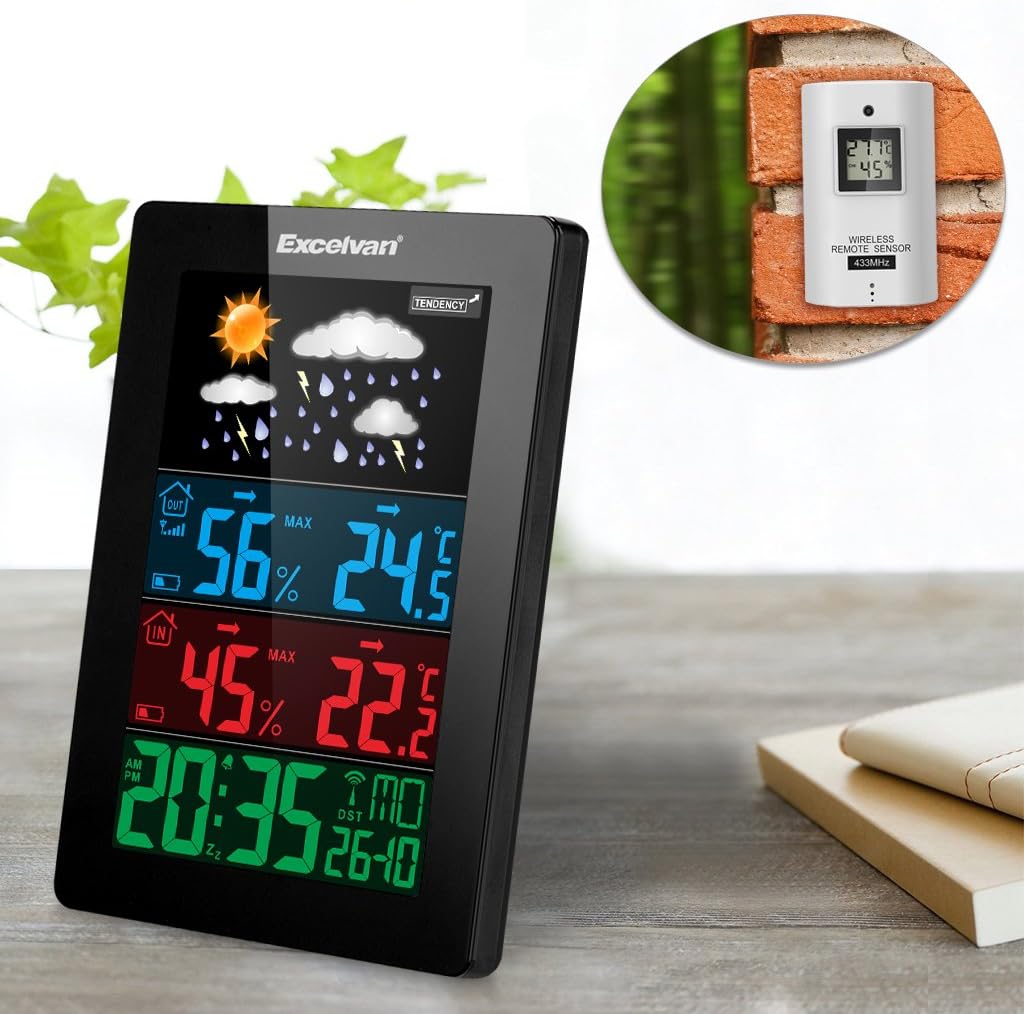
Figure 6: An illustration showing the main weather station unit indoors and the wireless remote sensor mounted on an outdoor wall.

Figure 7: A diagram highlighting the effective wireless transmission distance of 50 meters between the main unit and the remote sensor.
3. Operating Instructions
3.1 Initial Synchronization
After powering both units, the main unit will automatically attempt to synchronize with the remote sensor and receive the DCF radio-controlled time signal. This process may take a few minutes.
3.2 Display Overview
The large LCD display shows various information:
- Top Section: Weather forecast icons (sunny, cloudy, rainy, etc.) and weather tendency indicator.
- Middle-Top Section (Blue): Outdoor humidity and temperature.
- Middle-Bottom Section (Red): Indoor humidity and temperature.
- Bottom Section (Green): Current time (12/24 hour format), day of the week, and date.
Figure 8: Close-up of the main unit's display, illustrating the different data sections for weather, outdoor/indoor conditions, and time.
3.3 Setting Time and Date Manually
While the unit is radio-controlled, manual adjustments can be made:
- Press the MODE button to cycle through display modes.
- Hold the MODE button for a few seconds to enter time setting mode.
- Use the + and - buttons to adjust values.
- Press MODE again to confirm and move to the next setting (e.g., hour, minute, year, month, day, language for day of week).
3.4 Alarm and Snooze Function
- Press the ALARM button to view or set the alarm time.
- Hold the ALARM button to enter alarm setting mode. Use + and - to adjust.
- To activate/deactivate the alarm, press the ALARM button briefly. An alarm icon will appear/disappear on the display.
- When the alarm sounds, touch the SNOOZE/LIGHT button on top of the unit to activate the snooze function. The alarm will sound again after a few minutes.
- To stop the alarm completely, press any other button.

Figure 9: Top edge of the main unit, highlighting the "SNOOZE/LIGHT" touch-sensitive button for alarm snooze and backlight activation.
3.5 Temperature Unit Selection
Press the - button to switch between Celsius (°C) and Fahrenheit (°F) temperature units.
3.6 Weather Forecast
The weather station predicts weather conditions based on atmospheric pressure changes. The icons (sunny, partially sunny, cloudy, rain, heavy rain) indicate the forecast for the next 12-24 hours, not the current weather.
4. Maintenance
- Cleaning: Wipe the main unit and sensor with a soft, damp cloth. Do not use abrasive cleaners or solvents.
- Battery Replacement: Replace batteries in both the main unit and the remote sensor when the low battery indicator appears on the display. Ensure correct polarity.
- Sensor Placement: Periodically check the outdoor sensor's placement to ensure it remains sheltered and within range.
- Storage: If storing the unit for an extended period, remove all batteries to prevent leakage.
5. Troubleshooting
| Problem | Possible Cause | Solution |
|---|---|---|
| No outdoor temperature/humidity reading. |
|
|
| Incorrect time display. |
|
|
| Display is dim or blank. |
|
|
6. Specifications
| Feature | Detail |
|---|---|
| Radio Controlled Clock | DCF77 |
| Indoor Temperature Range | 0 °C to +50 °C (32 °F to 122 °F) |
| Outdoor Temperature Range | -20 °C to +60 °C (-4 °F to 140 °F) |
| Temperature Measurement Accuracy | ±2 °C |
| Indoor/Outdoor Humidity Range | 20-90 % RH |
| Humidity Resolution | 1 % |
| Wireless Sensor Frequency | 433 MHz |
| Wireless Signal Range | Up to 50 meters (open space) |
| Probe Cable Length (for external probe, if applicable) | 1 m |
| Waterproof Level of Sensor | IPX3 |
| Main Station Power | 3 x 1.5V AA batteries (not included) or 4.5V, 150mA AC adapter (included) |
| Remote Sensor Power | 2 x 1.5V AAA batteries (not included) |
| Main Station Dimensions | 148 × 110 × 30 mm |
| Main Station Weight (without batteries) | 242 g |
| Remote Sensor Dimensions | 60 × 100 × 20 mm |
| Remote Sensor Weight (without batteries) | 50 g |
| Day of Week Languages | German, English, Italian, French, Dutch, Spanish, Danish |
7. Warranty and Support
For warranty information or technical support, please refer to the documentation provided with your purchase or contact Excelvan customer service through their official website or your retailer.
Note: This manual is for informational purposes only. Specifications are subject to change without notice.
