
DIGITNOW BR116
DIGITNOW Ezcap USB 2.0 Audio/Video Converter (Model BR116) Instruction Manual
Introduction
This manual provides comprehensive instructions for the setup, operation, and maintenance of your DIGITNOW Ezcap USB 2.0 Audio/Video Converter, Model BR116. This device allows you to digitize analog video and audio from sources such as VCRs, VHS tapes, and DVD players, preserving your media in a digital format on your computer.
Product Overview
The DIGITNOW Ezcap USB 2.0 Audio/Video Converter is a compact device designed to bridge analog video equipment with your computer. It features a USB 2.0 interface for connection to your PC and includes S-Video and composite (RCA) inputs for various analog sources. The converter captures video and audio, enabling you to save it digitally.
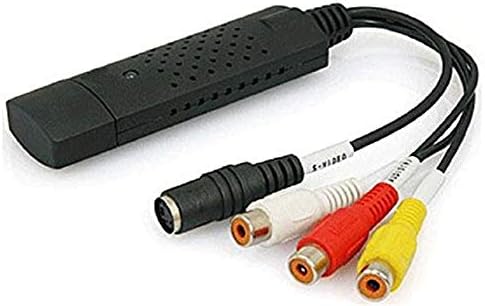
Image: The DIGITNOW Ezcap USB 2.0 Audio/Video Converter. This image displays the black USB dongle with integrated cables for S-Video (black round connector) and composite video (yellow RCA) and stereo audio (red and white RCA) inputs.
Package Contents
Please verify that all items are present in your package:
- DIGITNOW Ezcap USB 2.0 Audio/Video Converter (Model BR116)
- Installation CD (containing drivers and capture software)
- Quick Start Guide (or similar documentation)
System Requirements
To ensure proper functionality, your computer must meet the following minimum requirements:
- Operating System: Windows XP SP2, Windows Vista, Windows 7, Windows 8, Windows 10
- Interface: Available USB 2.0 port
- Processor: Pentium III 800 MHz or higher (recommended)
- RAM: 256 MB of RAM or higher (recommended)
- Display: 1024x768 or higher screen resolution
- Sound Card: Compatible with Windows
- Storage: 600 MB of available hard drive space for software installation, plus 4 GB for video capture and editing (recommended)
Setup Guide
Follow these steps to set up your DIGITNOW Ezcap USB 2.0 Audio/Video Converter:
- Install Software and Drivers: Insert the provided installation CD into your computer's CD/DVD drive. Follow the on-screen instructions to install the necessary drivers and video capture software (e.g., Honestech VHS to DVD 2.0 or similar). If your computer lacks a CD drive, you may need to download drivers and software from the manufacturer's support website.
- Connect to PC: Plug the USB connector of the Ezcap converter into an available USB 2.0 port on your computer. The operating system should detect the new hardware and complete the driver installation.
- Connect Analog Source:
- For Composite Video (RCA): Connect the yellow RCA cable from your analog source (VCR, DVD player, camcorder) to the yellow video input on the Ezcap converter. Connect the red and white RCA cables from your analog source to the corresponding red (right audio) and white (left audio) audio inputs on the converter.
- For S-Video: Connect the S-Video cable from your analog source to the S-Video input on the Ezcap converter. For audio, you will still need to connect the red and white RCA audio cables from your analog source to the converter.
- Power On Devices: Ensure your analog video source (VCR, DVD player) and your computer are powered on.
Operating Instructions
Once the setup is complete, follow these steps to capture video:
- Launch Capture Software: Open the video capture software installed on your computer (e.g., Honestech VHS to DVD).
- Select Device and Input: Within the software, navigate to the settings or preferences to select the Ezcap USB 2.0 device as your video and audio input source. Choose the correct input type (Composite or S-Video) based on your connection.
- Preview Video: Start playback on your analog source (e.g., play a VHS tape). You should see the video preview in the capture software window. Adjust video settings like brightness, contrast, and saturation within the software if necessary.
- Start Recording: Click the "Record" button in the software to begin capturing the video and audio.
- Monitor Recording: Monitor the recording process. Note that some software may automatically split large video files.
- Stop Recording: Once your desired content has been captured, click the "Stop" button in the software. Stop playback on your analog source.
- Save and Edit: Save the captured video file to your computer. The software may offer basic editing features, or you can use third-party video editing software for further refinement.
Maintenance
To ensure the longevity and optimal performance of your Ezcap USB 2.0 Audio/Video Converter, follow these maintenance guidelines:
- Cleaning: Use a soft, dry cloth to clean the exterior of the device. Avoid using liquid cleaners or solvents.
- Storage: Store the converter in a cool, dry place away from direct sunlight and extreme temperatures when not in use.
- Handling: Handle the device and its cables with care to prevent damage to connectors or internal components.
- Software Updates: Periodically check the manufacturer's website for updated drivers or software versions to improve compatibility and performance.
Troubleshooting
If you encounter issues with your Ezcap USB 2.0 Audio/Video Converter, refer to the following common problems and solutions:
- No Video Signal:
- Ensure all cables (USB, video, audio) are securely connected.
- Verify that the analog source (VCR, DVD player) is powered on and playing content.
- Check that the correct input source (Composite or S-Video) is selected in the capture software.
- Confirm that the Ezcap device is selected as the video input device in your software settings.
- No Audio or Poor Audio Quality:
- Ensure the red and white RCA audio cables are correctly connected to both the source and the converter.
- Check audio settings in the capture software to ensure the Ezcap device is selected as the audio input.
- Adjust volume levels on both the analog source and within the capture software.
- If audio is choppy or clips, try reducing the input volume from the source or checking for updated drivers.
- Software Issues (e.g., activation codes, outdated software):
- If prompted for an activation code, refer to the software packaging or contact the software developer's support.
- The included software may be basic or outdated. Consider searching for alternative, compatible video capture software online if you experience significant limitations or compatibility issues with newer Windows versions.
- Ensure your operating system is fully updated.
- Video Aspect Ratio Incorrect:
- Some older capture software may not fully support widescreen (16:9) aspect ratios. Check software settings for aspect ratio options. If unavailable, post-capture editing may be required.
- Device Not Recognized by PC:
- Try plugging the converter into a different USB port.
- Reinstall the drivers from the installation CD or the manufacturer's website.
- Ensure your operating system meets the minimum requirements.
Specifications
| Feature | Detail |
|---|---|
| Model Name | BR116 |
| Hardware Interface | USB 2.0 |
| Video Inputs | S-Video, Composite Video (RCA) |
| Audio Inputs | Stereo RCA (Left/Right) |
| Video Capture Resolution | NTSC: 720x480; PAL: 720x576 (Standard definition for analog sources) |
| Operating System Support | Windows XP SP2 / Vista / 7 / 8 / 10 |
| Product Dimensions | 7 x 6 x 1 inches |
| Item Weight | 3.84 ounces |
| Manufacturer | DigitNow |
Warranty and Support
For warranty information and technical support, please refer to the documentation included with your product or visit the official DIGITNOW website. Keep your purchase receipt as proof of purchase for any warranty claims.
For further assistance, you may also contact the retailer from whom you purchased the product.
Ask a question about this manual
Ask about setup, troubleshooting, compatibility, parts, safety, or missing instructions. Manuals+ will review the question and use this page’s manual context to help answer it.