1. Introduction
This manual provides detailed instructions for the installation, operation, and troubleshooting of your Generic V1.5 Mini ELM327 Bluetooth HHOBD OBDII Car Scan Tool. This device allows you to read and clear diagnostic trouble codes, and monitor various sensor data from your vehicle using an Android device.
2. Safety Information
The ELM327 Bluetooth OBDII Car Scan Tool supports gasoline vehicles. It is not compatible with diesel cars or trucks. Always ensure your vehicle is turned off before connecting or disconnecting the device to prevent potential damage to the vehicle's electrical system or the scan tool.
3. Product Overview
The V1.5 Mini ELM327 Bluetooth HHOBD OBDII Car Scan Tool is a compact diagnostic interface designed for ease of use. It features a standard OBDII connector for direct plug-in to your vehicle's diagnostic port and uses Bluetooth for wireless communication with your Android device.

Figure 1: Front view of the ELM327 Bluetooth OBDII Car Scan Tool, showing indicator lights and branding.

Figure 2: Side view of the scan tool, highlighting the 16-pin OBDII connector.
4. Compatibility
This device is designed for use with Android system cell phones and tablets. It is compatible with the following OBDII protocols for vehicles manufactured after 1996:
- SAE J1850 PWM (41.6 kbaud)
- SAE J1850 VPW (10.4 kbaud)
- ISO 9141-2 (5 baud init, 10.4 kbaud)
- ISO 14230-4 KWP (5 baud init, 10.4 kbaud)
- ISO 14230-4 KWP (fast init, 10.4 kbaud)
- ISO 15765-4 CAN (11 bit ID, 500 kbaud)
- ISO 15765-4 CAN (29 bit ID, 500 kbaud)
- ISO 15765-4 CAN (11 bit ID, 250 kbaud)
- ISO 15765-4 CAN (29 bit ID, 250 kbaud)
Your vehicle must have a 16-pin Data Link Connector (DLC) under the dash and its Vehicle Emission Control Information Label must state that it is OBD II compliant. This tool does not support iOS or Mac systems, diesel cars, or trucks.
5. Setup and Installation
5.1 Physical Installation
- Locate your vehicle's 16-pin OBDII diagnostic port, typically found under the dashboard on the driver's side.
- Ensure your vehicle's ignition is off.
- Plug the ELM327 Bluetooth scan tool firmly into the OBDII port. The device should power on, indicated by an illuminated LED.
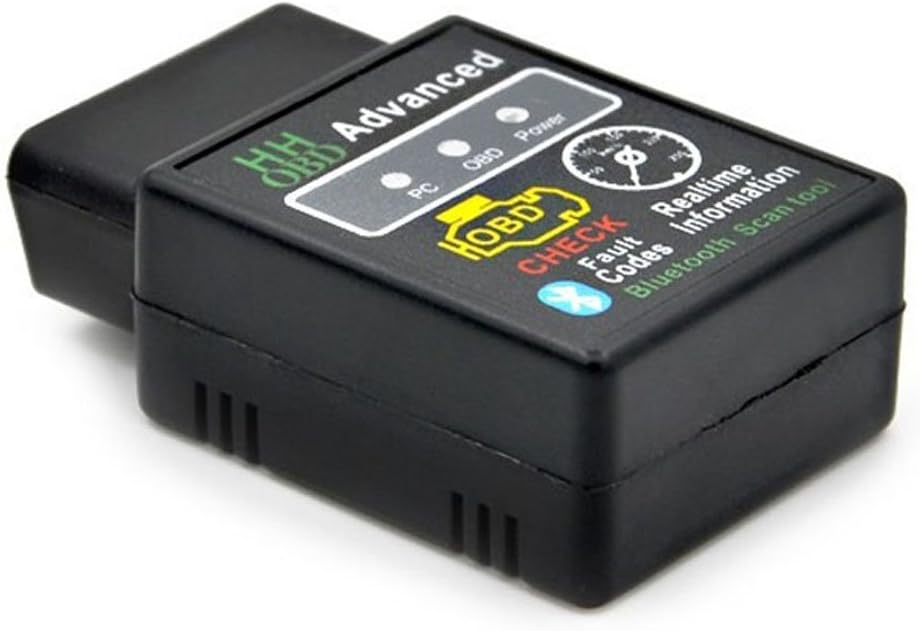
Figure 3: The ELM327 device connected to the vehicle's OBDII port.

Figure 4: Another view of the ELM327 device connected to the vehicle's OBDII port.
5.2 Software Installation (Android)
The ELM327 supports various Android applications, such as 'Torque'. A software CD may be included with your purchase.

Figure 5: Example of a software CD that may be included for installing the application.
Follow these steps to install the 'Torque' application:

Figure 6: Installation steps for the Torque application on an Android device. This image illustrates installing the OBDII application and then the Torque_v1.5.58.apk file, followed by confirming the installation.
- Install OBDII: Plug the ELM327 device into your car's OBDII port.
- Install Android Software: If you have the software CD, copy the 'Torque_v1.5.58.apk' file to your Android phone. Alternatively, download a compatible OBDII scanner app like 'Torque Lite' from the Google Play Store. Install the application, granting necessary permissions.
5.3 Bluetooth Pairing
After installing the software, you need to pair the ELM327 device with your Android phone via Bluetooth.

Figure 7: Bluetooth pairing process. This image shows searching for the OBDII device, entering the PIN (1234 or 0000), and confirming a successful connection.
- Turn on Bluetooth on your Android device.
- Search for available Bluetooth devices. The ELM327 device will typically appear as 'OBDII' or 'HHOBD'.
- Select the device to pair. When prompted for a PIN, enter 1234 or 0000.
- Confirm successful pairing.
6. Operating Instructions
Once the device is physically connected and paired via Bluetooth, you can use the installed application to access vehicle data.

Figure 8: Torque app interface. This image shows how to navigate to 'OBD2 Adapter Settings', select 'Bluetooth' as the connection type, choose the paired 'OBDII' device, and a screen indicating a successful connection to the ECU with live data display.
- Turn your vehicle's ignition to the 'ON' position (engine can be off or running, depending on the data you wish to retrieve).
- Open the 'Torque' application on your Android device.
- Navigate to the application's settings (usually a gear icon).
- Select 'OBD2 Adapter Settings' or similar.
- Choose 'Bluetooth' as the connection type and select the 'OBDII' device from the list of paired devices.
- The application should now attempt to connect to your vehicle's ECU. A successful connection will be indicated within the app, and you can begin monitoring data or reading codes.
7. Key Functions
The ELM327 Bluetooth OBDII Car Scan Tool provides the following diagnostic capabilities:
- Read diagnostic trouble codes (DTCs), both generic and manufacturer-specific, with over 3000 generic code definitions.
- Clear trouble codes and turn off the Malfunction Indicator Lamp (MIL), commonly known as the "Check Engine" light.
- Display current sensor data, including:
- Engine RPM
- Calculated Load Value
- Coolant Temperature
- Fuel System Status
- Vehicle Speed
- Short Term Fuel Trim
- Long Term Fuel Trim
- Intake Manifold Pressure
- Timing Advance
- Intake Air Temperature
- Air Flow Rate
- Absolute Throttle Position
- Oxygen sensor voltages/associated short term fuel trims
- Fuel System status
- Fuel Pressure
8. Troubleshooting
- Device not powering on: Ensure the device is fully seated in the OBDII port. Check your vehicle's fuse for the OBDII port if still no power.
- Bluetooth pairing issues: Double-check the PIN (1234 or 0000). Ensure Bluetooth is enabled on your Android device and no other devices are interfering. Try restarting both the phone and the scan tool.
- App not connecting to ECU: Ensure the vehicle's ignition is on. Verify that the correct Bluetooth device is selected in the app's settings. Some vehicles may require the engine to be running for full data access.
- No data or incorrect data: Confirm your vehicle is OBDII compliant and manufactured after 1996. Ensure the app is up-to-date.
- App crashes or freezes: Try clearing the app's cache or reinstalling the application. Ensure your Android device meets the app's minimum system requirements.
9. Specifications
| Hardware Version | V1.5 |
| Software Version | V2.1 |
| Connection Type | Bluetooth |
| Supported OS | Android |
| Default Bluetooth PIN | 1234 or 0000 |
| Item Weight | 1.06 ounces (approx. 30 grams) |
| Product Dimensions | 1.97 x 0.98 x 1.38 inches (approx. 5 x 2.5 x 3.5 cm) |
| Model Number | 327-HH |
| ASIN | B01GXH21DM |
| UPC | 736950830038 |
10. Maintenance
To ensure the longevity and proper functioning of your ELM327 Bluetooth OBDII Car Scan Tool, follow these simple maintenance guidelines:
- Keep the device clean and free from dust and debris. Use a soft, dry cloth for cleaning.
- Store the device in a cool, dry place when not in use, away from direct sunlight and extreme temperatures.
- Avoid dropping the device or subjecting it to strong impacts.
- Do not attempt to disassemble or modify the device, as this will void any potential warranty and could cause damage.
11. Warranty and Support
Specific warranty information for this Generic product is not provided in the available details. For any support inquiries, warranty claims, or technical assistance, please contact the seller or retailer from whom you purchased the device. Retain your proof of purchase for any warranty-related matters.


