
1. Introduction
This manual provides essential information for the installation, operation, and maintenance of your Computer Memory Solutions (CMS) 4GB DDR3 10600 1333MHZ Non ECC SODIMM Memory Ram Upgrade module. This memory module is designed for compatibility with specific Toshiba Satellite P745 series laptops, including models P745-S4217, P745-S4320, and P745-S4360.
Please read this manual thoroughly before proceeding with installation to ensure proper function and to avoid damage to your system or the memory module.
2. Safety Information
When handling computer components, it is crucial to observe the following safety precautions:
- Electrostatic Discharge (ESD) Prevention: Always ground yourself before touching any internal computer components. Use an anti-static wrist strap or frequently touch a grounded metal object (like the computer case) to dissipate static electricity. ESD can severely damage electronic components.
- Power Off: Ensure your computer is completely powered off and unplugged from the wall outlet before opening the case or attempting any installation.
- Battery Removal: For laptops, remove the battery pack before installation.
- Handle with Care: Hold the memory module by its edges, avoiding contact with the gold connectors or the chips on the module.
- Ventilation: Ensure adequate ventilation around your computer to prevent overheating, especially after hardware upgrades.
3. Installation Guide
This section outlines the general steps for installing the SODIMM memory module. Specific steps may vary slightly depending on your laptop model. Refer to your laptop's official service manual for detailed instructions on accessing the memory slots.
3.1. Preparation
- Gather Tools: You may need a small Phillips head screwdriver.
- Power Down: Shut down your laptop completely and disconnect the AC adapter.
- Remove Battery: Remove the laptop's battery.
- Ground Yourself: Wear an anti-static wrist strap or touch a grounded metal object to discharge static electricity.
- Access Memory Bay: Locate and open the memory compartment cover on the bottom of your laptop. This usually involves unscrewing a panel.
3.2. Installing the Memory Module
- Locate Slots: Identify the available SODIMM memory slots. Your Toshiba Satellite P745 series laptop typically has 2 memory sockets, supporting a maximum of 8GB total memory.
- Remove Existing Module (if replacing): If you are replacing an existing module, gently push the metal clips on both sides of the module outwards. The module will pop up at an angle. Carefully pull the module out of the slot.
- Insert New Module: Hold the new CMS memory module by its edges. Align the notch on the module with the key in the memory slot.
- Push and Click: Insert the module firmly into the slot at a 45-degree angle. Once fully seated, push the module down until the metal clips on both sides snap into place, securing the module horizontally.

Figure 1: Angled view of the CMS 4GB DDR3 SODIMM memory module, showing the gold connectors and the "Warranty Void If Removed" sticker.
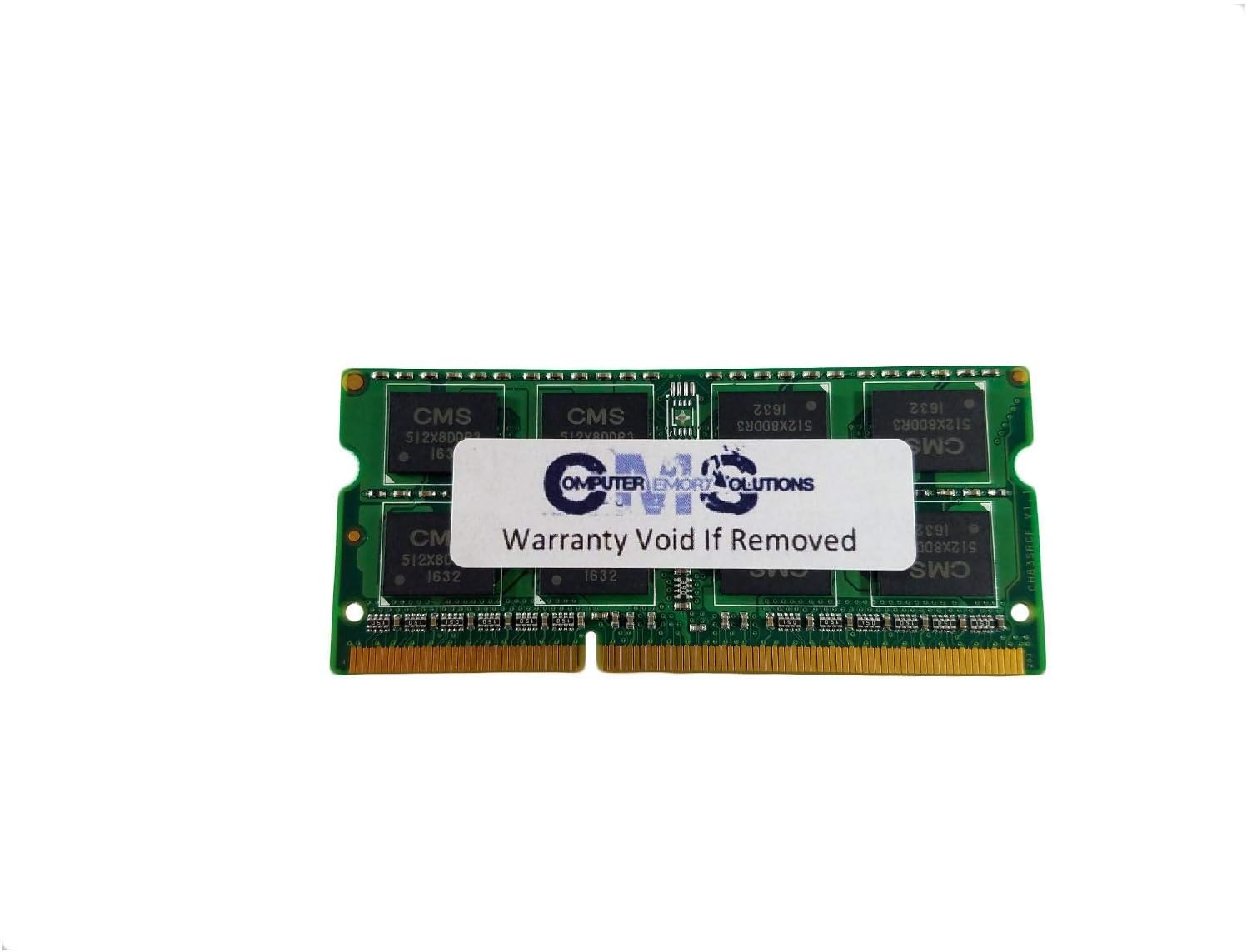
Figure 2: Top-down view of the CMS 4GB DDR3 SODIMM memory module, highlighting the chips and the CMS branding.
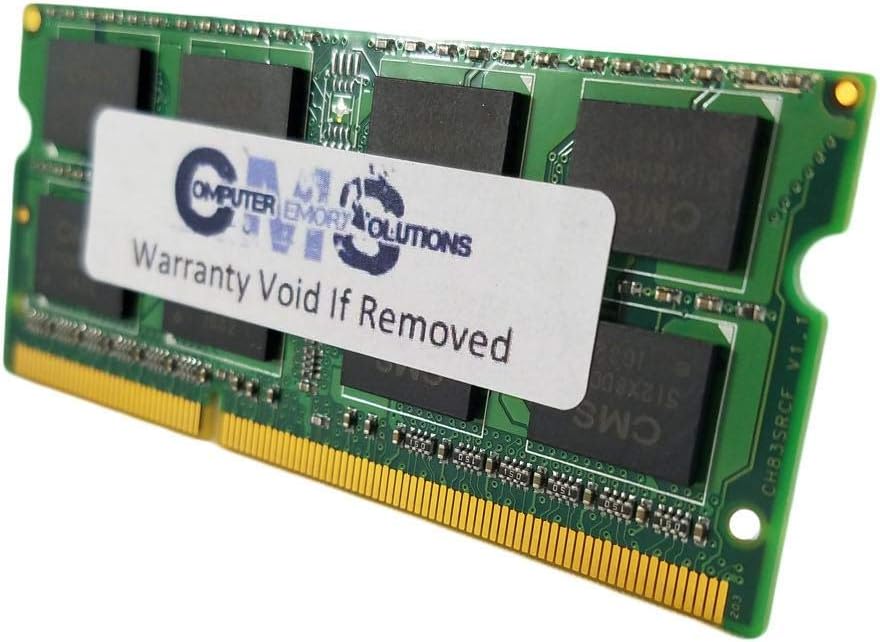
Figure 3: Side view of the CMS 4GB DDR3 SODIMM memory module, showing the thickness and overall dimensions.
3.3. Post-Installation
- Close Bay: Replace the memory compartment cover and secure it with screws.
- Reinstall Battery: Reinstall the laptop battery.
- Power On: Connect the AC adapter and power on your laptop.
- Verify Recognition: Once the system boots, check the system information (usually accessible via BIOS/UEFI settings or within the operating system's system properties) to confirm that the new memory is recognized and the total RAM amount is correct.
4. Operating Information
Once installed and recognized by your system, the CMS memory module operates automatically. It provides the necessary volatile memory for your computer's processor to store and access data quickly, improving overall system performance and multitasking capabilities.
No user interaction is required for the memory module's operation after successful installation and system recognition.
5. Maintenance
Memory modules are generally maintenance-free. However, consider the following for optimal longevity:
- Dust Control: Periodically clean the interior of your laptop to prevent dust buildup, which can impede airflow and lead to overheating. Use compressed air for this purpose.
- Proper Handling: If you ever need to remove or reinstall the module, always follow the safety precautions outlined in Section 2.
- Environmental Conditions: Operate your laptop in a clean, dry environment within recommended temperature ranges to prevent component degradation.
6. Troubleshooting
If you encounter issues after installing the memory module, consider the following troubleshooting steps:
- System Not Booting / No Display:
- Ensure the memory module is fully seated in its slot. Remove and reinsert it, ensuring the clips snap into place.
- Verify that the notch on the module aligns correctly with the key in the slot.
- If multiple modules are installed, try booting with only the new CMS module, or try the new module in a different slot.
- Ensure your laptop's BIOS/UEFI is up to date, as older versions might not fully support newer memory configurations.
- Incorrect RAM Amount Detected:
- Re-seat the module as described above.
- Check your system's specifications to confirm the maximum supported memory and the number of available slots.
- Ensure you have a 64-bit operating system to utilize more than 4GB of RAM.
- System Instability / Blue Screens:
- Run a memory diagnostic tool (e.g., Windows Memory Diagnostic or MemTest86) to check for errors.
- Ensure the module is compatible with your specific laptop model (P745-S4217, P745-S4320, P745-S4360).
7. Specifications
| Feature | Detail |
|---|---|
| Brand | Computer Memory Solutions |
| Model Number | CM5126410600SOX1 |
| Memory Size | 4 GB (1X4GB) |
| Memory Type | DDR3 SODIMM |
| Speed | 1333 MHz (PC3-10600) |
| Pin Count | 204-pin |
| ECC Type | Non ECC |
| Compatible Devices | Laptop (Specifically Toshiba Satellite P745-S4217, P745-S4320, P745-S4360) |
| Product Dimensions | 2.66 x 0.15 x 1.18 inches |
| Item Weight | 2 ounces |
8. Warranty Information
Computer Memory Solutions provides a limited lifetime warranty against manufacturing defects when the product is bought directly from Computer Memory Solutions. This warranty ensures exchange or repair of the module if it fails due to manufacturing defects.
Important Note: The warranty is void if the "Warranty Void If Removed" sticker on the module is removed or tampered with. Product appearance may vary from images; pictures are for reference only.
For warranty claims, please retain your proof of purchase and contact Computer Memory Solutions directly.
9. Support
For technical assistance, troubleshooting beyond this manual, or warranty inquiries, please contact Computer Memory Solutions directly. You can find their contact information through their official Amazon store page or website.
Computer Memory Solutions guarantees compatibility with the models specified in this manual.