Introduction
This manual provides detailed instructions for the installation, operation, and maintenance of your HIFOCUS HF-HD-AHD-804T 8 Channel Digital Video Recorder (DVR). Please read this manual thoroughly before using the product to ensure proper setup and functionality. Retain this manual for future reference.
Product Overview
The HIFOCUS HF-HD-AHD-804T is an 8-channel 5-in-1 HD/Analog CCTV recorder designed for comprehensive surveillance solutions. It supports both High Definition (HD) and Analog CCTV cameras, offering versatility for various security setups.
Key Features:
- 8-Channel Video Input: Supports up to 8 surveillance cameras.
- 5-in-1 Compatibility: Compatible with multiple camera technologies (e.g., AHD, TVI, CVI, CVBS, IP).
- HD / Analog CCTV Camera Support: Flexible for various camera types.
- HDMI Connectivity: For high-quality video output to monitors.
- Durable Metal Casing: Black finish for robust protection.
- Memory Storage Capacity: Supports up to 4 TB for extensive recording.
Product Image:
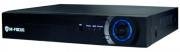
An image showing the front panel of the HIFOCUS HF-HD-AHD-804T 8 Channel DVR. It is a black rectangular device with the 'HI-FOCUS' logo on the left. The front panel includes indicator lights and a circular blue-accented button or dial on the right side, indicating power and operational status.
Setup Instructions
Follow these steps to properly set up your HIFOCUS DVR:
- Unpack the DVR: Carefully remove the DVR and all accessories from the packaging. Verify that all components are present.
- Hard Drive Installation (if applicable): If a hard drive is not pre-installed, open the DVR casing (refer to the specific hard drive installation guide if provided with your unit) and securely mount the SATA hard drive. Connect the SATA data and power cables. Close the casing.
- Connect Cameras: Connect your CCTV cameras to the BNC video input ports on the rear panel of the DVR. Ensure secure connections for all 8 channels.
- Connect to Monitor: Connect a monitor to the DVR's HDMI output port using an HDMI cable. This will allow you to view the video feed and access the DVR's interface.
- Connect Power: Connect the provided power adapter to the DVR's power input port and then plug it into a suitable power outlet.
- Initial Boot-up: The DVR will power on automatically or require you to press the power button. Allow the system to boot up. You should see the boot screen on your connected monitor.
- Initial Configuration: Follow the on-screen prompts to complete the initial setup, which typically includes setting the language, date/time, network settings, and creating an administrator password.
Operating Instructions
This section covers basic operation of your DVR system.
Power On/Off:
- Power On: Connect the power adapter. The DVR will typically power on automatically.
- Power Off: Access the system menu on your monitor, navigate to "Shutdown" or "Power Off," and select the option to safely shut down the system. Disconnect power only after the system has completely shut down.
Accessing the Interface:
Use a USB mouse connected to the DVR to navigate the graphical user interface (GUI) displayed on your monitor. Right-click to access the main menu.
Live View:
Upon boot-up, the DVR will display the live view from all connected cameras. You can switch between single-camera view and multi-camera grid view using the interface controls.
Recording:
- Continuous Recording: The DVR is typically configured for continuous recording by default.
- Motion Detection Recording: Configure motion detection zones and sensitivity for each camera in the "Record" or "Event" settings menu.
- Scheduled Recording: Set specific time schedules for recording in the "Record" menu.
Playback:
- From the main menu, select "Playback."
- Choose the desired date and time using the calendar and timeline.
- Select the camera channel(s) you wish to review.
- Use the playback controls (play, pause, fast forward, rewind) to navigate through the recorded footage.
Backup:
To back up recorded footage, connect a USB flash drive to a USB port on the DVR. In the main menu, navigate to "Backup," select the desired footage, and follow the on-screen instructions to export it to the USB drive.
Network Configuration:
To enable remote viewing and network access, connect an Ethernet cable from the DVR's LAN port to your router. Access the "Network" settings in the main menu to configure IP address, port forwarding, and cloud services if available.
Maintenance
Proper maintenance ensures the longevity and optimal performance of your DVR system.
- Environmental Care: Keep the DVR away from direct sunlight, excessive heat, moisture, and dust. Ensure adequate ventilation around the unit. As a general safety measure, keep away from fire and water.
- Cleaning: Use a soft, dry cloth to clean the exterior of the DVR. Do not use liquid cleaners or aerosols.
- Firmware Updates: Periodically check the HIFOCUS official website for firmware updates. Updating firmware can improve performance, add features, and fix bugs. Follow the provided instructions carefully when performing updates.
- Hard Drive Health: Regularly check the status of the hard drive through the DVR's system information menu. Replace the hard drive if any errors or warnings are indicated to prevent data loss.
- Password Security: Regularly change your administrator password to maintain system security.
Troubleshooting
If you encounter issues with your DVR, refer to the following common problems and solutions:
- No Power:
- Ensure the power adapter is securely connected to both the DVR and a working power outlet.
- Verify the power outlet is functional by plugging in another device.
- No Video Output on Monitor:
- Check the HDMI cable connection between the DVR and the monitor.
- Ensure the monitor is set to the correct input source (e.g., HDMI 1).
- Try a different HDMI cable or monitor if possible.
- No Camera Image:
- Verify that the camera is properly connected to the DVR's BNC port.
- Ensure the camera is receiving power.
- Check the camera's functionality by connecting it to another working channel or DVR if available.
- Recording Not Working:
- Check if a hard drive is installed and properly initialized in the DVR's settings.
- Verify that recording schedules are correctly configured.
- Check the hard drive status for errors or full capacity.
- Cannot Access DVR Remotely:
- Ensure the DVR is connected to the network via an Ethernet cable.
- Verify network settings (IP address, gateway, DNS) are correct.
- Check router settings for port forwarding or UPnP configuration if required.
If these steps do not resolve the issue, please contact HIFOCUS customer support for further assistance.
Specifications
| Brand | HIFOCUS |
| Model Number | HF-HD-AHD-804T |
| Number of Channels | 8 |
| Connectivity Technology | HDMI |
| Compatible Devices | Camera |
| Memory Storage Capacity | 4 TB |
| Item Weight | 2 kg |
| Package Dimensions | 40 x 40 x 20 cm |
| Country of Origin | India |
| Date First Available | 19 May 2016 |
Warranty and Support
For warranty information, please refer to the documentation provided with your purchase or contact your retailer. For technical support, product inquiries, or service, please visit the official HIFOCUS website or contact their customer service department. Ensure you have your model number (HF-HD-AHD-804T) and purchase details available when seeking support.
You can visit the HIFOCUS store for more information: HIFOCUS Store on Amazon


