
Introduction
This manual provides essential instructions for setting up, operating, and maintaining your Canon IXY 650 digital camera. Please read this manual thoroughly before using the camera to ensure correct and safe operation. Keep this manual in a safe place for future reference.
The Canon IXY 650 (also known as ELPH 360 HS) is a compact digital camera featuring a 20.2-megapixel CMOS sensor, 12x optical zoom lens (25-300mm equivalent), and Full HD 1080p video recording. It includes built-in Wi-Fi and NFC for easy sharing and remote control.
Package Contents
Verify that all the following items are included in your camera package:
- Canon IXY 650 Digital Camera
- Battery Pack
- Battery Charger
- Wrist Strap
- Instruction Manual (this document)

Image: Contents of the Canon IXY 650 package, including the camera, battery, charger, and wrist strap.
Camera Overview
Familiarize yourself with the main components of your Canon IXY 650 camera.
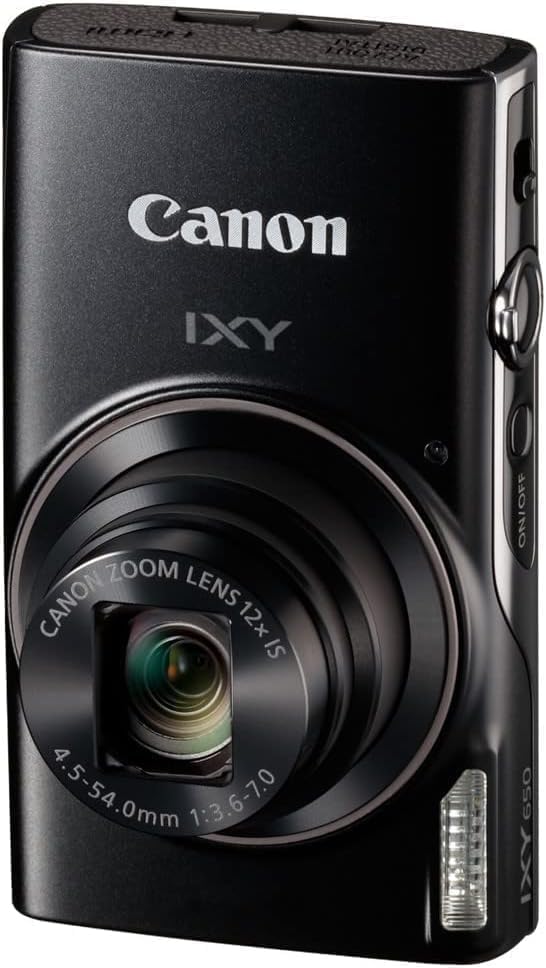
Image: Front view of the Canon IXY 650 camera with its lens retracted, showing the compact design.
- Lens: 12x optical zoom lens.
- Flash: Built-in flash for low-light conditions.
- Power Button: Turns the camera on/off.
- Shutter Button: Press halfway to focus, fully to take a picture.
- Zoom Lever: Controls optical zoom.
- LCD Monitor: 3.0-inch display for composing shots and reviewing images.

Image: Angled view of the Canon IXY 650 camera, highlighting its compact design and controls.
Setup
1. Charging the Battery
- Insert the battery into the supplied battery charger.
- Plug the charger into a power outlet. The charging indicator light will illuminate.
- Once charging is complete, the indicator light will change or turn off. Remove the battery.
Note: Ensure the battery is fully charged before first use for optimal performance.
2. Inserting the Battery and Memory Card
- Open the battery/card compartment cover on the bottom of the camera.
- Insert the charged battery pack firmly until it clicks into place.
- Insert a compatible SD, SDHC, or SDXC memory card into the card slot with the label facing the correct direction until it clicks.
- Close the compartment cover securely.
3. Initial Settings
- Press the power button to turn on the camera.
- Follow the on-screen prompts to set the language, date, and time.
- Format the memory card if prompted, or if it's a new card, to ensure proper operation.
Operating the Camera
Taking Photos
- Turn on the camera by pressing the power button.
- Select your desired shooting mode (e.g., Auto, Program) using the mode dial or menu.
- Frame your shot using the LCD monitor.
- Use the zoom lever to adjust the focal length.
- Press the shutter button halfway down to focus. The focus frame will appear.
- Press the shutter button fully down to take the picture.
Reviewing Photos and Videos
Press the playback button (usually indicated by a play icon) to enter playback mode. Use the directional buttons to navigate through your images and videos. Press the shutter button again or the mode button to return to shooting mode.
Connectivity (Wi-Fi and NFC)
The Canon IXY 650 features built-in Wi-Fi and NFC for wireless communication with compatible smartphones, tablets, and other devices.
Connecting to a Smartphone/Tablet
- Install the "Canon Camera Connect" app on your smartphone or tablet.
- On the camera, enable Wi-Fi from the menu.
- For NFC-enabled devices, touch the NFC mark on the camera to the NFC mark on your smartphone/tablet to establish a connection.
- Alternatively, manually connect via Wi-Fi by selecting the camera's Wi-Fi network from your device's Wi-Fi settings and entering the password displayed on the camera.
- Once connected, you can browse images, transfer photos/videos, and remotely control the camera using the app.
Shooting Modes
The camera offers various shooting modes to suit different situations and creative preferences:
- Auto Mode: The camera automatically optimizes settings for the scene.
- Program (P) Mode: Allows more control over settings while the camera sets exposure.
- Hybrid Auto: Records short video clips before each still photo and combines them into a digest movie.
- Creative Shot: Automatically applies various creative filters and effects to an image, generating multiple unique versions.
- Story Highlights: Automatically creates a short video montage from your photos and videos.
- Scene Modes: Specific settings for common scenes like Portrait, Landscape, Sports, etc.
Video Recording
The IXY 650 can record Full HD 1080p videos at 30 frames per second (fps) in MP4 format.
- Dynamic IS: Reduces camera shake when recording at wide-angle focal lengths, especially while walking.
- Powered IS: Compensates for hand movements that are more noticeable at the telephoto end of the zoom range.
- Macro (Hybrid) IS: Minimizes shake when recording close-up subjects.
To start recording, switch to video mode (if available as a dedicated mode) or press the dedicated movie record button. Press it again to stop recording.

Image: The Canon IXY 650 camera with its lens extended, indicating it is powered on and ready for capturing photos or videos.
Maintenance
- Cleaning the Camera Body: Use a soft, dry cloth to wipe the camera body. For stubborn dirt, lightly dampen the cloth with water.
- Cleaning the Lens: Use a lens brush or a blower to remove dust. For smudges, use a lens cleaning cloth and lens cleaning fluid. Avoid touching the lens surface with your fingers.
- Storage: When not in use for extended periods, remove the battery and store the camera in a cool, dry place away from direct sunlight and extreme temperatures.
- Battery Care: Recharge the battery regularly, even if not in use, to maintain its lifespan. Avoid fully discharging the battery frequently.
Troubleshooting
| Problem | Possible Cause / Solution |
|---|---|
| Camera does not turn on. | Battery is not charged or not inserted correctly. Ensure battery is charged and properly seated. |
| Cannot take pictures. | Memory card is full, locked, or not inserted. Check card status, free up space, or insert a new card. |
| Images are blurry. | Camera shake, subject movement, or incorrect focus. Hold the camera steady, use a faster shutter speed, or ensure proper focus. |
| Wi-Fi connection fails. | Incorrect password, out of range, or app issue. Re-enter password, move closer to the device, or restart the app/camera. |
| Flash does not fire. | Flash is set to off or in a mode where flash is suppressed. Check flash settings. |
Specifications
| Feature | Detail |
|---|---|
| Model Name | IXY650 |
| Photo Sensor Resolution | 20.2 MP |
| Optical Zoom | 12x |
| Digital Zoom | 2x |
| Maximum Focal Length | 300 Millimeters |
| Minimum Focal Length | 25 Millimeters |
| Image Stabilization | Digital, Optical |
| Screen Size | 3 Inches (LCD) |
| Video Resolution | 1080p |
| Connectivity Technology | Wi-Fi, NFC |
| Item Weight | 147 Grams |
| Supported File Format | JPEG (Stills), MP4 (Video) |
| Continuous Shooting | 7.2 FPS |
| Expanded ISO Minimum | 100 |
| Expanded ISO Maximum | 1600 |
| Maximum Aperture | 3.6 f |
| Minimum Shutter Speed | 1/2000 sec |
| Maximum Shutter Speed | 3 Seconds |
Warranty and Support
For warranty information and customer support, please refer to the warranty card included in your product package or visit the official Canon website. You can also find additional resources, FAQs, and driver downloads on the Canon support pages.
Canon Support Website: www.usa.canon.com/internet/portal/us/home/support


