
1. Product Overview
The Gigastone 64GB Classic Capless USB 2.0 Flash Drive is a portable storage device designed for convenient data transfer and storage. Its durable, lightweight, and capless design protects the USB connector when not in use, making it an ideal solution for storing and transferring documents, photos, videos, and music.
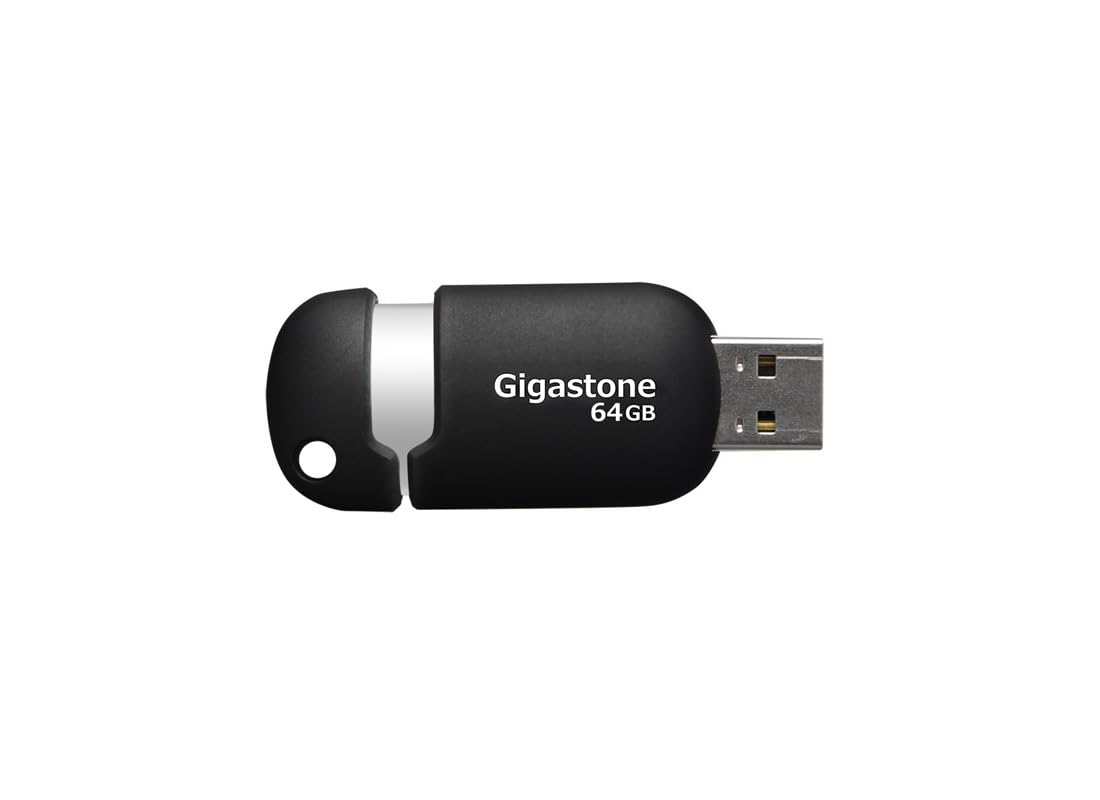
Figure 1: Gigastone 64GB Classic Capless USB 2.0 Flash Drive, showing its compact, capless design.
2. Package Contents
- 1 x Gigastone 64GB Classic Capless USB 2.0 Flash Drive
3. Key Features
- Durable and Lightweight Design: Optimized for mobile storage.
- Capless Sliding Collar: Protects the USB connector when not in use, eliminating the risk of losing a cap.
- Integrated Key Loop: Allows for easy attachment to key chains, ensuring portability.
- Broad Compatibility: Works with most PC and Mac laptop and desktop computers.
- 5-Year Limited Warranty: Provides assurance of product quality.

Figure 2: Side view of the Gigastone USB flash drive, highlighting the sliding mechanism and integrated key loop.
4. Setup Instructions
- Prepare the Flash Drive: Gently slide the collar to expose the USB connector.
- Connect to Computer: Insert the USB flash drive into an available USB 2.0 or USB 3.0 port on your computer. The drive is backward compatible with USB 1.1 ports, but performance will be limited to USB 1.1 speeds.
- Automatic Recognition: Your computer's operating system (Windows or macOS) should automatically detect and install the necessary drivers. The flash drive will appear as a removable storage device (e.g., 'Removable Disk' or 'Gigastone USB') in 'My Computer' (Windows) or 'Finder' (macOS).

Figure 3: Angled view of the Gigastone USB flash drive, illustrating its ergonomic shape and the USB connector.
5. Operating Instructions
5.1 Transferring Files
- Open the Drive: Double-click on the flash drive icon in 'My Computer' or 'Finder' to open its contents.
- Copy Files: Locate the files or folders you wish to transfer from your computer. Drag and drop them into the open flash drive window. Alternatively, right-click on the files, select 'Copy', then right-click inside the flash drive window and select 'Paste'.
- Transferring from Drive: To transfer files from the flash drive to your computer, reverse the process: drag and drop files from the flash drive window to a folder on your computer.
5.2 Safely Removing the Drive
To prevent data corruption, always safely remove the flash drive before physically disconnecting it from your computer.
- Windows: Click the 'Safely Remove Hardware and Eject Media' icon in the system tray (bottom-right corner of the screen), then select the Gigastone USB drive. Wait for the 'Safe to Remove Hardware' message before unplugging.
- macOS: Drag the flash drive icon from the desktop or Finder sidebar to the Trash icon, or right-click (Control-click) the drive icon and select 'Eject'. Wait for the icon to disappear before unplugging.
6. Maintenance
- Physical Care: Keep the flash drive clean and dry. Avoid exposing it to extreme temperatures, direct sunlight, or strong magnetic fields.
- Data Backup: Regularly back up important data stored on the flash drive to another storage medium to prevent data loss.
- Software Updates: Ensure your computer's operating system is up to date to maintain optimal compatibility and security.
7. Troubleshooting
7.1 Drive Not Recognized
- Check Connection: Ensure the flash drive is fully inserted into the USB port.
- Try Another Port: Connect the drive to a different USB port on your computer.
- Restart Computer: Sometimes a simple restart can resolve recognition issues.
- Check Device Manager (Windows): Open Device Manager and look for 'Universal Serial Bus controllers' or 'Disk drives'. If the drive appears with a yellow exclamation mark, there might be a driver issue.
- Check Disk Utility (macOS): Open Disk Utility to see if the drive is listed, even if it's not mounted.
7.2 Slow Transfer Speeds
- USB Port Type: Ensure you are using a USB 2.0 or higher port. Connecting to a USB 1.1 port will result in slower speeds.
- File Size: Transferring many small files can be slower than transferring a few large files of the same total size.
- Other USB Devices: Disconnect other USB devices that might be consuming bandwidth.
- Computer Performance: Ensure your computer is not heavily burdened by other tasks during transfer.
7.3 Data Corruption
- Safe Removal: Always follow the safe removal procedure before disconnecting the drive.
- Avoid Interruption: Do not remove the drive during a file transfer or when the drive's activity light (if present) is blinking.
- Scan for Errors: Use your operating system's built-in disk error checking tools (e.g., 'Error Checking' in Windows, 'First Aid' in macOS Disk Utility).
8. Specifications
| Model Name | Gigastone 64GB Classic Capless USB 2.0 Flash Drive |
| Model Number | GS-Z64GCNBL-R |
| Memory Storage Capacity | 64 GB |
| Hardware Interface | USB 2.0 (backward compatible with USB 1.1) |
| Connectivity Technology | USB |
| Hardware Platform | Mac, PC |
| Color | Black/Silver |
| Item Weight | 0.48 ounces (approx. 13.6 grams) |
| Product Dimensions (LxWxH) | 2.32 x 0.91 x 0.51 inches (approx. 5.89 x 2.31 x 1.30 cm) |
| Manufacturer | DANE ELECTRONICS |
9. Warranty and Support
9.1 Limited Warranty
This Gigastone USB Flash Drive comes with a 5-year limited warranty. This warranty covers defects in materials and workmanship under normal use. It does not cover damage caused by misuse, accident, modification, or unauthorized repair.
For detailed warranty terms and conditions, please refer to the official Gigastone website or contact customer support.
9.2 Customer Support
If you encounter any issues not covered in the troubleshooting section or require further assistance, please contact Gigastone customer support. Contact information can typically be found on the official Gigastone website or product packaging.


