
Introduction
This manual provides essential information for setting up, operating, and maintaining your Dell Professional P2217H 21.5" FHD 1080p LED-Lit Monitor. Please read these instructions carefully before using your monitor.
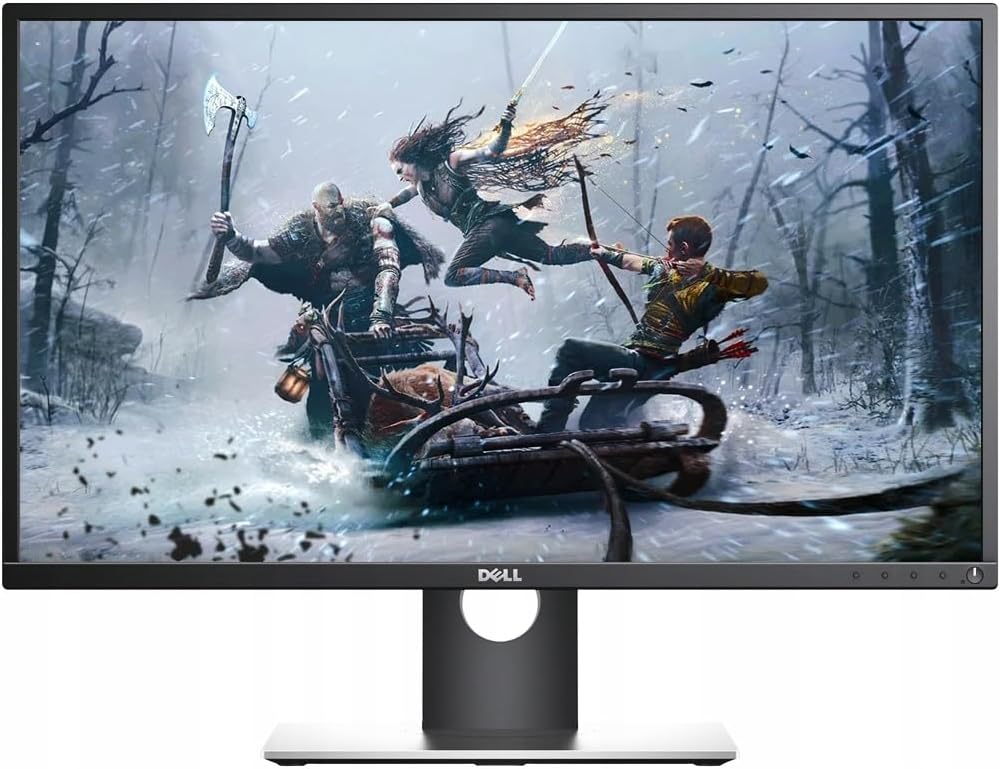
Figure 1: Dell Professional P2217H Monitor
Setup Instructions
1. Unboxing and Assembly
Carefully remove all components from the packaging. The monitor comes with a stand that requires simple, tool-less assembly. Attach the stand base to the stand riser, then connect the assembled stand to the back of the monitor until it clicks securely into place.

Figure 2: Rear view of the monitor with stand attachment area.
The monitor is also VESA mount compatible, allowing for alternative mounting solutions if desired.
2. Connecting Cables
Connect the power cable to the monitor and a power outlet. Use the provided HDMI cable to connect your computer to the monitor. The monitor also supports DisplayPort and VGA connections. For optimal display quality, HDMI or DisplayPort is recommended.

Figure 3: Available ports on the back of the monitor.
The monitor features a cable management system on the stand to keep your workspace tidy.
3. Initial Power-On
Press the power button located on the bottom right of the monitor to turn it on. Ensure your computer is also powered on. The monitor should automatically detect the input signal. If not, you may need to manually select the input source using the on-screen display (OSD) menu.
Operating Instructions
1. Adjusting Monitor Position
The Dell P2217H monitor offers flexible adjustability for enhanced viewing comfort and productivity:
- Height Adjustment: Raise or lower the monitor to your preferred viewing height.
- Tilt: Adjust the screen's vertical angle (forward or backward).
- Pivot: Rotate the screen 90 degrees to switch between landscape and portrait orientation.
- Swivel: Rotate the monitor horizontally on its base.

Figure 4: Monitor adjustability features.
2. On-Screen Display (OSD) Menu
The OSD menu allows you to configure various display settings. The control buttons are located on the bottom bezel of the monitor. Press any button (except the power button) to bring up the OSD menu. Use the navigation buttons to browse options and adjust settings such as:
- Brightness/Contrast: Adjust the overall luminance and contrast levels.
- Input Source: Manually select between HDMI, DisplayPort, or VGA inputs.
- Color Settings: Customize color temperature (Warm, Cool, Custom) or select preset modes.
- Display Settings: Adjust aspect ratio, sharpness, and other image properties.
Technical Specifications
| Feature | Specification |
|---|---|
| Brand | Dell |
| Model Number | P2217H |
| Standing Screen Display Size | 21.5 Inches |
| Screen Resolution | 1920x1080 (FHD 1080p) |
| Aspect Ratio | 16:9 |
| Screen Surface Description | Glossy |
| Number of USB 2.0 Ports | 2 |
| Number of USB 3.0 Ports | 3 |
| Item Weight | 10.8 pounds |
| Product Dimensions (LxWxH) | 19.64 x 7.09 x 18.81 inches |
| Color | Black |
| Manufacturer | Dell Marketing USA, LP |
| Date First Available | May 10, 2016 |
Maintenance
To ensure the longevity and optimal performance of your Dell P2217H monitor, follow these maintenance guidelines:
- Cleaning the Screen: Gently wipe the screen with a soft, lint-free cloth. For stubborn marks, use a monitor-specific cleaning solution applied to the cloth, not directly to the screen.
- Cleaning the Casing: Use a soft, dry cloth to clean the monitor casing. Avoid abrasive cleaners.
- Ventilation: Ensure the ventilation openings on the monitor are not blocked to prevent overheating.
- Power Off: Always power off the monitor when not in use for extended periods.
Troubleshooting
If you encounter issues with your Dell P2217H monitor, refer to the following common troubleshooting steps:
- No Display/Dim Screen:
- Check if the power cable is securely connected to both the monitor and the power outlet.
- Verify that the video cable (HDMI, DisplayPort, or VGA) is firmly connected to both the monitor and your computer.
- Ensure the correct input source is selected in the OSD menu.
- Adjust brightness and contrast settings in the OSD menu.
- If the screen remains dim or shows a faint image, try unplugging the video input and turning the monitor on to see if the initial configuration screen appears. If not, the monitor may require service.
- Image Quality Issues:
- Adjust resolution settings on your computer to match the monitor's native resolution (1920x1080).
- Check the video cable for damage or loose connections.
- Adjust color settings in the OSD menu.
- Monitor Not Turning On:
- Confirm the power cable is connected and the power outlet is functional.
- Press the power button firmly.
Warranty and Support
Your Dell Professional P2217H monitor may come with a 90-day warranty. For specific warranty details and support, please refer to your purchase documentation or contact Dell customer service.
Legal Disclaimer: The product box may have been opened for inspection, but the item is confirmed to be new and unused.
Official Product Video
Video 1: Dell Social Media Support. This video provides general support information from Dell.


