
SWEDX SWL-50K8-A1
SWEDX SWL-50K8-A1 Lamina 50-inch Professional Digital Signage Display User Manual
Model: SWL-50K8-A1 | Brand: SWEDX
1. Introduction
The SWEDX Lamina SWL-50K8-A1 is a state-of-the-art 50-inch freestanding 4K (UHD) digital signage display, designed for professional environments requiring high-resolution media reproduction and reliable 24/7 operation. This manual provides essential information for the proper setup, operation, and maintenance of your SWEDX Lamina display. Please read this manual thoroughly before using the product to ensure optimal performance and longevity.

Figure 1.1: SWEDX Lamina SWL-50K8-A1 Digital Signage Display.
2. Key Features
The SWEDX Lamina SWL-50K8-A1 display is equipped with advanced features to meet the demands of professional digital signage applications:
- 4K Ultra HD Panel: Features a 4K E-LED panel with a resolution of 3840x2160, providing stunning visual clarity.
- HDMI 2.0 Connectivity: Includes three HDMI 2.0 inputs, supporting 4K resolution at 60Hz for smooth media playback.
- Advanced USB Media Player: Built-in player allows creation of image and video playlists with automatic playback functionality.
- Automatic On/Off Timer: Program the display to power on and off automatically, optimizing energy consumption and operational efficiency.
- Smart HDMI Functionality: The display can automatically sleep or wake up based on the presence of an HDMI signal.
- Slim Design: An aesthetically pleasing slim profile suitable for various indoor environments.
- 24/7 Operation: Engineered for continuous, reliable performance in demanding commercial settings.
- Secure Back Panel: Features a lockable back door to protect installed equipment and connections.
- Accessory Mounting: Tektanorm aluminum profile allows for easy mounting of various accessories.
3. Setup
3.1 Unpacking
- Carefully open the packaging and remove the display. It is recommended to have two people for safe handling due to its size and weight (43 kg).
- Inspect the display for any signs of damage during transit. If damage is found, contact your dealer immediately.
- Remove all protective films and packaging materials from the display.
3.2 Placement
Choose a stable, level surface for the display. Ensure adequate ventilation around the unit. Avoid placing the display in direct sunlight or near heat sources.

Figure 3.1: SWEDX Lamina display showing its stable base.
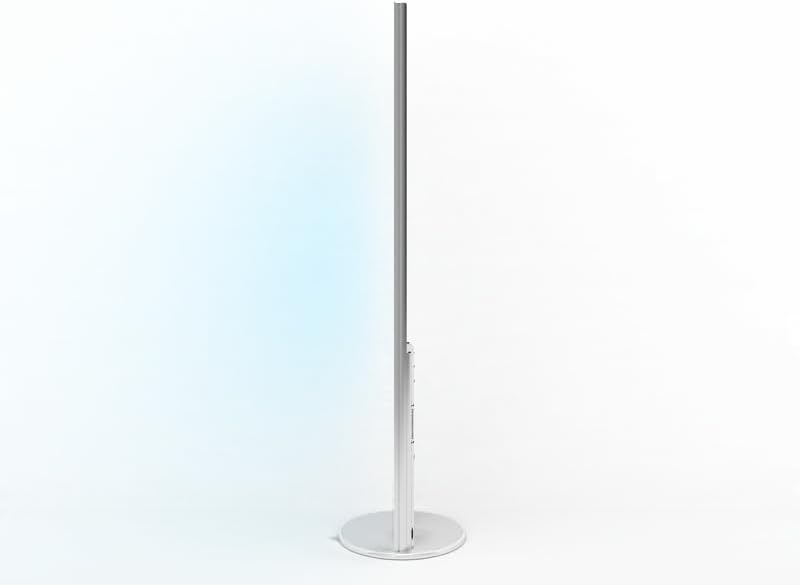
Figure 3.2: Slim side profile of the SWEDX Lamina display.
3.3 Connections
All connections are located on the back panel of the display.

Figure 3.3: Rear panel of the SWEDX Lamina display.
- HDMI Inputs: Connect your media players, computers, or other HDMI sources to the HDMI 2.0 ports. The display has 3 HDMI inputs.
- USB Ports: Use the 2 USB ports for connecting USB storage devices for the built-in media player.
- Power: Connect the power cable to the AC power input on the display and then to a suitable power outlet.
- Network (Optional): If using an external digital signage player, connect it to your network as required.
3.4 Initial Power On
After making all necessary connections, press the power button on the display. The display should power on and show the SWEDX logo or the input from your connected source.
4. Operating Instructions
4.1 Basic Controls
The display can be controlled via buttons on the unit or an optional remote control (if included).
- Power Button: Turns the display on or off.
- Input Select: Cycles through available HDMI and other inputs.
- Menu: Accesses the on-screen display (OSD) menu for settings adjustments.
- Navigation Buttons: Used to navigate through menu options and adjust settings.
4.2 USB Media Player
The integrated USB media player supports automatic playback of images and videos.
- Save your media files (images, videos) to a USB flash drive.
- Insert the USB flash drive into one of the USB ports on the display.
- Access the media player function through the OSD menu.
- Create a playlist or select individual files for playback. The player supports automatic looping of content.
4.3 Automatic On/Off Timer
Set specific times for the display to power on and off automatically.
- Navigate to the "Timer" or "Schedule" section in the OSD menu.
- Set the desired power-on time and power-off time for each day of the week.
- Save your settings.
4.4 Smart HDMI Functionality
The Smart HDMI feature allows the display to automatically enter standby mode when no HDMI signal is detected and wake up when a signal is present.
- Ensure this feature is enabled in the OSD menu under "System" or "Power Settings".
- This feature helps conserve energy and provides seamless integration with external media sources.
5. Maintenance
5.1 Cleaning the Display
- Always power off and unplug the display before cleaning.
- Use a soft, lint-free cloth slightly dampened with water or a non-abrasive screen cleaner.
- Do not spray liquid directly onto the screen or frame.
- Avoid using harsh chemicals, solvents, or abrasive materials.
5.2 General Care
- Ensure proper ventilation around the display to prevent overheating.
- Keep the display away from excessive dust, moisture, and extreme temperatures.
- Do not block the ventilation openings on the back of the display.
6. Troubleshooting
Before contacting customer support, please refer to the following table for common issues and their solutions.
| Problem | Possible Cause | Solution |
|---|---|---|
| No Power | Power cable not connected; Power outlet faulty; Display power switch off. | Check power cable connection; Test outlet with another device; Ensure display power switch is on. |
| No Image/Signal | Incorrect input selected; HDMI cable loose or faulty; Source device not powered on. | Select correct input (HDMI 1/2/3); Reconnect HDMI cable; Check source device power. |
| USB Media Player not working | USB drive not formatted correctly; Unsupported file format; USB drive faulty. | Ensure USB drive is FAT32/NTFS; Check supported file formats in manual (if available); Try another USB drive. |
| Display turns off unexpectedly | Overheating; Timer setting active; Power fluctuation. | Ensure proper ventilation; Check timer settings; Connect to a stable power source or UPS. |
7. Specifications
Detailed technical specifications for the SWEDX Lamina SWL-50K8-A1 display:
| Feature | Detail |
|---|---|
| Brand | SWEDX |
| Model | SWL-50K8-A1 |
| Display Technology | E-LED |
| Screen Size | 50 inches |
| Screen Type | S-MVA |
| Resolution | 3840x2160 (4K Ultra HD) |
| Aspect Ratio | 16:9 |
| Contrast Ratio | 5000:1 |
| Hardware Interface | 3x HDMI 2.0, 2x USB |
| Special Features | 24/7 operation, Advanced USB Media Player, Auto On/Off Timer, Smart HDMI |
| Power Consumption | 110 Watts (Operating), 10 Watts (Effect) |
| Power Source Type | AC |
| Product Dimensions (WxDxH) | 81 x 45 x 182 cm (approx. 31.9 x 17.7 x 71.7 inches) |
| Product Weight | 43 kg (approx. 94.8 lbs) |
| ASIN | B01F02RRY4 |
| First Available Date | June 9, 2016 |

Figure 7.1: Energy Label for SWEDX SWL-50K8. For more details, visit the EPREL database.
8. Support
For further assistance, technical support, or warranty inquiries, please contact your authorized SWEDX dealer or visit the official SWEDX website. Please have your model number (SWL-50K8-A1) and ASIN (B01F02RRY4) ready when contacting support.