
1. Introduction
The AV Access 4KMX42 HDMI Matrix 4x2 is designed to manage and distribute up to four HDMI source devices to two independent HDMI displays. This device allows any of the four input sources to be routed to either of the two output displays, simultaneously or individually. It supports resolutions up to 4K Ultra HD, 1080P 3D, and advanced audio formats including Dolby TrueHD, DTS-HD Master, and PCM7.1. Key features include automatic EDID management, CEC control for connected TVs, and a 3.5mm stereo audio output for enhanced audio flexibility.
This matrix switch is suitable for various environments such as home theaters, offices, educational institutions, conference rooms, retail spaces, hotels, and museums, providing a versatile solution for video and audio distribution.

Image: The AV Access 4KMX42 HDMI Matrix supports 4K UHD video standards, ensuring high-quality display on compatible televisions.
2. Package Contents
Please verify that all items listed below are included in your package. If any items are missing or damaged, contact AV Access customer support.
- 1 x AV Access 4KMX42 HDMI Matrix Unit
- 1 x 12V DC Power Adapter
- 1 x IR Remote Control
- 1 x User Manual (this document)

Image: The package includes the HDMI matrix, power adapter with interchangeable plugs, and an infrared remote control.
3. Product Overview
3.1 Front Panel
The front panel provides controls for input and output selection, along with status indicators.
- HDMI IN 1-4 Buttons: Selects the desired HDMI input source for the active output.
- HDMI OUT 1/2 Select Buttons: Activates the selection mode for HDMI Output 1 or 2.
- Power LED: Indicates the power status of the unit.
- IR Receiver: Receives signals from the included IR remote control.
3.2 Rear Panel
The rear panel houses all connection ports for your HDMI sources, displays, and audio output.
- DC 12V Power Input: Connect the provided 12V DC power adapter. Features a threaded connection for secure attachment.
- HDMI IN 1-4 Ports: Connect your HDMI source devices (e.g., Blu-ray player, game console, PC).
- HDMI OUT 1-2 Ports: Connect your HDMI display devices (e.g., TV, projector).
- 3.5mm Stereo Audio Out: Connect to an external stereo audio system for analog audio output from HDMI OUT 2.
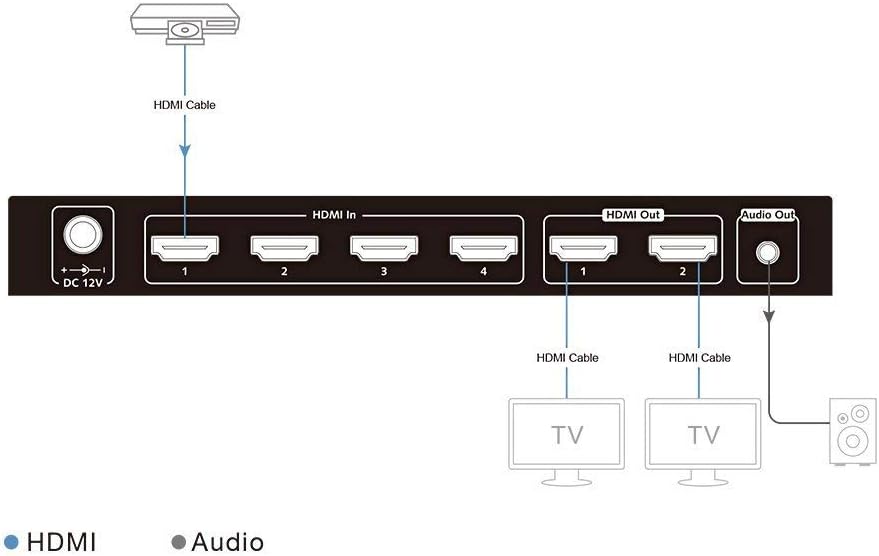
Image: Detailed view of the rear panel connections, illustrating the input and output ports.
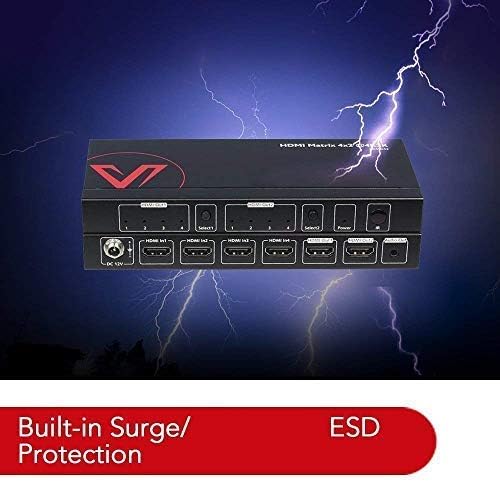
Image: The device features built-in surge and ESD protection for enhanced reliability.
4. Setup and Connection
Follow these steps to connect your AV Access 4KMX42 HDMI Matrix:
- Connect HDMI Sources: Use high-quality HDMI cables to connect your source devices (e.g., Blu-ray player, game console, streaming box, PC) to the HDMI IN 1, 2, 3, or 4 ports on the matrix.
- Connect HDMI Displays: Use high-quality HDMI cables to connect your display devices (e.g., TV, projector) to the HDMI OUT 1 and HDMI OUT 2 ports on the matrix.
- (Optional) Connect Audio System: If desired, connect an external stereo audio system to the 3.5mm Stereo Audio Out port. This output provides stereo audio from the source selected for HDMI OUT 2.
- Connect Power: Attach the provided 12V DC power adapter to the DC 12V input port on the matrix. Secure the connection by twisting the threaded collar. Plug the power adapter into a suitable electrical outlet.
- Power On: Press the power button on the front panel of the matrix or use the IR remote control to power on the unit.

Image: Example connection diagram demonstrating how to link various source devices to the matrix and distribute signals to multiple displays and an audio system.
5. Operating Instructions
5.1 Power On/Off
Press the 'Power' button on the front panel or the 'ON'/'OFF' buttons on the IR remote control to power the unit on or off.
5.2 Switching HDMI Sources
You can switch HDMI sources using either the front panel buttons or the IR remote control.
- Using Front Panel: First, press the 'Select1' button to choose HDMI OUT 1 or 'Select2' for HDMI OUT 2. Then, press the corresponding 'HDMI IN' button (1, 2, 3, or 4) to select the desired source for that output.
- Using IR Remote Control: The remote has dedicated buttons for each output (TV1, TV2) and each input (1, 2, 3, 4). To switch a source for TV1, press 'TV1' then the desired input number. Repeat for TV2.
5.3 CEC Control
The matrix supports CEC (Consumer Electronics Control) functionality, allowing you to control CEC-enabled display devices (TVs) using the provided IR remote.
- Turn On/Off TV: Use the 'TV1 ON/OFF' or 'TV2 ON/OFF' buttons on the remote to power on or off the respective CEC-enabled display.
5.4 Auto EDID Management
The matrix features automatic EDID (Extended Display Identification Data) management. This function ensures that the most suitable resolution and audio format are automatically negotiated between the source device and the display, optimizing compatibility and performance.
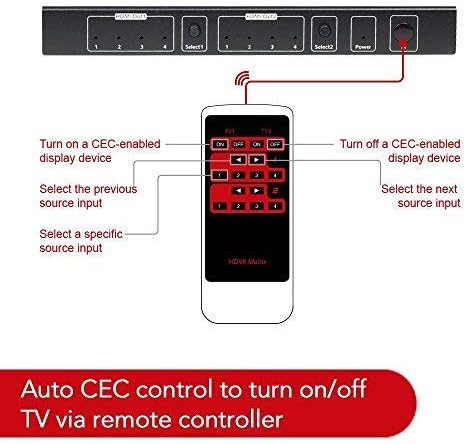
Image: The IR remote control provides comprehensive control over input switching and CEC functions for connected displays.
6. Maintenance
To ensure the longevity and optimal performance of your AV Access 4KMX42 HDMI Matrix, follow these maintenance guidelines:
- Cleaning: Use a soft, dry cloth to clean the exterior of the unit. Avoid using liquid cleaners, solvents, or abrasive materials, as these can damage the finish or internal components.
- Environment: Place the unit in a well-ventilated area, away from direct sunlight, heat sources, and excessive moisture. Do not block ventilation openings.
- Connections: Periodically check all cable connections to ensure they are secure. Loose connections can lead to signal loss or intermittent issues.
- Power: Always use the provided 12V DC power adapter. Disconnect power during electrical storms or when the unit is unused for extended periods.
7. Troubleshooting
If you encounter issues with your HDMI Matrix, refer to the following troubleshooting steps:
7.1 No Video Signal / Black Screen
- Check Connections: Ensure all HDMI cables are securely connected to both the source devices, the matrix, and the display devices.
- Verify Power: Confirm that the HDMI matrix and all connected source/display devices are powered on. Check the power LED on the matrix.
- Try Different Cables: Faulty HDMI cables can cause signal issues. Test with known good HDMI cables.
- Correct Input Selection: Ensure your display is set to the correct HDMI input channel.
- 4K@60Hz YUV4:4:4 Issues: If your display supports 4K@60Hz YUV4:4:4 and you experience display issues, try turning off the 'UltraHD Color' or similar feature on your display device to prevent bandwidth from exceeding limits.
- Power Cycle: Disconnect power from the matrix and all connected devices for a few seconds, then reconnect and power them on.
7.2 No Audio Output
- Check Audio Connections: If using the 3.5mm Stereo Audio Out, ensure the cable is securely connected to both the matrix and your external audio system.
- Source Audio Settings: Verify that the audio output settings on your source device are correctly configured (e.g., PCM, Bitstream).
- Volume Levels: Ensure the volume on your display and/or external audio system is not muted or set too low.
7.3 IR Remote Control Not Responding
- Check Battery: Replace the battery in the IR remote control.
- Line of Sight: Ensure there is a clear line of sight between the remote control and the IR receiver on the front panel of the matrix. Obstructions can block the signal.
- Distance: Operate the remote within its effective range.
8. Specifications
| Model Number | 4KMX42 |
| Inputs | 4 x HDMI |
| Outputs | 2 x HDMI, 1 x 3.5mm Stereo Audio |
| Video Resolution | Up to 4K@30Hz, 1080P 3D |
| Audio Formats | Dolby TrueHD, DTS-HD Master, PCM7.1 |
| Control | Front Panel Buttons, IR Remote Control |
| Special Features | Auto EDID Management, CEC Control, Built-in Surge/Lightning Protection, Superior ESD Protection (+/- 8KV Air-gap, +/- 4KV Contact) |
| Power Supply | DC 12V |
| Item Weight | 12 ounces |
9. Warranty and Support
AV Access provides comprehensive warranty and customer support for this product:
- Warranty Period: A 1-Year warranty is provided for all customers. Business customers receive an extended 3-Year warranty.
- Customer Service: Lifetime 1-to-1 customer services are available from AV Access.
For technical assistance, troubleshooting, or warranty claims, please contact AV Access customer support through their official website or the contact information provided with your purchase.


