
1. Introduction
This manual provides essential information for setting up, operating, and maintaining your Dell Precision 5810 Mid-tower Workstation. The Dell Precision 5810 is a powerful and reliable workstation designed for demanding professional applications, featuring an Intel Xeon Processor E5-1620 v3, ample memory, and dedicated graphics.
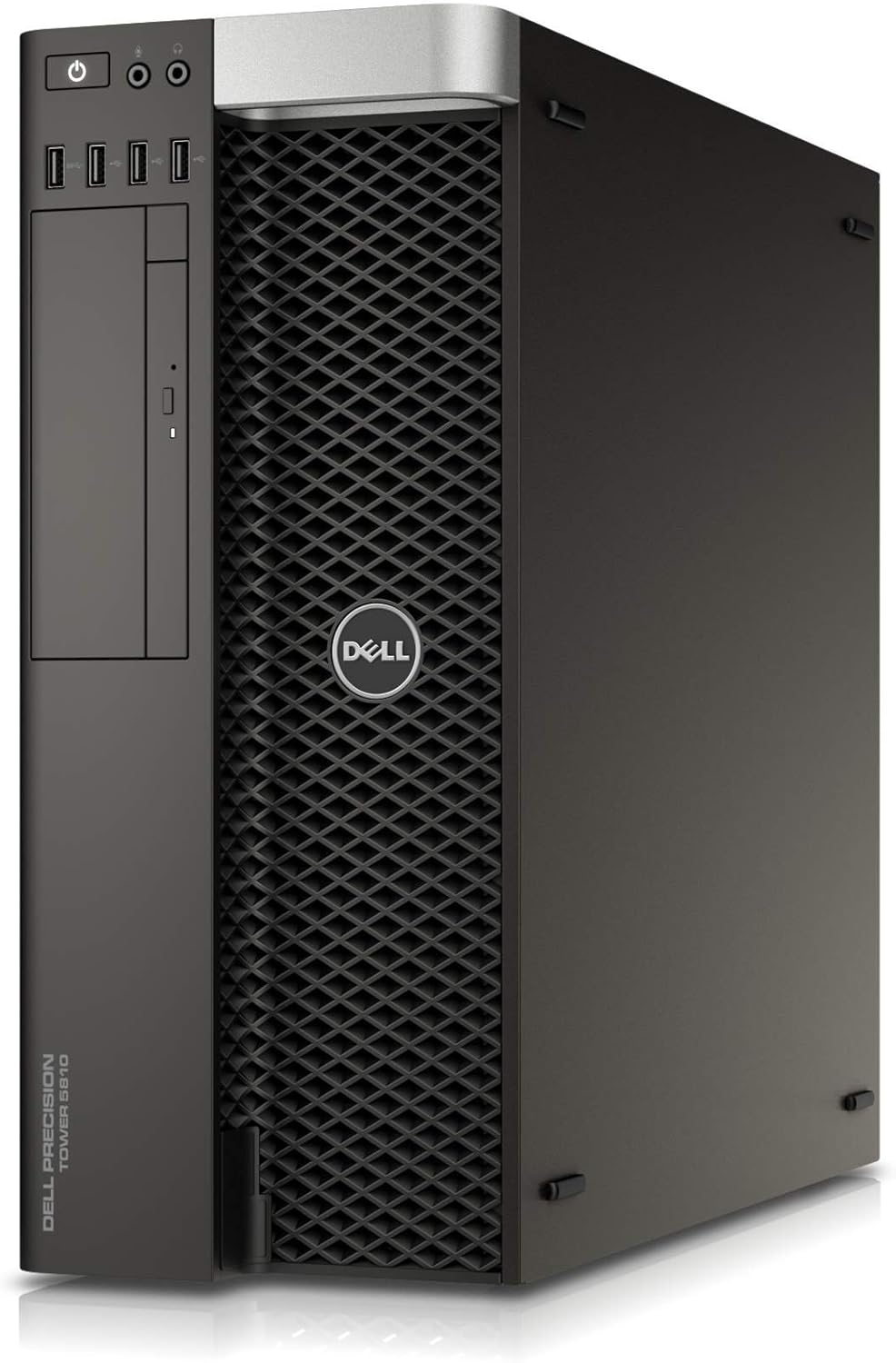
Figure 1: Dell Precision 5810 Mid-tower Workstation. This image shows the front and side of the workstation, highlighting its tower form factor and front panel design.
2. Safety Information
Always follow basic safety precautions to reduce the risk of fire, electric shock, and injury to persons when using this product.
- Ensure proper ventilation around the workstation to prevent overheating.
- Do not open the workstation chassis unless instructed by qualified personnel.
- Disconnect the power cord from the electrical outlet before cleaning or servicing.
- Keep liquids away from the workstation to prevent spills and electrical hazards.
- Use only Dell-approved power adapters and accessories.
3. What's in the Box
Your Dell Precision 5810 Mid-tower Workstation package should contain the following items:
- Dell Precision 5810 Mid-tower Workstation
- Power Cord
- Dell KB212-B QuietKey USB Keyboard Black
- Dell MS111 USB Optical Mouse
- Documentation (Quick Start Guide, Safety Information)
4. Setup
4.1 Physical Connections
Before powering on your workstation, connect all necessary peripherals.
- Connect Display: Connect your monitor to the graphics card output (e.g., DisplayPort, DVI-I) on the rear of the workstation. An adapter (1 DP to SL-DVI) may be included.
- Connect Keyboard and Mouse: Plug the USB keyboard and mouse into any available USB ports on the front or rear of the workstation.
- Connect Network: Connect an Ethernet cable from your network router or switch to the RJ45 Gigabit Ethernet port on the rear.
- Connect Power: Plug the power cord into the power connector on the rear of the workstation, then into a grounded electrical outlet.
Figure 2: Front Panel Overview. This image details the front panel, including the power button, optical drive, and front USB ports (1 USB 3.0, 3 USB 2.0).
4.2 Initial Power On
Once all connections are secure, press the power button located on the front panel of the workstation. The system will begin its boot sequence.
4.3 Operating System Configuration
Your workstation comes pre-installed with Windows 7 Professional 64-bit (includes Windows 8.1 Pro license). Follow the on-screen prompts to complete the initial operating system setup, including language selection, user account creation, and network configuration.
5. Operating Your Workstation
5.1 Front Panel Overview
The front panel provides convenient access to frequently used ports and controls.
- Power Button: Turns the workstation on or off.
- Optical Drive: 8x Slimline DVD-ROM Drive for reading optical media.
- USB 3.0 Ports: One port for high-speed data transfer.
- USB 2.0 Ports: Three ports for connecting peripherals.
- Audio Jacks: Headphone and microphone jacks.
5.2 Rear Panel Connections
The rear panel houses the primary connectivity options for your workstation.
- USB 2.0 Ports: Three ports.
- USB 3.0 Ports: Three ports.
- PS/2 Ports: Two ports for legacy keyboard and mouse connections.
- Serial Port: One serial port.
- RJ45 Ethernet Port: For network connectivity.
- Graphics Card Outputs: DisplayPort (DP) and Dual-Link DVI-I (DL-DVI-I) for monitor connections.
Figure 3: Angled View of Workstation. This image provides another perspective of the workstation, useful for understanding its overall dimensions and design.
5.3 Basic Operation
Once the operating system is configured, you can begin using your workstation for your professional tasks. Refer to the Windows operating system documentation for detailed instructions on software installation, file management, and system settings.
6. Maintenance
Regular maintenance helps ensure the longevity and optimal performance of your Dell Precision 5810.
6.1 Cleaning
- Exterior: Use a soft, lint-free cloth lightly dampened with water or a mild cleaning solution to wipe down the exterior surfaces. Avoid abrasive cleaners.
- Ventilation Grilles: Periodically use compressed air to clear dust from the front and rear ventilation grilles to maintain proper airflow.
- Ports: Gently clean dust from ports using compressed air.
6.2 Software Updates
Regularly update your operating system, drivers, and applications to ensure security, stability, and performance. Visit the official Dell support website for the latest drivers specific to the Precision 5810.
6.3 Hardware Checks
While internal components should only be accessed by qualified technicians, you can perform external checks:
- Ensure all cables are securely connected.
- Listen for unusual noises (e.g., loud fan noise, clicking hard drive).
- Monitor system temperatures using software utilities if available.
Figure 4: Side View of Workstation. This image shows the side panel, which typically covers internal components and may feature ventilation openings.
7. Troubleshooting
This section addresses common issues you might encounter.
| Problem | Possible Cause | Solution |
|---|---|---|
| Workstation does not power on. | Power cord not connected, power supply issue. | Ensure power cord is securely plugged into the workstation and a working electrical outlet. Test the outlet with another device. |
| No display on monitor. | Monitor not connected, incorrect input selected, graphics card issue. | Check display cable connections. Ensure monitor is powered on and set to the correct input source. Try a different display port or monitor if available. |
| System is slow or unresponsive. | Too many applications running, insufficient RAM, malware. | Close unnecessary applications. Check Task Manager for resource-intensive processes. Run a full system scan for malware. Consider upgrading RAM if consistently slow. |
| USB devices not recognized. | Driver issue, faulty port, device malfunction. | Try a different USB port. Restart the workstation. Update USB drivers from Dell's support website. Test the device on another computer. |
8. Specifications
Detailed technical specifications for the Dell Precision 5810 Mid-tower Workstation.
| Model | Dell Precision 5810 |
| Processor | Intel Xeon Processor E5-1620 v3 (4C 3.5GHz Turbo HT 10M 140W) |
| RAM | 8GB (2x4GB) 2133MHz DDR4 Non-ECC (Installed Size; Max 12GB DDR4) |
| Hard Drive | 1TB 3.5" SATA (7200 RPM) Hard Drive |
| Graphics Card | NVIDIA Quadro K620 2GB (DP DL-DVI-I) |
| Optical Drive | 8x Slimline DVD-ROM Drive |
| Operating System | Windows 7 Professional 64-bit (Includes Windows 8.1 Pro license) |
| Front Ports | 1x USB 3.0, 3x USB 2.0, 2x RJ45 (as per source data) |
| Rear Ports | 3x USB 2.0, 3x USB 3.0, 2x PS/2, 1x Serial, 1x RJ45 Intel Gigabit Ethernet |
| Dimensions (LxWxH) | 18.5 x 6.8 x 16.3 inches |
| Color | Black |
Note: Specifications are subject to change without notice. For the most accurate and up-to-date information, please refer to Dell's official product documentation.
9. Warranty and Support
Your Dell Precision 5810 Workstation is covered by Dell's standard limited warranty.
- Warranty Information: For detailed warranty terms and conditions, please refer to the warranty documentation included with your product or visit the official Dell support website. Note that warranty work may go through the reseller, not directly Dell, depending on your purchase source.
- Technical Support: If you encounter issues that cannot be resolved using this manual's troubleshooting section, please contact Dell Technical Support. Have your service tag or express service code ready when contacting support.
- Online Resources: Visit www.dell.com/support for drivers, manuals, diagnostics, and knowledge base articles.


