
Sricam Italia SP017-S
Sricam Italia SP017-S Wireless IP Surveillance Camera User Manual
Model: SP017-S
Introduction
This manual provides comprehensive instructions for the installation, operation, and maintenance of your Sricam Italia SP017-S Wireless IP Surveillance Camera. Please read this manual carefully before using the product to ensure proper functionality and safety. Keep this manual for future reference.
The Sricam Italia SP017-S is a high-definition wireless IP camera designed for security monitoring. It features pan and tilt capabilities, night vision, two-way audio, and motion detection, allowing for effective surveillance of your property.
Product Overview
Package Contents
- Sricam Italia SP017-S IP Camera
- Power Adapter
- Mounting Screws and Wall Plugs
- User Manual (this document)
Camera Components
Familiarize yourself with the main components of your camera:

Image 1: Front view of the Sricam Italia SP017-S IP Camera. This image displays the camera's main body, lens surrounded by infrared LEDs, and a visible Wi-Fi antenna on the side. The base of the camera is white, and the movable head is black and white.
- Lens: Captures video footage.
- Infrared LEDs: Provide illumination for night vision.
- Light Sensor: Detects ambient light levels to automatically switch between day and night modes.
- Microphone: Captures audio for two-way communication.
- Speaker: Outputs audio for two-way communication.
- Wi-Fi Antenna: For wireless network connectivity.
- Power Port: Connects to the power adapter.
- Reset Button: Used to restore factory settings.
- MicroSD Card Slot: For local video storage (supports up to 128GB).
Setup
1. Initial Setup
- Unpack: Carefully remove all components from the packaging.
- Power On: Connect the power adapter to the camera's power port and plug it into an electrical outlet. The camera will initiate a self-test and rotate.
- Indicator Light: Observe the indicator light. It will typically flash to indicate it's ready for network configuration. Refer to the camera's specific light patterns for detailed status.
2. Network Connection (Wi-Fi)
The camera connects to your home Wi-Fi network for remote access and control.
- Download App: Download the "SriHome" mobile application from your smartphone's app store (iOS App Store or Google Play Store).
- Register/Login: Open the SriHome app and register a new account or log in if you already have one.
- Add Device: In the app, tap the "+" icon or "Add Device" to begin the pairing process.
- Select Camera Type: Choose the appropriate camera type (e.g., "Wireless Camera" or "IP Camera").
- Scan QR Code: Follow the in-app instructions to scan the QR code located on the bottom of your camera.
- Wi-Fi Configuration: Enter your Wi-Fi network name (SSID) and password when prompted. Ensure your smartphone is connected to the same 2.4GHz Wi-Fi network (5GHz networks are generally not supported by this device).
- Connect: The app will guide you through connecting the camera to your Wi-Fi. This may involve the camera emitting a sound or displaying a specific light pattern.
- Device Added: Once connected, the camera will appear in your device list within the app.

Image 2: A smartphone screen showing the "Device List" within the SriHome application. Multiple camera feeds are displayed as thumbnails, indicating successful connection and remote monitoring capability.
3. Mounting the Camera
The camera can be placed on a flat surface or mounted to a wall or ceiling.
- Choose Location: Select a suitable location that provides the desired viewing angle and is within range of your Wi-Fi signal.
- Mark Holes: Use the included mounting bracket (if applicable) or the camera's base as a template to mark screw holes on the wall or ceiling.
- Drill Holes: Drill pilot holes at the marked positions. Insert wall plugs if mounting into drywall or masonry.
- Secure Camera: Attach the camera to the mounting surface using the provided screws. Ensure it is securely fastened.
Operating Instructions
1. Live View and Monitoring
Open the SriHome app and select your camera from the device list to view the live feed. You can monitor your property in real-time from anywhere with an internet connection.
2. Pan and Tilt Control
The camera offers remote pan (horizontal) and tilt (vertical) movement for a wider coverage area.
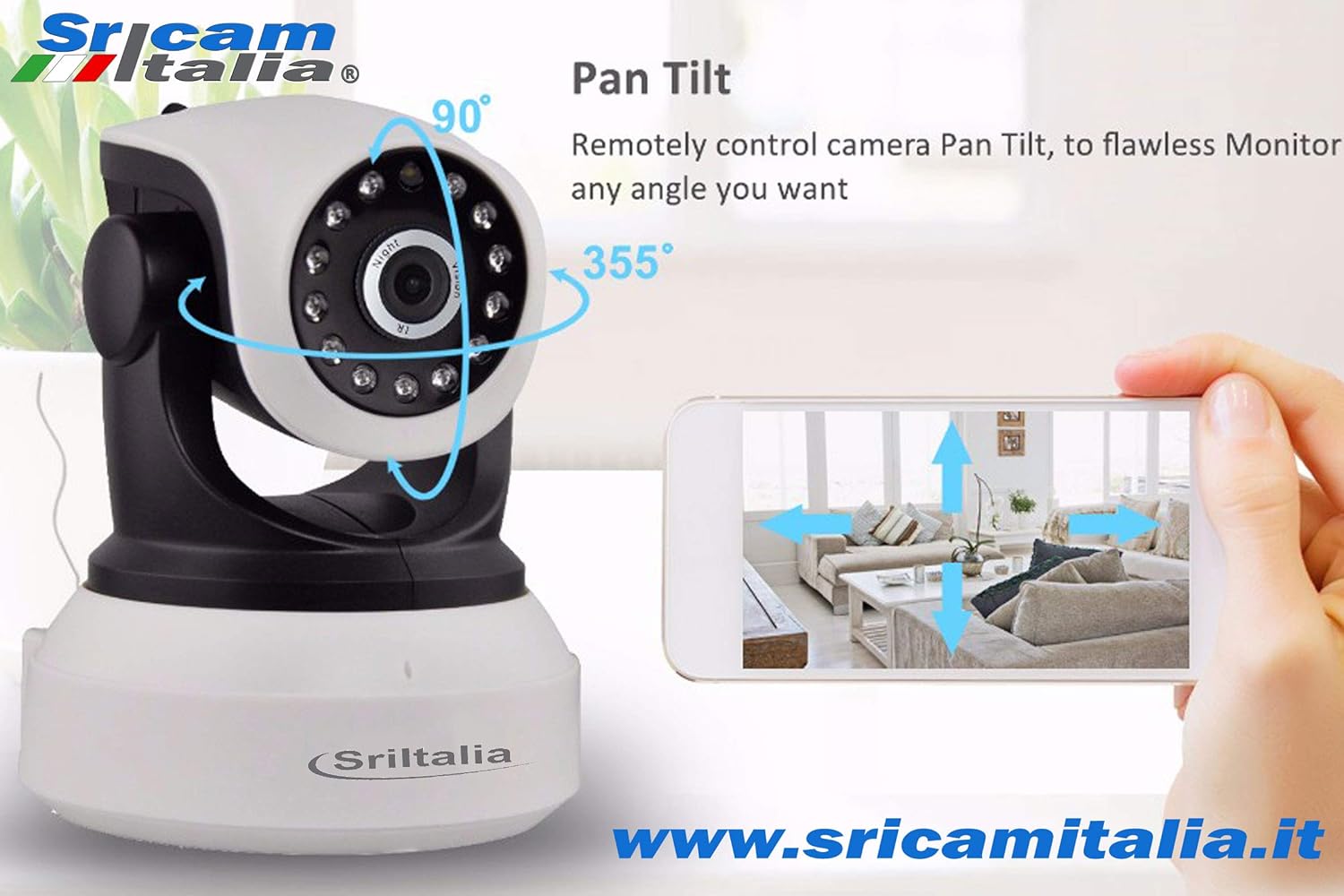
Image 3: An illustration showing the Sricam Italia SP017-S camera's pan and tilt capabilities. Arrows indicate 90° vertical rotation and 355° horizontal rotation. A hand holds a smartphone displaying the live camera feed with directional controls, demonstrating remote control of the camera's movement.
- In the live view interface of the SriHome app, use the on-screen directional controls (usually arrows or a joystick) to move the camera lens horizontally (pan) and vertically (tilt).
- The camera supports approximately 355° horizontal rotation and 90° vertical rotation.

Image 4: This image highlights the camera's "Full 360° HD Coverage" with a 115° professional wide-angle lens, combined with 90° vertical and 355° horizontal rotation, illustrating its extensive monitoring range.
3. Night Vision
The camera is equipped with infrared LEDs for clear monitoring in low-light or no-light conditions.
- Night vision activates automatically when the ambient light falls below a certain threshold, detected by the light sensor.
- The video feed will switch to black and white in night vision mode.
4. Motion Detection and Alarms
Configure motion detection settings to receive alerts when movement is detected.
- Access the camera settings in the SriHome app.
- Navigate to "Motion Detection" or "Alarm Settings".
- Enable motion detection and adjust sensitivity levels as needed.
- Set up notification preferences (e.g., push notifications to your phone, email alerts).
5. Two-Way Audio
The built-in microphone and speaker allow for two-way communication.
- In the live view, tap the microphone icon to speak through the camera's speaker.
- Tap the speaker icon to listen to audio from the camera's vicinity.
6. Recording and Storage
The camera supports local storage via a MicroSD card (up to 128GB).
- Insert a formatted MicroSD card into the designated slot on the camera.
- In the app settings, configure recording options such as continuous recording, event-triggered recording (motion detection), or scheduled recording.
- Recorded footage can be accessed and played back through the SriHome app.
Maintenance
1. Cleaning
- Ensure the camera is powered off before cleaning.
- Use a soft, dry cloth to wipe the camera body.
- For the lens, use a lens cleaning cloth and specialized lens cleaning solution to avoid scratches.
- Do not use harsh chemicals or abrasive cleaners.
2. Firmware Updates
Periodically check for firmware updates through the SriHome app to ensure optimal performance and access to new features.
- In the app, navigate to camera settings and look for "Firmware Update" or "Device Information".
- Follow the on-screen instructions to download and install any available updates. Do not power off the camera during an update.
3. Resetting the Camera
If you encounter persistent issues or wish to reconfigure the camera, you may perform a factory reset.
- Locate the reset button on the camera (often a small pinhole).
- With the camera powered on, use a pin or paperclip to press and hold the reset button for approximately 5-10 seconds until you hear a prompt or see the indicator light change.
- The camera will restart and revert to factory default settings, requiring re-pairing with the app.
Troubleshooting
Common Issues and Solutions:
- Camera not connecting to Wi-Fi:
- Ensure your Wi-Fi network is 2.4GHz.
- Verify the Wi-Fi password is correct.
- Move the camera closer to the Wi-Fi router.
- Reset the camera and try the setup process again.
- No live feed:
- Check if the camera is powered on and connected to Wi-Fi.
- Ensure your smartphone has an active internet connection.
- Restart the camera and the SriHome app.
- Poor video quality:
- Check your internet connection speed.
- Ensure the camera lens is clean.
- Adjust video quality settings in the app if available.
- Motion detection not working:
- Verify motion detection is enabled in the app settings.
- Adjust sensitivity levels.
- Ensure notification permissions are granted for the SriHome app on your phone.
- Cannot hear audio or speak through camera:
- Check volume settings on your phone and within the app.
- Ensure the microphone and speaker on the camera are not obstructed.
- Verify app permissions for microphone access.
Specifications
| Model | SP017-S |
| Brand | Sricam Italia |
| Video Resolution | 1280 x 720 (720p HD, 1.0 Megapixels) |
| Connectivity | Wireless (Wi-Fi 2.4GHz), ONVIF Protocol |
| Pan/Tilt Range | Horizontal: 355°, Vertical: 90° |
| Lens Angle | 115° Wide-angle |
| Night Vision | Infrared LEDs |
| Audio | Built-in Microphone and Speaker (Two-way audio) |
| Storage | MicroSD card (up to 128GB, not included) |
| Motion Detection | Supported, with alerts |
| Power Supply | 12 Volts, 6 Watts |
| Material | PVC |
| Color | White/Black |
| Dimensions (L x W x H) | 10 x 10 x 16 cm |
| Weight | 1 Kilogram |
| Usage Environment | Outdoor (as per specifications, suitable for various environments) |
Warranty and Support
Sricam Italia products are designed for reliability and performance. For specific warranty information, please refer to the warranty card included with your purchase or visit the official Sricam Italia website. Keep your proof of purchase for warranty claims.
For technical support, troubleshooting assistance, or further inquiries, please contact Sricam Italia customer service through their official website or the contact information provided in your product packaging. You can also visit www.sricamitalia.it for additional resources.
Related Documents - SP017-S
 |
Sricam SP017 IP Camera Quick User Manual A quick user manual for the Sricam SP017 IP Camera, covering setup, app installation, network connection, and troubleshooting. |
 |
Sricam Indoor IP Camera Quick User Manual A quick user manual for Sricam Indoor IP Cameras (models SP017, SP020), covering hardware installation, app setup, user registration, viewing the camera, troubleshooting, and FAQs. |
 |
Gogogate 2 Camera List 2015: Verified IP Camera Compatibility Explore the comprehensive Gogogate 2 camera compatibility list for 2015, featuring verified and non-tested IP camera models from leading brands. Find compatible cameras for your security system. |
 |
Leader Joy: Premium Montessori Materials & Educational Toys Catalog Explore Leader Joy's extensive catalog of premium Montessori materials, furniture, and educational toys for children aged 0-12. Discover high-quality, safe, and customizable products for early childhood development. |
Ask a question about this manual
Ask about setup, troubleshooting, compatibility, parts, safety, or missing instructions. Manuals+ will review the question and use this page’s manual context to help answer it.