
1. Introduction
Thank you for choosing the MaxiAids EZ See Large Print Keyboard. This keyboard is designed to enhance visibility and typing efficiency for users who benefit from larger characters. It features extra-large, high-contrast legends on low-profile keys, making it an ideal solution for individuals with low vision or those who prefer easier-to-read keys. This manual provides essential information for setting up, operating, maintaining, and troubleshooting your new keyboard.
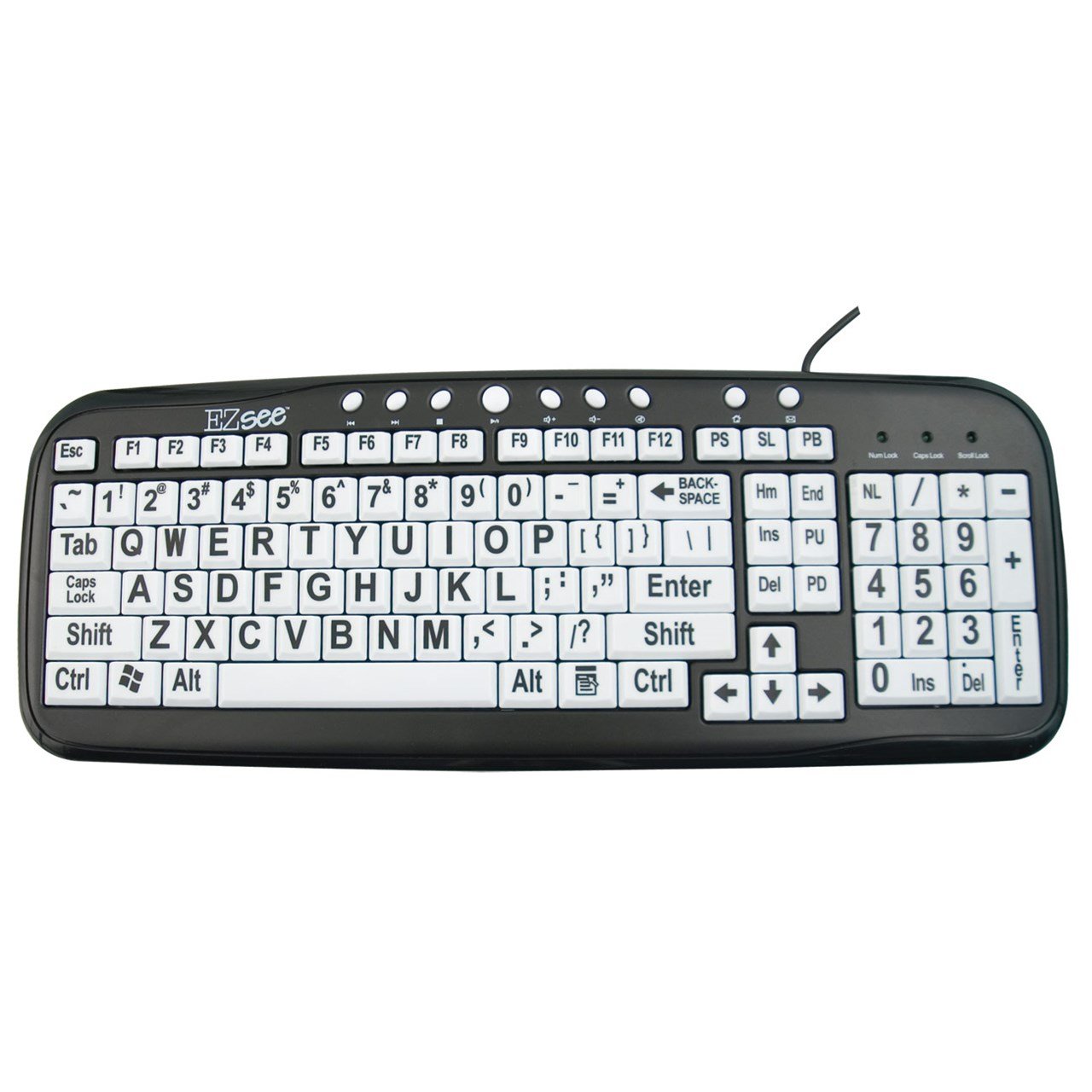
This image shows the MaxiAids EZ See Large Print Keyboard. It features white keys with oversized black characters for enhanced visibility, designed to assist users with low vision.
2. Setup
The MaxiAids EZ See Large Print Keyboard is a plug-and-play device, requiring no special drivers for most operating systems. Follow these simple steps to connect your keyboard:
- Unpack the Keyboard: Carefully remove the keyboard from its packaging.
- Locate a USB Port: Identify an available USB port on your computer (desktop or laptop).
- Connect the USB Cable: Insert the USB connector from the keyboard cable firmly into the USB port on your computer.
- System Recognition: Your operating system should automatically detect and install the necessary drivers for the keyboard. This process may take a few moments.
- Test the Keyboard: Open a text editor or any application that accepts text input and type a few characters to ensure the keyboard is functioning correctly.
If the keyboard does not respond, try connecting it to a different USB port or restarting your computer.
3. Operating the Keyboard
The EZ See Large Print Keyboard functions like a standard 104-key QWERTY keyboard, with the primary difference being the enhanced visibility of its keys.
- Standard Layout: The keyboard features a familiar QWERTY layout, including a numeric keypad, function keys (F1-F12), and navigation keys.
- Large Print Keys: Each keycap is designed with oversized, high-contrast characters to reduce eye strain and improve typing accuracy for users with visual impairments.
- Low Profile Keys: The keys have a low-profile design, which can contribute to a comfortable typing experience.
- Caps Lock, Num Lock, Scroll Lock Indicators: Standard LED indicators are present to show the status of Caps Lock, Num Lock, and Scroll Lock functions.
Simply use the keyboard as you would any other, benefiting from the improved readability of the key legends.
4. Maintenance
Proper care and maintenance will ensure the longevity and optimal performance of your MaxiAids EZ See Large Print Keyboard.
- Cleaning: To clean the keyboard, disconnect it from your computer. Use a soft, lint-free cloth slightly dampened with water or a mild, non-abrasive cleaning solution. Avoid spraying liquids directly onto the keyboard or allowing moisture to seep between the keys.
- Dust Removal: Use compressed air to remove dust and debris from between the keys.
- Avoid Spills: Keep liquids away from the keyboard to prevent damage. In case of a spill, immediately disconnect the keyboard and allow it to dry completely before reconnecting.
- Storage: When not in use for extended periods, store the keyboard in a clean, dry environment away from extreme temperatures.
5. Troubleshooting
If you encounter issues with your keyboard, please refer to the following common troubleshooting steps:
- Keyboard Not Responding:
- Ensure the USB cable is securely connected to both the keyboard and the computer.
- Try connecting the keyboard to a different USB port on your computer.
- Restart your computer.
- Test the keyboard on another computer, if available, to determine if the issue is with the keyboard or the computer.
- Specific Keys Not Working:
- Check for any debris or obstructions under the non-functioning keys. Use compressed air to clear any particles.
- Ensure the keyboard is clean and dry.
- Numeric Keypad Not Working:
- Verify that the Num Lock indicator light is on. Press the 'Num Lock' key to toggle it on or off.
- Some older operating systems or specific software configurations might require additional settings for the numeric keypad. Consult your computer's operating system documentation.
- Slow or Delayed Input:
- This could be a system performance issue. Close unnecessary applications and check your computer's resource usage.
- Ensure your computer's operating system is up to date.
If these steps do not resolve the issue, please contact MaxiAids customer support for further assistance.
6. Specifications
| Brand | MaxiAids |
| Model Number | 23570 |
| Connectivity Technology | USB |
| Compatible Devices | Laptop (and Desktop Computers) |
| Keyboard Description | USB Keyboard |
| Special Feature | Ergonomic, Large Print |
| Color | Black White |
| Style | Classic |
| Material | Plastic |
| Included Components | Keyboard |
| Button Quantity | 104 |
7. Warranty and Support
For information regarding the warranty period and terms for your MaxiAids EZ See Large Print Keyboard, please refer to the documentation included with your purchase or visit the official MaxiAids website. Warranty details can vary by region and retailer.
If you require technical support, have questions about product functionality, or need assistance with troubleshooting beyond what is covered in this manual, please contact MaxiAids customer service directly. Contact information can typically be found on the manufacturer's website or on your product packaging.