1. Overview
The TiVo BOLT is a Unified Entertainment System designed to integrate all your entertainment sources. It replaces existing cable equipment, records multiple shows simultaneously, and seamlessly integrates streaming content. The device is engineered for speed and ease of use, offering features like 4K UHD compatibility, commercial skipping, and fast-forward with pitch-corrected audio.
Key Features:
- Record up to 4 shows simultaneously and store up to 150 hours of HD programming.
- Compatible with 4K UHD content for high-resolution viewing.
- SkipMode: Allows skipping entire commercial breaks during recorded shows with a single button press.
- QuickMode: Speeds up recorded and buffered shows by 30% with pitch-corrected audio.
- OneSearch: Unified search across live TV, on-demand content, and integrated streaming apps (Netflix, Amazon Prime, HBO Go, Hulu, VUDU, Pandora, etc.).
- Stream and download content to mobile devices within your home.
- Schedule recordings remotely using the free TiVo app.
- Supports recording of Over-the-Air (OTA) channels with an HD antenna.
- Compatible with TiVo Mini for multi-room TV solutions.
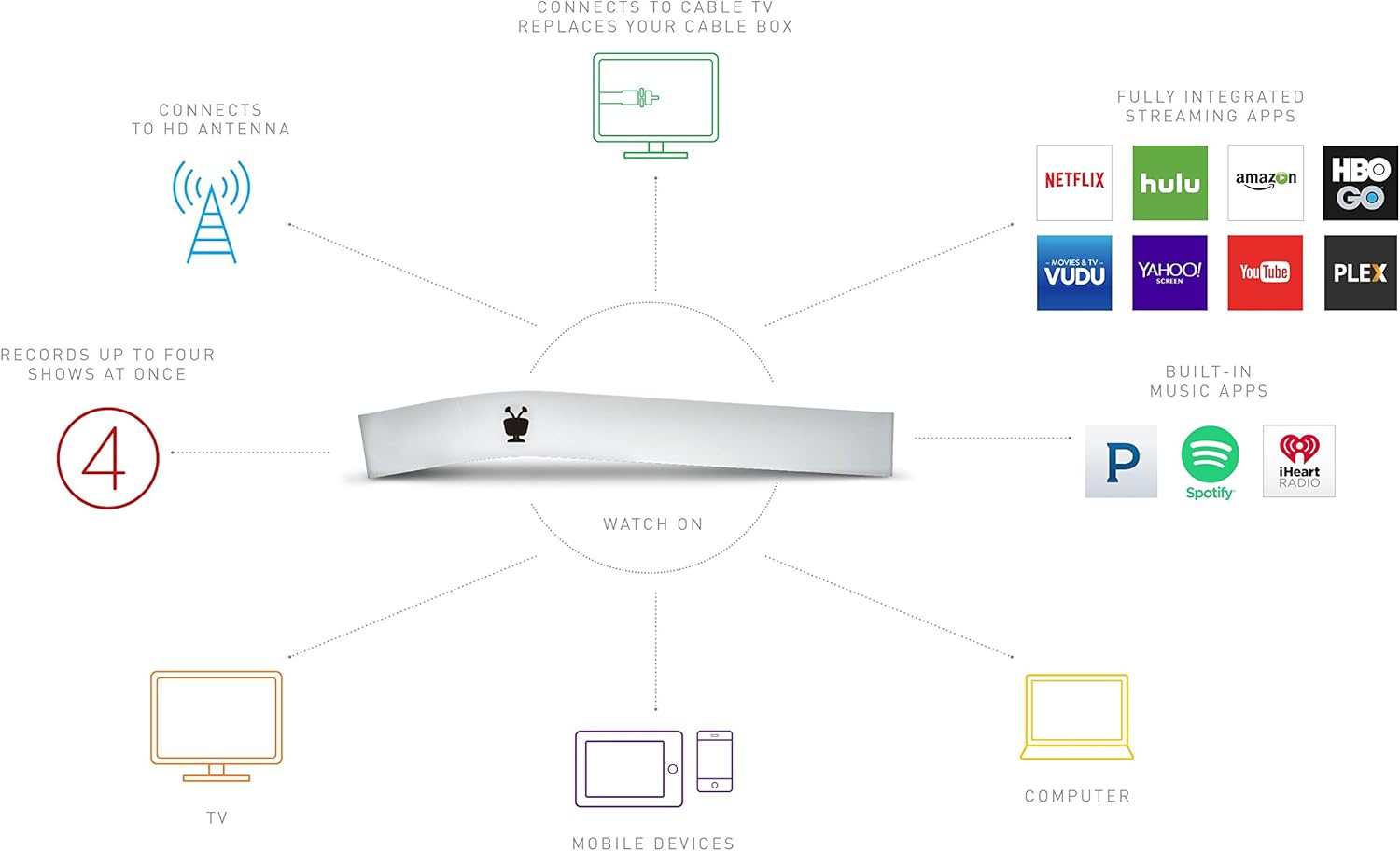
Figure 1.1: The TiVo Bolt 1000 GB DVR device, showcasing its unique design.
2. Setup
2.1 Unboxing and Package Contents
Carefully unpack your TiVo Bolt DVR and ensure all components are present:
- TiVo BOLT DVR (Model R84900)
- IR/RF Remote
- AC Adapter
- HDMI Cable
- Quick Start Guide
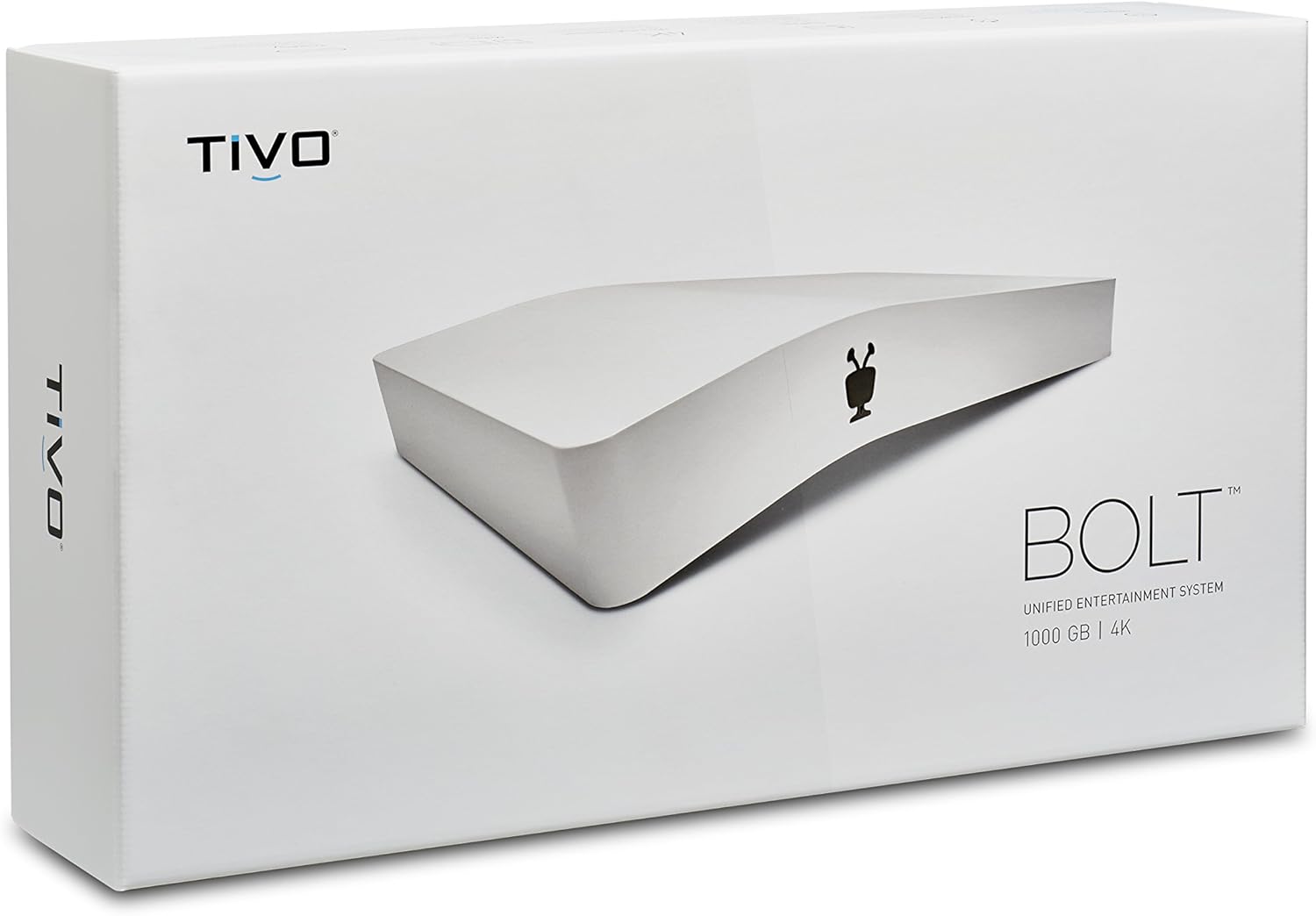
Figure 2.1: The retail packaging of the TiVo Bolt 1000 GB DVR.
2.2 Connecting Your TiVo Bolt
- Connect to TV: Use the provided HDMI cable to connect the TiVo Bolt to an available HDMI input on your television.
- Connect to Cable or Antenna:
- For Digital Cable: Insert your CableCARD (required, not included) into the TiVo Bolt. Connect your cable line to the TiVo Bolt's cable input.
- For HD Antenna: Connect your HD antenna to the TiVo Bolt's antenna input.
- Connect Power: Plug the AC adapter into the TiVo Bolt's power input, then plug the adapter into a wall outlet. The device will power on automatically.
- Initial Setup: Follow the on-screen instructions to complete the guided setup process, including connecting to your home network (Wi-Fi or Ethernet), activating your TiVo service subscription, and scanning for channels.
Video 2.1: A brief overview of the TiVo Bolt's features and connectivity options.
3. Operating Your TiVo Bolt
3.1 Basic Functions
- Recording: The TiVo Bolt can record up to four shows simultaneously. Use the on-screen guide to select programs and set recordings.
- Playback: Access your recorded shows from the 'My Shows' menu. Use SkipMode to bypass commercials and QuickMode to speed through content.
3.2 Streaming Services
The TiVo Bolt integrates popular streaming apps directly into its interface, eliminating the need to switch inputs or devices.
- Access apps like Netflix, Amazon Prime, HBO Go, Hulu, VUDU, and Pandora directly from the TiVo menu.
- Use OneSearch to find content across all integrated platforms simultaneously.

Figure 3.1: The TiVo Bolt's user interface with integrated streaming applications.
3.3 Mobile Access
The free TiVo app allows you to extend your entertainment experience beyond your TV:
- Stream live or recorded shows to your mobile devices within your home.
- Download recorded shows to your mobile device for offline viewing.
- Schedule new recordings from anywhere using the app.
4. Maintenance
4.1 General Care
- Keep the TiVo Bolt in a well-ventilated area to prevent overheating.
- Clean the device with a soft, dry cloth. Avoid liquid cleaners.
- Ensure all cables are securely connected.
4.2 Software Updates
The TiVo Bolt periodically receives software updates to improve performance and add new features. These updates typically download and install automatically. Ensure your device is connected to the internet for timely updates.
5. Troubleshooting
If you encounter issues with your TiVo Bolt, try the following steps:
- No Picture/Sound: Check all HDMI and audio connections. Ensure your TV is on the correct input.
- Recording Issues: Verify your CableCARD is properly inserted and activated, or that your HD antenna is correctly connected and positioned. Check your TiVo service subscription status.
- Weak Signal: If using an HD antenna, try adjusting its position for better reception. Obstructions like buildings or trees can affect signal quality.
- App Not Loading/Freezing: Ensure your internet connection is stable. Try restarting the TiVo Bolt by unplugging it from power for 15 seconds and plugging it back in.
- Remote Not Responding: Replace the batteries (2 AA batteries are included with the device). Ensure there are no obstructions between the remote and the TiVo Bolt.
6. Specifications
| Feature | Detail |
|---|---|
| Brand | TiVo |
| Model Number | R84900 |
| Item Weight | 11.2 ounces |
| Product Dimensions | 8 x 2.7 x 4.3 inches |
| Batteries | 2 AA batteries (included) |
| Special Features | Compact |
| Resolution | 3840x2160 (4K UHD) |
| Connector Type | HDMI |
| Connectivity Technology | Wi-Fi |
| Audio Output Mode | Stereo, Dolby Digital 5.1 (Optical) |
7. Warranty & Support
For warranty information, technical support, or to inquire about extended protection plans, please refer to the official TiVo website or contact TiVo customer service directly. Keep your purchase receipt as proof of purchase for warranty claims.
- Protection Plans: Optional 2-Year and 3-Year protection plans may be available for purchase.
- Return Policy: Standard 30-day refund/replacement policy applies from the date of purchase.


