
1. Introduction
This manual provides essential information for the proper installation, operation, and maintenance of the Omron FZVS35M Camera Cable. This cable is specifically designed for connecting cameras to Omron FZ5 Series Sensor Controllers in industrial environments.
The FZVS35M cable ensures reliable data transmission for high-precision object detection, measurement, and system integration. Adhering to the instructions in this manual will help ensure optimal performance and longevity of the product.
2. Safety Information
Always observe the following safety precautions to prevent injury to personnel and damage to equipment.
- Disconnect Power: Ensure all power to the FZ5 Series Sensor Controller and camera is disconnected before connecting or disconnecting the cable.
- Proper Handling: Do not bend, twist, or pull the cable excessively. Avoid placing heavy objects on the cable.
- Environmental Conditions: Do not expose the cable to extreme temperatures, corrosive substances, or excessive moisture beyond its specified operating conditions (65°C maximum).
- Authorized Personnel: Installation and maintenance should only be performed by qualified and authorized personnel.
- RoHS Compliance: This product is RoHS compliant. Dispose of it according to local regulations.
3. Setup and Installation
Follow these steps to properly install the Omron FZVS35M Camera Cable:
- Inspect the Cable: Before installation, visually inspect the FZVS35M cable for any signs of damage, such as cuts, abrasions, or bent connectors. Do not use a damaged cable.
- Identify Connectors: The FZVS35M cable features specific connectors designed for the camera and the FZ5 Series Sensor Controller. Ensure you identify the correct end for each device.
- Connect to Camera: Carefully align the cable connector with the camera's port. Insert the connector firmly until it clicks or is securely fastened. Do not force the connection.
- Connect to Sensor Controller: Similarly, align and connect the other end of the cable to the designated camera input port on the Omron FZ5 Series Sensor Controller. Ensure a secure connection.
- Cable Routing: Route the 5-meter cable to avoid sharp bends, pinch points, or areas where it could be snagged or damaged. Use cable ties or appropriate fasteners to secure the cable along its path, maintaining a safe distance from moving parts or heat sources.
- Verify Connection: After physical installation, double-check both connections to ensure they are secure and fully seated.
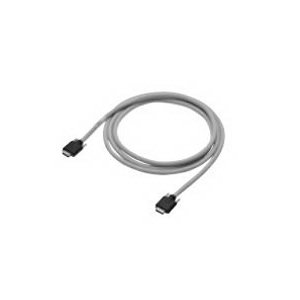
Figure 1: Omron FZVS35M Camera Cable. This image shows the cable with its connectors, highlighting its PVC jacket and overall design.
4. Operation
The FZVS35M is a passive camera cable designed to facilitate communication between a camera and an Omron FZ5 Series Sensor Controller. Its operation is integral to the overall vision system.
- System Power-Up: Once the cable is securely connected, power on the FZ5 Series Sensor Controller and the connected camera according to their respective manuals.
- Signal Transmission: The cable will transmit video signals and control data between the camera and the controller. Ensure the controller recognizes the camera.
- Software Configuration: Refer to the Omron FZ5 Series Sensor Controller software manual for camera detection, configuration, and calibration procedures. The cable's function is to provide a reliable physical link.
- Monitoring: Monitor the system for stable image acquisition and data processing. Any intermittent issues may indicate a problem with the cable or its connections.
5. Maintenance
Regular maintenance helps ensure the longevity and reliable performance of your FZVS35M Camera Cable.
- Periodic Inspection: Regularly inspect the entire length of the cable for any physical damage, such as cuts, cracks in the PVC jacket, or signs of wear. Check connectors for corrosion or bent pins.
- Cleaning: If necessary, gently clean the cable and connectors with a soft, dry, lint-free cloth. Do not use harsh chemicals or abrasive materials. Ensure connectors are free of dust and debris.
- Connection Check: Periodically verify that both ends of the cable are securely fastened to the camera and the sensor controller. Loose connections can lead to intermittent signal loss.
- Storage: If the cable is to be stored, coil it loosely without sharp bends and store it in a clean, dry environment away from direct sunlight and extreme temperatures.
6. Troubleshooting
If you encounter issues with your vision system, consider the following troubleshooting steps related to the FZVS35M Camera Cable:
| Problem | Possible Cause | Solution |
|---|---|---|
| No image from camera | Loose cable connection; Damaged cable; Incorrect port connection | Ensure both ends of the FZVS35M cable are securely connected. Inspect the cable for damage and replace if necessary. Verify the cable is connected to the correct camera and controller ports. |
| Intermittent image signal | Loose connection; Cable interference; Cable damage | Check all connections for tightness. Reroute the cable away from sources of electromagnetic interference. Inspect for subtle damage. |
| Distorted or noisy image | Cable damage; Electromagnetic interference (EMI) | Replace the cable if damage is suspected. Ensure proper grounding of the system. Shield the cable if EMI is a persistent issue. |
If troubleshooting steps do not resolve the issue, contact Omron technical support or your authorized distributor for further assistance.
7. Specifications
| Attribute | Value |
|---|---|
| Brand | Omron |
| Model Number | FZVS35M |
| Item | Camera Cable |
| Compatible Devices | Camera (for FZ5 Series Sensor Controllers) |
| Length | 5 meters |
| Material | PVC |
| Maximum Operating Temperature | 65°C |
| Shape | Round |
| Standard/Approvals | RoHS Compliant |
| Number of Items | 1 |
8. Warranty and Support
Warranty information for the Omron FZVS35M Camera Cable is typically provided with the product packaging or can be found on the official Omron website. Please refer to the terms and conditions of your purchase for specific warranty details.
For technical support, product inquiries, or service, please contact your local Omron representative or visit the official Omron support portal. Ensure you have your product model number (FZVS35M) and any relevant purchase details available when seeking support.
Omron Official Website: www.omron.com

