
Intermec PB51B33004100
Intermec PB51 Mobile Receipt Printer User Manual
Model: PB51B33004100
Introduction
The Intermec PB51 is a rugged, 4-inch direct thermal mobile receipt printer designed for demanding field service, route accounting, and point-of-service applications. It offers fast, reliable printing performance to enhance productivity for mobile workers.
This manual provides essential information for the proper setup, operation, maintenance, and troubleshooting of your PB51 printer.
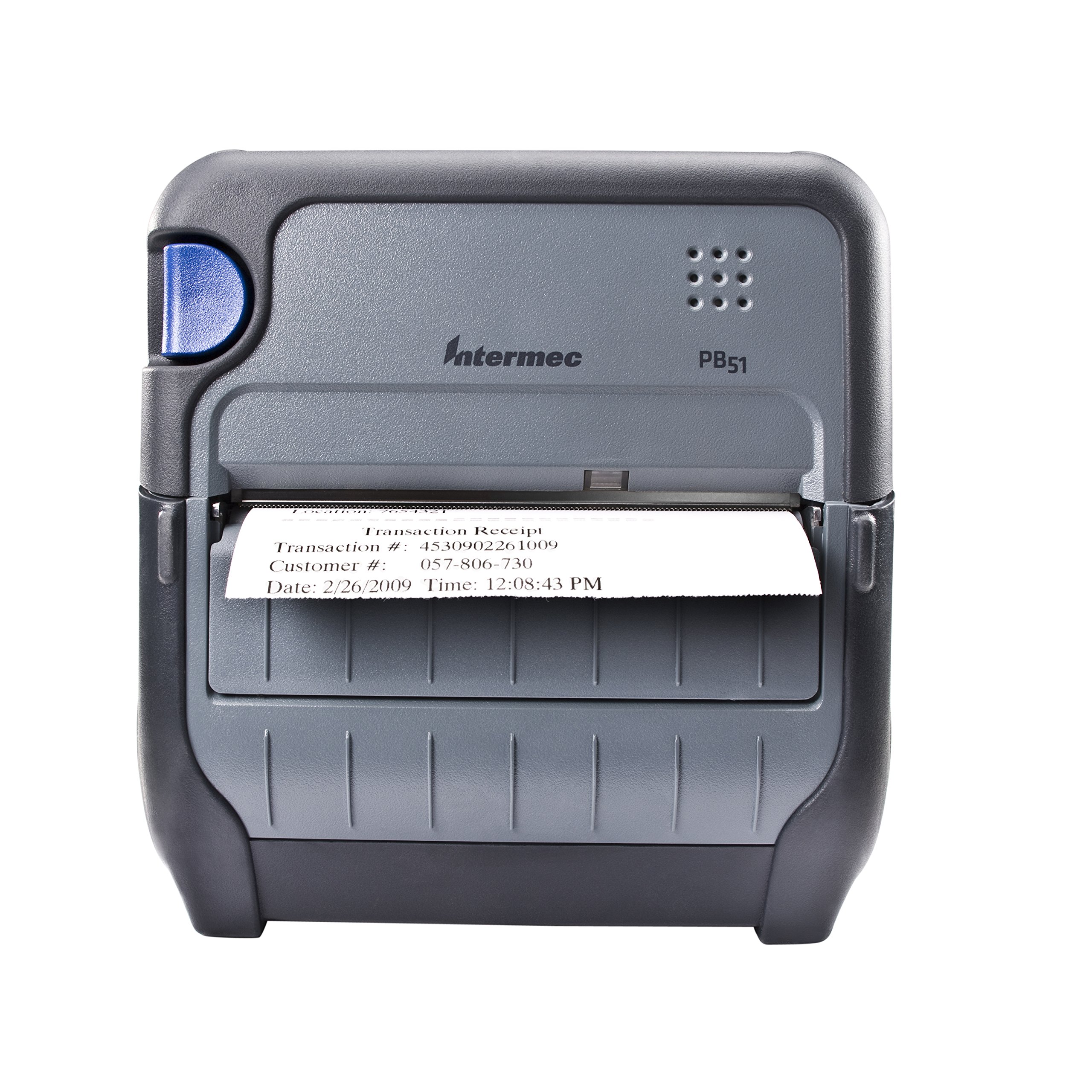
Figure 1: Front view of the Intermec PB51 mobile receipt printer. A receipt is partially ejected from the front slot, displaying "Transaction Receipt", "Transaction #: 4530902261009", "Customer #: 057-806-730", and "Date: 2/26/2009 Time: 12:08:43 PM". The printer features a dark gray casing with a blue button on the left side and the "Intermec PB51" logo on the top panel.
Setup
1. Unpacking and Inspection
- Carefully remove the printer and all accessories from the packaging.
- Verify that all components listed in the packing slip are present.
- Inspect the printer for any visible damage. If damage is found, contact your supplier immediately.
2. Battery Installation and Charging
- Ensure the printer is powered off.
- Locate the battery compartment on the printer.
- Insert the battery, ensuring proper alignment with the contacts.
- Close the battery compartment securely.
- Connect the AC adapter to the printer and a power outlet. The battery indicator light will show charging status. Allow the battery to fully charge before first use.
3. Loading Thermal Paper
- Open the paper compartment cover.
- Insert the thermal paper roll with the print-side facing the print head.
- Pull a small amount of paper out past the print mechanism.
- Close the paper compartment cover firmly until it latches.
- The printer's paper sensors will detect the paper, minimizing lost transactions.
4. Connectivity Setup (Bluetooth / USB / Serial)
- Bluetooth: Turn on the printer and enable Bluetooth on your host device (e.g., smartphone, tablet, or computer). Search for available devices and select the PB51. Pair using the default PIN (refer to the printer's display or documentation for the specific PIN).
- USB: Connect the printer to your host device using a standard USB cable. Install the necessary printer drivers on your host device if prompted.
- Serial: Connect the printer to your host device using a serial cable. Configure the serial port settings (baud rate, data bits, parity, stop bits) on both the printer and the host device to match.
Operating Instructions
1. Powering On/Off
- To power on, press and hold the power button until the display illuminates.
- To power off, press and hold the power button until the display indicates shutdown, then release.
2. Printing a Receipt
- Ensure the printer is powered on and connected to your host device.
- Open the application on your host device that generates receipts or invoices.
- Initiate the print command from your application. The PB51 is designed for 20-30% faster time-to-receipt printing.
- The printer will automatically feed and print the receipt.
- Tear off the receipt along the serrated edge.
3. Using the LCD Display
The standard LCD display provides important information about the printer's status, battery level, connectivity, and error messages. Use the navigation buttons (if present) to scroll through menu options and settings.
Maintenance
1. Cleaning the Print Head
- Power off the printer and disconnect it from any power source.
- Open the paper compartment.
- Gently wipe the print head surface with a lint-free cloth dampened with isopropyl alcohol.
- Allow the print head to dry completely before closing the cover and powering on the printer.
- Perform this cleaning regularly, especially if print quality degrades.
2. Battery Care
- To maximize battery life, avoid fully discharging the battery frequently.
- Store the printer and battery in a cool, dry place when not in use for extended periods.
- Use only genuine Intermec replacement batteries.
3. General Cleaning
Wipe the exterior of the printer with a soft, damp cloth. Do not use harsh chemicals or abrasive cleaners. Ensure no liquid enters the printer's openings.
Troubleshooting
| Problem | Possible Cause | Solution |
|---|---|---|
| Printer not powering on | Low or dead battery; faulty power adapter; loose battery connection. | Charge the battery; check power adapter connection; re-seat the battery. |
| No print output | No paper; paper loaded incorrectly; connectivity issue; print head dirty. | Load paper correctly; check Bluetooth/USB/Serial connection; clean print head. |
| Poor print quality | Dirty print head; incorrect paper type; low battery. | Clean print head; ensure thermal paper is used; charge battery. |
| Connectivity issues | Incorrect pairing; driver issues; out of range. | Re-pair Bluetooth; reinstall drivers; move closer to host device. |
If the problem persists after attempting these solutions, please contact Intermec customer support.
Specifications
| Feature | Detail |
|---|---|
| Model Name | PB51B33004100 |
| Printing Technology | Direct Thermal |
| Printer Output | Monochrome |
| Maximum Media Size | 4 inches |
| Connectivity Technology | USB, Serial, Bluetooth |
| Item Weight | 42 Ounces (approx. 2.63 lbs) |
| Package Dimensions | 10.2 x 10 x 5 inches |
| Controller Type | Android (compatible) |
| Manufacturer | Intermec |
Warranty and Support
Specific warranty information for the Intermec PB51 printer is not available in this document. Please refer to the warranty card included with your product or visit the official Intermec (now Honeywell) website for detailed warranty terms and conditions.
For technical support, service, or to purchase accessories, please contact your authorized Intermec/Honeywell dealer or visit their official support portal.
Ask a question about this manual
Ask about setup, troubleshooting, compatibility, parts, safety, or missing instructions. Manuals+ will review the question and use this page’s manual context to help answer it.