Product Overview
The Idtech MiniMag II is an intelligent, programmable MagStripe reader designed for efficient and reliable magnetic stripe card reading. Its compact size and robust features make it suitable for various point-of-sale (POS) and data entry applications.
Key features include:
- Small footprint for easy integration into tight spaces.
- Capable of reading up to three tracks of information (model dependent).
- Supports bi-directional swipe reading for user convenience.
- Designed for superior reading performance on high jitter, scratched, and worn cards.
- Engineered for high reliability, supporting over 1,000,000 card swipes.
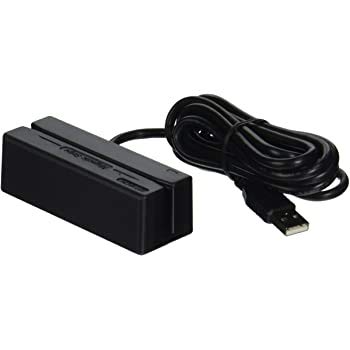
Figure 1: Idtech MiniMag II MagStripe Reader with USB cable. This image shows the compact black magnetic stripe reader device connected to a USB cable, ready for connection to a host system.
Setup Instructions
Follow these steps to set up your MiniMag II MagStripe Reader:
- Unpack the Device: Carefully remove the MiniMag II reader from its packaging. Ensure all components, including the reader and the integrated USB cable, are present and undamaged.
- Connect to Host System: Locate an available USB port on your computer or point-of-sale (POS) system. Insert the USB connector of the MiniMag II into the USB port. The device is designed to be plug-and-play for most operating systems, appearing as a standard USB keyboard device.
- Driver Installation (if necessary): In most cases, standard USB HID (Human Interface Device) drivers will be automatically installed by your operating system. If the device is not recognized, check your operating system's device manager for any unknown devices and refer to the Idtech support website for specific driver downloads or troubleshooting.
- Verify Connection: Once connected, the reader typically emits a short beep and/or illuminates an LED indicator to signal successful power-on and connection.
- Test Functionality: Open a text editor (e.g., Notepad, WordPad) or a compatible application. Swipe a magnetic stripe card through the reader. The data from the card should appear as typed text in the open application.
Note: The MiniMag II is programmable. For advanced configuration, such as data format or interface output adjustments, use ID TECH’s Magswipe PC software. This software is typically available for download from the manufacturer's official website.
Operating Instructions
Operating the MiniMag II MagStripe Reader is straightforward:
- Prepare the Card: Ensure the magnetic stripe on the card is clean and free from debris.
- Position the Card: Hold the card with the magnetic stripe facing the reader's slot.
- Swipe the Card: Insert the card into the slot and swipe it smoothly and consistently through the reader in either direction. The MiniMag II supports bi-directional reading.
- Confirm Successful Read: Upon a successful read, the reader will typically emit an audible beep and/or illuminate a green LED indicator. The data from the magnetic stripe will be transmitted to your connected system as if it were typed via a keyboard.
- Unsuccessful Read: If the read is unsuccessful (no beep, no data, or red LED), try swiping the card again. Ensure the swipe speed is consistent and the card is properly aligned.
The reader is designed to handle high jitter, scratched, and worn cards, providing reliable performance even with less-than-perfect card conditions.
Maintenance
Proper maintenance ensures the longevity and optimal performance of your MiniMag II reader:
- Cleaning the Read Head: Over time, dust and debris can accumulate on the magnetic read head, affecting performance. Use a specialized magnetic stripe reader cleaning card (available from office supply or POS equipment vendors) to clean the head. Follow the instructions provided with the cleaning card. Do not use abrasive materials or harsh chemical cleaners.
- Exterior Cleaning: Wipe the exterior of the device with a soft, slightly damp cloth. Avoid getting moisture into the card slot or USB connector.
- Storage: When not in use, store the reader in a clean, dry environment, away from extreme temperatures and direct sunlight.
- Cable Care: Avoid bending or crimping the USB cable excessively. Do not pull the cable to disconnect the device; always grasp the USB connector.
Troubleshooting
If you encounter issues with your MiniMag II reader, refer to the following common problems and solutions:
| Problem | Possible Cause | Solution |
|---|---|---|
| No data output after swiping card. |
|
|
| Inconsistent or garbled data output. |
|
|
| Reader not recognized by computer. |
|
|
If the problem persists after attempting these solutions, please contact Idtech customer support for further assistance.
Specifications
The following are the technical specifications for the Idtech MiniMag II MagStripe Reader (Model IDMB-334112):
- Model Number: IDMB-334112
- Interface: USB Keyboard Emulation (HID)
- Tracks Read: Track 1 and 2
- Swipe Direction: Bi-directional
- Indicators: Beeper and three-color LED (for successful read indication)
- Programmability: Yes, via ID TECH’s Magswipe PC software
- Durability: Rated for over 1,000,000 card swipes
- Dimensions (Approximate): 90 mm length (approx. 3.54 inches)
- Weight (Approximate): 4.6 ounces
- Color: Black
- First Available Date: March 5, 2016
Warranty and Support
Warranty Information: Specific warranty details for the Idtech MiniMag II (IDMB-334112) are typically provided at the point of purchase or can be found on the official Idtech website. Please retain your proof of purchase for warranty claims.
Customer Support: For technical assistance, troubleshooting beyond this manual, or warranty inquiries, please contact Idtech customer support. Contact information, including phone numbers and support portals, can be found on the official Idtech website (www.idtechproducts.com). When contacting support, please have your product model number (IDMB-334112) and purchase details ready.


