
Introduction
The Samsung Galaxy S7 unlocks a Galaxy of technology that takes your smartphone experience to a new level. The bigger, more stunning screen completes the slimmer design. This device is water resistant, withstanding splashes, spills, and even dunks. It features dual-pixel technology for faster autofocus and a low-light sensor for professional-quality photos. With a longer-lasting battery and expandable memory, the Galaxy S7 is designed for enhanced mobile use. This manual provides essential information for setting up, operating, and maintaining your device.

Figure 1: Front view of the Gold Samsung Galaxy S7 smartphone.
Setup
What's in the Box
- Samsung Galaxy S7
- Pre-Installed SIM Card
- Wall Charger
- USB Cable
Initial Power On and Setup
To power on your Samsung Galaxy S7, press and hold the Power button located on the right side of the device until the Samsung logo appears. Follow the on-screen prompts to complete the initial setup, including language selection, Wi-Fi connection, and Google account setup.

Figure 2: Initial setup screen of the Samsung Galaxy S7, prompting to "Start".
Your device comes with a pre-installed SIM card for immediate network connectivity. Connect the wall charger to the USB cable and then to your phone to ensure it is fully charged before extensive use. Fast wireless charging is also supported for convenience.
Operating Your Device
Basic Navigation
The Samsung Galaxy S7 operates on the Android platform. Navigate through menus and applications using the touchscreen. The physical Home button below the screen, along with capacitive Back and Recent Apps buttons, provide intuitive control.
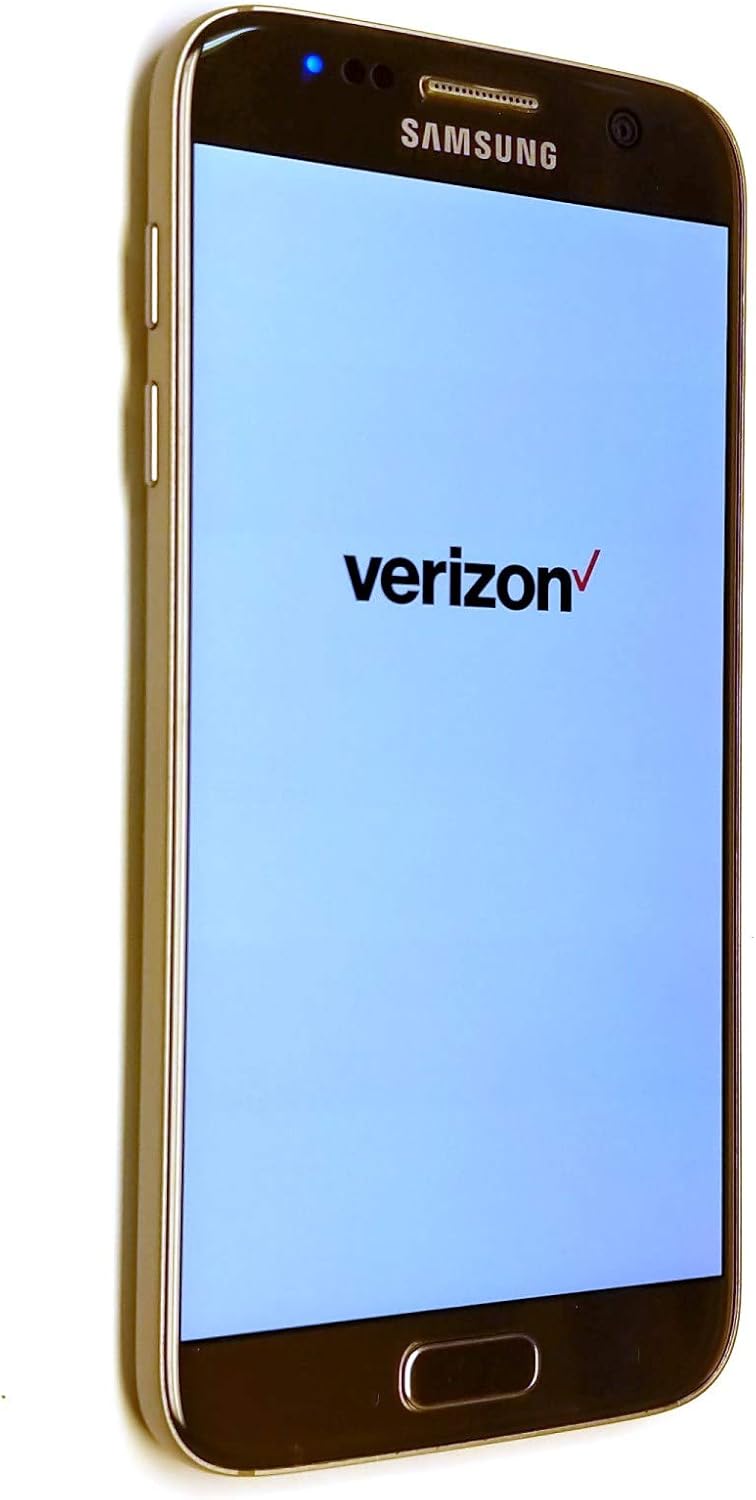
Figure 3: Samsung Galaxy S7 displaying the Verizon Wireless logo during startup.
Camera Features
The Galaxy S7 features a 12 MP dual-pixel camera designed for faster, more precise autofocus and improved low-light performance. Open the Camera app to access various modes, including Photo, Video, and Panorama. Tap the screen to focus, and press the shutter button to capture images or start/stop video recording.

Figure 4: Rear view of the Samsung Galaxy S7, highlighting the camera lens and LED flash.
Always On Display
The Always On Display feature shows an image or information on the standby screen, such as the time, date, and notifications. This function can be turned on or off via the quick settings panel for personalized convenience.

Figure 5: Samsung Galaxy S7 screen showing the Always On Display feature with current time and date.
Maintenance
Water Resistance
The Galaxy S7 has an IP68 rating, meaning it is resistant to dust, splashes, spills, and even submersion in up to 1.5 meters of fresh water for up to 30 minutes. While water-resistant, it is not waterproof. Avoid exposing the device to salt water, chlorinated water, or other liquids. Ensure the USB port is dry before charging to prevent damage.
Battery Care
To maximize battery life, avoid extreme temperatures. Use only Samsung-approved chargers and cables. Fast wireless charging allows for quick power-ups from 0-100% in a short amount of time. If the device becomes unusually warm, discontinue use and allow it to cool down.
Troubleshooting
Common Issues and Solutions
- Device Not Powering On: Ensure the battery is charged. Connect to the wall charger and wait a few minutes before attempting to power on again.
- Screen Unresponsive: Perform a forced restart by pressing and holding the Power and Volume Down buttons simultaneously for about 7-10 seconds.
- Connectivity Problems (Wi-Fi/Cellular): Toggle Wi-Fi or Cellular Data off and on. Restart the device. Check network settings or contact your service provider.
- Apps Crashing/Freezing: Close the problematic app and reopen it. Clear the app's cache and data in Settings > Apps. If the issue persists, uninstall and reinstall the app.
- Overheating: Close background apps. Reduce screen brightness. Avoid direct sunlight. If overheating persists, contact support.
Specifications
| Feature | Detail |
|---|---|
| Brand | Samsung |
| Model Name | Galaxy S7 |
| Item Model Number | G930V |
| Operating System | Android |
| Memory Storage Capacity | 32 GB |
| RAM Memory Installed Size | 4 GB |
| Screen Size | 5.5 Inches |
| Display Resolution | 2560 x 1440 pixels |
| Other Camera Features | 12 MP |
| Item Weight | 5.4 ounces |
| Product Dimensions | 2.74 x 0.31 x 5.61 inches |
| Batteries | 1 Lithium Ion batteries required (included) |
| Water Resistance | IP68 rated |
| Special Features | Smartphone, Dual-Camera, Expandable Memory, Touchscreen |
| Wireless Carrier | Unlocked |
| Cellular Technology | 4G |
Warranty and Support
For warranty information and technical support, please refer to the official Samsung website or contact Samsung customer service. Keep your proof of purchase for any warranty claims. The manufacturer is Samsung.
For additional resources and FAQs, visit the Samsung Store on Amazon.