
HP M501dn (J8H61A)
HP LaserJet Pro M501dn Duplex Printer User Manual
Model: J8H61A

Front view of the HP LaserJet Pro M501dn Duplex Printer.
1. Setup and Installation
1.1 What's in the Box
Upon unboxing your HP LaserJet Pro M501dn printer, verify that all components are present:
- HP LaserJet Pro MFP M501n Printer
- Preinstalled introductory HP LaserJet Toner cartridge (Black: ~6000 pages)
- In-box documentation (Installation Guide, Getting Started Guide, User's Guide, Support Flyer, Warranty Guide)
- Printer documentation and software on CD-ROM
- CD's containing software and electronic documentation
- Power cord

Image showing the HP LaserJet Pro M501dn printer and its included accessories: power cord, toner cartridge, and documentation CDs/guides.
1.2 Connecting the Printer
Connect the power cord to the printer and a wall outlet. For network connectivity, use an Ethernet cable. For direct PC connection, use a USB 2.0 cable (not included).

Rear view of the printer highlighting the Gigabit Ethernet port, USB port for job storage with PIN printing, and USB 2.0 port for PC connection.
1.3 Loading Paper
The printer features a 650-sheet total input capacity. To load paper, pull out the paper tray located at the bottom front of the printer. Adjust the paper guides to fit the paper size, then insert the paper stack. Gently push the tray back into the printer.
1.4 Installing Toner Cartridge
The printer comes with a preinstalled introductory toner cartridge. If replacement is needed, open the front door of the printer to access the cartridge bay. Carefully remove the old cartridge and insert the new one until it clicks into place. Close the front door.
Video demonstrating the unboxing and initial setup of the HP LaserJet Pro M501dn printer, including power connection and toner installation.
2. Operating the Printer
2.1 Basic Printing
The HP LaserJet Pro M501dn offers fast monochrome printing at up to 43 pages per minute. It supports automatic two-sided (duplex) printing, which helps save paper and time.

A user demonstrating the automatic 2-sided printing feature, which helps save paper.
2.2 Control Panel Functions
The printer features a 2-line LCD with a numerical keypad for direct operation. From the control panel, you can access various functions:
- Copy: Place documents on the scanner glass or in the automatic document feeder (if applicable) and select 'Copy'.
- Scan: Scan documents to a USB drive or email.
- Fax: Send faxes directly from the printer.
- USB: Print directly from a USB flash drive.
- Supplies: Check toner levels and order supplies.
- Apps: Access various printer applications.
- Settings: Configure printer settings, network options, and security.
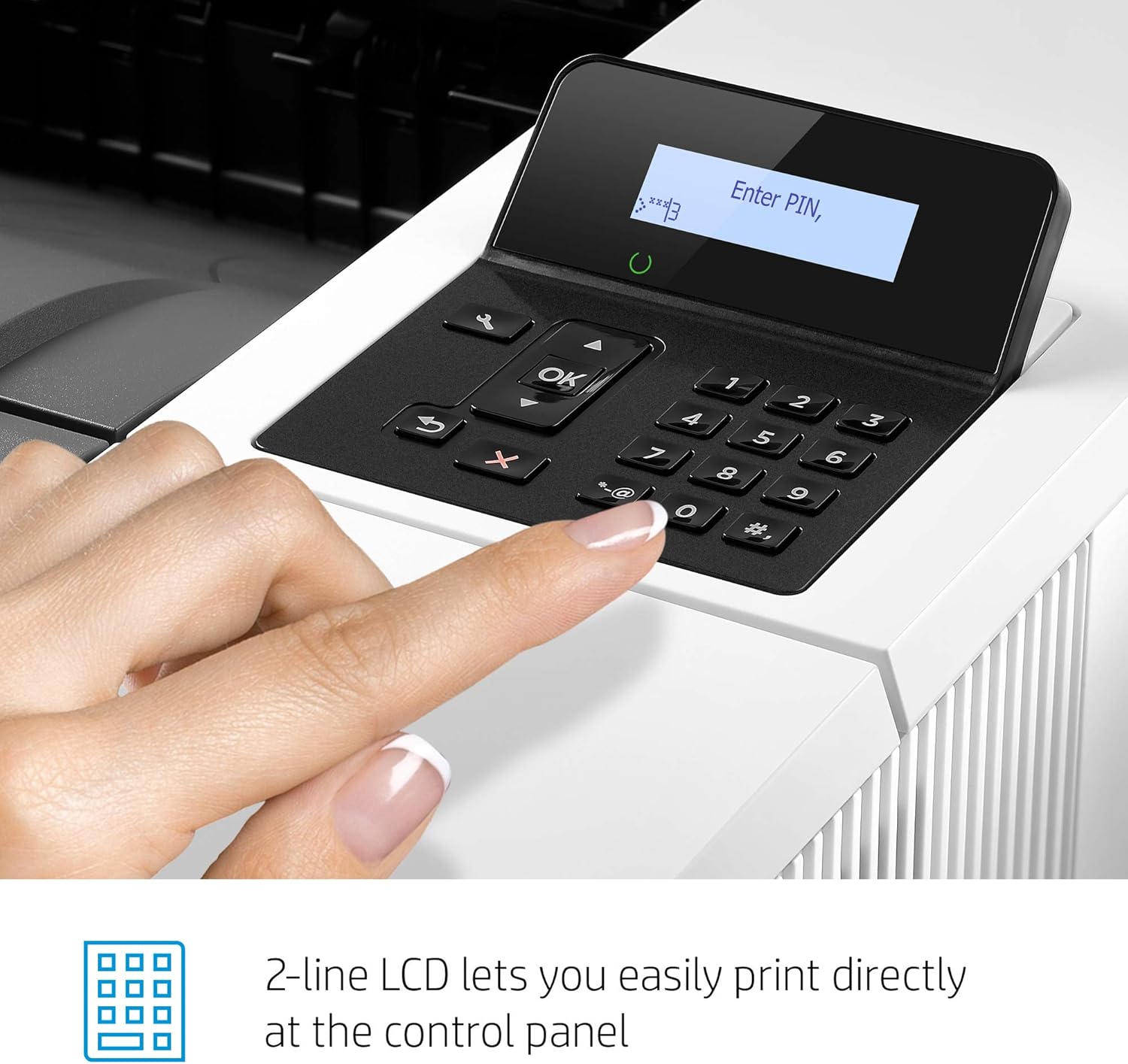
Close-up view of the printer's 2-line LCD control panel with numerical keypad, showing the 'Ready' status.
2.3 Wireless Printing
The HP LaserJet Pro M501dn supports wireless printing, allowing you to print from your smartphone, tablet, or computer without direct cable connections. Ensure the printer is connected to your network for this functionality.
2.4 Security Features
The printer incorporates HP Wolf Pro Security, designed to protect company data and safeguard against cyberattacks. Features include:
- Protection built into the printer hardware, firmware, and OS.
- PIN printing to ensure documents remain confidential.
- HP Web JetAdmin for centralized printing control.
- HP JetAdvantage Security Manager to set security configuration policies.

A hand inserting a USB drive into the printer's USB port, illustrating the PIN printing feature for document confidentiality.

Graphic illustrating HP Wolf Pro Security, emphasizing protection against cyberattacks.
3. Maintenance
3.1 Toner Cartridge Replacement
When the toner cartridge is low or empty, the printer's control panel will display a notification. To replace it, open the front access door, remove the old cartridge, and insert a new Original HP 87A/87X toner cartridge. Close the door firmly.
3.2 General Cleaning
Regularly clean the exterior of the printer with a soft, lint-free cloth. For the scanner glass, use a mild glass cleaner applied to the cloth, not directly to the glass. Avoid using abrasive cleaners or solvents.
4. Troubleshooting
4.1 Common Issues
- Printer Not Responding: Check power connections, USB/Ethernet cables, and ensure the printer is online. Restart both the printer and the computer.
- Paper Jams: Follow the instructions on the printer's control panel or refer to the detailed user guide for specific jam clearance procedures.
- Poor Print Quality: Check toner levels. If the issue persists, try printing a diagnostic page to identify potential problems with the toner cartridge or internal components.
- Connectivity Problems: Verify network settings, Wi-Fi signal strength (if applicable), and ensure correct IP address configuration.
5. Specifications
| Feature | Detail |
|---|---|
| Model Name | LaserJet Pro 501dn |
| Item Model Number | J8H61A#BGJ |
| Printing Technology | Laser |
| Printer Output | Monochrome |
| Max Print Speed Monochrome | 43 ppm |
| Duplex Printing | Automatic |
| Max Input Sheet Capacity | 1200 |
| Connectivity Technology | Ethernet, USB |
| Memory Storage Capacity | 256 MB |
| Product Dimensions | 14.8"D x 16.46"W x 11.38"H |
| Item Weight | 25.6 pounds |
| Wattage | 660 watts |
| Initial Page Print Time | 5.7 seconds |

Diagram showing the dimensions of the HP LaserJet Pro M501dn printer: 16.46" W, 14.8" D, 11.38" H.
6. Warranty and Support
6.1 Warranty Information
The HP LaserJet Pro M501dn includes a One-Year, Next-Business Day, Onsite Warranty. This warranty covers manufacturing defects and provides onsite service for eligible issues.
6.2 Customer Support
For assistance, HP offers 24-hour, 7 days a week FREE HP Web support. Refer to the included warranty card or visit the official HP support website for contact details and additional resources.
Related documentsM501dn (J8H61A)


Ask a question about this manual
Ask about setup, troubleshooting, compatibility, parts, safety, or missing instructions. Manuals+ will review the question and use this page’s manual context to help answer it.