
Videocon LEDTVVKV40FH11CAH
Videocon 40-inch Full HD LED TV User Manual
Model: LEDTVVKV40FH11CAH
1. Introduction
This user manual provides essential information for the safe and efficient operation of your Videocon 40-inch Full HD LED TV (Model: LEDTVVKV40FH11CAH). Please read this manual thoroughly before using the television and retain it for future reference.
2. Safety Information
Always observe the following safety precautions to prevent electric shock, fire, or damage to the television.
- Power Source: Connect the TV only to an AC power outlet of the specified voltage.
- Ventilation: Ensure proper ventilation. Do not block ventilation openings. Maintain a minimum distance of 10 cm around the TV for air circulation.
- Placement: Place the TV on a stable, level surface. Avoid placing it in direct sunlight, near heat sources, or in areas with high humidity or dust.
- Liquid and Moisture: Do not expose the TV to rain or moisture. Do not place objects filled with liquids, such as vases, on the TV.
- Cleaning: Unplug the TV before cleaning. Use a soft, dry cloth. Do not use liquid cleaners or aerosol cleaners.
- Lightning: During lightning storms or when unused for long periods, unplug the TV from the power outlet.
3. Package Contents
Carefully unpack the box and ensure all items listed below are present and undamaged. If any items are missing or damaged, contact your retailer immediately.
- 1 x Videocon LED TV
- 1 x User Manual (this document)
- 1 x Warranty Card
- 1 x Remote Control
- 1 x Power Cable / Power Supply Adapter
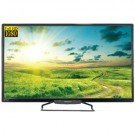
An image showing the front view of the Videocon 40-inch Full HD LED TV, featuring a black bezel and a stand.
4. Setup
4.1 Unpacking
Remove the TV and all accessories from the packaging. Keep the packaging materials for future transport or storage.
4.2 Stand Installation / Wall Mounting
Your Videocon TV supports both table-top stand installation and wall mounting. Choose the method that best suits your needs.
- For Stand Installation: Attach the provided stand to the bottom of the TV using the screws as indicated in the separate stand assembly guide. Ensure the stand is securely fastened.
- For Wall Mounting: This TV is VESA compliant. Purchase a compatible wall mount bracket (not included) and follow the instructions provided with the wall mount. It is recommended to have professional installation for wall mounting.
4.3 Connecting Power
After securing the TV, connect the power cable to the TV's power input and then plug the other end into a wall power outlet.
4.4 Connecting External Devices
Your TV is equipped with various ports for connecting external devices.
- HDMI: Connect Blu-ray players, gaming consoles, or set-top boxes to the HDMI ports. This TV has 1 HDMI port.
- USB: Connect USB storage devices (e.g., flash drives) to the USB port for media playback. This TV has 1 USB port.
- Antenna/Cable: Connect your antenna or cable TV signal to the RF input.
5. Operating Your TV
5.1 Initial Setup (First-Time Use)
When you power on the TV for the first time, a setup wizard will guide you through initial configurations:
- Language Selection: Choose your preferred language for the TV menu.
- Network Connection: If your TV is a Smart TV (which this model is, running Android OS), connect it to your home Wi-Fi network or via an Ethernet cable for internet access.
- Channel Scan: Scan for available TV channels (Antenna/Cable).
5.2 Remote Control Overview
Familiarize yourself with the buttons on the remote control for easy navigation and control.
- Power Button: Turns the TV on or off.
- Volume +/-: Adjusts the volume level.
- Channel +/-: Changes TV channels.
- Input/Source: Selects the input source (HDMI, USB, TV).
- Navigation Buttons (Arrow Keys, OK): Used to navigate menus and confirm selections.
- Home/Smart Hub: Accesses the Smart TV interface.
- Back/Exit: Returns to the previous screen or exits the current menu.
5.3 Basic TV Functions
- Power On/Off: Press the Power button on the remote or TV.
- Changing Channels: Use the Channel +/- buttons or enter channel numbers directly.
- Adjusting Volume: Use the Volume +/- buttons.
- Selecting Input Source: Press the Input/Source button and select the desired input (e.g., HDMI 1, USB).
5.4 Smart TV Features
Your Videocon TV runs on Android OS and supports various internet services.
- Accessing Smart Interface: Press the Home button on your remote to access the Smart TV dashboard.
- Using Apps: Navigate to pre-installed applications like Netflix, Amazon Prime Video, and YouTube. You may need to log in to your accounts for these services.
- Browsing: Use the built-in browser to access websites.
- App Store: Download and install additional applications from the app store (if available).
5.5 Picture and Sound Settings
Access the TV's menu to customize picture and sound settings.
- Picture Modes: Select from various picture modes (e.g., Standard, Dynamic, Movie) or customize brightness, contrast, color, and sharpness.
- Sound Modes: Choose sound modes (e.g., Standard, Music, Movie) or adjust bass, treble, and balance. The TV supports 2.1 surround sound configuration.
6. Maintenance
6.1 Cleaning the TV
Always unplug the TV before cleaning.
- Screen: Gently wipe the screen with a soft, lint-free cloth. For stubborn marks, slightly dampen the cloth with water or a specialized screen cleaner (do not spray directly on the screen).
- Cabinet: Wipe the cabinet with a soft, dry cloth. Avoid using abrasive cleaners or solvents.
6.2 Remote Control Care
Keep the remote control dry and clean. Replace batteries when necessary (ensure correct polarity).
7. Troubleshooting
If you encounter issues with your TV, refer to the following common problems and solutions before contacting customer support.
| Problem | Possible Solution |
|---|---|
| No power | Check if the power cable is securely plugged into the TV and the wall outlet. Ensure the power outlet is working. |
| No picture, but sound is present | Check the input source selection. Ensure the external device (e.g., set-top box) is powered on and connected correctly. |
| No sound, but picture is present | Check the volume level. Ensure the TV is not muted. Check audio cables if using external speakers. |
| Remote control not working | Check and replace the batteries. Ensure there are no obstructions between the remote and the TV's IR sensor. |
| Cannot connect to Wi-Fi | Ensure your Wi-Fi router is on and working. Re-enter the Wi-Fi password. Try restarting both the TV and the router. |
8. Specifications
Key technical specifications for your Videocon LEDTVVKV40FH11CAH TV.
| Feature | Specification |
|---|---|
| Model | LEDTVVKV40FH11CAH |
| Display Technology | LED |
| Screen Size | 40 Inches (101.6 cm) |
| Resolution | 1920 x 1080 (Full HD) |
| Refresh Rate | 60 Hz |
| Aspect Ratio | 16:9 |
| Operating System | Android |
| Connectivity | 1 x HDMI, 1 x USB |
| Audio Output Mode | Surround (2.1 Speaker Configuration) |
| Supported Internet Services | Netflix, Amazon Prime Video, YouTube |
| Product Dimensions (LxWxH) | 93.1 x 61.1 x 18.2 cm |
| Item Weight | 8 kg |
| Mounting Type | Wall Mount & Table Mount |
9. Warranty and Support
9.1 Warranty Information
Your Videocon TV comes with a manufacturer's warranty. Please refer to the included Warranty Card for detailed terms, conditions, and the warranty period. Keep your purchase receipt as proof of purchase for warranty claims.
9.2 Customer Support
For technical assistance, service requests, or further inquiries, please contact Videocon customer support. Refer to the contact information provided on your Warranty Card or the official Videocon website for the most up-to-date support details.