
Introduction
The Oculus Touch controllers are designed to provide an immersive virtual reality experience by translating your hand movements and gestures into the virtual world. These tracked controllers offer a natural and intuitive way to interact with virtual environments, giving you a sense of 'hand presence'. They feature traditional action buttons, thumb-sticks, and analog triggers, combining familiarity with innovative VR interaction.
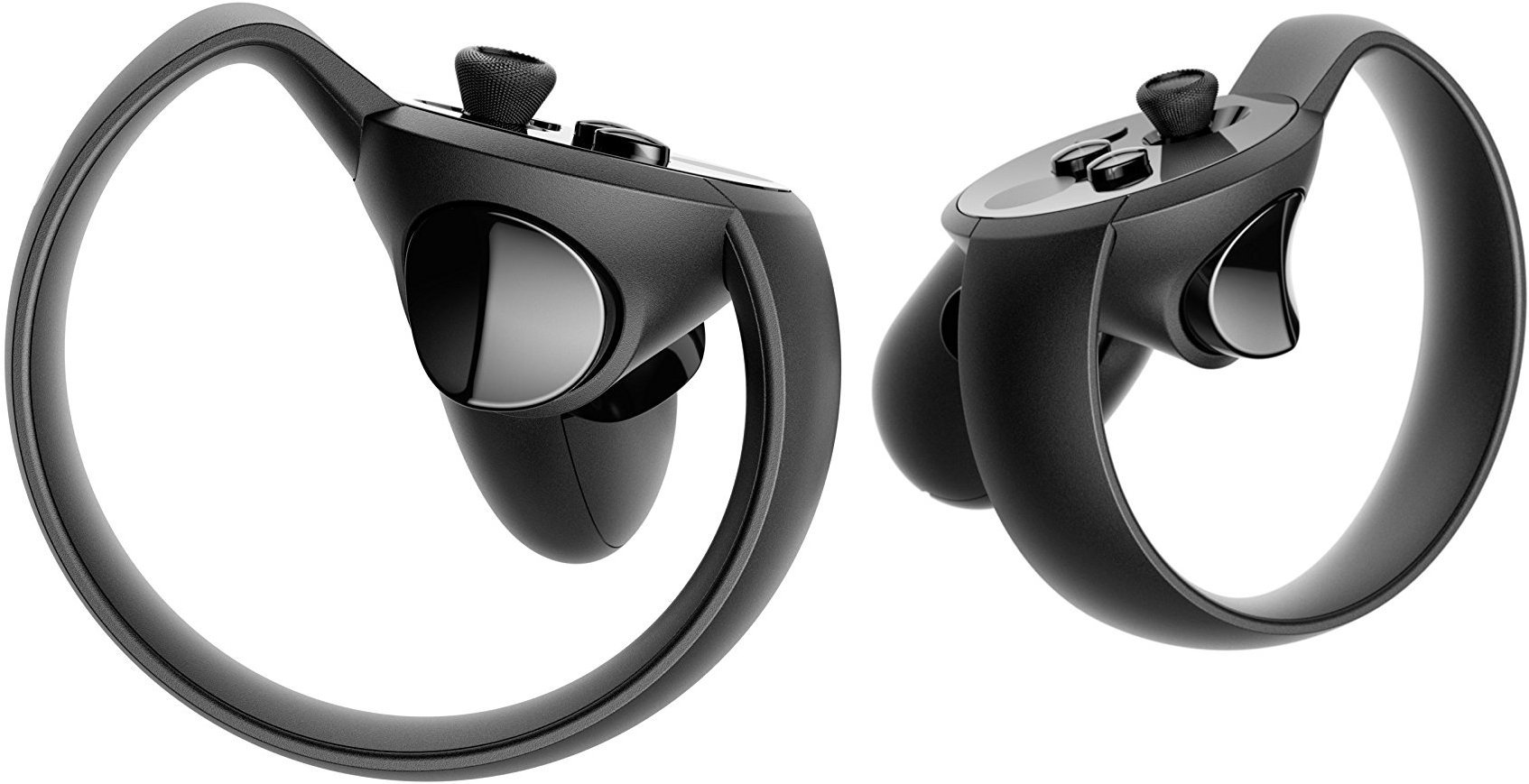
Image: A pair of Oculus Touch controllers, showcasing their ergonomic design and button layout.
What's in the Box
Your Oculus Touch package includes the following items:
- 2 x Oculus Touch Controllers (Left and Right)
- 1 x Additional Tracking Sensor
- 2 x AA Batteries (pre-installed or included separately)
- 2 x Wrist Straps (attached to controllers)
Setup
1. Battery Installation
Each Oculus Touch controller requires one AA battery. To install or replace batteries:
- Gently slide the battery cover downwards on the handle of each controller to open.
- Insert one AA battery into each controller, ensuring the positive (+) and negative (-) terminals align correctly with the indicators inside the compartment.
- Slide the battery cover back into place until it clicks securely.
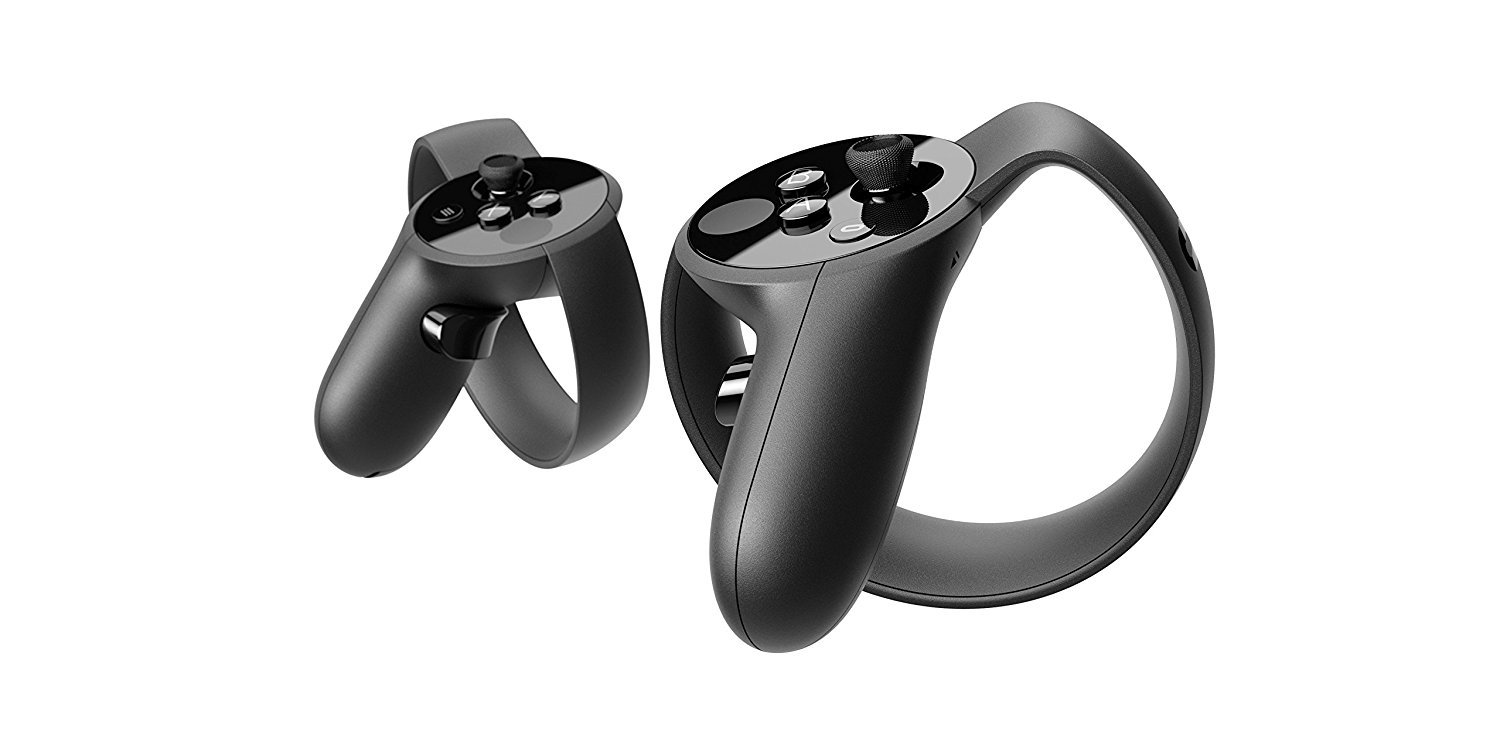
Image: An Oculus Touch controller with its battery compartment open, illustrating the battery insertion process.
2. Sensor Placement
The Oculus Touch controllers utilize Constellation tracking. For optimal performance, position the included additional tracking sensor in your play area. Refer to the Oculus Rift setup guide for detailed instructions on sensor placement to ensure full room-scale tracking or front-facing setup, depending on your preference and available space.
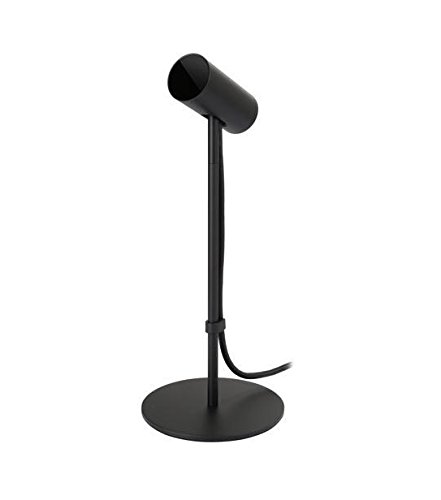
Image: An Oculus tracking sensor, essential for precise controller tracking in virtual reality.
3. Pairing Controllers
Follow the on-screen instructions provided by the Oculus software to pair your Touch controllers with your Oculus Rift headset. This process typically involves holding specific buttons on the controllers until they are detected and connected.
Operating the Controllers
The Oculus Touch controllers are designed for intuitive interaction. Familiarize yourself with the button layout and natural gestures:
- Thumb-sticks: Used for movement and navigation within virtual environments.
- Action Buttons (A/B/X/Y): Provide traditional input for in-game actions.
- Analog Triggers: Offer pressure-sensitive input, ideal for grasping, firing, or other nuanced interactions.
- Grip Button: Located on the side of the handle, used for gripping virtual objects.
- Menu/Oculus Button: Access in-game menus or the Oculus Home environment.
The controllers also support natural hand gestures like pointing, waving, and giving a thumbs-up, enhancing social interaction in VR.

Image: Detailed view of the Oculus Touch controller's faceplate, highlighting the thumb-stick and action buttons.
Safety Precautions
Always use the attached wrist straps to prevent accidental release of the controllers during active gameplay. Ensure you have adequate clear space around you to avoid hitting physical objects or people while using the controllers.
Key Features
- Hand Presence: Bring your real hands into virtual environments for realistic and tactile VR.
- Natural Interaction: Utilize natural gestures and finger movement for intuitive control.
- Precision Tracking: Constellation tracking allows manipulation of virtual objects with extraordinary accuracy.
- Ergonomic Design: Comfortable fit for extended play sessions.
- Integrated Buttons: Features traditional action buttons, thumb-sticks, and analog triggers for versatile gameplay.
Specifications
| Feature | Detail |
|---|---|
| Model Number | 301-00036-04 |
| Manufacturer | Oculus |
| Product Dimensions | 4.5 x 3.8 x 4.1 inches |
| Item Weight | 1 Pounds |
| Batteries | 2 AA batteries required (included) |
| Connectivity | Wireless (requires Oculus Rift headset and tracking sensors) |
| Release Date | December 6, 2016 |
Product Overview Video
Video: An official overview of the Oculus Touch controllers, demonstrating their features and in-game interactions with the Oculus Rift headset.
Troubleshooting
- Controllers Not Tracking: Ensure all tracking sensors are properly connected and positioned within your play area. Check for any obstructions between the controllers and the sensors. Verify that the controller batteries are not depleted.
- Connection Issues: If controllers lose connection, try re-pairing them through the Oculus software. Ensure your computer's Bluetooth (if applicable) is enabled and functioning correctly.
- Battery Life: If battery life is shorter than expected, ensure you are using fresh, high-quality AA batteries. Consider using rechargeable AA batteries for convenience.
- In-Game Glitches: If experiencing issues within a specific game, check for game updates or consult the game's support resources. Restarting the Oculus software or your computer can often resolve minor glitches.
Maintenance
- Cleaning: Use a soft, dry cloth to clean the controllers. Avoid abrasive materials or harsh chemicals.
- Storage: Store controllers in a safe place when not in use to prevent damage. Remove batteries if storing for extended periods.
- Software Updates: Regularly update your Oculus software and controller firmware to ensure optimal performance and access to new features.
Warranty and Support
For warranty information, technical support, or further assistance with your Oculus Touch controllers, please refer to the official Oculus support website or contact their customer service. Keep your proof of purchase for warranty claims.


