
1. Introduction
This manual provides detailed instructions for the installation, operation, and maintenance of your Pyle PLDNAND621 In-Dash GPS Navigation System. Please read this manual thoroughly before using the product to ensure proper functionality and to prevent damage.
1.1 Product Overview
The Pyle PLDNAND621 is an advanced in-dash audio/video system featuring a 6-inch multi-touch capacitive display. It integrates GPS navigation with preloaded maps, Bluetooth connectivity, and multimedia playback capabilities, including CD/DVD, USB, and microSD. The system is designed to enhance your driving experience with turn-by-turn navigation and various entertainment options.
1.2 Key Features
- 6-inch Multi-Touch Capacitive Display (800 x 480 resolution)
- Integrated GPS Navigation with Preloaded Maps
- Bluetooth for Hands-Free Calling and Audio Streaming
- CD/DVD Player
- AM/FM Tuner with 30 Station Memory
- USB and MicroSD Card Slots for Media Playback
- Support for various audio, video, and image file formats (MP3, MP4, AVI, WAV, JPEG)
- Rearview Backup Camera Support
- Steering Wheel Button Control Support
- Anti-Shock Mechanism (ESP Function)
- Internet connectivity via Wi-Fi (tethering or hotspot)
- Access to Android applications
2. Safety Information
Observe the following safety guidelines to prevent injury or damage to the unit:
- Do not operate the system in a way that distracts you from driving. Always prioritize road safety.
- Ensure proper installation by a qualified professional to avoid electrical hazards or vehicle damage.
- Do not disassemble or modify the unit. This may cause malfunction or electric shock.
- Keep the volume at a level that allows you to hear outside traffic sounds.
- Clean the screen with a soft, dry cloth. Avoid abrasive cleaners.
- Ensure the parking brake is engaged when watching videos or accessing certain features to comply with safety regulations.
3. Package Contents
Verify that all items are present in the box:

Figure 3.1: Components included in the Pyle PLDNAND621 package.
This image displays the Pyle PLDNAND621 Android Stereo Receiver (rear view shown), power and wiring harness, Bluetooth microphone, two USB extension cables, mounting brackets and hardware, and a remote control.
- Pyle PLDNAND621 Android Stereo Receiver
- Power & Wiring Harness
- Bluetooth Microphone
- (2) USB Extension Cables
- Mounting Brackets & Hardware
- Remote Control
- GPS Antenna
- User Manual (this document)
4. Installation
Installation of the Pyle PLDNAND621 requires technical knowledge and should ideally be performed by a professional installer. Incorrect installation can lead to damage to the unit or your vehicle.
4.1 Wiring Diagram
Refer to the detailed wiring diagram provided with the unit's physical manual for specific connections. Key connections typically include:
- Power: Constant 12V (Yellow), Accessory 12V (Red), Ground (Black).
- Speakers: Connect to vehicle's speaker wires (Front Left, Front Right, Rear Left, Rear Right).
- Antenna: Connect the radio antenna and GPS antenna.
- Auxiliary Inputs/Outputs: RCA connections for external audio/video devices, subwoofer output.
- Reverse Camera Input: Connect to a rearview camera for automatic display when reversing.
- Steering Wheel Control: Connect to vehicle's steering wheel control interface (if applicable).
- USB Ports: For USB devices and charging.
4.2 Mounting
Use the provided mounting brackets and hardware to secure the unit into your vehicle's dashboard. Ensure the unit is firmly seated and does not obstruct any vehicle controls or airbags.
5. Initial Setup
After installation, power on the unit and follow the on-screen prompts for initial configuration.
5.1 Language and Time Settings
Navigate to the system settings to select your preferred language, set the correct time zone, and adjust the date and time.
5.2 Wi-Fi Connection
To access online features and download applications, connect the unit to a Wi-Fi network. This can be done via a mobile hotspot from your smartphone or a local Wi-Fi network.
- Go to Settings.
- Select Wi-Fi.
- Turn Wi-Fi On.
- Select your desired network and enter the password if prompted.
5.3 GPS Calibration
Ensure the GPS antenna is properly installed and has a clear view of the sky. The system will automatically acquire satellite signals. For optimal navigation, allow the system to calibrate its position upon first use.
6. Operating Instructions
This section details the primary functions and how to operate your Pyle PLDNAND621 system.
6.1 Touch Screen Interface

Figure 6.1: Main interface of the Pyle PLDNAND621 with touch interaction.
This image displays the 6-inch touch screen display of the Pyle PLDNAND621, featuring various application icons such as DVR, Downloads, DVD, Email, Music, Explorer, YouTube, Bluetooth, and Video. A hand is shown interacting with the screen, demonstrating its touch functionality.
The unit features a responsive multi-touch capacitive display. Navigate through menus and applications by tapping, swiping, and pinching gestures, similar to a smartphone or tablet.
6.2 GPS Navigation

Figure 6.2: Pyle PLDNAND621 highlighting key features including GPS.
This image displays the Pyle PLDNAND621 unit with graphical icons representing its core functionalities: USB connectivity, CD/DVD playback, GPS navigation, Radio tuner, Android operating system, and Full HD 1080 video support.
The system comes with preloaded maps and supports turn-by-turn navigation. Access the navigation application from the main screen.
- Tap the Navigation icon on the home screen.
- Enter your destination using the on-screen keyboard.
- Select your preferred route and start navigation.
- Follow the voice prompts and on-screen directions.
6.3 Bluetooth Connectivity
Connect your smartphone or other Bluetooth-enabled devices for hands-free calling and audio streaming.
- Go to Settings and select Bluetooth.
- Turn Bluetooth On.
- On your mobile device, search for available Bluetooth devices and select "Pyle PLDNAND621".
- Confirm the pairing code on both devices.
- Once paired, you can make/receive calls and stream audio through the unit.
6.4 Multimedia Playback (CD/DVD, USB, MicroSD)
The unit supports various media sources for audio and video playback.
- CD/DVD: Insert a disc into the slot. The system will automatically switch to the CD/DVD player mode.
- USB: Connect a USB flash drive to one of the USB ports. Access media files through the Music or Video applications.
- MicroSD: Insert a microSD card into the designated slot. Media files can be accessed similarly to USB.
6.5 Radio Tuner (AM/FM)
Access the Radio application to listen to AM/FM broadcasts.
- Use the on-screen controls to scan for stations, manually tune, or select from saved presets.
- The unit has memory for up to 30 stations.
6.6 Applications and Internet Access

Figure 6.3: Pyle PLDNAND621 demonstrating app download and web browsing capabilities.
This image illustrates the Pyle PLDNAND621's ability to "Surf the WEB & download Apps." It shows the unit's display with various app icons and mentions compatibility with both Apple App Store and Google Play for downloading applications.
The PLDNAND621 operates on an Android platform, allowing you to download and use various applications. Connect to Wi-Fi to access the internet and the Google Play Store.
- Open the Google Play Store app.
- Browse or search for desired applications.
- Download and install apps as you would on an Android smartphone.
6.7 Mirror Link / Air Play
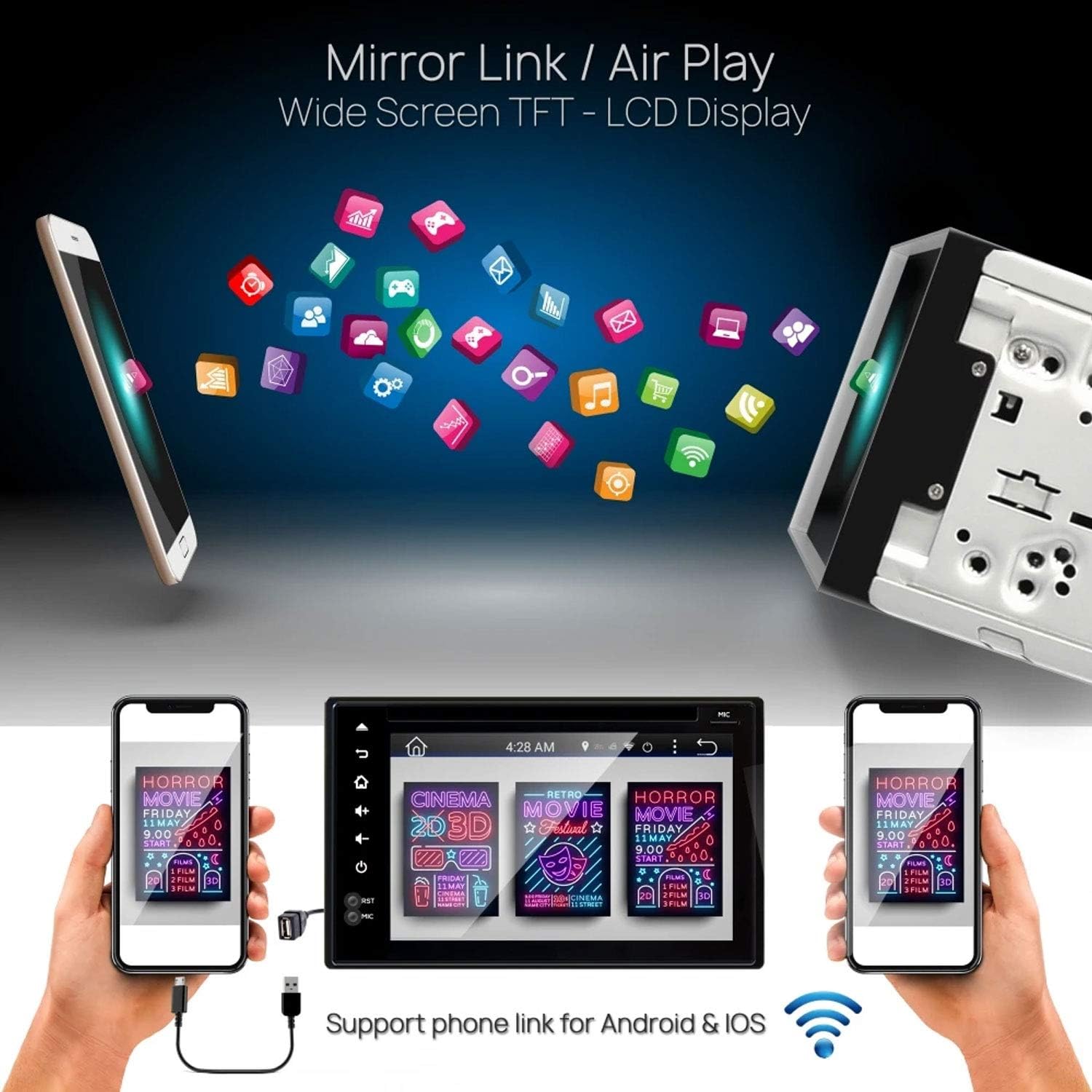
Figure 6.4: Pyle PLDNAND621 supporting Mirror Link / Air Play functionality.
The image shows the Pyle PLDNAND621 unit connected to both Android and iOS smartphones, illustrating its "Mirror Link / Air Play" feature. This allows content from the phone to be displayed on the unit's wide-screen TFT-LCD display.
The unit supports Mirror Link (for Android) and Air Play (for iOS) to mirror your smartphone's screen onto the unit's display. This feature allows you to view compatible apps and content from your phone on the larger screen.
- Connect your smartphone to the unit via USB or Wi-Fi (refer to specific app instructions on your phone).
- Activate the Mirror Link or Air Play function on the unit.
- Follow on-screen prompts to establish the connection.
6.8 Rearview Backup Camera Support

Figure 6.5: Pyle PLDNAND621 with active rearview backup camera display.
This image shows the Pyle PLDNAND621 unit installed in a car dashboard, displaying a live feed from a rearview backup camera. Green and red guidelines are visible on the screen, assisting with parking and maneuvering.
If a compatible rearview camera is connected, the display will automatically switch to the camera feed when the vehicle is put into reverse gear. This feature aids in safe parking and maneuvering.
6.9 Steering Wheel Button Control

Figure 6.6: Pyle PLDNAND621 highlighting Steering Wheel Button Control and Anti-Shock features.
The image depicts the Pyle PLDNAND621 unit alongside an icon representing steering wheel controls, indicating compatibility. Below, an illustration shows the unit with a cracked ground effect, emphasizing its "Anti-Shock Mechanism-ESP Function" for durability.
The unit supports connection to your vehicle's existing steering wheel controls. This allows you to operate basic functions like volume, track change, and mode selection without taking your hands off the steering wheel. Configuration may be required in the system settings.
7. Maintenance
Proper maintenance ensures the longevity and optimal performance of your Pyle PLDNAND621.
- Cleaning the Screen: Use a soft, lint-free cloth to gently wipe the screen. For stubborn smudges, slightly dampen the cloth with water or a screen-safe cleaner. Avoid harsh chemicals or abrasive materials.
- Cleaning the Unit: Wipe the exterior of the unit with a soft, dry cloth.
- Software Updates: Periodically check for software updates through the system settings or Pyle's official website to ensure you have the latest features and bug fixes.
- Disc Care: Handle CDs/DVDs by their edges to avoid fingerprints and scratches. Keep discs clean and store them in their cases when not in use.
8. Troubleshooting
If you encounter issues with your Pyle PLDNAND621, refer to the following common problems and solutions:
| Problem | Possible Cause | Solution |
|---|---|---|
| Unit does not power on. | Incorrect wiring, blown fuse, vehicle battery issue. | Check power connections (Yellow, Red, Black wires). Inspect vehicle fuses. Ensure vehicle battery is charged. |
| No sound from speakers. | Incorrect speaker wiring, volume too low, mute activated, incorrect audio source. | Verify speaker connections. Increase volume. Check if mute is active. Select correct audio source. |
| GPS signal lost or inaccurate. | GPS antenna obstructed or improperly connected. | Ensure GPS antenna has a clear view of the sky. Check antenna connection. |
| Bluetooth pairing fails. | Device not in pairing mode, incorrect password, interference. | Ensure both devices are in pairing mode. Re-enter password. Move closer to the unit. Restart Bluetooth on both devices. |
| Touch screen unresponsive. | System freeze, temporary software glitch. | Perform a soft reset (refer to manual for reset button location, often a small pinhole). If persistent, consult support. |
| DVD/CD not playing. | Disc dirty, scratched, or incompatible format. | Clean the disc. Try a different disc. Ensure disc format is supported. |
9. Specifications
Detailed technical specifications for the Pyle PLDNAND621:
- Model Number: PLDNAND621
- Display Type: LCD, Multi-Touch Capacitive
- Screen Size: 6 inches
- Resolution: 800 x 480 pixels
- Connectivity Technology: Bluetooth, USB, Wi-Fi, Micro SD, Auxiliary Input
- Media Playback: CD, DVD, USB Flash Drive, Micro SD Card
- Radio Tuner: AM/FM with 30 station memory
- Special Features: GPS Navigation, Touchscreen, Bluetooth, Rearview Camera Support, Steering Wheel Control Support, Anti-Shock Mechanism (ESP)
- Dimensions (Product): 25.4 x 18.42 x 31.12 cm (10 x 7.25 x 12.25 inches)
- Weight (Product): 2.27 kg (5 lbs)
- Manufacturer: PYLE-CAR AUDIO/VIDEO
10. Warranty and Support
For warranty information and technical support, please refer to the warranty card included with your product or visit the official Pyle website. Keep your purchase receipt as proof of purchase.
Pyle Official Website: www.pyleusa.com
Contact customer service for assistance with installation, troubleshooting, or product inquiries not covered in this manual.


