
1. Introduction
The ICY BOX IB-233U3-B is an external enclosure designed for 2.5-inch SATA I/II/III Hard Disk Drives (HDDs) or Solid State Drives (SSDs). It provides a convenient and portable solution for data storage and transfer, utilizing a USB 3.0 interface for high-speed connectivity. This manual provides detailed instructions for the proper installation, operation, and maintenance of your device.
2. Package Contents
Please check the package contents upon unpacking. If any items are missing or damaged, contact your retailer.
- 1x ICY BOX IB-233U3-B Enclosure
- 1x USB 3.0 Type-A to Micro-B Cable
- 1x Silicone Protection Sleeve
- 1x User Manual (this document)

Image: The ICY BOX IB-233U3-B enclosure, USB 3.0 cable, and silicone sleeve as typically found in the product packaging.
3. Setup & Installation
Follow these steps to install your 2.5" SATA HDD or SSD into the enclosure.
3.1. Opening the Enclosure
- Gently slide the top cover of the enclosure away from the main body. The enclosure is designed for tool-free access.
3.2. Installing the Hard Drive/SSD
- Align your 2.5" SATA HDD or SSD with the SATA connector inside the enclosure.
- Carefully push the drive into the connector until it is firmly seated. Ensure the drive is level and fully connected.

Image: A 2.5-inch SATA hard drive being inserted into the enclosure's internal SATA connector.
3.3. Closing the Enclosure
- Slide the top cover back onto the main body of the enclosure until it clicks securely into place.
- (Optional) Place the silicone protection sleeve around the assembled enclosure for added protection against bumps and scratches.
3.4. Connecting to a Computer
- Connect the small end of the provided USB 3.0 cable (Micro-B) to the port on the ICY BOX enclosure.
- Connect the larger end of the USB 3.0 cable (Type-A) to an available USB 3.0 port on your computer. For optimal performance, use a USB 3.0 port. The enclosure is also backward compatible with USB 2.0 ports, but data transfer speeds will be limited.
- The operating system should automatically detect and install the necessary drivers. No manual driver installation is typically required for modern operating systems.
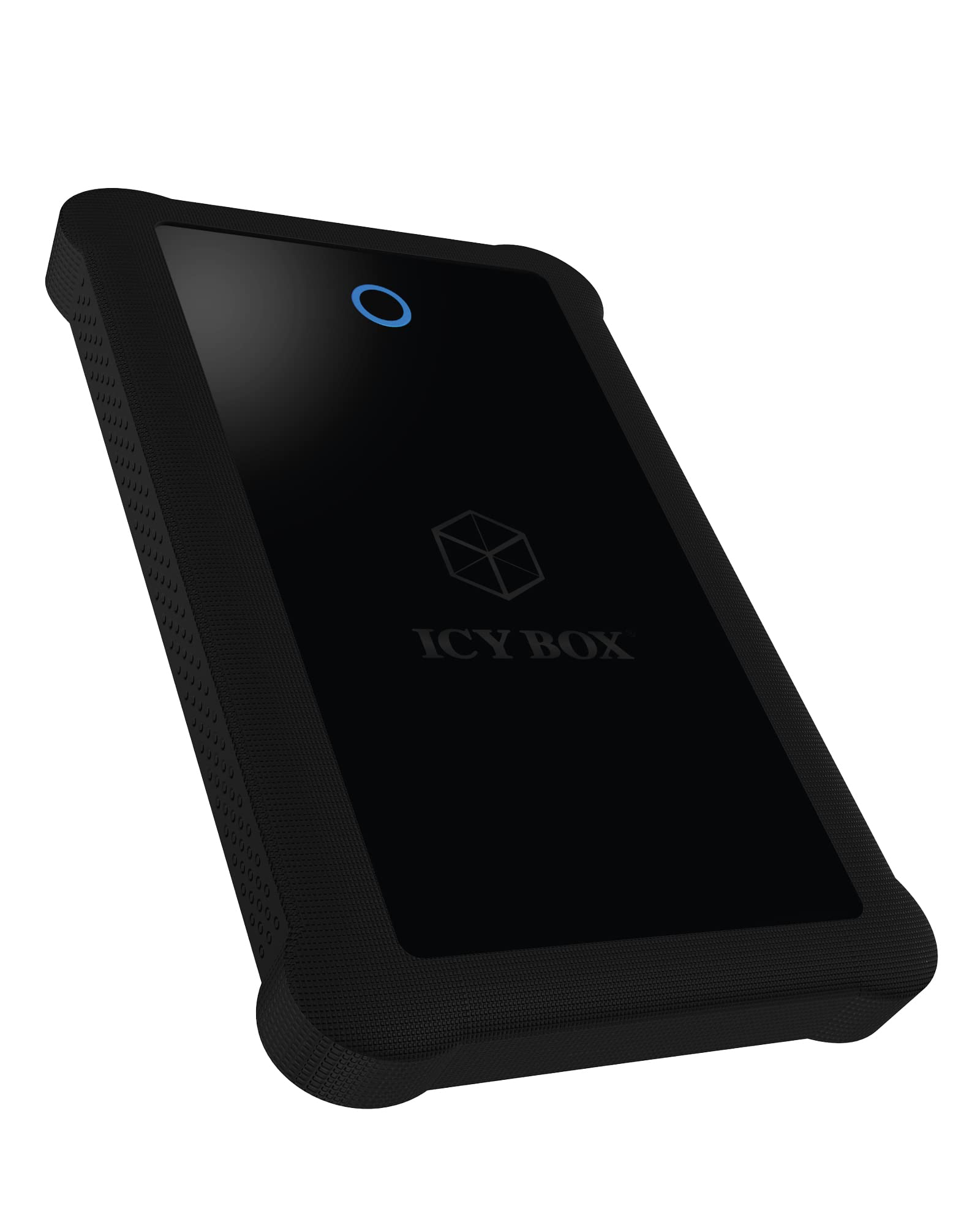
Image: Close-up view of the USB 3.0 Micro-B port located on the side of the ICY BOX IB-233U3-B enclosure.
4. Operating Instructions
4.1. Drive Detection and Formatting
- Once connected, the enclosure and installed drive should appear in your computer's file explorer (Windows) or Finder (macOS).
- If the drive is new, it may need to be initialized and formatted before use. Refer to your operating system's disk management tools for this process.
4.2. Data Transfer
- Drag and drop files to and from the drive as you would with any other storage device.
- The USB 3.0 interface supports data transfer rates up to 5 Gbps (Gigabits Per Second), significantly faster than USB 2.0. Actual speeds may vary based on the drive's performance and your computer's USB controller.
4.3. LED Indicator
- The enclosure features an LED indicator.
- Blue LED: Indicates power is supplied and the device is ready.
- Flashing Blue LED: Indicates data access (read/write operations) on the installed drive.
4.4. Safe Removal
Always safely eject the drive from your operating system before disconnecting the USB cable to prevent data corruption.
- Windows: Click the "Safely Remove Hardware and Eject Media" icon in the system tray, then select the drive.
- macOS: Drag the drive icon from the desktop to the Trash, or right-click the drive icon and select "Eject".
5. Maintenance
- Cleaning: Use a soft, dry cloth to clean the exterior of the enclosure. Do not use liquid cleaners or solvents.
- Storage: When not in use, store the enclosure in a cool, dry place away from direct sunlight and extreme temperatures.
- Handling: Avoid dropping or subjecting the enclosure to strong impacts, especially with a drive installed, as this can damage the drive.
6. Troubleshooting
6.1. Drive Not Detected
- Ensure the USB cable is securely connected to both the enclosure and the computer.
- Try a different USB port on your computer.
- Test with a different USB cable if available.
- Verify that the 2.5" SATA HDD/SSD is correctly seated in the enclosure's SATA connector.
- Check your computer's Disk Management (Windows) or Disk Utility (macOS) to see if the drive is recognized but unformatted.
- Ensure the drive itself is functional by testing it in another enclosure or directly connecting it to a computer if possible.
6.2. Slow Data Transfer Speeds
- Ensure you are connected to a USB 3.0 port on your computer. USB 2.0 ports will limit speeds.
- Verify that your computer's USB 3.0 drivers are up to date.
- The actual speed is also limited by the performance of the installed HDD/SSD.
6.3. Enclosure Feels Warm
- It is normal for the enclosure to become warm during extended use, especially during heavy data transfer, as the drive inside generates heat. Ensure adequate airflow around the device.
7. Specifications
| Model | IB-233U3-B |
| Drive Type Supported | 2.5" SATA I/II/III HDD/SSD |
| External Interface | USB 3.0 (backward compatible with USB 2.0) |
| Internal Interface | SATA III (6 Gbps) |
| Data Transfer Rate | Up to 5 Gbps (USB 3.0) |
| Material | Silicone |
| Color | Black |
| Item Weight | 0.08 Kilograms |
| Compatible Devices | Desktop, Laptop, Tablet |
| Operating System Support | Windows, macOS, Linux (driverless) |
8. Warranty and Support
ICY BOX products are covered by a manufacturer's warranty. The specific terms and duration of the warranty may vary by region and retailer. Please retain your proof of purchase for warranty claims.
For technical support, driver downloads, or further information, please visit the official ICY BOX website or contact your local retailer.
Official Website: www.icybox.de