
WD WDBVBZ0000NCH-NESN
Western Digital My Cloud EX2 Ultra Network Attached Storage User Manual
Model: WDBVBZ0000NCH-NESN
1. Introduction
The Western Digital My Cloud EX2 Ultra is a high-performance, diskless Network Attached Storage (NAS) device designed for centralized network backup, data management, and remote access. It features a 1.3 GHz dual-core processor and 1GB of DDR3 memory, enabling efficient multitasking and ultra-fast data transfer speeds. This device provides a reliable solution for personal users and small businesses to store, share, and protect their digital content.
Key functionalities include centralized storage for your entire network, automatic file synchronization across all your computers, and simplified file and folder sharing. The My Cloud EX2 Ultra operates on MyCloud OS 5, ensuring up-to-date security and data privacy for your valuable information.
2. What's in the Box
Upon unboxing your Western Digital My Cloud EX2 Ultra, verify that all components are present:
- My Cloud EX2 Ultra NAS Enclosure (Diskless)
- Power Adapter
- Ethernet Cable
- Quick Install Guide / Instructions

Image: The Western Digital My Cloud EX2 Ultra device shown alongside its retail packaging, illustrating the product's appearance and branding.
3. Setup Guide
Follow these steps to set up your My Cloud EX2 Ultra device:
- Install Hard Drives (if applicable): If your device is diskless, carefully install compatible 3.5-inch SATA hard drives into the bays. Ensure they are securely seated.
- Connect to Network: Connect one end of the provided Ethernet cable to the Gigabit Ethernet port on the back of the My Cloud EX2 Ultra and the other end to an available LAN port on your router or network switch.
- Connect Power: Plug the power adapter into the DC In 12V port on the back of the device, then plug the other end into a power outlet. The device will power on automatically.
- Access Setup Interface: Once the device is powered on and connected to your network, open a web browser on a computer connected to the same network. Navigate to mycloud.com/setup. Follow the on-screen instructions to create your MyCloud.com account and complete the initial setup, including setting up user accounts and storage configurations (e.g., RAID).
- Install WD Sync (Optional): For automatic file synchronization, download and install the WD Sync application on your computers. This will allow you to easily upload and sync files to your personal cloud.
- Install My Cloud Mobile App (Optional): For mobile access, download the My Cloud mobile app from your device's app store. Log in with your MyCloud.com account to access your files from anywhere.

Image: The rear panel of the My Cloud EX2 Ultra, highlighting the Ethernet port, USB 3.0 ports, and power input for connectivity.
Setup Overview Video
Video: An official overview of the setup process for the WD My Cloud device, demonstrating initial connection, account creation, and setting up WD Sync and mobile access.
4. Operating Your My Cloud EX2 Ultra
The My Cloud EX2 Ultra provides a centralized location for all your digital content, accessible from various devices. Its intuitive dashboard, powered by MyCloud OS 5, allows for easy management of your storage, users, and applications.
File Management and Access
- Local Access: Access your files directly from any computer on your local network using network shares.
- Remote Access: Utilize the MyCloud.com web portal or the My Cloud mobile app to securely access your files from anywhere with an internet connection.
- Automatic Syncing: WD Sync software automatically keeps your important files synchronized across your computers and the My Cloud device, ensuring you always have the latest versions.
- Sharing: Easily share files and folders with others by creating private links or public shares.
Media Streaming
The device supports media streaming, allowing you to stream photos, videos, and music to compatible devices on your network, such as smart TVs, media players, or mobile devices.
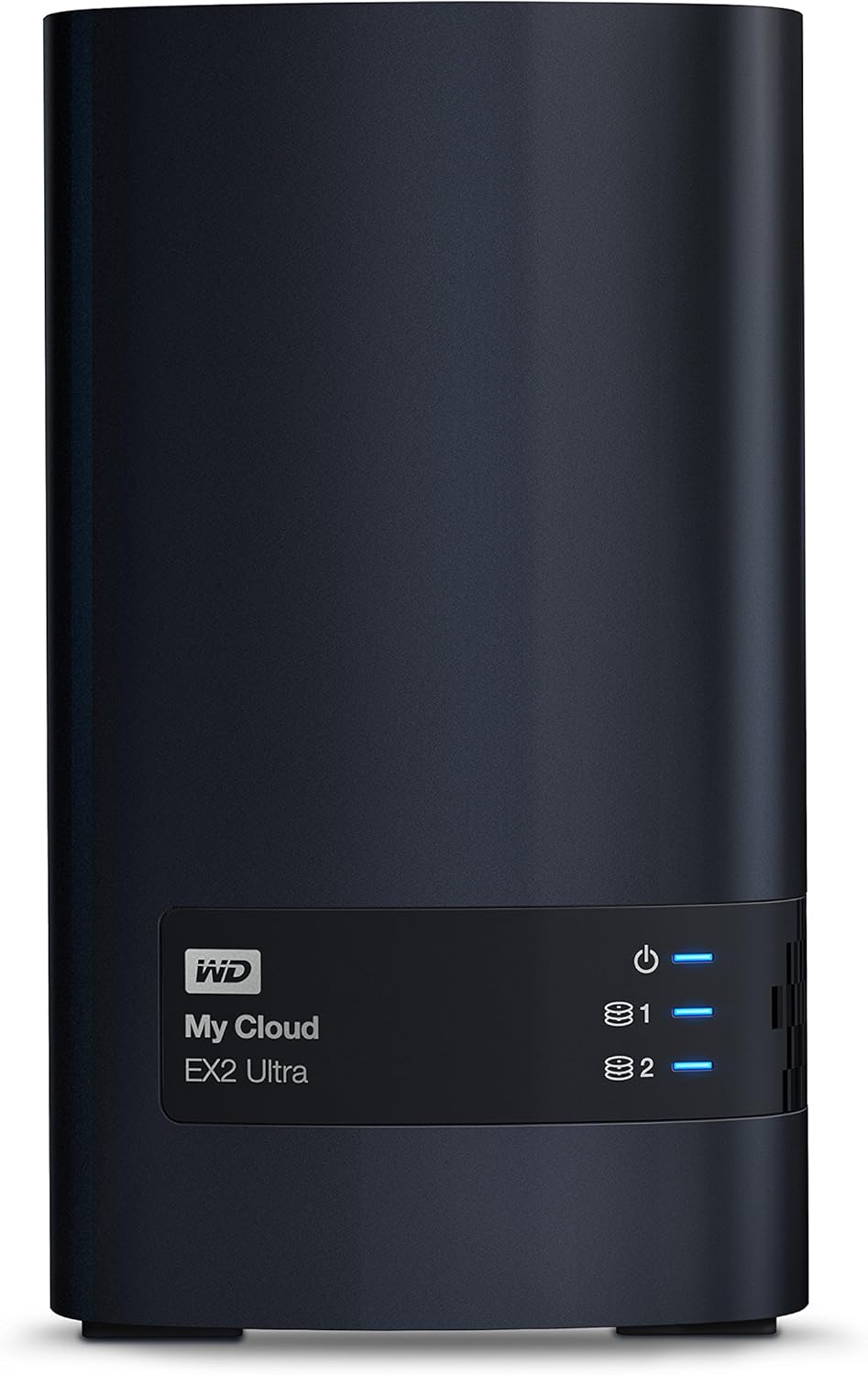
Image: The front view of the My Cloud EX2 Ultra, displaying its sleek design and indicator lights for power and drive status.
5. Maintenance and Data Protection
Regular maintenance ensures the longevity and optimal performance of your My Cloud EX2 Ultra, as well as the safety of your data.
- Firmware Updates: Periodically check for and install firmware updates for MyCloud OS 5 through the device's dashboard. Updates often include security enhancements, bug fixes, and new features.
- Data Backup: While the NAS provides redundancy (if configured in RAID 1), it is crucial to implement an additional backup strategy for critical data. Utilize the included Acronis True Image software for comprehensive system backups and disaster recovery.
- Drive Health Monitoring: Monitor the health status of your installed hard drives through the My Cloud dashboard. Pay attention to temperature readings and any reported errors. Drives typically operate safely up to 60°C, but lower temperatures are ideal for longevity.
- Physical Environment: Ensure the device is placed in a well-ventilated area, away from direct sunlight and heat sources, to prevent overheating.
6. Technical Specifications
| Feature | Specification |
|---|---|
| Brand | WD |
| Model Number | WDBVBZ0000NCH-NESN |
| Processor | 1.3 GHz Dual-Core |
| RAM | 1 GB DDR3 |
| Drive Bays | 2 (Diskless) |
| Interfaces | Gigabit Ethernet, 2 x USB 3.0 ports |
| Operating System | MyCloud OS 5 |
| Dimensions (LxWxH) | 6.1 x 3.9 x 6.75 inches |
| Weight | 1.8 pounds (without drives) |
| Platform Compatibility | PC, Mac |
7. Troubleshooting
If you encounter issues with your My Cloud EX2 Ultra, consider the following common troubleshooting steps:
- Device Not Detected:
- Ensure the device is powered on and the power indicator light is solid.
- Verify the Ethernet cable is securely connected to both the NAS and your router/switch.
- Confirm your computer is on the same network as the NAS.
- Restart your router, the NAS, and your computer.
- Cannot Access Files:
- Check your network connection.
- Ensure you are using the correct MyCloud.com account credentials.
- Verify that the hard drives are properly installed and recognized by the device's dashboard.
- Check the status of your My Cloud device via the MyCloud.com web portal.
- Slow Performance:
- Ensure your network connection is stable and not congested.
- Check the device's temperature through the dashboard; overheating can lead to performance degradation.
- Limit simultaneous large file transfers or streaming activities.
- Drive Faults:
- If a drive is reported as faulty, consult the My Cloud dashboard for specific error codes and recommended actions.
- Consider replacing faulty drives promptly to maintain data integrity, especially if using RAID 1.
For more detailed troubleshooting or advanced issues, refer to the official Western Digital support website or the comprehensive user manual PDF.
8. Warranty and Support
Western Digital provides a limited warranty for the My Cloud EX2 Ultra. The specific terms and duration of the warranty may vary by region and purchase date. Please retain your proof of purchase for warranty claims.
Official Support Resources:
- Online Knowledge Base: Visit the Western Digital support website for FAQs, articles, and troubleshooting guides.
- User Manual (PDF): A detailed user manual is available for download, providing in-depth information on all features and configurations. You can access it here.
- Customer Service: Contact Western Digital customer support for personalized assistance with technical issues or warranty inquiries.
For the most current support information and contact details, always refer to the official WD website.
Related documentsWDBVBZ0000NCH-NESN


Ask a question about this manual
Ask about setup, troubleshooting, compatibility, parts, safety, or missing instructions. Manuals+ will review the question and use this page’s manual context to help answer it.