
1. Introduction
The Allen & Heath ZEDi-10FX is a compact hybrid audio mixer designed for musicians, recording artists, and venues. It integrates the hands-on control of an analogue mixer with a high-quality 4x4 USB interface and a multi-model FX unit. This manual provides essential information for setting up, operating, and maintaining your ZEDi-10FX mixer.

Figure 1.1: Top view of the Allen & Heath ZEDi-10FX mixer, showcasing its compact design and control layout.
2. Key Features
- Robust Build Quality: Features high-level audio and build quality with separate internal channel boards, Neutrik connectors, and pots fixed to the chassis.
- GS-Pre XLR Microphone Preamps: Developed from the acclaimed GS-R24 studio console, offering low noise, massive headroom, and clean gain.
- HiZ Connections: Two inputs allow direct connection of high impedance sources like electric, electro-acoustic, or bass guitars without a separate DI box.
- 100Hz High Pass Filter: Available on every mono input to remove unneeded low frequencies.
- 3-band MusiQ EQ: Uses carefully selected frequencies for musical sound sculpting.
- 61 Studio Quality Multi-FX Unit: Provides tweakable FX types including reverbs, delays, and modulation with tap tempo, developed in-house.
- 96kHz 4x4 USB Interface: Built-in, high-quality interface for easy capture or streaming of the mix or individual channels. Supports routing Aux and FX sends.
- Class Compliant USB: No drivers required for Mac and Windows computers, and compatible with many mobile devices.
3. Setup
3.1 Power Connection
Connect the supplied AC power adapter to the ZEDi-10FX's power input on the rear panel. Ensure the power switch is in the OFF position before connecting. Once connected, turn the power switch to ON.
3.2 Connecting Microphones and Instruments
The ZEDi-10FX features 4 Mic/Line inputs (XLR/TRS combo jacks) and 2 Stereo inputs (TRS). Inputs 1 and 2 also include HiZ connections for direct instrument input.
- Connect microphones to the XLR inputs. For condenser microphones, ensure +48V phantom power is enabled (see Operating section).
- Connect instruments (e.g., guitars) to the HiZ inputs on channels 1 or 2.
- Connect line-level devices to the TRS inputs.
3.3 Connecting to a Computer (USB)
Connect the ZEDi-10FX to your computer using a USB cable. The mixer is class compliant, meaning no special drivers are typically needed for Mac or Windows. This allows for 4x4 audio streaming.
3.4 Connecting Outputs
- Main Outputs: Use the XLR Main Out jacks to connect to your main PA system or studio monitors.
- Monitor Outputs: Use the TRS Monitor Out jacks for additional monitoring.
- Headphones: Plug your headphones into the 1/4" jack for personal monitoring.
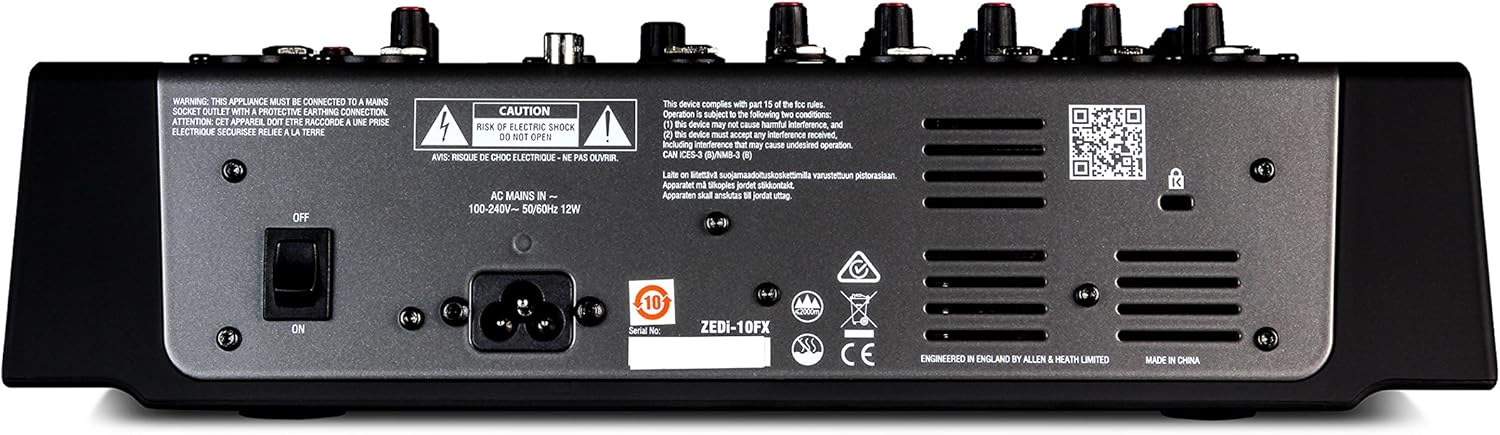
Figure 3.1: Rear panel connections of the ZEDi-10FX, showing power input, USB port, and main outputs.
Video 3.1: A closer look at the Allen & Heath ZEDi-10FX, demonstrating its physical features and connections.
4. Operating
4.1 Channel Controls
- Gain: Adjust the input sensitivity for each channel.
- 100Hz High Pass Filter (HPF): Engage this button on mono inputs to reduce low-frequency rumble.
- MusiQ EQ: Use the HIGH, MID, and LOW knobs to shape the tone of each channel.
- FX Send: Adjust the amount of signal sent to the internal effects processor.
- Pan: Position the channel's signal within the stereo field.
- Level: Control the overall output level of each channel.
4.2 Phantom Power (+48V)
To enable +48V phantom power for condenser microphones, locate the +48V button in the master section and press it. A red LED will illuminate when active. Ensure dynamic microphones are disconnected before engaging phantom power to prevent damage.
4.3 Internal Effects (FX)
The ZEDi-10FX includes a multi-FX unit with 61 different effects. Use the FX Select knob to choose an effect program. The Tap Tempo button allows you to synchronize time-based effects with your music. Adjust the FX RTN (Effect Return) level to blend the effects into your main mix.

Figure 4.1: Close-up of the ZEDi-10FX's FX section, showing the FX Select knob, Tap Tempo button, and effect level controls.
4.4 USB Audio Interface
The 4x4 USB interface allows you to send audio from the mixer to your computer and receive audio back. This is useful for recording individual tracks, streaming your mix, or using software effects. Refer to your Digital Audio Workstation (DAW) software manual for specific setup instructions.
5. Maintenance
To ensure the longevity and optimal performance of your ZEDi-10FX mixer, follow these maintenance guidelines:
- Cleaning: Use a soft, dry cloth to clean the exterior of the mixer. Avoid abrasive cleaners or solvents that could damage the finish or controls.
- Dust Protection: When not in use, cover the mixer with a dust cover to prevent dust and debris from accumulating on the controls and internal components.
- Storage: Store the mixer in a cool, dry place away from direct sunlight, extreme temperatures, and high humidity.
- Cable Management: Ensure all cables are properly routed and secured to prevent strain on connectors and accidental disconnections.
6. Troubleshooting
If you encounter issues with your ZEDi-10FX, refer to the following common troubleshooting steps:
- No Power: Ensure the power adapter is securely connected to both the mixer and a working power outlet. Check the power switch position.
- No Sound Output: Verify all input and output cables are correctly connected. Check channel levels, main mix level, and headphone level. Ensure any connected speakers or amplifiers are powered on and set to an appropriate volume.
- Distorted Sound: Reduce input gain levels to prevent clipping (indicated by peak LEDs). Check for damaged cables.
- No Effects: Ensure the FX Send knob on the desired channel is turned up and the FX RTN level is adjusted. Verify an effect program is selected.
- USB Connection Issues: Ensure the USB cable is securely connected. Try a different USB port or cable. For mobile devices, ensure they are compatible and have sufficient power.
7. Specifications
| Feature | Specification |
|---|---|
| Item Weight | 5.1 pounds |
| Product Dimensions | 10.8 x 3.8 x 13.1 inches |
| Item Model Number | AH-ZEDI10FX |
| Connector Type | USB, Cubase LE included |
| Hardware Interface | USB 3.0 |
| Signal Format | Analog |
| Supported Software | Cubase |
| Mixer Channel Quantity | 10 |
| Number of Channels | 10 |
| Power Source | Corded Electric |
| Color | Black |
8. Warranty and Support
For warranty information, technical support, or service inquiries, please refer to the documentation included with your product or visit the official Allen & Heath website. Keep your proof of purchase for any warranty claims.