
IBM 2727263
IBM 3592 JD Advanced Data Cartridge (Model 2727263) User Manual
Comprehensive instructions for setup, operation, and maintenance.
1. Introduction
This manual provides essential information for the proper use and maintenance of your IBM 3592 JD Advanced Data Cartridge, Model 2727263. This high-capacity tape cartridge is designed for reliable data storage in enterprise environments. Please read these instructions carefully before use to ensure optimal performance and data integrity.
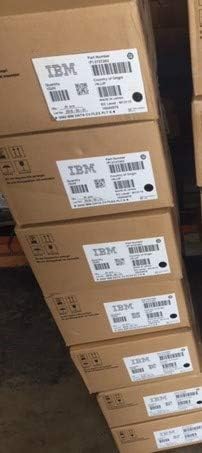
Figure 1: IBM 3592 JD Advanced Data Cartridge (Model 2727263). This image shows a single black tape cartridge with an orange label indicating "IBM Tape Cartridge 3592 Type D ADVANCED DATA".
2. Safety Information
Observe the following safety precautions to prevent damage to the cartridge or data loss:
- Handle cartridges with clean hands to avoid contamination.
- Store cartridges in their protective cases when not in use.
- Avoid exposing cartridges to extreme temperatures, humidity, or direct sunlight.
- Do not drop or subject cartridges to physical shock.
- Ensure proper grounding of tape drives to prevent electrostatic discharge.
3. Setup
The IBM 3592 JD Advanced Data Cartridge is designed for use with compatible IBM 3592 series tape drives. Proper setup involves ensuring the cartridge is correctly inserted into the tape drive.
3.1 Unpacking
Upon receiving your cartridges, inspect the packaging for any signs of damage. If damage is observed, document it before opening. Carefully remove the cartridges from their packaging.
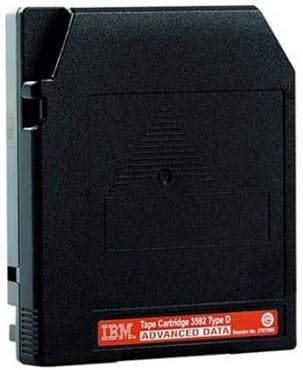
Figure 2: Multiple boxes of IBM 3592 JD Advanced Data Cartridges. This image displays several cardboard boxes, each labeled with "IBM" and "Part Number P-2727263", indicating bulk packaging of the cartridges.
3.2 Cartridge Insertion
- Ensure the tape drive is powered on and in a ready state.
- Open the tape drive's cartridge slot or door.
- Hold the IBM 3592 JD cartridge by its edges, avoiding contact with the tape media or read/write head area.
- Gently slide the cartridge into the drive slot until it clicks into place. Do not force the cartridge.
- Close the tape drive's cartridge slot or door, if applicable. The drive will typically load and tension the tape automatically.
4. Operating Instructions
Once the cartridge is loaded, the tape drive and associated software will manage data operations. Refer to your tape drive's specific documentation for detailed operational procedures.
4.1 Data Recording
- Initiate backup or data writing operations through your tape management software.
- Ensure the cartridge is not write-protected if you intend to write data.
- Monitor the tape drive's status indicators for successful operation.
4.2 Data Retrieval
- Use your tape management software to locate and retrieve specific data from the cartridge.
- Ensure the correct cartridge is loaded into the drive for the desired data.
4.3 Cartridge Ejection
- Before ejecting, ensure all read/write operations are complete and the tape drive indicates it is safe to remove the cartridge.
- Initiate the eject command through your tape management software or the tape drive's control panel.
- Once ejected, carefully remove the cartridge and place it back into its protective case.
5. Maintenance and Storage
Proper maintenance and storage are crucial for the longevity and reliability of your IBM 3592 JD Advanced Data Cartridges.
5.1 Cartridge Care
- Keep cartridges free from dust, dirt, and fingerprints.
- Avoid touching the tape surface.
- Regularly inspect cartridges for any physical damage before use.
5.2 Storage Conditions
- Store cartridges in a clean, dry, and temperature-controlled environment.
- Recommended storage temperature: 16°C to 32°C (60°F to 90°F).
- Recommended relative humidity: 20% to 80% non-condensing.
- Store cartridges vertically in their original protective cases or in dedicated storage racks.
- Keep cartridges away from strong magnetic fields.
5.3 Cleaning
The tape drive's cleaning cartridge should be used as recommended by the tape drive manufacturer. Do not attempt to clean the data cartridge itself with solvents or abrasive materials.
6. Troubleshooting
This section addresses common issues you might encounter with your IBM 3592 JD Advanced Data Cartridge. For more complex problems, refer to your tape drive's manual or contact IBM support.
6.1 Cartridge Not Loading
- Check orientation: Ensure the cartridge is inserted correctly, following the drive's indicators.
- Physical obstruction: Inspect the drive slot and cartridge for any debris or damage.
- Drive status: Verify the tape drive is powered on and not reporting any errors.
6.2 Read/Write Errors
- Cartridge condition: Inspect the cartridge for visible damage. Try a different cartridge if available.
- Drive cleaning: The tape drive heads may require cleaning. Use a compatible cleaning cartridge.
- Software issues: Verify your backup or tape management software is configured correctly and up-to-date.
- Environmental factors: Ensure the operating environment meets recommended temperature and humidity specifications.
6.3 Slow Performance
- Drive health: Check the tape drive's diagnostics for any performance-related issues.
- Data compression: Ensure data compression settings are optimized for your data type and system.
- System resources: Verify that the host system has sufficient resources (CPU, memory, I/O bandwidth) to support tape operations.
7. Specifications
| Feature | Specification |
|---|---|
| Brand | IBM |
| Model Number | 2727263 |
| Tape Technology | 3592 (JD Advanced Data Cartridge) |
| Native Capacity | 10 TB (Terabytes) |
| UPC | 883436644495 |
| Product Dimensions | 6 x 6 x 4 inches |
| Item Weight | 1 pound |
| Color | Black |
| Manufacturer | IBM Corporation |
8. Warranty and Support
For information regarding warranty coverage and technical support for your IBM 3592 JD Advanced Data Cartridge, please refer to the official IBM documentation provided with your purchase or visit the official IBM support website. Warranty terms and conditions may vary by region and purchase agreement.
IBM Support Website: www.ibm.com/support
Ask a question about this manual
Ask about setup, troubleshooting, compatibility, parts, safety, or missing instructions. Manuals+ will review the question and use this page’s manual context to help answer it.