
TP-Link Archer C3150
TP-Link AC3150 Wireless Wi-Fi Gigabit Router
Model: Archer C3150 V1
Official Instruction Manual
Product Overview
The TP-Link Archer C3150 is an AC3150 Wireless Wi-Fi Gigabit Router designed to provide faster, stronger, and more reliable wireless network performance for your home. It incorporates advanced technologies such as NitroQAM and 4-Stream for maximum Wi-Fi speed, and MU-MIMO readiness for efficient communication with multiple devices simultaneously. With a powerful 1.4GHz dual-core processor, it supports demanding online applications including 4K streaming and online gaming.
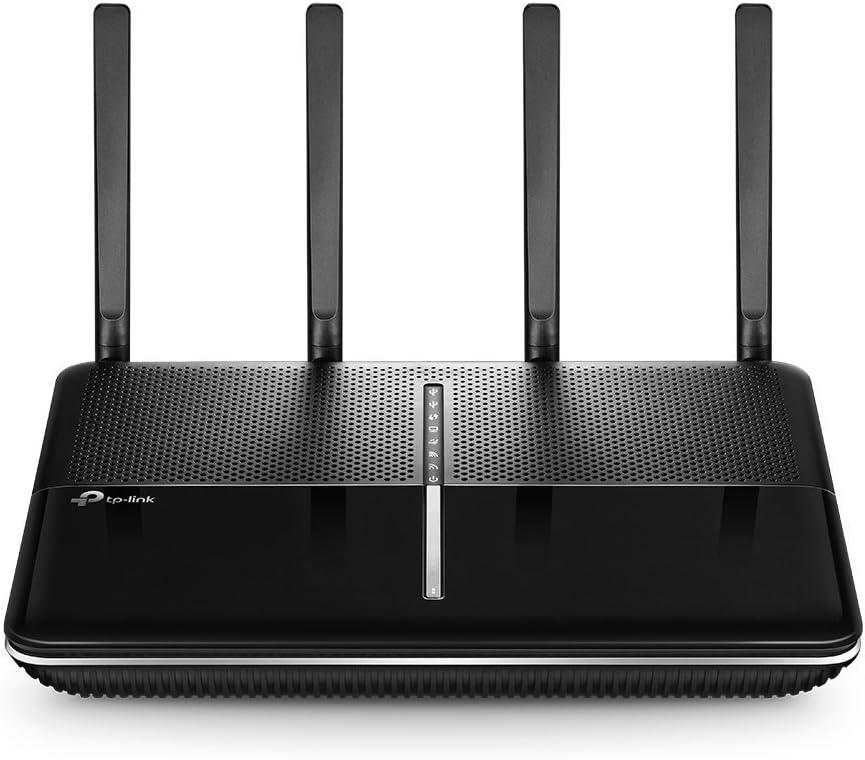
Figure 1: Front view of the TP-Link Archer C3150 Wireless Wi-Fi Gigabit Router, showcasing its sleek design and four external antennas.
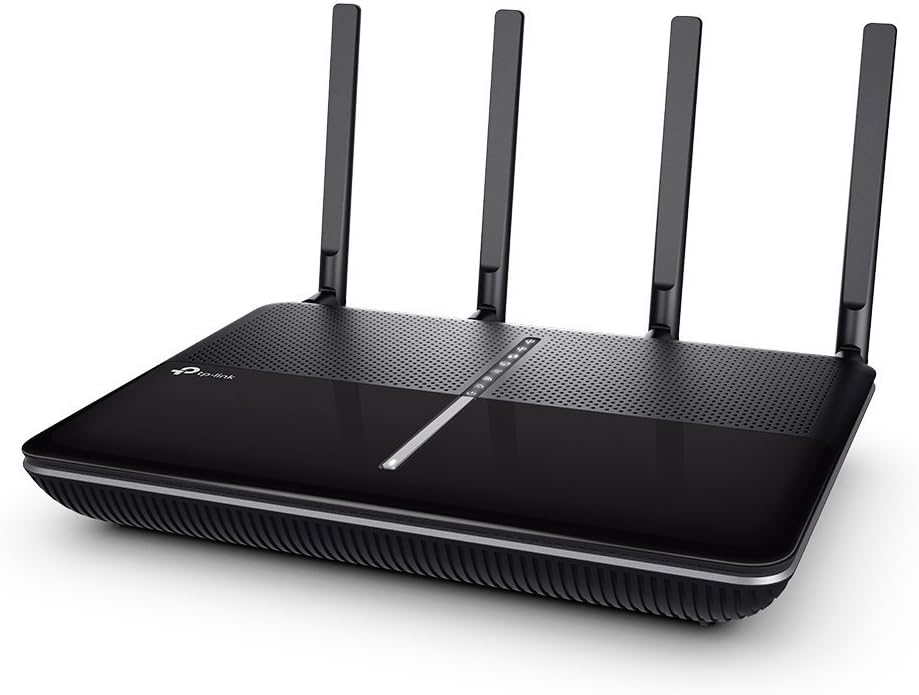
Figure 2: Angled view of the TP-Link Archer C3150 router, highlighting its compact form factor and ventilation design.
What's in the Box
The package for your TP-Link Archer C3150 router includes the following components:
- AC3150 Wireless Dual Band Gigabit Router Archer C3150
- Power Adapter
- RJ45 Ethernet Cable
- Quick Installation Guide

Figure 3: The retail packaging for the TP-Link Archer C3150, indicating key features and contents.
Setup Guide
Follow these steps to set up your TP-Link Archer C3150 Wireless Wi-Fi Gigabit Router:
- Physical Connection:
- Connect your modem's Ethernet cable to the router's WAN port (usually blue).
- Connect your computer to one of the router's LAN ports (yellow) using the provided RJ45 Ethernet cable, or connect wirelessly using the default Wi-Fi name and password found on the router's label.
- Plug in the power adapter to the router and then to a power outlet.

Figure 4: Rear view of the Archer C3150 router, displaying the WAN port (blue), four Gigabit LAN ports (yellow), power input, and power on/off button.

Figure 5: Side view of the Archer C3150 router, featuring the Wi-Fi On/Off button, Reset button, WPS button, USB 2.0 port, and USB 3.0 port.
- Initial Configuration:
- Open a web browser on your connected computer or mobile device.
- Type
http://tplinkwifi.netor192.168.0.1into the address bar and press Enter. - Create a new password for future logins.
- Follow the on-screen Quick Setup wizard to configure your internet connection and wireless settings.
Operating Features
The Archer C3150 router offers several advanced features to enhance your network experience:
- Dual-Band Wi-Fi with AC3150 Speed: Operates on both 2.4GHz (up to 1000Mbps) and 5GHz (up to 2167Mbps) bands, providing combined speeds of up to 3150Mbps. This allows for simultaneous demanding activities like 4K streaming and online gaming.
- NitroQAM and 4-Stream Technology: Boosts wireless speeds by 25% for maximum Wi-Fi performance.
- Smart Connect: Automatically assigns devices to the best available Wi-Fi band (2.4GHz or 5GHz) to ensure optimal performance and faster connections.
- MU-MIMO Ready: Capable of providing four simultaneous data streams, allowing connected devices to achieve speeds up to 4X faster than standard AC routers (requires MU-MIMO compatible client devices).
- Powerful 1.4GHz Dual-Core CPU: Ensures smooth operation and efficient handling of multiple tasks and high network traffic.
- Beamforming Technology: Focuses the Wi-Fi signal directly towards connected devices, improving range and signal strength, especially for devices further away.
- Gigabit Ethernet Ports: Four Gigabit LAN ports provide lightning-fast wired connections for devices like PCs, gaming consoles, and smart TVs, transferring data up to 10x faster than standard Ethernet.
- USB 3.0 & USB 2.0 Ports: Easily share files, photos, and music across your network by connecting external storage devices. USB 3.0 offers faster transfer speeds.
- Guest Network: Provides a separate Wi-Fi network for visitors, keeping your main network secure.
- Parental Controls: Manage when and how connected devices can access the internet, ensuring a safe online environment for children.
- VPN Server: Set up a secure connection between your private networks and the internet.
- Advanced Security: Utilizes WPA/WPA2 encryption for active defense against security threats.
Video 1: An overview of the TP-Link AC3150 Wireless Wi-Fi Gigabit Router (Archer C3150 V1) features and capabilities.
Maintenance
To ensure optimal performance and longevity of your Archer C3150 router, consider the following maintenance tips:
- Placement: Place the router in a central location in your home, away from obstructions and devices that emit strong electromagnetic interference (e.g., microwaves, cordless phones). Ensure good airflow around the device to prevent overheating.

Figure 6: The Archer C3150 router positioned on a desk, demonstrating ideal placement for optimal signal distribution.
- Firmware Updates: Regularly check the TP-Link official website for the latest firmware updates. Firmware updates often include performance improvements, new features, and security patches. You can typically update the firmware through the router's web management interface.
- Regular Reboot: Periodically rebooting your router (e.g., once a month) can help clear its memory and resolve minor performance issues.
- Cleaning: Keep the router clean and free of dust. Use a soft, dry cloth to wipe the exterior. Avoid using liquid cleaners.
Troubleshooting
If you encounter issues with your Archer C3150 router, consider the following common troubleshooting steps:
- No Internet Access:
- Check all cable connections between the modem, router, and your devices.
- Reboot your modem and router by unplugging them from power for 30 seconds and then plugging them back in. Wait for them to fully boot up.
- Verify your internet service provider (ISP) connection is active.
- Slow Wi-Fi Speed:
- Ensure your devices are connected to the appropriate Wi-Fi band (5GHz for faster speeds, 2.4GHz for better range). Smart Connect should handle this automatically.
- Reduce interference by moving the router away from other electronic devices.
- Check for firmware updates, as these often include performance optimizations.
- Limit the number of devices actively streaming or downloading simultaneously.
- Dropped Connections:
- Ensure the router is placed centrally and not obstructed.
- Check for conflicting Wi-Fi channels in your area using a Wi-Fi analyzer app and manually select a less congested channel in the router settings.
- Update wireless drivers on your client devices.
- Cannot Access Router's Web Management Page:
- Ensure your device is connected to the router (wired or wirelessly).
- Verify you are using the correct address (
http://tplinkwifi.netor192.168.0.1). - Try a different web browser.
- Clear your browser's cache and cookies.
Specifications
| Feature | Detail |
|---|---|
| Product Dimensions | 7.8 x 10.4 x 1.5 inches |
| Item Weight | 3.6 pounds |
| Manufacturer | TP-LINK USA |
| Item Model Number | Archer C3150 |
| Date First Available | March 28, 2016 |
| Brand | TP-Link |
| Model Name | Archer C3150 V1 |
| Special Feature | Internet Access, WPS |
| Frequency Band Class | Dual-Band |
| Wireless Communication Standard | 802.11ac |
| Compatible Devices | Router |
| Frequency | 5 GHz |
| Recommended Uses For Product | Gaming |
| Connectivity Technology | Wi-Fi |
Warranty and Support
The TP-Link Archer C3150 comes with a 2-year warranty. For any technical assistance or support, TP-Link offers 24/7 technical support.
For further information, you can refer to the official User Guide (PDF) available at: TP-Link Archer C3150 User Guide
Important Information & Legal Disclaimer
Maximum wireless transmission rates are the physical rates derived from IEEE Standard 802.11 specifications. Range and coverage specifications along with the number of connected devices were defined according to test results under normal usage conditions. Actual wireless transmission rate, wireless coverage, and number of connected devices are not guaranteed, and will vary as a result of 1) environmental factors, including building materials, physical objects and obstacles, 2) network conditions, including local interference, volume and density of traffic, product location, network complexity, and network overhead and 3) client limitations, including rated performance, location, connection quality, and client condition. MU-MIMO capability requires both the router and client devices to support MU-MIMO. TP-Link HomeCareTM powered by Trend MicroTM (HomeCare) is included for 3 years from date of activation at no additional cost, after which would require an opt-in subscription at an additional cost. Opting-out of this subscription will disable certain features. For a complete list of HomeCare functionalities go to www.tp-link.com/us/HomeCare
Ask a question about this manual
Ask about setup, troubleshooting, compatibility, parts, safety, or missing instructions. Manuals+ will review the question and use this page’s manual context to help answer it.