
1. Introduction
This manual provides comprehensive instructions for the setup, operation, and maintenance of your BLUEHRESY CT007X Barcode Scanner. Please read this manual carefully before using the device to ensure proper functionality and to prevent damage.
2. Safety Information
Warning:
- Do not point the scanner's laser beam directly into eyes.
- Keep the device away from water and excessive moisture.
- Do not attempt to disassemble or repair the scanner yourself. Refer to qualified service personnel.
3. Package Contents
Verify that all items are present in the package:
- 1x 2.4G Wireless Barcode Scanner
- 1x USB Data Cable
- 1x Wireless Adapter (USB Dongle)
- 1x Setup Card for Inventory Function
- 1x Instruction Manual (this document)
4. Product Features
- Dual Connectivity: Supports 2.4GHz wireless and USB 2.0 wired connection modes.
- Extended Wireless Range: Maximum wireless connection distance of 60 meters.
- Offline Storage: Internal 256 KB memory for up to 2600 barcode entries in offline mode.
- High Performance: Advanced 32-bit duplex ARM+DSP digital signal processing technology for fast data transfer.
- Multi-language Support: English, French, German, Spanish, Italian.
- Long Battery Life: Built-in 1500mAh Li-Ion battery provides over 6 months of continuous scanning.
- Durable Design: Withstands multiple drops from 1.5m (5ft) height.
- Auto-sensing Function: Enhanced stability for automatic scanning.
- Customizable Output: Functions for adding prefix or suffix to scanned data.
- One-Click Reset: Convenient reset function.
- Wide Barcode Compatibility: Reads USPS, FedEx, DHL, UPS, TNT, Code bar, Code 11, Code 93, MSI, Code 128, UCC/EAN-128, Code 39, EAN-8, EAN-13, UPC-A, ISBN, Industrial 25, Interleaved 25, Standard 25, 2/5 Matrix.
- Extended Readable Digits: Supports up to 64-bit barcodes in wired mode and 57-bit in wireless mode.
5. Specifications
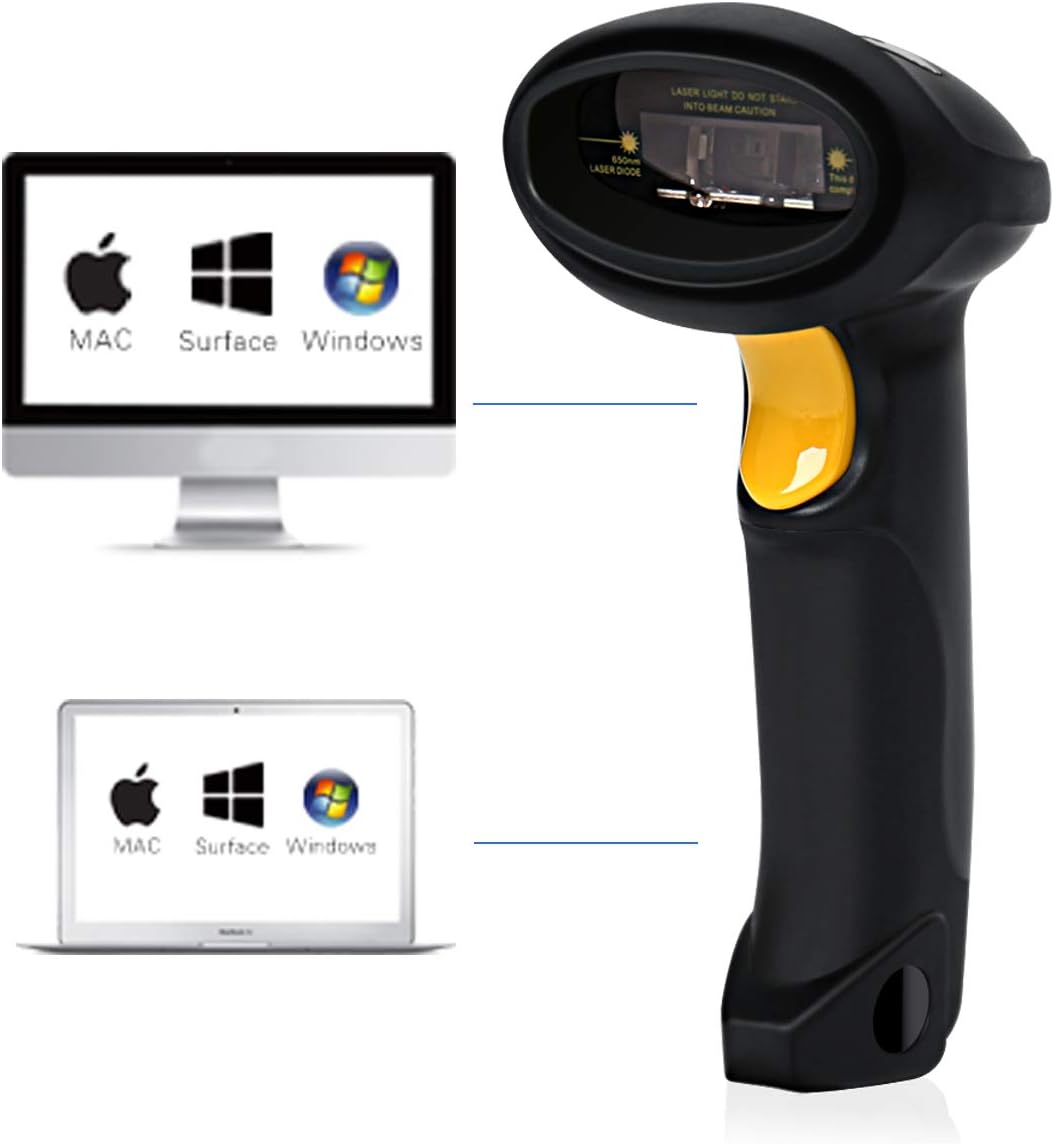
Image 1: Physical dimensions of the BLUEHRESY CT007X Barcode Scanner. The scanner measures 6.6 inches (16.7 cm) in length, 2.8 inches (7 cm) in width, and 3.4 inches (8.6 cm) in height, weighing 5.29 oz (150g).
| Feature | Detail |
|---|---|
| CPU | ARM 772MHz |
| Material | ABS+TPU |
| EEPROM Memory | 256Kb (up to 2600 code entries) |
| Dimensions (L*W*H) | 167mm x 70mm x 85.5mm (6.57 x 2.76 x 3.36 inches) |
| Power Supply | 1500mAh Built-in rechargeable Li-ion battery |
| Weight | 150g (5.3 ounces) (With battery) |
| Light Source | Laser: 650+/-20nm |
| Sensor | 2500 pixels |
| Resolution | 3-5mil |
| Scan Distance Range | 6-30cm |
| Scan Speed | 200 times/second |
| Scan Width | 30mm |
| Decode Mode | Single-line scan |
| Scan Mode | Auto/Manual |
| Decode Angle | Roll 30°, Pitch 75°, Yaw 65° |
| Radio Range (Wireless) | 33ft / 10m (Visual Range) |
| Voltage | DC 5V |
| Drop Test Height | 1.5M |
| Supported Operating Systems | Windows XP/Vista/7/8/8.1/10, MAC OSX, Google Android, Linux, Apple iOS |
| Certificates | CE, FCC, ROHS, FDA |
6. Setup Instructions
6.1 Charging the Scanner
Before first use, fully charge the scanner. Connect the USB Data Cable to the scanner and to a USB power source (e.g., computer USB port, USB wall adapter). The charging indicator light will show the charging status.
6.2 Connecting via 2.4GHz Wireless Adapter
- Insert the Wireless Adapter (USB Dongle) into an available USB port on your computer or host device.
- The operating system will automatically install the necessary drivers. This may take a few moments.
- Turn on the barcode scanner. It should automatically pair with the wireless adapter. A successful connection is usually indicated by a specific sound or LED status on the scanner.
- Open a text editor (e.g., Notepad, Word) or an application where you want to input scanned data. Scan a test barcode to confirm functionality.

Image 2: The BLUEHRESY CT007X Barcode Scanner and its accompanying USB wireless adapter. The scanner is black with a yellow trigger button, designed for comfortable handheld use. The small USB adapter is shown next to it.

Image 3: Illustration showing the BLUEHRESY CT007X Barcode Scanner wirelessly connected to both a desktop computer and a laptop. The scanner is black with a yellow trigger, and the USB wireless adapter is plugged into the computer. This demonstrates compatibility with various operating systems including Mac and Windows.
6.3 Connecting via USB 2.0 Wired Cable
- Connect one end of the USB Data Cable to the scanner's USB port.
- Connect the other end of the USB Data Cable to an available USB 2.0 port on your computer or host device.
- The operating system will automatically install the necessary drivers.
- The scanner will function as a wired device. Open a text editor or application and scan a test barcode to confirm functionality.
Note for Android Users: An OTG adapter is required for devices without a standard USB interface to use the wired connection.
7. Operating Instructions
7.1 Basic Scanning
- Ensure the scanner is powered on and connected to your host device (either wirelessly or via USB cable).
- Point the scanner's laser beam at the barcode you wish to scan.
- Press and hold the trigger button. The laser line will appear.
- Position the laser line across the entire barcode. A successful scan will be indicated by a beep and/or a green LED light.
- The scanned data will appear in the active input field on your connected device.

Image 4: The BLUEHRESY CT007X Barcode Scanner in use, demonstrating its ability to scan various 1D barcodes, including those from FedEx, DHL, TNT, and USPS. The image shows the scanner held over different barcode types, with a wireless adapter icon indicating wireless functionality.
7.2 Scan Modes (Auto/Manual)
The scanner supports both automatic and manual scanning modes. Refer to the included "Setup Card for Inventory Function" for instructions on how to switch between these modes and configure other settings like auto-sensing.
7.3 Advanced Functions
The scanner offers programmable functions to customize data output:
- Prefix/Suffix Setting: Add custom characters before or after scanned data.
- Beeper Volume Settable: Adjust the volume of the scan confirmation beep.
- One-Click Reset: Reset scanner settings to default.
Detailed instructions for configuring these functions are provided on the "Setup Card for Inventory Function".

Image 5: The BLUEHRESY CT007X Barcode Scanner highlighting its programmable functions, including Auto Scan On/Off, Prefix and Suffix Setting, and Beeper Volume Settable. The image shows the scanner scanning a barcode on a package, with icons representing sound control.
8. Maintenance
8.1 Battery Charging
The scanner is equipped with a 1500mAh rechargeable Li-ion battery. When the battery level is low, the indicator light will signal. Connect the scanner to a USB power source using the provided USB cable to recharge. A full charge can provide over 6 months of continuous scanning.
8.2 Cleaning
To clean the scanner, use a soft, dry cloth. For stubborn dirt, a slightly damp cloth with mild soap can be used, ensuring no liquid enters the device. Do not use abrasive cleaners or solvents.
9. Troubleshooting
| Problem | Possible Cause | Solution |
|---|---|---|
| Scanner does not power on. | Low battery. | Charge the scanner using the USB cable. |
| No data transmitted after scanning. |
|
|
| Scanning is slow or inaccurate. |
|
|
| Wireless connection issues. |
|
|
10. Warranty and Support
For warranty information or technical support, please refer to the documentation provided at the time of purchase or contact your retailer. Keep your purchase receipt as proof of purchase.