
1. Introduction
The Motorola MB7220 is an 8x4 DOCSIS 3.0 cable modem designed to provide high-speed internet access. It supports speeds up to 343 Mbps, making it eight times faster than DOCSIS 2.0. This modem is ideal for connecting to your cable internet service and is certified by major providers such as Comcast XFINITY, Time Warner Cable, Cox, and BrightHouse. It features a compact design for efficient cooling and includes robust lightning and power surge protection.
This device connects to your computer, HDTV, game station, or a separate wireless router via its Ethernet port. Please note that the MB7220 does not include a built-in wireless router or a VoIP telephone adapter.

Image 1.1: Front view of the Motorola MB7220 Cable Modem, showing LED indicators for power, downstream, upstream, and internet connectivity.
2. What's in the Box
Verify that all items are present in the package:
- Motorola MB7220 Cable Modem
- Power Cube (AC Adapter)
- Ethernet Cable
- Velcro Cable Organizer
- Coax Connection Tool
- Quick Start Flyer
3. Setup and Installation
Follow these steps for a quick and easy setup of your Motorola MB7220 cable modem:
- Connect Coaxial Cable: Connect a coaxial cable from your wall outlet to the CABLE port on the back of your MB7220 modem. Ensure the connection is finger-tight.
- Connect Ethernet Cable: Connect one end of the provided Ethernet cable to the ETHERNET port on the back of your MB7220 modem. Connect the other end to your computer or a wireless router.
- Connect Power Adapter: Plug the power cube into the POWER jack on the back of the modem, then plug the other end into a power outlet. Press the ON/OFF button if present.
- Power On: Wait for the modem to power on and establish a connection. The front panel LEDs will indicate connection status. The Power, Downstream, Upstream, and Internet LEDs should eventually turn solid green or blue.
- Activate with Your Internet Service Provider (ISP): Most ISPs require activation of a new modem. You may need to call your ISP or visit their activation portal. For some ISPs like Comcast, it is crucial to connect a computer directly to the modem (bypassing any router) for the initial activation process. Once activated, you can reconnect your router.

Image 3.1: Rear view of the Motorola MB7220 Cable Modem, showing the ON/OFF button, Power input, Reset button, Ethernet port, and Coaxial Cable port.

Image 3.2: Diagram illustrating the connection process for the Motorola MB7220 Cable Modem to a wall outlet, power, and a WiFi router.
4. Operating the Modem
4.1 LED Indicators
The front panel LEDs provide visual status of the modem's operation:
- Power (Green): Indicates the modem is receiving power.
- Downstream (Blue/Green): Indicates a successful connection to the internet service provider's network. Blue indicates a bonded channel connection (DOCSIS 3.0).
- Upstream (Blue/Green): Indicates a successful connection for sending data to the internet service provider's network. Blue indicates a bonded channel connection (DOCSIS 3.0).
- Internet (Green): Indicates that the modem has established an IP address and is connected to the internet.
4.2 Compatibility and Performance
The MB7220 is an 8x4 DOCSIS 3.0 cable modem, offering download speeds up to 343 Mbps. It is certified for use with various cable internet providers, including Comcast Xfinity, Cox, Charter Spectrum, WOW!, and Sparklight (CableOne). This modem is designed exclusively for cable internet services and is not compatible with DSL, Fiber Optic, or Satellite internet services.

Image 4.1: The Motorola MB7220 is certified for use with major cable internet providers such as Comcast Xfinity, Spectrum, and Cox.

Image 4.2: Chart indicating recommended internet speeds for the Motorola MB7220, suitable for plans up to 150 Mbps.
4.3 Important Considerations
- This is a cable modem only. It does not have a built-in wireless router. A separate wireless router is required for Wi-Fi access.
- This modem does not include a telephone jack and does not provide telephone service (VoIP).
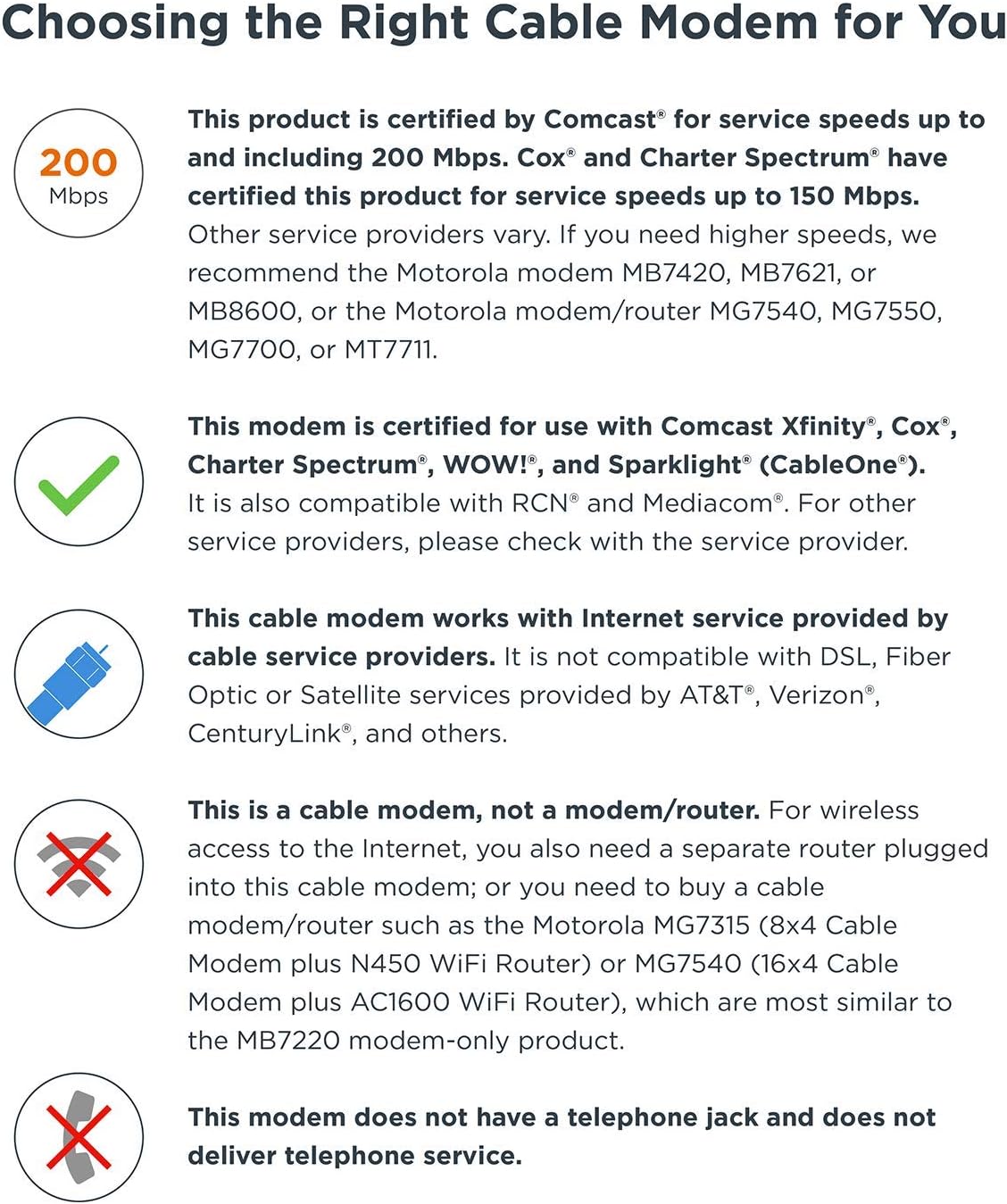
Image 4.3: Information on choosing the correct cable modem, highlighting that the MB7220 is a modem-only device without wireless or telephone capabilities.
5. Maintenance
Proper maintenance ensures the longevity and optimal performance of your MB7220 modem:
- Placement: Place the modem in a well-ventilated area to ensure proper airflow and prevent overheating. The compact design and ventilation slots are intended to improve cooling.
- Cleaning: Keep the modem clean and free of dust. Use a soft, dry cloth to wipe the exterior. Avoid using liquid cleaners or aerosols.
- Power Protection: The modem includes rugged lightning and power surge circuits. However, connecting it to a surge protector is recommended for additional protection against electrical fluctuations.
- Power Cycling: If you experience connectivity issues, a simple power cycle can often resolve them. Use the ON/OFF button on the back of the modem or unplug the power adapter, wait 10-15 seconds, and then plug it back in.
6. Troubleshooting
If you encounter issues with your Motorola MB7220 cable modem, refer to the following troubleshooting tips:
- No Internet Connection:
- Check all cable connections (coaxial, Ethernet, power) to ensure they are secure.
- Power cycle the modem: Turn it off, unplug it, wait 10-15 seconds, then plug it back in and turn it on. Allow a few minutes for it to reconnect.
- Verify that your ISP has activated the modem. If this is a new installation or replacement, you may need to contact your ISP for activation. Remember to connect a computer directly to the modem for initial activation if your ISP requires it.
- Observe the front panel LEDs. If the Downstream, Upstream, or Internet LEDs are blinking or off, it indicates a connection issue with your ISP.
- Slow Internet Speeds:
- Ensure your internet plan supports the speeds you expect. The MB7220 supports up to 343 Mbps, but actual speeds depend on your ISP plan.
- If using a router, try connecting a computer directly to the modem with an Ethernet cable to rule out router-related issues.
- Check for any network congestion or issues with your ISP.
- Modem Overheating:
- Ensure the modem is placed in an open area with good ventilation. Avoid placing it in enclosed spaces or stacking other devices on top of it.
- The modem is designed to run warm, but excessive heat could indicate a problem.
If these steps do not resolve your issue, please contact your Internet Service Provider or Motorola customer support for further assistance.
7. Specifications
| Feature | Specification |
|---|---|
| Brand | Motorola |
| Model Number | MB7220-10 |
| DOCSIS Version | 3.0 |
| Channel Bonding | 8 Downstream x 4 Upstream |
| Max Download Speed | 343 Mbps |
| Connectivity Technology | Ethernet |
| Compatible Devices | Personal Computer, Router, HDTV, Game Station |
| Dimensions (LxWxH) | 4.9 x 2 x 6.1 inches |
| Item Weight | 9.3 ounces |
| Color | Black |
| Power Source | AC Adapter (Power Cube) |
| ISP Compatibility | BrightHouse, Cox, Time Warner Cable, Xfinity (Comcast), Charter Spectrum, WOW!, Sparklight (CableOne) |
8. Warranty and Support
The Motorola MB7220 Cable Modem comes with a two-year warranty from the date of purchase, protecting against defects in materials and workmanship under normal use.
For technical assistance, troubleshooting, or warranty claims, please contact Motorola customer support. Experienced USA-based customer support specialists are available to help you.
For the most up-to-date support information, including contact details and online resources, please visit the official Motorola Network website or refer to the Quick Start Guide included with your product.

Image 8.1: Owning your modem, such as the MB7220, can lead to significant savings on monthly rental fees from your internet service provider.