
1. Introduction
The iConnect Mini is a compact and versatile mobile flash drive designed to expand storage and facilitate data transfer between Apple iOS devices (iPhones, iPads, iPods with Lightning connector) and computers (Mac & PC) via USB 3.0. This device is Apple MFi certified, ensuring seamless compatibility and reliable performance. It allows for easy backup of photos and videos, and can serve as a portable media library.
2. Key Features
- Apple MFi Certified: Ensures 100% compatibility and smooth operation with iPhones, iPads, and iPods equipped with a Lightning connector.
- Dual Connectivity: Features both a Lightning connector for iOS devices and a USB 3.0 connector for computers, enabling versatile data transfer.
- One-Touch Backup: Allows for quick and easy backup of photos and videos from your iPhone's camera roll with a single tap.
- Portable Media Library: Store and play music, movies, videos, and access data files (e.g., PDF) directly from the drive on your Apple device or computer.
- Fingerprint Security: Supports Apple Touch ID for enhanced security, allowing you to safeguard your data with fingerprint identification.
- Compact Design: Extremely small and lightweight, making it highly portable.
3. What's in the Box
- iConnect Mini Mobile Flash Drive
- Mobile Phone Strap
4. Product Overview
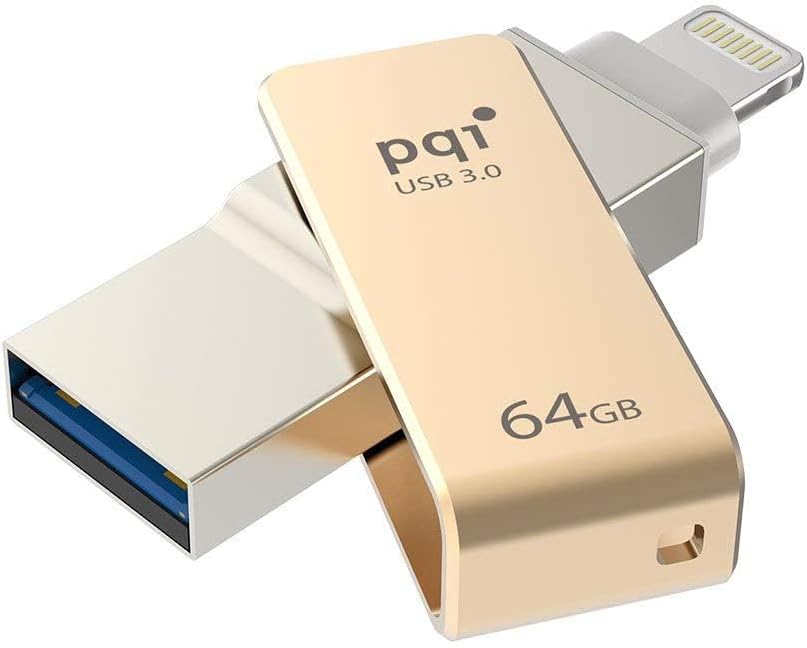
Figure 1: iConnect Mini 64GB Gold Flash Drive. This image shows the compact design of the flash drive, highlighting both the USB 3.0 and Lightning connectors.

Figure 2: iConnect Mini with Lightning Connector Extended. The Lightning connector is shown fully extended, ready for connection to an Apple iOS device.

Figure 3: Top and Bottom Views of iConnect Mini. This image provides a detailed look at the device from both the top and bottom, showcasing its slim profile.

Figure 4: Multiple iConnect Mini Units. This image displays two units, one with the USB connector extended and another with the Lightning connector extended, illustrating their functional versatility.
5. Setup and Installation
5.1. App Installation (for iOS Devices)
Before using the iConnect Mini with your iPhone, iPad, or iPod, you must download and install the dedicated iConnect app from the Apple App Store. Search for "iConnect" and install the official application.
- Connect the iConnect Mini to your iOS device's Lightning port.
- If the app is not installed, your device may prompt you to download it from the App Store. Follow the on-screen instructions.
- Alternatively, manually search for "iConnect" in the App Store and install the application.
- Once installed, launch the iConnect app to begin using the device.
5.2. Connecting to a Computer
The iConnect Mini functions as a standard USB flash drive when connected to a computer.
- Extend the USB 3.0 connector from the iConnect Mini.
- Insert the USB connector into an available USB port on your Mac or PC.
- The drive will appear as a removable storage device in your computer's file explorer (Windows) or Finder (Mac).
6. Operating Instructions
6.1. Data Transfer (iOS to iConnect Mini)
- Connect the iConnect Mini to your iOS device.
- Open the iConnect app.
- Navigate to the desired function (e.g., "Photo Backup", "File Management").
- Follow the in-app instructions to select files (photos, videos, documents) and transfer them to the iConnect Mini.
- For one-touch backup, locate the specific backup option within the app and activate it.
6.2. Data Transfer (iConnect Mini to iOS)
- Connect the iConnect Mini to your iOS device.
- Open the iConnect app.
- Browse the files stored on the iConnect Mini within the app.
- Select the files you wish to transfer to your iOS device or play directly from the drive.
6.3. Data Transfer (Computer to iConnect Mini / iConnect Mini to Computer)
- Connect the iConnect Mini to your computer's USB port.
- Open the drive from "My Computer" (Windows) or "Finder" (Mac).
- Drag and drop files between your computer and the iConnect Mini as you would with any other USB drive.
6.4. Using Fingerprint Security (Apple Touch ID)
The iConnect Mini supports Apple Touch ID for securing your data. This feature is managed within the iConnect app.
- Connect the iConnect Mini to your iOS device and open the iConnect app.
- Navigate to the security or settings section within the app.
- Enable the Touch ID feature and follow the prompts to link it with your device's registered fingerprints.
- Once enabled, access to secured files or sections of the app will require fingerprint authentication.
7. Maintenance and Care
- Handle with Care: Avoid dropping the device or subjecting it to strong impacts.
- Keep Dry: Do not expose the iConnect Mini to water or excessive moisture.
- Temperature: Store and operate the device within recommended temperature ranges (typically 0°C to 60°C or 32°F to 140°F).
- Cleaning: Use a soft, dry cloth to clean the exterior. Do not use liquid cleaners or solvents.
- Safe Removal: Always safely eject the drive from your computer before disconnecting it to prevent data corruption. For iOS devices, simply disconnect after operations are complete.
8. Troubleshooting
8.1. Device Not Recognized by iOS Device
- Ensure the iConnect Mini is fully inserted into the Lightning port.
- Verify that the iConnect app is installed and updated to the latest version.
- Restart your iOS device and try again.
- Check for any physical damage to the Lightning connector on the iConnect Mini or your iOS device.
8.2. Device Not Recognized by Computer
- Ensure the USB 3.0 connector is fully inserted into the computer's USB port.
- Try a different USB port on your computer.
- Restart your computer.
- Ensure your computer's operating system is up to date.
8.3. Slow Transfer Speeds
- Ensure you are using a USB 3.0 port on your computer for optimal speeds. USB 2.0 ports will result in slower transfers.
- Close other applications running in the background on your computer or iOS device that might be consuming resources.
- Transferring a large number of small files can be slower than transferring a few large files.
8.4. App Crashing or Freezing
- Force close the iConnect app and reopen it.
- Ensure your iOS device has sufficient free storage space.
- Update the iConnect app to the latest version from the App Store.
- Restart your iOS device.
9. Specifications
| Feature | Detail |
|---|---|
| Model Name | 6I04-064GR2001 |
| Brand | Vinpower Digital |
| Memory Storage Capacity | 64 GB |
| Flash Memory Type | USB |
| Hardware Interface | USB 3.0, Lightning |
| Connectivity Technology | USB |
| Color | Gold |
| Product Dimensions | 1.8 x 0.5 x 0.3 inches (44.6 x 12.6 x 8 mm) |
| Item Weight | 0.32 ounces (10 g) |
| Hardware Platform | PC, Mac |
| Special Feature | Compact, Portable |
10. Warranty and Support
For warranty information and technical support, please refer to the official Vinpower Digital website or contact their customer service directly. Keep your purchase receipt as proof of purchase for warranty claims.
Vinpower Digital Customer Service: Please visit Vinpower Digital Store on Amazon for contact details and further information.