
1. Setup Guide
This section provides instructions for the initial setup of your Pioneer Elite SX-N30 Network Stereo Receiver.
1.1 Unpacking
Carefully remove the receiver and all accessories from the packaging. Ensure all components are present:
- Pioneer Elite SX-N30 Network Stereo Receiver
- Remote Control and Batteries
- FM Indoor Antenna
- AM Loop Antenna
- Power Cord
- Quick Start Guide (if included)
1.2 Rear Panel Overview
Familiarize yourself with the rear panel connections before proceeding with setup.
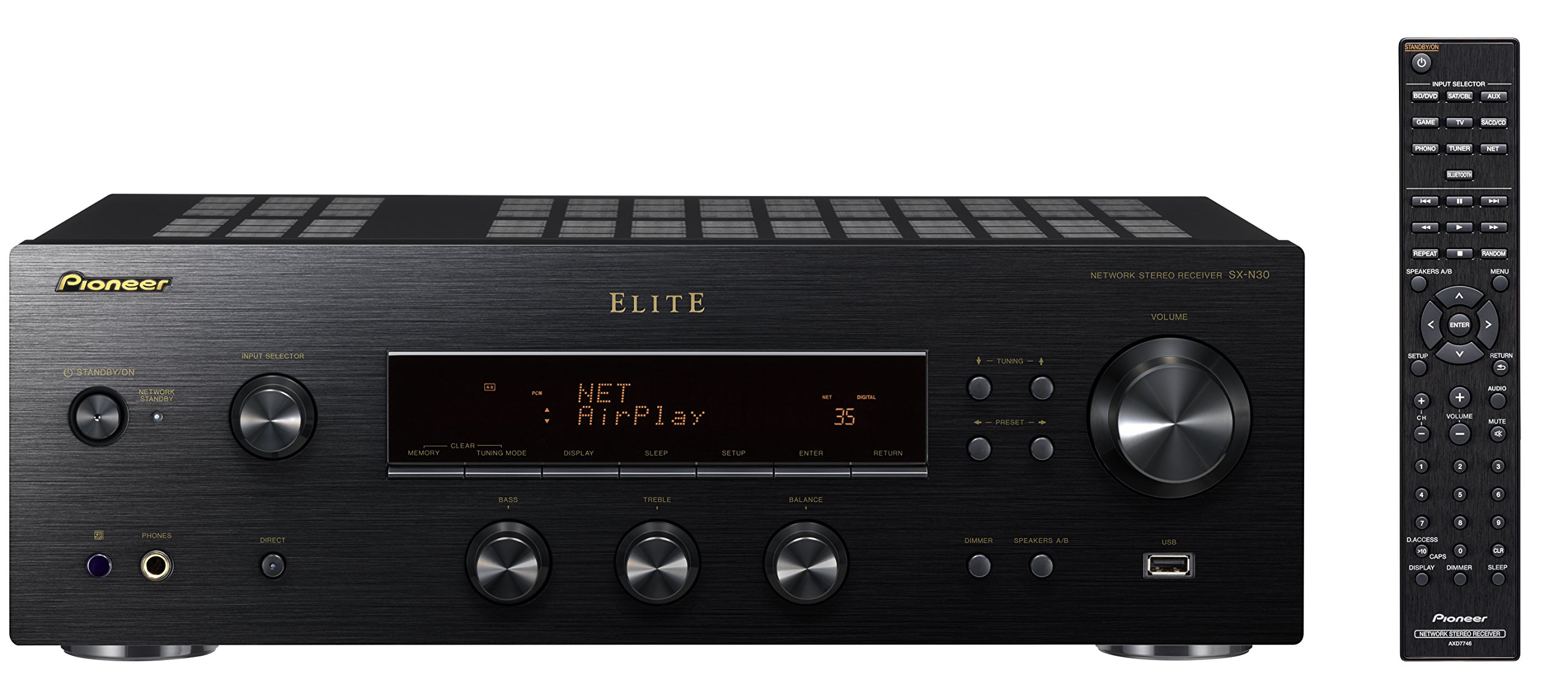
Figure 1: Rear panel of the Pioneer Elite SX-N30 receiver. This image displays all available input and output ports, including digital audio inputs, analog line inputs, speaker terminals, network connections, and antenna inputs. Key areas include the digital coaxial and optical inputs on the left, various analog line inputs (PHONO, SACD/CD, TV, GAME, AUX, SAT/CBL, BD/DVD), speaker terminals (A and B) in the center-right, and network/antenna connections at the top.
1.3 Connecting Speakers
The SX-N30 supports two sets of speakers (A and B). Ensure your speakers have an impedance rating within the specified range.
- Speaker Impedance: For speaker system A or B used individually, connect speakers with an impedance of 4Ω to 16Ω. When using both A and B speaker systems simultaneously, connect speakers with an impedance of 8Ω to 16Ω.
- Connect the positive (+) terminal of each speaker to the corresponding positive (+) terminal on the receiver, and the negative (-) terminal of each speaker to the corresponding negative (-) terminal on the receiver.
- Ensure all speaker wires are securely connected and do not touch each other or the receiver's metal casing to prevent short circuits.
1.4 Connecting Audio Sources
Connect your audio components to the appropriate input jacks on the rear panel.
- Digital Inputs: Use coaxial or optical cables for digital audio sources like CD players, game consoles, or TVs. The receiver has two coaxial and two optical inputs, which can be assigned.
- Analog Line Inputs: Connect devices such as SACD/CD players, game consoles, TVs, auxiliary devices, satellite/cable boxes, or BD/DVD players using RCA audio cables to the corresponding "LINE IN" jacks.
- PHONO Input: For connecting a turntable, use the dedicated PHONO input. Ensure your turntable has a moving magnet (MM) cartridge or use an external phono preamplifier if it has a moving coil (MC) cartridge. Connect the turntable's ground wire to the SIGNAL GND terminal on the receiver.
- USB Terminal: Connect a USB storage device (5V/1A) for audio playback.
- Pre Out: Use the LINE OUT or ZONE2 PRE OUT for connecting to an external amplifier or powered subwoofer.
1.5 Network Connection
The SX-N30 offers both wired and wireless network connectivity.
- Wired LAN: Connect an Ethernet cable from your router or network hub to the LAN (10/100) port on the receiver's rear panel.
- Wi-Fi: The receiver has built-in Wi-Fi (2.4 GHz). Ensure the Wi-Fi antennas are upright for optimal signal reception. Follow the on-screen instructions or refer to the full manual for connecting to your wireless network.
- Bluetooth: The receiver features built-in Bluetooth Wireless Technology (Version: 2.1+EDR, Profile: A2DP/AVRCP, Codec: SBC). Ensure the Bluetooth antennas are upright. For pairing, select the Bluetooth input on the receiver and initiate pairing from your smartphone or compatible device.
1.6 Antenna Connection
Connect the supplied antennas for FM and AM radio reception.
- FM Antenna: Connect the supplied FM UNBAL 75Ω antenna to the corresponding terminal. Extend the wire for better reception.
- AM Antenna: Assemble the supplied AM loop antenna and connect its two wires to the AM LOOP terminals. Position the antenna for best reception.
1.7 Power Connection
After all other connections are made, connect the power cord.
- Plug the power cord into the AC IN inlet on the receiver's rear panel.
- Plug the other end of the power cord into a suitable wall outlet.
2. Operation
This section details the basic and advanced operational features of your receiver.
2.1 Basic Playback
- Power On/Off: Press the POWER button on the front panel or remote control.
- Source Selection: Use the INPUT SELECTOR knob on the front panel or the input buttons on the remote control to choose your desired audio source (e.g., CD, Network, Bluetooth).
- Volume Control: Adjust the MASTER VOLUME knob on the front panel or the VOLUME +/- buttons on the remote control.
- Speaker Selection: Use the A/B speaker buttons on the front panel or remote to select Speaker A, Speaker B, or both (A+B).
2.2 Network Features
Leverage the receiver's network capabilities for diverse audio streaming.
- Wi-Fi/DLNA: Once connected to your network, you can stream audio files from DLNA-certified devices (e.g., network-attached storage, computers) on your home network.
- AirPlay: Stream audio directly from Apple devices (iPhone, iPad, Mac) to the receiver via AirPlay.
- Bluetooth: Pair your Bluetooth-enabled smartphone, tablet, or computer to stream audio wirelessly. Select "Bluetooth" as the input source and pair from your device's Bluetooth settings.
- Internet Radio: Access a wide range of internet radio stations. Use the receiver's display and controls or the ControlApp to navigate and select stations.
- ControlApp: Download the Pioneer ControlApp for iOS or Android devices to control the receiver, select inputs, adjust volume, and manage network features from your smartphone or tablet.
2.3 Radio Operation
Tune into your favorite AM/FM stations.
- Tuning: Select the "TUNER" input. Use the tuning buttons on the remote or front panel to manually tune or scan for stations.
- Presets: The receiver supports 40 station presets. Once a station is tuned, use the MEMORY button to save it to a preset number. Recall presets using the PRESET +/- buttons.
- Preset Station Naming: You can name preset stations (up to 10 characters) for easier identification. Refer to the on-screen menu or full manual for detailed instructions.
2.4 USB Playback
Play audio files from a USB storage device.
- Connect a USB flash drive or external hard drive (formatted to FAT16/FAT32) to the USB TERMINAL on the rear panel.
- Select "USB" as the input source.
- Use the remote control or ControlApp to navigate through folders and select audio files for playback.
- Supported formats include WMA and Hi-Res Audio files.
3. Maintenance
Proper maintenance ensures the longevity and optimal performance of your receiver.
3.1 Cleaning
- Always disconnect the power cord before cleaning.
- Wipe the exterior surfaces with a soft, dry cloth. For stubborn dirt, lightly dampen the cloth with water or a mild, non-abrasive cleaner.
- Do not use harsh chemicals, solvents, or abrasive cleaning pads, as these can damage the finish.
- Avoid spraying liquids directly onto the unit.
- Keep ventilation openings clear of dust and obstructions.
3.2 Firmware Updates
Periodically check the Pioneer support website for available firmware updates. Firmware updates can improve performance, add new features, or resolve issues. Follow the instructions provided with the update carefully.
4. Troubleshooting
If you encounter issues, refer to the following common problems and solutions before seeking service.
| Problem | Solution |
|---|---|
| No sound from speakers. |
|
| Cannot connect to Wi-Fi/Network. |
|
| Bluetooth pairing fails. |
|
| Poor radio reception. |
|
5. Specifications
Key technical specifications for the Pioneer Elite SX-N30 Network Stereo Receiver.
| Feature | Detail |
|---|---|
| Brand | PIONEER |
| Model Number | SX-N30 |
| Connectivity Technology | Bluetooth, Wi-Fi |
| Wireless Technology | AirPlay, Bluetooth, Wi-Fi |
| Output Power | 85 Watts per channel |
| Number of Channels | 2 (Stereo) |
| Audio Output Mode | Stereo |
| Supported Internet Services | Internet Radio, Spotify |
| Compatible Devices | Personal Computer, Smartphone |
| Control Method | Remote, iOS/Android ControlApp |
| Color | Black |
| Item Weight | 18.74 Pounds |
| UPC | 889951000013 |
6. Warranty Information
Pioneer products are manufactured to high quality standards. For specific warranty terms and conditions, please refer to the warranty card included with your product or visit the official Pioneer website. Keep your proof of purchase for warranty claims.
7. Customer Support
If you require further assistance or have questions not covered in this manual, please contact Pioneer customer support. You can typically find contact information (phone, email, or support portal) on the official Pioneer website or in the documentation provided with your product.
Before contacting support, please have your model number (SX-N30) and serial number ready.