
1. Introduction
This manual provides detailed instructions for the setup, operation, and maintenance of your GAMEMAX Hurricane Illuminated Gaming Keyboard. Please read this manual thoroughly before using the product to ensure proper functionality and longevity.

Figure 1: GAMEMAX Hurricane Illuminated Gaming Keyboard with blue backlighting. This image displays the full keyboard layout, highlighting the blue LED illumination of the keys.
2. Package Contents
Ensure all items are present upon unboxing:
- GAMEMAX Hurricane Illuminated Gaming Keyboard (Model: GMK-HURRICANE)
- User Manual (this document)
3. Setup Instructions
Follow these steps to connect your keyboard to your computer:
- Connect the USB Cable: Locate an available USB port on your computer. Insert the USB connector of the GAMEMAX Hurricane keyboard into the USB port.
- Driver Installation: The keyboard is plug-and-play. Your operating system (Windows, macOS, Linux) should automatically detect and install the necessary drivers. No additional software installation is typically required for basic functionality.
- Verification: Once connected, the keyboard's backlighting should activate, and you should be able to type.
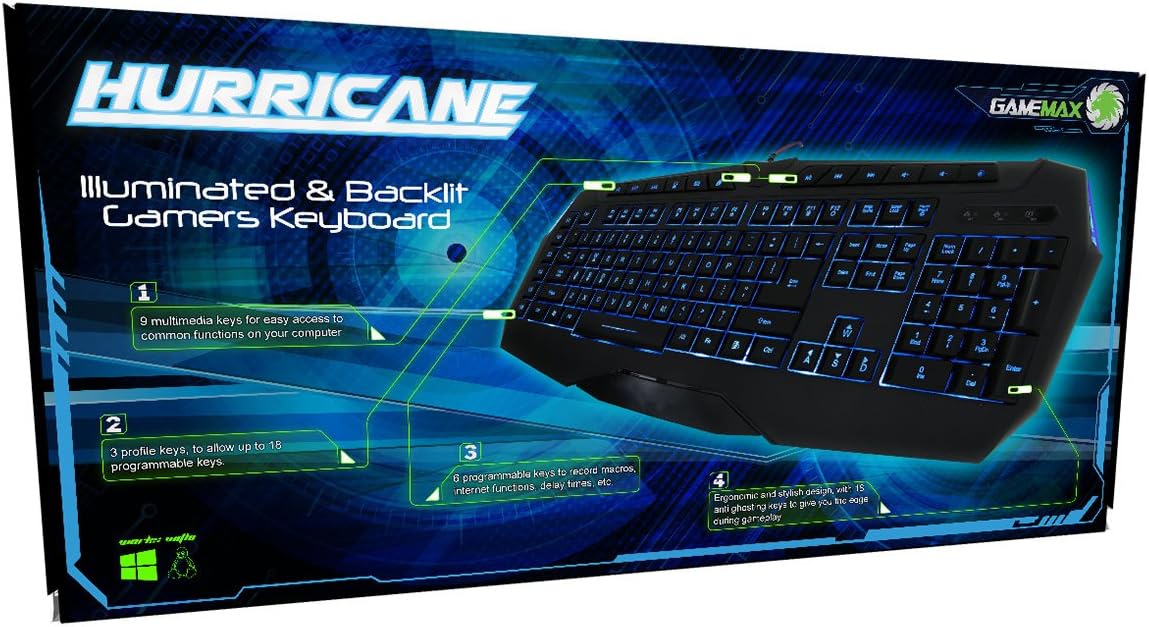
Figure 2: Close-up of the keyboard's USB connector. The image shows the standard USB-A plug with a braided cable, ready for connection to a computer.
4. Operating the Keyboard
The GAMEMAX Hurricane keyboard offers standard typing functionality along with several enhanced features for gaming and multimedia control.
4.1. Basic Keyboard Functions
All standard alphanumeric keys, function keys (F1-F12), navigation keys, and the numeric keypad operate as expected for general computer use.
4.2. Illumination Control
The keyboard features adjustable LED backlighting with multiple color options.
- Turn LED On/Off: Press FN + Scroll Lock to toggle the backlighting on or off.
- Change LED Color: Press FN + Pause Break to cycle through available LED colors (Blue, Red, Purple).
- Adjust LED Brightness:
- Press FN + Page Up to increase LED brightness.
- Press FN + Page Down to decrease LED brightness.
Blue Illumination

Red Illumination

Purple Illumination
Figure 3: Examples of the GAMEMAX Hurricane keyboard displaying its three available LED backlight colors: blue, red, and purple.
4.3. Multimedia and Shortcut Keys
The keyboard includes dedicated multimedia and shortcut functions accessible via the FN key combinations and dedicated keys.
- Polling Rate Adjustment:
- Press FN + F1 to increase polling rate.
- Press FN + F2 to decrease polling rate.
- Response Time Adjustment:
- Press FN + F3 to decrease response time.
- Press FN + F4 to increase response time.
- Quick Launch Applications:
- Press FN + F5 for Calculator.
- Press FN + F6 for Refresh Web Page.
- Press FN + F7 for Web Page Forward.
- Press FN + F8 for Web Page Back.
- Windows Key Lock: Press FN + Windows Key to swap WASD and Cursor Keys. This function is useful in gaming to prevent accidental presses of the Windows key.
- Dedicated Multimedia Keys: The keyboard features dedicated keys for media control (Play/Pause, Stop, Previous Track, Next Track, Volume Up, Volume Down, Mute). These are located above the function keys.

Figure 4: Back of the product packaging, detailing various features, shortcut key combinations, and specifications of the GAMEMAX Hurricane keyboard.
4.4. Programmable Keys (G1-G6 and M1-M3)
The keyboard includes six programmable G-keys (G1-G6) on the left side and three M-keys (M1-M3) at the top. These keys are designed for macro recording and profile switching, typically managed through dedicated software. Please refer to the GAMEMAX website for any available software or drivers that enable customization of these keys.

Figure 5: Close-up view of the G1-G6 programmable keys on the left edge and M1-M3 profile keys at the top of the keyboard, designed for custom functions and macros.
5. Maintenance and Care
Proper maintenance ensures the longevity and optimal performance of your keyboard.
- Cleaning:
- Disconnect the keyboard from your computer before cleaning.
- Use a soft, lint-free cloth slightly dampened with water or a mild cleaning solution to wipe the keycaps and surface.
- For dust and debris between keys, use compressed air.
- Avoid using harsh chemicals, abrasive cleaners, or solvents.
- Storage: Store the keyboard in a dry, cool environment away from direct sunlight and extreme temperatures.
- Liquid Exposure: Avoid spilling liquids on the keyboard. In case of accidental spills, immediately disconnect the keyboard and allow it to dry completely before reconnecting.

Figure 6: The GAMEMAX Hurricane keyboard in its unlit state, showing the standard black keycaps and chassis, useful for general cleaning and inspection.
6. Troubleshooting
If you encounter issues with your keyboard, refer to the following common solutions:
| Problem | Possible Cause | Solution |
|---|---|---|
| Keyboard not responding | Loose USB connection, faulty USB port, driver issue. |
|
| Backlighting not working | LEDs turned off, brightness set to minimum. |
|
| Multimedia keys not functioning | Software conflict, incorrect key combination. |
|
7. Specifications
| Feature | Detail |
|---|---|
| Brand | GAMEMAX |
| Model Number | GMK-HURRICANE |
| Connectivity | USB |
| Compatible Devices | Computer |
| Keyboard Description | Gaming |
| Number of Buttons | 18 (likely referring to dedicated multimedia/macro keys) |
| Special Features | Keyboard shortcuts and multimedia keys, Backlit |
| Working Voltage | 5V DC |
| Working Current | 200mA |
| Cable Length | 1.8 meters |
| M.T.B.F. (Mean Time Before Failure) | 10 million keystrokes |
| Net Weight | 843 ± 10g |
| Dimensions (L x W x H) | 506.6 x 210 x 31mm |
| Color | Black |
| LED Colour Options | Blue, Red, Purple |
| Operating Temperature | 0°C to +50°C |
| Storage Temperature | -20°C to +65°C |
8. Warranty and Support
GAMEMAX products are designed for reliability and performance. For information regarding warranty coverage, technical support, or service inquiries, please refer to the official GAMEMAX website or contact your local retailer. Keep your proof of purchase for warranty claims.