
Introduction
This manual provides detailed instructions for the installation, operation, and maintenance of your Jensen JWM6A AM/FM/DVD Stereo. Please read this manual thoroughly before using the product to ensure proper functionality and safety.
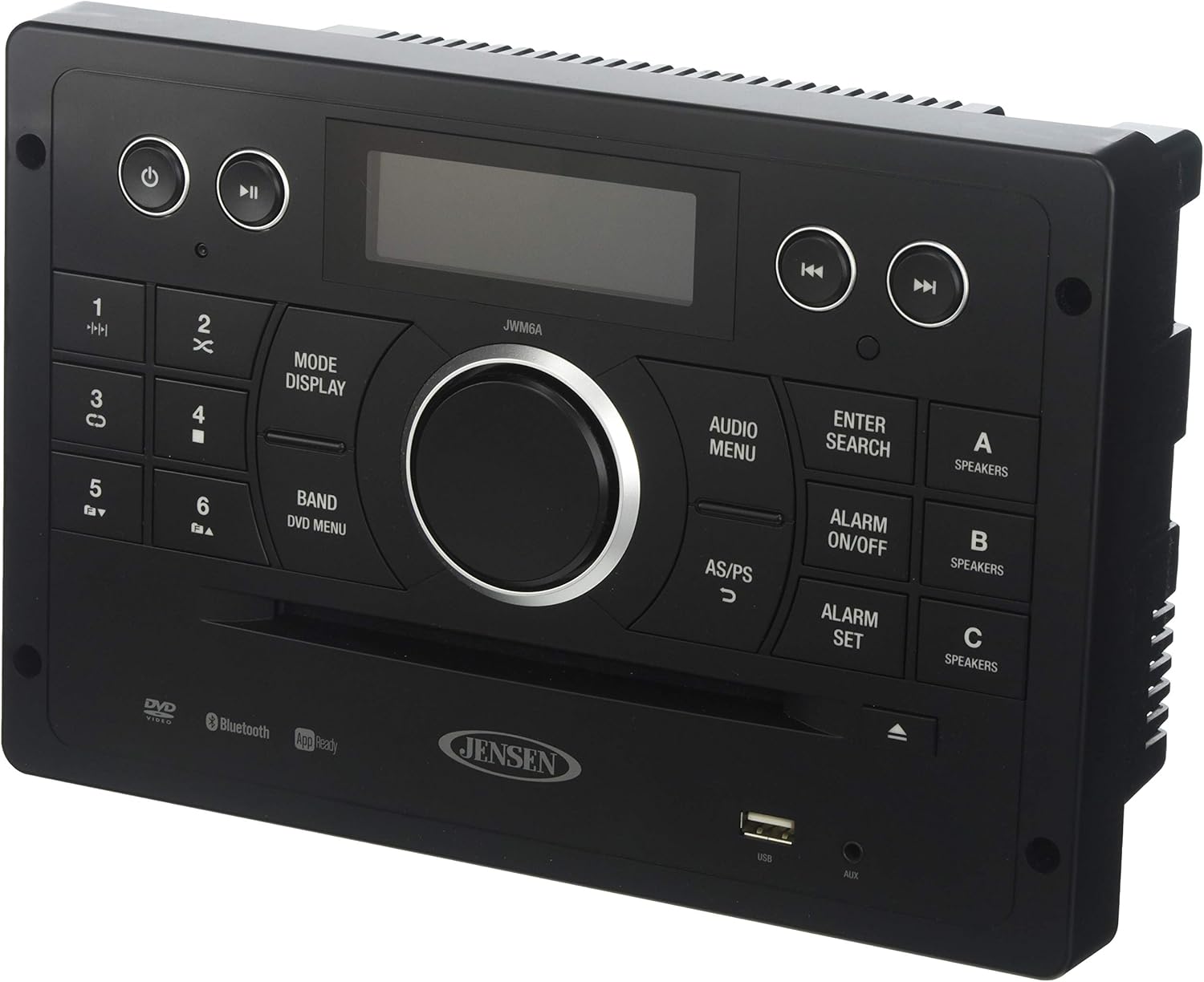
Figure 1: Front view of the Jensen JWM6A AM/FM/DVD Stereo, showing the display, control buttons, and disc slot.
Safety Information
Always observe the following safety precautions:
- Ensure the unit is powered by a 12 Volts DC source.
- Do not expose the unit to moisture or extreme temperatures.
- Refer all servicing to qualified personnel.
- Disconnect power before performing any wiring or maintenance.
Setup and Installation
The JWM6A is designed for wall-mount installation and has a standard footprint for easy upgrade. Professional installation is recommended.
Wiring Connections
The unit requires 12 Volts DC power and includes a blunt-cut labeled wiring harness. Ensure correct polarity when connecting power and ground. The unit has a red positive and black ground wire. Speaker wires are labeled for zones A, B, and C.
- Power: Connect the red wire to a 12V DC positive source and the black wire to ground.
- Speakers: The unit supports 3 zones and 8 speaker outputs. Connect speakers to the corresponding labeled wires (e.g., A FL+, A FL- for Zone A Front Left).
- Auxiliary Inputs: Front 1/8" auxiliary audio input, Rear Audio RCA Inputs.
- Video Output: HDMI Video Output with JCOM link, RCA Video Output.
- USB: Front USB port for MP3/WMA files and iPod/iPhone connectivity.
Mounting
The overall dimensions are 10.4" (W) x 7.0" (D) x 6.25" (H). Mounting hole dimensions are 9.3" (W) x 5.12" (H) with a mounting depth of 5.12".
Operating Instructions
Basic Controls
Figure 2: Detailed view of the Jensen JWM6A control panel, highlighting buttons for power, playback, mode, and speaker zones.
- Power Button: Located on the top left. Press to turn the unit on or off.
- Mode/Display Button: Cycles through available audio sources (AM/FM, DVD/CD, USB, AUX, Bluetooth).
- Volume Knob: Central knob to adjust volume.
- Speaker Zone Buttons (A, B, C): Activate or deactivate speaker zones.
- Disc Slot: Insert DVDs or CDs into the slot located below the main controls.
- USB Port: Located on the bottom right for USB devices.
- AUX Input: 1/8" jack located next to the USB port.
Radio Operation (AM/FM)
- Tuning: Use the seek buttons (<< / >>) to tune to stations.
- Presets: Store up to 30 stations (12 AM/18 FM). Use numbered buttons (1-6) to recall presets.
- Auto-Store/Preset Scan: Automatically scans and stores strong stations.
Disc Playback (DVD/CD)
- Insert a disc into the slot. The unit will automatically switch to DVD/CD mode.
- Use playback controls (Play/Pause, Skip, Stop) for media navigation.
- The unit is compatible with DVD/CD-R/RW and MP3 discs.
Bluetooth Operation
- Pairing: Enable Bluetooth on your device and search for "JWM6A". Select to pair.
- Streaming: Once paired, stream audio (A2DP, AVRCP) from your Bluetooth-enabled device.
- jControl App: Download the free jControl app to control stereo functions from your mobile device.
USB and AUX Playback
- USB: Insert a USB drive into the front USB port for MP3/WMA file playback. Supports iPod/iPhone connectivity.
- AUX: Connect external audio devices to the front 1/8" auxiliary input or rear RCA inputs.
Audio Settings
- Equalizer: Select from 5 pre-set equalizer settings (User, Flat, Pop, Classical, Rock).
- Tone Control: Electronic Bass, Treble, Balance, and Fader control.
Clock and Alarm
- Time/Alarm Clock: Set and view the current time and alarm.
- Alarm On/Off: Activate or deactivate the alarm function.
- Alarm Set: Configure alarm time.
Maintenance
- Cleaning: Use a soft, dry cloth to clean the unit's exterior. Do not use abrasive cleaners or solvents.
- Disc Care: Handle discs by their edges. Keep them clean and free of scratches.
- Firmware Updates: Check the manufacturer's website for any available firmware updates.
Troubleshooting
| Problem | Possible Cause | Solution |
|---|---|---|
| No power | Incorrect wiring; Blown fuse; Low battery voltage. | Check power and ground connections; Replace fuse; Check vehicle battery. The unit has a low battery alarm. |
| No sound | Speakers not connected; Volume too low; Mute activated; Incorrect speaker zone selected. | Verify speaker wiring; Increase volume; Deactivate mute; Select correct speaker zone (A, B, or C). |
| Disc not playing/ejecting | Disc inserted incorrectly; Damaged disc; Shipping screw not removed (if applicable). | Re-insert disc correctly; Try a different disc; Ensure shipping screw is removed. |
| Bluetooth pairing issues | Device not in pairing mode; Unit not discoverable; Interference. | Ensure Bluetooth is enabled on device and unit; Move closer to the unit; Restart both devices. |
| Remote control not working | Dead batteries; Obstruction between remote and unit; Incorrect remote mode. | Replace batteries; Remove obstructions; Ensure remote is pointed at the unit's IR receiver. |
Specifications
- Power Requirement: 12 Volts DC
- Tuner: Digital AM/FM Tuner, 30 Presets (12 AM/18 FM)
- Bluetooth: A2DP, AVRCP Streaming Audio, APP Ready (jControl)
- Disc Compatibility: Slot type DVD/CD-R/RW, MP3 Compatible
- USB: Playback of MP3/WMA Files, Made for iPod/iPhone (USB Input)
- Auxiliary Inputs: 1/8" Front Auxiliary Audio Input, Rear Audio RCA Inputs
- Video Outputs: HDMI Video Output with JCOM link, RCA Video Output
- Audio Outputs: 3 Zone / 8 Speaker Output, RCA Coaxial Input, Optical Input
- Equalizer: 5 Pre-set settings (User, Flat, Pop, Classical, Rock)
- Display: White LED Backlight LCD
- Dimensions (Overall): 10.4" (W) x 7.0" (D) x 6.25" (H)
- Mounting Hole Dimensions: 9.3" (W) x 5.12" (H)
- Mounting Depth: 5.12"
- Weight: Approximately 4 pounds
Warranty and Support
Warranty Information
For specific warranty details, please refer to the warranty card included with your product or visit the official Jensen website. Keep your purchase receipt as proof of purchase for warranty claims.
Customer Support
If you encounter any issues not covered in this manual or require further assistance, please contact Jensen customer support. Visit the Jensen Store on Amazon or their official website for contact information and additional resources.


