
1. Introduction
The Vinpower SharkBluCP is a standalone disc duplicator designed for efficient and secure copying of Blu-ray, BDXL, DVD, and CD media. This device operates independently, requiring no connection to a personal computer for standard duplication tasks. It features a 7-target capacity, a 2 TB internal hard drive, and supports advanced copy protection for Blu-ray and DVD formats. This manual provides essential information for setting up, operating, maintaining, and troubleshooting your SharkBluCP duplicator.

Image 1.1: Front view of the Vinpower SharkBluCP 7-Target Blu-ray BDXL DVD CD Disc Duplicator. This image displays the black tower unit with seven optical disc drives and a control panel at the top.

Image 1.2: Illustration emphasizing the standalone nature of the duplicator. A red circle with a line through it is placed over a computer monitor and keyboard, indicating that no PC is required for operation.
2. Product Overview
Familiarize yourself with the key components and controls of your SharkBluCP duplicator.

Image 2.1: Detailed diagram of the duplicator's front panel. It highlights the LCD Screen, Cancel/Escape Button, Scroll Up/Down Buttons, Confirm/Enter Button, Eject Button, CD/DVD/Blu-ray Reader (top drive), CD/DVD/Blu-ray Writers/Burners (lower drives), and the Power Button located at the bottom front.
Front Panel Components:
- LCD Screen: Displays menu options, status, and operational messages.
- Control Buttons: Navigation (Up/Down), Selection (Enter), and Exit (Escape/Cancel) buttons for menu interaction.
- Optical Disc Drives: One top drive typically functions as the source reader, while the remaining seven drives are for target disc writing. These drives support CD, DVD, Blu-ray, and BDXL formats.
- Power Button: Located at the bottom front, used to power the unit on and off.
Rear Panel Components:
- Power Input: Connects the duplicator to a power source.
- USB 3.0 Port: Used for the Multi-File Copy Connection feature to transfer data from a computer to the internal hard drive.
- Cooling Fans: Ensures proper ventilation and heat dissipation for stable operation.
3. Setup
- Unpacking: Carefully remove the duplicator from its packaging. Retain all packaging materials for future transport or service.
- Placement: Place the duplicator on a stable, flat surface with adequate ventilation around all sides. Avoid placing it near heat sources or in direct sunlight.
- Power Connection: Connect the power cable to the duplicator's power input and then to a grounded electrical outlet.
- Initial Power On: Press the power button on the front panel. The LCD screen will illuminate, and the system will perform a self-test.
4. Operating Instructions
4.1. Standard Disc Duplication (Copy Mode)
- Power On: Ensure the duplicator is powered on.
- Load Source Disc: Insert the master disc (CD, DVD, Blu-ray, or BDXL) into the top optical drive (source drive).
- Load Target Discs: Insert blank discs of the same format into the remaining seven target drives.
- Select Copy Function: Using the navigation buttons, select the 'Copy' function from the main menu on the LCD screen and press 'Enter'.
- Start Duplication: Confirm the settings and start the duplication process. The LCD will display the progress.
- Completion: Once duplication is complete, remove the copied discs. The system will indicate successful completion or any errors.
Note: The duplicator can only copy non-protected discs. Commercial Blu-ray movies or DVDs with copy protection cannot be duplicated.
4.2. Multi-File Copy Connection (USB 3.0 to Internal HDD)
This feature allows you to transfer master content directly from a computer to the duplicator's internal 2 TB hard drive, eliminating the need to burn a physical master disc first.
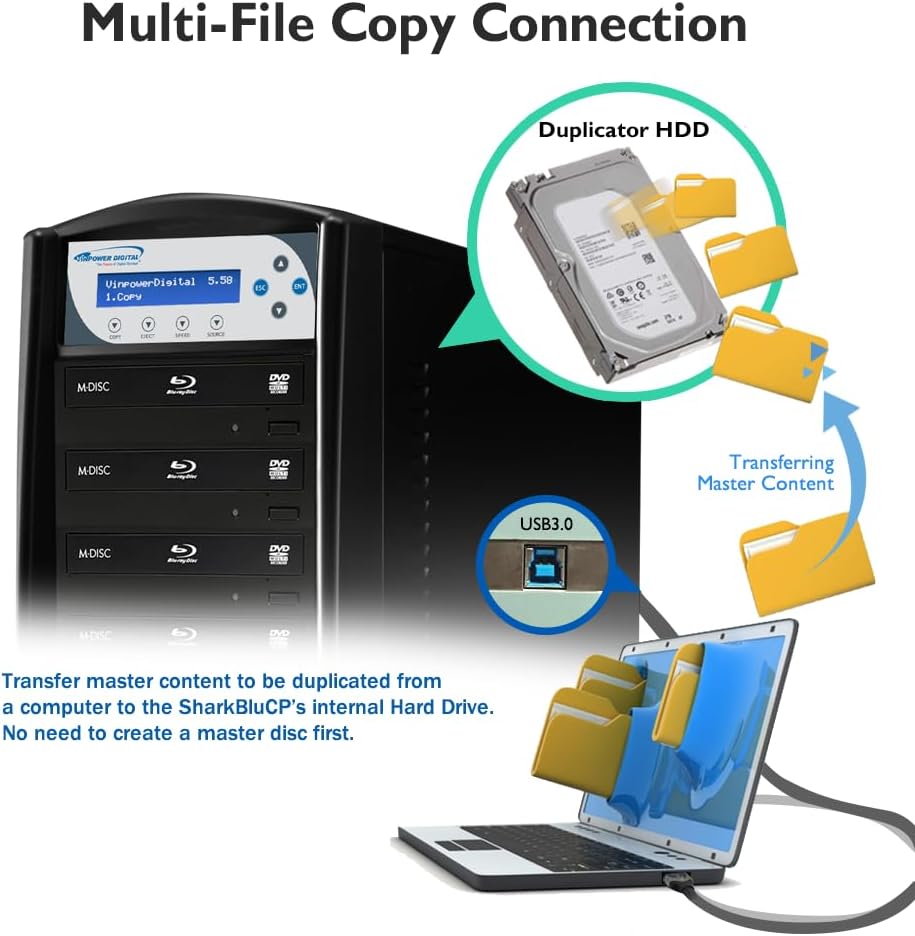
Image 4.1: Illustration of the Multi-File Copy Connection. A laptop is shown connected via a USB 3.0 cable to the duplicator, with data folders transferring to the duplicator's internal hard drive. This process bypasses the need for a physical master disc.
- Connect USB: Connect a USB 3.0 cable from your computer to the USB 3.0 port on the rear of the SharkBluCP duplicator.
- Access HDD: The duplicator's internal hard drive should appear as an accessible storage device on your computer.
- Transfer Files: Copy your master content files (e.g., ISO images, video files) to the designated partition on the duplicator's hard drive.
- Disconnect USB: Safely eject and disconnect the USB cable from your computer and the duplicator.
- Duplicate from HDD: On the duplicator's control panel, select the 'Load and Copy' or 'HDD Copy' function, choose your desired master project from the internal hard drive, and proceed with duplication as usual.
4.3. Copy Protection Feature
The SharkBluCP offers integrated copy protection for Blu-ray and DVD video content, providing an additional layer of security against unauthorized duplication of your original masters.

Image 4.2: Graphic depicting copy protection. A stylized image shows a thief attempting to copy discs, with a 'no' symbol over the action, and various disc formats (DVD-R, DVD+R, DVD+R DL, BD-R, BD-R DL, BDXL) at the bottom, indicating compatibility with copy protection features.
- Blu-ray Copy Protection: Create copy-protected Blu-ray video discs from an original master. Consult the duplicator's menu for specific options related to BD CopyProtection.
- Free DVD Copy Protection: Create copy-protected DVD video discs using OptoDisc MID media from an original master without additional cost. Refer to the duplicator's menu for DVD copy protection settings.
4.4. BDXL Disc Duplication
The duplicator supports BDXL discs, including 100GB and 128GB formats, for high-capacity data storage and duplication.

Image 4.3: The duplicator with its disc trays open, showing BDXL 100GB and 128GB discs being loaded or duplicated. A stack of BDXL discs is visible next to the unit.
5. Maintenance
- Cleaning: Keep the exterior of the duplicator clean with a soft, dry cloth. Do not use liquid cleaners or solvents.
- Dust Prevention: Ensure the operating environment is free from excessive dust to prevent accumulation inside the drives and cooling vents.
- Disc Handling: Always handle discs by their edges to avoid fingerprints and scratches, which can affect duplication quality.
- Firmware Updates: Periodically check the Vinpower Digital website for any available firmware updates for your SharkBluCP model to ensure optimal performance and compatibility.
6. Troubleshooting
| Problem | Possible Cause | Solution |
|---|---|---|
| Duplicator does not power on. | Power cable not connected; power outlet issue. | Check power cable connection; try a different outlet. |
| Disc duplication fails or produces errors. | Scratched/damaged master disc; low-quality blank discs; incorrect disc type; copy-protected source. | Use a clean, undamaged master disc. Use high-quality blank media. Ensure blank discs match source format. Verify source disc is not copy-protected. |
| Slow duplication speed. | Low-speed blank media; drive issues. | Use blank media rated for higher write speeds. Ensure drives are clean. |
| Cannot transfer files via USB. | Incorrect USB cable; driver issues on PC; duplicator not in correct mode. | Ensure USB 3.0 cable is used. Check PC's device manager. Verify duplicator is in HDD connection mode. |
| LCD screen is blank or unresponsive. | Power issue; system error. | Power cycle the duplicator. If issue persists, contact support. |
7. Specifications
| Feature | Specification |
|---|---|
| Model | SharkBluCP |
| Brand | Vinpower Digital |
| Duplication Targets | 7 |
| Supported Disc Formats | Blu-ray (BD-R, BD-R DL, BDXL 100GB/128GB), DVD (DVD-R, DVD+R, DVD-R DL, DVD+R DL), CD (CD-R) |
| Hard Drive | 2 TB Mechanical Hard Disk |
| Hard Drive Interface | Serial ATA |
| Hard Drive Rotational Speed | 7200 RPM |
| Max Write Speed (BD-R) | Up to 16x |
| Connectivity | USB 3.0 (for Multi-File Copy Connection) |
| Operation | Standalone (No PC required) |
| Copy Protection | BD CopyProtection, Free DVD Copy Protection (with OptoDisc MID media) |
| Product Dimensions (LxWxH) | 21 x 7.5 x 18 inches |
| Item Weight | 25 pounds |
| Hardware Platform | PC (for internal components, not for operation) |
| UPC | 842378010621 |
8. Warranty and Support
For warranty information, technical support, or service inquiries, please refer to the documentation included with your product or visit the official Vinpower Digital website. Keep your purchase receipt and product serial number readily available when contacting support.
- Online Resources: Visit the Vinpower Digital Store on Amazon
- Contact Support: Refer to the manufacturer's website for the most current contact information.