
1. Introduction and Overview
The CableDeconn Multi-Function DisplayPort to HDMI/DVI/VGA 3-in-1 Adapter is designed to connect a DisplayPort-equipped laptop or desktop computer to an HDTV, monitor, or projector that uses HDMI, DVI, or VGA input. This adapter provides a versatile solution for various display setups.

Image 1.1: CableDeconn Multi-Function DisplayPort to HDMI/DVI/VGA 3-in-1 Adapter.
Key Features:
- Converts DisplayPort signal to HDMI, DVI, or VGA.
- Supports video resolutions up to 1920x1080P (Full HD).
- Transmits uncompressed digital 7.1, 5.1, or 2 audio channels via HDMI.
- Features silver-plated connectors for corrosion resistance and improved signal transmission.
- DisplayPort connector includes latches for a secure connection.
- Constructed with high purity oxygen-free copper wire core and high-density metal shielding for effective data transmission.
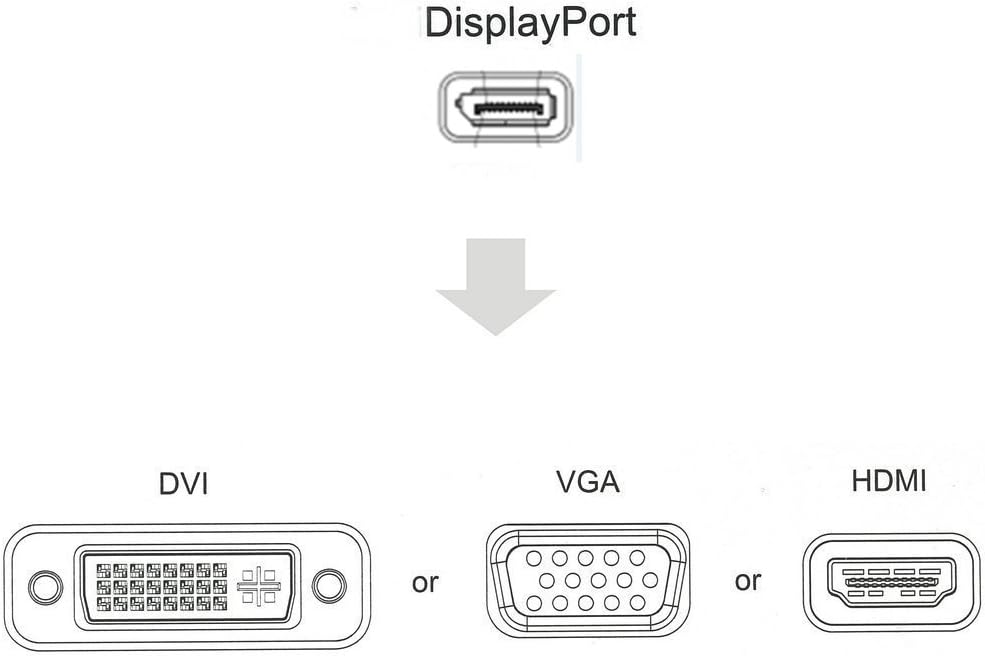
Image 1.2: Diagram illustrating DisplayPort input converting to DVI, VGA, or HDMI output.

Image 1.3: Visual comparison demonstrating Full HD 1080P resolution support.
2. Setup and Connection
This adapter allows you to connect a DisplayPort source to a display with HDMI, DVI, or VGA input. Please note that only one display output can be used at a time.

Image 2.1: Connection diagram showing DisplayPort source to adapter, then to display via HDMI, VGA, or DVI cable.
- Connect to Source: Insert the DisplayPort male connector of the adapter into the DisplayPort output port of your computer (laptop or desktop). Ensure the connector latches securely.
- Connect to Display: Choose one of the three output ports (HDMI, DVI, or VGA) on the adapter. Connect a separate HDMI, DVI, or VGA cable (not included) from the adapter to your desired display device (monitor, HDTV, or projector).
- Power On: Ensure both your computer and display device are powered on.
- Display Configuration: Your computer should automatically detect the connected display. You may need to configure display settings (e.g., extend desktop, duplicate display) through your operating system's display settings.

Image 2.2: Close-up of the DisplayPort connector, highlighting the latches and release button. Depress the button before unplugging to avoid damage.
Important Connection Notes:
- This adapter is not bi-directional; it only converts signal from DisplayPort to HDMI/DVI/VGA.
- It does not support more than one output simultaneously. Only one display can be connected at a time.
- This adapter is not compatible with USB ports. Ensure you are connecting to a DisplayPort.

Image 2.3: The adapter supports only one display output connection at a time.
3. Audio Configuration
Audio transmission varies depending on the output port used:
- HDMI Output: When connecting to a TV via HDMI, audio will pass through the HDMI port.
- VGA and DVI Output: When connecting to a monitor via VGA or DVI, audio will not pass through the adapter. An external speaker system is required to obtain audio output.
- Monitor Connection: When connecting to any monitor (HDMI/VGA/DVI), audio will generally not pass through the adapter to the monitor itself. A separate speaker is needed for audio.
For Mac users (Late 2009 Mac, Mid 2010 MacBook Pro), if connecting to an HDMI display, you may need to set the sound output in "System Preferences" to get audio out.
4. Specifications
Detailed technical specifications for the CableDeconn DisplayPort to HDMI/DVI/VGA Adapter (Model BC75629):
| Feature | Specification |
|---|---|
| Input | DisplayPort Male (20-pin) |
| Output | HDMI Female (19-pin), DVI Female (24+5), VGA Female (15-pin) |
| Video Amplifier Bandwidth | 2.25Gbps/225MHz |
| Operating Frequency | 50/60Hz |
| Vertical Frequency Range | 50/60Hz |
| Supported Resolutions | Up to 1920x1080P (Full HD) |
| Dimensions (LxWxH) | 3.54 x 1.77 x 0.51 inches (8.5 x 6.7 x 1.4 cm) |
| Weight | 1.9 ounces (65g) |
| Operating Temperature | 0°C to +70°C |
| Operating Humidity | 10% to 85% RH (no condensation) |
| Storage Temperature | -10°C to +80°C |
| Storage Humidity | 5% to 90% RH (no condensation) |
| Power Requirement | No external power needed |
| Power Consumption (Max) | 700mW |
| Color | Black |
Note: Specifications are subject to change without notice.
5. Troubleshooting
- No Display Signal:
- Ensure the DisplayPort connector is fully inserted into your computer's DisplayPort.
- Verify that the HDMI, DVI, or VGA cable is securely connected between the adapter and your display.
- Confirm that your display is set to the correct input source (e.g., HDMI 1, DVI, VGA).
- Restart your computer and display device.
- Test with a different display cable if possible.
- No Audio (HDMI):
- Ensure your computer's audio output is set to the HDMI device. Check sound settings in your operating system.
- For Mac users, adjust sound output in "System Preferences".
- Image Quality Issues (e.g., blurry text, flickering):
- Ensure the display resolution is set correctly in your computer's display settings. If your computer or monitor supports 4K resolution, when connecting this adapter, the resolution will be 1920x1080. If the resolution is lower (e.g., 1280x720 or 800x600), adjust to a reasonable resolution once a signal is detected.
- Test with a different display cable.
- Avoid disconnecting and reconnecting the adapter frequently during use, as this may sometimes require a system restart to re-establish a stable signal.
- Adapter Not Working:
- Confirm that your computer has a DisplayPort output, not a USB port. This adapter is not compatible with USB.
- Ensure only one output (HDMI, DVI, or VGA) is connected at a time.
6. Maintenance
To ensure the longevity and optimal performance of your adapter:
- Keep the adapter in a clean, dry environment.
- Avoid exposing the adapter to extreme temperatures or humidity.
- Do not bend or twist the cable excessively.
- When unplugging the DisplayPort connector, always depress the release button to prevent damage to the port or connector.
- Clean the connectors periodically with a soft, dry cloth to remove dust or debris.
7. Warranty and Support
This CableDeconn product comes with a 45-day money-back guarantee and an 18-month worry-free warranty.
For further assistance or technical support, please visit the official CableDeconn website:
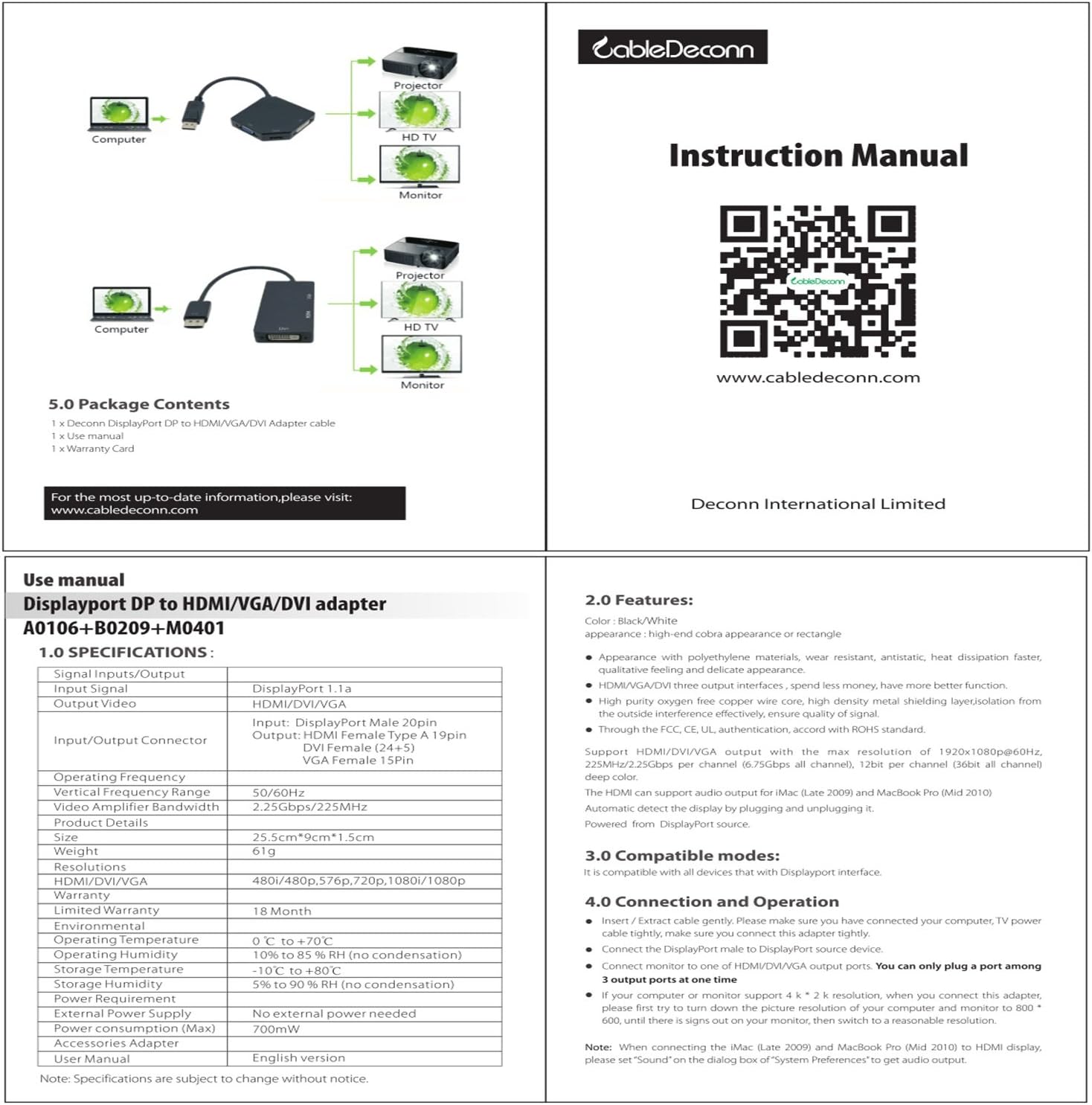
Image 7.1: QR code and website for additional information.