
1. Introduction
The KONNWEI KW808 EOBD OBD2 Diagnostic Scanner is a professional-grade tool designed for vehicle diagnostics. It supports all nine OBDII test modes on OBDII EOBD compliant vehicles, enabling technicians and home users to accurately diagnose various vehicle issues. This handheld scanning tool provides quick and easy access to engine-based EOBD fault codes, helping to identify and resolve problems efficiently.
This manual provides detailed instructions on how to set up, operate, and maintain your KW808 scanner, along with troubleshooting tips and product specifications.
2. Package Contents
Upon opening the package, please verify that all items listed below are present and in good condition:
- 1x KONNWEI KW808 OBD2 Code Reader (Main Unit)
- 1x OBD II Connector Cable (142 cm)
- 1x Black Carrying Bag
- 1x User Manual
- 1x CD (Software/Drivers)

Figure 2.1: KONNWEI KW808 Package Contents
3. Safety Information
Always observe safety precautions when working on a vehicle. Improper use of diagnostic tools can lead to personal injury or damage to the vehicle. Please read and follow these guidelines:
- Ensure the vehicle is parked on a level surface with the parking brake engaged.
- Wear appropriate eye protection.
- Keep clothing, hair, hands, tools, and test equipment away from all moving or hot engine parts.
- Do not connect or disconnect test equipment while the ignition is on or the engine is running.
- The KW808 scanner is powered by the vehicle's 8.0 to 18.0V battery via the OBD-II port. Do not attempt to power the device with an external 9V battery as it is not supported.
4. Product Features
The KONNWEI KW808 scanner offers a range of features for comprehensive vehicle diagnostics:
- Broad Vehicle Compatibility: Works with all 1996 and newer OBD2 compliant vehicles (US, European, and Asian).
- DTC Retrieval: Retrieves generic (P0, P2, P3, and U0) and manufacturer-specific (P1, P3, and U1) codes.
- Check Engine Light Management: Easily determines the cause of the "Check Engine Light" (MIL), turns it off, clears codes, and resets monitors.
- Live Data Stream: Reads live PCM data stream and displays live O2 sensor test data.
- Freeze Frame Data: Views freeze frame data, which captures vehicle conditions at the time a fault code is set.
- I/M Readiness Status: Displays monitor and I/M readiness status (emissions) to help with smog checks.
- Pending Codes: Identifies pending codes that have not yet triggered the MIL.
- Vehicle Information: Retrieves vehicle information (VIN, CID, and CVN).
- Protocol Support: Supports CAN (Controller Area Network) and all other current OBD2 protocols.
- Built-in DTC Library: Integrated OBD2 DTC lookup library for quick code definitions.
- User-Friendly Display: Large, easy-to-read backlit LCD screen.
- Data Management: Memory/battery backup for off-vehicle data review and analysis.
- Multilingual Interface: Bilingual interface and DTC definitions (English/Spanish).
- Software Updates: Software upgradeable via the internet.
- Data Printing: Ability to print data via PC.
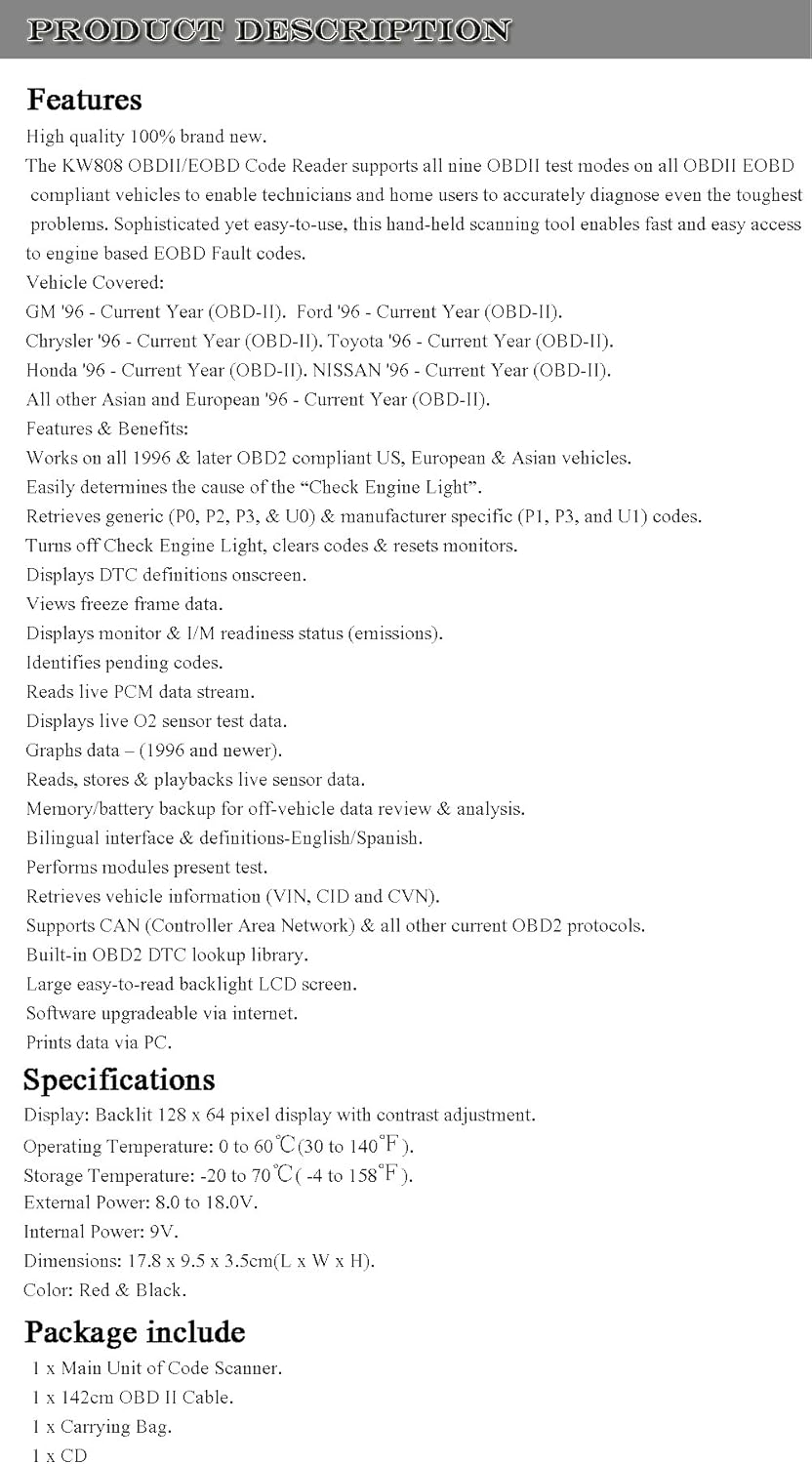
Figure 4.1: KONNWEI KW808 Feature Overview
5. Setup
Follow these steps to prepare your KONNWEI KW808 scanner for use:
- Locate the Vehicle's OBD-II Port: The 16-pin Data Link Connector (DLC) is usually located under the dashboard on the driver's side of the vehicle. Refer to your vehicle's service manual for the exact location if you cannot find it.
- Connect the Scanner: With the vehicle's ignition off, firmly plug the OBD-II connector cable from the KW808 scanner into the vehicle's DLC. Ensure a secure connection.
- Power On: Turn the vehicle's ignition to the "ON" position (engine off). The scanner will automatically power on, drawing power directly from the vehicle's battery. The device does not support internal 9V battery power.
- Initial Screen: The scanner will display the main menu or a system status screen.

Figure 5.1: KW808 Connector Port
6. Operating Instructions
The KW808 scanner features a user-friendly interface with navigation buttons. Familiarize yourself with the buttons:
- ENTER: Confirms a selection or enters a menu.
- ESC: Returns to the previous screen or cancels an operation.
- UP/DOWN Arrows: Navigate through menu options.
- LEFT/RIGHT Arrows: Move cursor or change values.
- ?: Provides help or information about the current function.
- Power Button: Turns the device on/off (though typically powered by vehicle).

Figure 6.1: KW808 Scanner Interface
6.1. Reading Diagnostic Trouble Codes (DTCs)
- Connect the scanner to the vehicle and turn the ignition ON.
- From the main menu, select "Read Codes" and press ENTER.
- The scanner will communicate with the vehicle's ECU and display any stored DTCs.
- Use the UP/DOWN arrows to scroll through the codes and their definitions.
6.2. Erasing Diagnostic Trouble Codes (DTCs)
Warning: Erasing DTCs clears all diagnostic data. Ensure you have recorded all codes and freeze frame data before proceeding.
- Connect the scanner and turn the ignition ON.
- From the main menu, select "Erase Codes" and press ENTER.
- Confirm the action when prompted. The scanner will clear the codes and turn off the Check Engine Light (MIL).
6.3. I/M Readiness Status
This function checks the readiness of the emission-related monitoring systems. It is useful for determining if the vehicle is ready for an emissions test.
- Connect the scanner and turn the ignition ON.
- Select "I/M Readiness" from the menu and press ENTER.
- The display will show the status of various monitors (e.g., O2 Sensor, EVAP System). "OK" or "Complete" indicates the monitor has run, while "INC" or "Incomplete" means it has not.
6.4. Viewing Freeze Frame Data
Freeze Frame Data provides a snapshot of the vehicle's operating conditions at the moment an emission-related fault occurred.
- Connect the scanner and turn the ignition ON.
- Select "Freeze Frame" from the menu and press ENTER.
- The scanner will display various parameters like engine RPM, vehicle speed, coolant temperature, etc., recorded when the DTC was set.
6.5. Other Functions
Explore other functions such as "Live Data," "O2 Sensor Test," "On-Board Monitor Test," "Component Test," and "Vehicle Info" by navigating through the main menu. Each function provides specific diagnostic information.
7. Maintenance
To ensure the longevity and optimal performance of your KONNWEI KW808 scanner, follow these maintenance guidelines:
- Cleaning: Use a soft, damp cloth to clean the scanner's exterior. Do not use abrasive cleaners or solvents.
- Storage: Store the scanner in its carrying bag in a clean, dry environment when not in use. Avoid extreme temperatures and direct sunlight.
- Cable Care: Inspect the OBD-II cable regularly for any signs of damage. Do not bend or crimp the cable excessively.
- Software Updates: Periodically check the KONNWEI official website for software updates. Updates can improve functionality and expand vehicle compatibility. The scanner is upgradeable via the internet using a PC.
8. Troubleshooting
If you encounter issues while using your KW808 scanner, refer to the following common problems and solutions:
| Problem | Possible Cause | Solution |
|---|---|---|
| Scanner does not power on. |
|
|
| "No Communication" message displayed. |
|
|
| Check Engine Light (MIL) remains on after clearing codes. |
|
|
9. Specifications
| Parameter | Value |
|---|---|
| Display | Backlit 128 x 64 pixel display with contrast adjustment |
| Operating Temperature | 0 to 60°C (30 to 140°F) |
| Storage Temperature | -20 to 70°C (-4 to 158°F) |
| External Power | 8.0 to 18.0V via vehicle battery |
| Dimensions (L x W x H) | 17.8 x 9.5 x 3.5 cm |
| Weight | Approximately 1.81 kg (packaged) |
| Color | Red & Black |
10. Warranty and Support
For warranty information, technical support, or service inquiries, please refer to the documentation included with your product or visit the official KONNWEI website. Contact details for customer support are typically provided on the manufacturer's website or in the included user manual.