
1. Introduction
This manual provides comprehensive instructions for the installation, operation, and maintenance of your Supermicro X11SSZ-F-O Micro ATX Motherboard. Please read this manual thoroughly before beginning installation to ensure proper setup and to maximize the performance and longevity of your system.
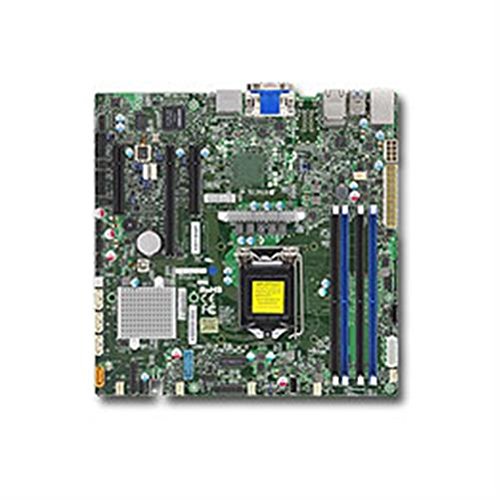
Figure 1: Supermicro X11SSZ-F-O Micro ATX Motherboard. This image displays the motherboard with its various components, including the CPU socket, DIMM slots, and expansion slots.
2. Safety Information
Always observe the following safety precautions to prevent damage to the motherboard and injury to yourself:
- Disconnect the power cord from the wall outlet before installing or removing any components.
- Wear an anti-static wrist strap and work on an anti-static mat to prevent electrostatic discharge (ESD) damage to sensitive components.
- Handle the motherboard by its edges to avoid touching components or circuits.
- Ensure proper ventilation in your system chassis to prevent overheating.
- Keep the motherboard away from moisture and extreme temperatures.
3. Package Contents
Verify that all items are present in your motherboard package. Typical contents include:
- Supermicro X11SSZ-F-O Motherboard
- I/O Shield
- SATA Cables
- Driver CD/DVD or USB drive
- Quick Installation Guide or User Manual
If any items are missing or damaged, contact your vendor immediately.
4. Setup and Installation
4.1. Pre-installation Checklist
- Ensure your power supply is compatible with the motherboard's power connectors (24-pin ATX and 8-pin EPS).
- Prepare your CPU, CPU cooler, DDR4 memory modules, and storage devices.
- Have a Phillips head screwdriver ready.
4.2. CPU Installation (LGA 1151)
- Locate the LGA 1151 socket on the motherboard.
- Gently push down the load lever and pull it away from the socket to open the CPU retention frame.
- Carefully align the CPU with the socket, ensuring the gold triangle on the CPU matches the triangle on the socket. Do not force the CPU into the socket.
- Lower the retention frame over the CPU and push the load lever back into place until it clicks.
- Install the CPU cooler according to its manufacturer's instructions.
4.3. Memory Installation (DDR4)
- Locate the four DDR4 DIMM slots.
- Open the clips at both ends of the DIMM slot.
- Align the memory module with the slot, ensuring the notch on the module matches the key in the slot.
- Press down firmly on both ends of the memory module until the clips snap into place.
4.4. Expansion Card Installation
- Identify the desired PCI Express slot (1x PCI-E 3.0 x16, 2x PCI-E 3.0 x8).
- Remove the corresponding metal slot cover from your chassis.
- Align the expansion card with the slot and press down firmly until it is securely seated.
- Secure the card with a screw or retention clip.
4.5. Storage Device Installation (SATA)
- Connect one end of a SATA data cable to one of the four SATA3 ports on the motherboard.
- Connect the other end of the SATA data cable to your storage device (HDD/SSD).
- Connect a SATA power cable from your power supply to the storage device.
4.6. Connecting Peripherals
- Power Connectors: Connect the 24-pin ATX and 8-pin EPS power cables from your power supply to the motherboard.
- Front Panel Connectors: Connect the power switch, reset switch, HDD LED, and power LED cables from your chassis to the corresponding pins on the motherboard's front panel header. Refer to the motherboard diagram for pin assignments.
- USB Headers: Connect front panel USB ports to the onboard USB headers.
- Audio Headers: Connect front panel audio jacks to the onboard audio header.
5. Operating Instructions
5.1. First Boot and BIOS/UEFI Setup
- After assembling your system, connect a monitor, keyboard, and mouse.
- Power on the system. During the Power-On Self-Test (POST), press the designated key (usually DEL or F2) to enter the BIOS/UEFI setup utility.
- Configure essential settings such as date and time, boot order, and enable/disable integrated peripherals as needed.
- Save changes and exit the BIOS/UEFI. The system will restart.
5.2. Operating System and Driver Installation
- Insert your operating system installation media (USB drive or DVD).
- Follow the on-screen prompts to install your operating system.
- Once the operating system is installed, install the necessary drivers from the provided driver CD/DVD/USB or download the latest drivers from the Supermicro website. Key drivers include chipset, audio, and LAN drivers.
6. Maintenance
- Cleaning: Periodically clean dust from inside your computer case, especially from fans and heatsinks, using compressed air. Ensure the system is powered off and unplugged before cleaning.
- BIOS/UEFI Updates: Check the Supermicro website for BIOS/UEFI updates. Updates can improve stability, compatibility, and performance. Follow the update instructions carefully to avoid damaging the motherboard.
- Driver Updates: Keep your system drivers updated to ensure optimal performance and compatibility with new software and hardware.
7. Troubleshooting
This section addresses common issues you might encounter:
- No Power: Ensure all power cables (24-pin ATX, 8-pin EPS, CPU fan) are securely connected. Check the power supply unit (PSU) and wall outlet.
- No Display: Verify that the monitor is connected and powered on. Reseat the graphics card (if applicable) and memory modules. Try booting with only one memory module.
- System Beeps: Beep codes often indicate specific hardware issues. Consult the Supermicro website or the motherboard's full manual for a list of beep codes and their meanings. Common issues include memory errors or graphics card problems.
- Operating System Not Booting: Check the boot order in BIOS/UEFI. Ensure the storage drive with the operating system is detected and set as the primary boot device.
- System Instability/Crashes: This can be caused by overheating, faulty memory, or outdated drivers. Monitor temperatures, run memory diagnostic tools, and update drivers.
8. Specifications
| Feature | Specification |
|---|---|
| Model Name | X11SSZ-F-O |
| Form Factor | Micro ATX |
| CPU Socket | LGA 1151 |
| Chipset | Intel C236 |
| Memory Slots | 4x 288-pin DDR4 DIMM |
| Memory Type | DDR4-2133/1866/1600 ECC/Non-ECC Unbuffered |
| Max Memory Capacity | 64GB |
| PCI-Express Slots | 1x PCI-E 3.0 x16, 2x PCI-E 3.0 x8 (run at x4) |
| SATA Ports | 4x SATA3 (6Gb/s) with RAID 0, 1, 5, 10 support |
| Audio | Realtek ALC888S High Definition Audio CODEC |
| LAN | Dual Gigabit Ethernet |
| USB Ports | Total 8 (includes 2x USB 2.0) |
| Compatible Processors | Intel Core i3/i5/i7 (6th/7th Gen), Xeon E3-1200 v5/v6 series |
9. Warranty and Support
Supermicro provides a limited warranty for its products. For detailed warranty terms and conditions, please refer to the warranty card included with your product or visit the official Supermicro website. For technical support, driver downloads, and further assistance, please visit the Supermicro support portal:
When contacting support, please have your motherboard model number (X11SSZ-F-O) and serial number ready.


