1. Product Overview
The Canon imagePROGRAF PRO-1000 is a 17-inch wide format professional inkjet printer designed for photographic and graphic art applications. It features advanced technologies to ensure high-quality prints and reliable operation.
Key features include:
- ANTI-CLOGGING TECHNOLOGY: The FINE print head incorporates a tubular ink delivery system, which enhances print speeds and minimizes clogging.
- AIR FEEDING SYSTEM: This system prevents paper skewing for precise ink placement, regardless of paper type, by vacuum-gripping paper as it feeds.
- LUCIA PRO INK SYSTEM: An 11-color plus Chroma Optimizer ink system provides a broad color gamut, superb glossiness, and anti-bronzing properties.
- WIDE COLOR GAMUT: Achieves improved color reproduction, image clarity, and enhanced darker areas, faithfully reproducing colors and dark tones.
- BLACK DENSITY AND DARK SHADOW AREAS: Delivers deep blacks and precise gradation across all media types.

Figure 1: Front view of the Canon imagePROGRAF PRO-1000 printer. This image shows the printer's compact design with its control panel visible on the top right.
2. Setup Guide
2.1 Unpacking and Placement
Carefully remove the printer from its packaging. Ensure all protective tapes and packing materials are removed from the exterior and interior of the printer. Place the printer on a stable, flat surface with adequate space around it for operation and maintenance.
2.2 Power Connection
Connect the provided power cord to the printer and then to a grounded electrical outlet. Do not turn on the printer until instructed.
2.3 Ink Tank Installation
The printer comes with 12 individual ink tanks. Open the front cover of the printer to access the ink tank slots. Insert each ink tank into its corresponding color-coded slot until it clicks into place. Ensure all tanks are securely seated.

Figure 2: A hand inserting a maintenance cartridge into the Canon imagePROGRAF PRO-1000. This slot is also used for ink tank access. The printer utilizes 12 individual ink cartridges for a wide color gamut.
2.4 Initial Setup and Software Installation
Turn on the printer. Follow the on-screen instructions on the LCD display for initial setup, which includes print head alignment and ink system priming. This process consumes a portion of the initial ink supply to fill the internal ink tubes and holding tanks.
Install the printer drivers and software from the provided CD-ROM or download the latest versions from the official Canon support website. The software facilitates connection via USB or Ethernet and enables advanced printing features.
3. Operating Instructions
3.1 Loading Paper
The PRO-1000 supports various paper types and sizes up to 17x22 inches. It features both a top feed and a rear manual feed for thicker media or banners.
- Top Feed: For standard photo papers and general media. Adjust the paper guides to fit the paper width.
- Rear Manual Feed: Ideal for thicker fine art papers or custom-sized media. This feed path allows for straight-through paper feeding, reducing paper curl.
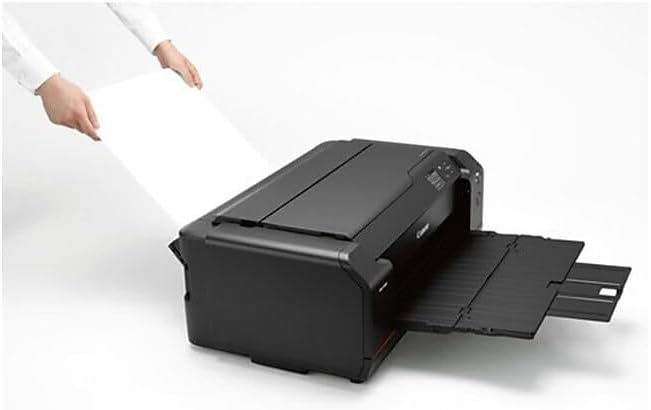
Figure 3: Hands loading paper into the top feeder of the Canon imagePROGRAF PRO-1000. The printer supports various paper sizes and types.
3.2 Printing a Document or Photo
- Ensure the printer is powered on and connected to your computer.
- Open the document or photo you wish to print in your preferred application (e.g., Adobe Photoshop, Lightroom).
- Access the print settings. Select the Canon PRO-1000 as your printer.
- Configure print settings such as paper type, paper size, print quality, and color management options. Refer to the software's help guide for detailed settings.
- Initiate the print job. The printer will feed the paper and begin printing.

Figure 4: The Canon imagePROGRAF PRO-1000 printer in operation, with a large photographic print emerging from the front output tray. The printer is capable of producing high-quality prints up to 17x22 inches.

Figure 5: An angled view of the Canon imagePROGRAF PRO-1000 printer as it prints a black and white photograph. This perspective highlights the printer's output mechanism and the quality of the emerging print.
3.3 Official Product Videos
Canon & Explorer of Light Atiba Jefferson with #PrintedPosts
This video features photographer Atiba Jefferson discussing the importance of printing and the quality achieved with the Canon imagePROGRAF PRO-1000. It highlights the printer's ability to accurately reproduce screen colors in physical prints.
Canon imagePROGRAF PRO-1000 Overview
This video provides a comprehensive overview of the Canon imagePROGRAF PRO-1000 printer, showcasing its features, design, and capabilities for professional photographic printing.
4. Maintenance
4.1 Replacing Ink Tanks
When an ink tank runs low or is empty, a notification will appear on the printer's LCD screen and/or your computer. To replace an ink tank:
- Open the front cover of the printer.
- Press the tab on the empty ink tank to release it, then pull it out.
- Unpack a new genuine Canon ink tank.
- Insert the new ink tank into the correct slot until it clicks firmly into place.
- Close the front cover. The printer will automatically detect the new ink tank.
4.2 Print Head Cleaning
If print quality degrades (e.g., missing lines, streaking), perform a print head cleaning. This can be done through the printer's control panel or the printer driver software on your computer. Regular printing helps prevent clogs.
4.3 Maintenance Cartridge Replacement
The printer uses a user-replaceable maintenance cartridge (MC-20) to collect waste ink. When the maintenance cartridge is full, the printer's LCD will display a message prompting replacement. Follow the on-screen instructions or refer to the detailed manual for replacement steps.
5. Troubleshooting
- Printer Not Responding:
- Check power connections and ensure the printer is turned on.
- Verify USB or Ethernet cable connections.
- Restart both the printer and your computer.
- Ensure correct printer drivers are installed and updated.
- Poor Print Quality:
- Perform a nozzle check to identify clogged nozzles. If clogs are present, perform print head cleaning.
- Ensure genuine Canon ink tanks are used and are not empty.
- Verify that the correct paper type and print quality settings are selected in the print driver.
- Perform print head alignment if prints appear misaligned.
- Paper Jams:
- Remove any jammed paper carefully, following instructions on the LCD or in the full manual.
- Ensure paper is loaded correctly and not exceeding the maximum capacity of the paper tray.
- Check that paper guides are properly adjusted to the paper width.
- Ink Levels Low/Empty:
- Replace indicated ink tanks. Note that initial setup consumes ink to prime the system.
- Individual ink tanks can be purchased separately or as a full set.
6. Specifications
| Feature | Detail |
|---|---|
| Product Dimensions | 17"D x 28.5"W x 11.2"H |
| Item Weight | 70.5 pounds |
| Printing Technology | Inkjet |
| Ink System | LUCIA PRO 11-color plus Chroma Optimizer |
| Max Media Size | 17 x 22 inches |
| Max Input Sheet Capacity | 250 sheets |
| Connectivity Technology | USB, Ethernet |
| Duplex Printing | Manual |
| Included Components | imagePROGRAF PRO-1000 Professional Photographic Inkjet PrinterCD/DVD Printing TrayDocument Kit:Getting StartedImportant Information SheetSafety Environment InformationSetup Software & User's Guide CD-ROMRegistration CardWarranty CardInk Tanks:PFI-1000 Matte BlackPFI-1000 Photo BlackPFI-1000 CyanPFI-1000 MagentaPFI-1000 YellowPFI-1000 Photo CyanPFI-1000 Photo MagentaPFI-1000 GrayPFI-1000 Photo GrayPFI-1000 RedPFI-1000 BluePFI-1000 Chroma OptimizerCD/DVD Disc Printing TrayMC-20 Maintenance Cartridge (User Replaceable)Power CordPrint Head5 Sheets Photo Paper Pro Luster LU-101 (8.5"x11") |
7. Warranty and Support
The Canon imagePROGRAF PRO-1000 typically comes with a standard manufacturer's warranty. Please refer to the warranty card included in your product packaging for specific terms, conditions, and duration.
For technical support, driver downloads, and additional resources, please visit the official Canon support website:
You may also find helpful information and community support on the product page on Amazon.com, including customer reviews and Q&A sections.