Introduction
This manual provides essential information for the safe and efficient operation of your Tripp Lite SMX1500LCDT SmartPro Line-Interactive Uninterruptible Power Supply (UPS). Please read all instructions carefully before installation and use. This UPS is designed to provide reliable battery backup and surge protection for connected electronic equipment.
Important Safety Instructions
Failure to follow these instructions may result in fire, electric shock, or serious injury.
- This UPS contains hazardous voltages. Do not attempt to open the UPS enclosure. Servicing should only be performed by qualified service personnel.
- Connect the UPS to a properly grounded AC power outlet. Do not use extension cords or adapters.
- Do not connect non-computer-related items such as medical equipment, life support equipment, microwave ovens, or vacuum cleaners to the UPS.
- Position the UPS in a well-ventilated area, away from direct sunlight, heat sources, and excessive moisture.
- Ensure the total current draw of connected equipment does not exceed the UPS's rated capacity.
- The battery inside the UPS is not user-replaceable. Refer to qualified service personnel for battery replacement.
Package Contents
Verify that all items listed below are included in your package:
- Tripp Lite SMX1500LCDT UPS Unit
- USB Cable
- Power Cord
- Instruction Manual

Image: The Tripp Lite SMX1500LCDT UPS unit shown with its accompanying USB cable, power cord, and the instruction manual, illustrating the complete package contents.
Setup
1. Placement
Place the UPS on a flat, stable surface. Ensure adequate airflow around the unit. The UPS can be positioned as a tower or mounted in a rack (rackmount hardware sold separately).
2. Connecting to Power
- Connect the provided power cord to the UPS input receptacle.
- Plug the other end of the power cord into a grounded AC wall outlet.
- Allow the UPS to charge for 24 hours before initial use to ensure full battery capacity.
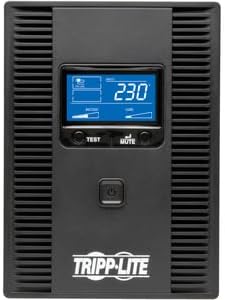
Image: Front view of the Tripp Lite SMX1500LCDT UPS, highlighting the LCD display and the main power button for user interaction.

Image: Rear view of the Tripp Lite SMX1500LCDT UPS, displaying the AC input, various output outlets (battery backup and surge-only), and communication ports for connectivity.
3. Connecting Equipment
Connect your electronic devices to the appropriate outlets on the rear of the UPS:
- Battery Backup & Surge Protected Outlets: These outlets provide both battery backup power during outages and surge protection. Connect critical equipment such as computers, monitors, and network devices here.
- Surge-Only Protected Outlets: These outlets provide surge protection only and do not offer battery backup. Connect non-critical peripherals like printers or scanners here.
4. USB Communication Port
Connect the provided USB cable from the UPS's USB port to a USB port on your computer. This allows your computer to communicate with the UPS for automatic shutdown, monitoring, and power management features using Tripp Lite's PowerAlert software (available for download from the Tripp Lite website).
Operating the UPS
1. Power On/Off
- To Power On: Press and hold the power button on the front panel for approximately two seconds until you hear a beep. The LCD display will illuminate.
- To Power Off: Press and hold the power button for approximately two seconds until the UPS powers down.
2. LCD Display
The front panel LCD provides real-time operational status and diagnostic information. Use the 'TEST' and 'MUTE' buttons to navigate through display screens and perform functions.

Image: An angled view of the Tripp Lite SMX1500LCDT UPS, prominently featuring its illuminated LCD display which shows operational data such as voltage and load.
3. Self-Test Function
To perform a self-test, press and hold the 'TEST' button for a few seconds. The UPS will switch to battery power for a short period to test the battery and internal circuitry. The LCD will indicate the test status.
4. Mute Alarm
During a power outage or other alarm condition, the UPS will emit an audible alarm. Press the 'MUTE' button to silence the alarm temporarily. The alarm will reactivate if the condition persists or changes.
Maintenance
1. Battery Replacement
The internal battery is not user-serviceable. If the UPS indicates a battery fault or the battery runtime significantly decreases, contact Tripp Lite customer support or a qualified service technician for battery replacement. Using incorrect batteries can pose a safety risk.
2. Cleaning
Periodically clean the exterior of the UPS with a soft, dry cloth. Do not use liquid or aerosol cleaners. Ensure ventilation openings are free from dust and debris to maintain proper airflow.
Troubleshooting
Refer to the table below for common issues and their solutions.
| Problem | Possible Cause | Solution |
|---|---|---|
| UPS does not turn on. | No AC input power; Battery discharged. | Ensure UPS is plugged into a live AC outlet. Allow 24 hours for initial battery charge. |
| UPS beeps continuously in normal mode. | Overload condition. | Reduce the load by unplugging non-essential equipment from battery backup outlets. |
| UPS switches to battery mode frequently. | Unstable AC input power; Sensitivity setting too high. | Check AC power quality. Adjust UPS sensitivity setting via PowerAlert software if applicable. |
| Battery runtime is shorter than expected. | Battery is old or not fully charged; Overload. | Allow 24 hours for battery to fully charge. Reduce connected load. Contact service for battery replacement if necessary. |
| LCD display is blank. | UPS is off; Display sleep mode. | Press the power button to turn on. Press any button to wake the display. |
Specifications
- Model: SMX1500LCDT
- Capacity: 1500VA / 900W
- Input Voltage: 230V
- Output Voltage: 230V
- Battery Type: Sealed Lead Acid
- Dimensions (H x W x D): 19.3 x 9.1 x 11.3 inches (approximate)
- Weight: 0.16 ounces (This weight seems incorrect based on typical UPS units. Please refer to product packaging or official specifications for accurate weight.)
- Operating Temperature: 0°C to 40°C (32°F to 104°F)
Warranty and Support
Tripp Lite products are backed by a limited warranty. For specific warranty terms and conditions, please refer to the warranty card included with your product or visit the official Tripp Lite website. For technical support, product registration, or service inquiries, please contact Tripp Lite customer service through their official website or the contact information provided in your product documentation.


