
Sunstech DEDALOIII
Sunstech DEDALOIII MP3 Player User Manual
Model: DEDALOIII
Introduction
Welcome to the user manual for your new Sunstech DEDALOIII MP3 Player. This compact and lightweight device is designed for portable audio enjoyment, featuring 4GB of storage, an FM radio, and a voice recorder. This manual provides essential information on setting up, operating, maintaining, and troubleshooting your device to ensure optimal performance and longevity.
1. Product Overview
Familiarize yourself with the components of your Sunstech DEDALOIII MP3 Player.

Figure 1.1: Front View of the Sunstech DEDALOIII MP3 Player with Earphones. This image displays the front of the black MP3 player, showing its 1.1-inch LCD screen, the circular navigation pad with 'M' (Menu), 'Play/Pause', 'Previous/Rewind', 'Next/Fast Forward', and 'VOL' (Volume) buttons. The included black earphones are visible to the left, connected to the player.

Figure 1.2: Back View of the Sunstech DEDALOIII MP3 Player. This image shows the rear of the MP3 player, highlighting the integrated clip for easy attachment to clothing. Visible on the side are the 'ON/OFF' switch, the headphone jack, and the microphone input ('MIC'). Product details like "DEDALO III 4GB" and "FM frequency: 87.5-108MHz" are printed on the back.
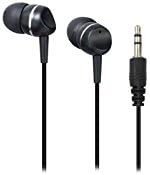
Figure 1.3: Included Earphones. A close-up view of the black in-ear earphones that come with the DEDALOIII MP3 player. The 3.5mm audio jack is also visible, indicating standard connectivity.
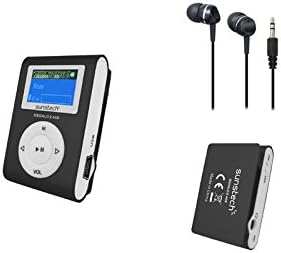
Figure 1.4: Complete Package Contents. This image displays the Sunstech DEDALOIII MP3 player, its included earphones, and a view of the player's back with the clip, illustrating the compact design and essential accessories.
Package Contents:
- Sunstech DEDALOIII MP3 Player
- Black Earphones
- USB Charging/Data Transfer Cable
- User Manual (this document)
2. Getting Started (Setup)
2.1 Charging the Device
Before first use, fully charge the MP3 player. Connect the included USB cable to the micro USB port on the player and the other end to a USB port on your computer or a compatible USB wall adapter. The battery indicator on the screen will show charging status. A full charge typically takes approximately 2-3 hours.
2.2 Connecting to a Computer and Transferring Files
- Ensure the MP3 player is powered on.
- Connect the player to your computer using the supplied USB cable.
- The player will appear as a removable disk drive on your computer.
- Drag and drop your MP3 or WMA audio files into the player's storage folder.
- Once file transfer is complete, safely eject the device from your computer before disconnecting the USB cable.
2.3 Initial Power On
Locate the 'ON/OFF' switch on the side of the device. Slide the switch to the 'ON' position to power on the MP3 player. The screen will illuminate, and the main menu will appear.
3. Basic Operation
3.1 Power On/Off
- To Power On: Slide the 'ON/OFF' switch to the 'ON' position.
- To Power Off: Slide the 'ON/OFF' switch to the 'OFF' position.
3.2 Navigation and Menu
Use the circular navigation pad to move through menus and control playback:
- M (Menu) Button: Press to enter the main menu or go back to the previous menu/screen.
- Play/Pause Button (Center): Press to play or pause audio. In menus, press to confirm selection.
- Left/Right Arrows: Navigate left/right in menus, skip tracks during playback. Hold to fast forward/rewind.
- VOL (Volume) Button: Press to adjust volume. Use the left/right arrows to increase or decrease volume.
3.3 Playing Music (MP3/WMA)
- From the main menu, select "Music" or "Audio".
- Navigate through your folders and files using the arrow buttons.
- Press the Play/Pause button to select and begin playback of a song.
- Use the Left/Right arrows to skip to the previous or next track.
- Press the VOL button to adjust volume, then use Left/Right arrows.
3.4 Using FM Radio
- From the main menu, select "FM Radio".
- The player will automatically scan for available stations or display the last tuned station.
- Use the Left/Right arrows to manually tune or scan for the next/previous station.
- Press the M button to access radio options, such as auto-scan or saving presets.
3.5 Voice Recording
- From the main menu, select "Recorder" or "Voice".
- Press the Play/Pause button to start recording. The built-in microphone will capture audio.
- Press the Play/Pause button again to stop recording.
- Recordings are saved automatically and can be accessed from the "Recordings" folder.
3.6 ID3 Tag and Lyrics Display
When playing music, the DEDALOIII supports ID3 tag display, showing information such as song title, artist, and album. If lyrics are embedded in the audio file, they may also be displayed on the screen.
3.7 Equalization Modes
The player offers 6 equalization modes to customize your audio experience. Access these settings through the music playback menu. Options typically include Normal, Pop, Rock, Classical, Jazz, and Bass.
4. Maintenance
4.1 Cleaning
Wipe the device with a soft, dry, lint-free cloth. Do not use abrasive cleaners, solvents, or spray directly onto the device. Keep the screen clean to ensure clear visibility.
4.2 Battery Care
- Avoid fully discharging the battery frequently.
- Charge the device regularly, even if not in use, to maintain battery health.
- Do not expose the device to extreme temperatures, as this can degrade battery performance.
4.3 Storage
When not in use for extended periods, store the MP3 player in a cool, dry place, away from direct sunlight and excessive dust. Ensure the battery has some charge before storing.
5. Troubleshooting
| Problem | Possible Cause | Solution |
|---|---|---|
| Device does not turn on. | Battery is depleted. | Charge the device fully using the provided USB cable. |
| Cannot transfer files to the device. | Incorrect USB connection; device not recognized by computer. | Ensure the USB cable is securely connected. Try a different USB port or restart your computer. Ensure the device is powered on. |
| No sound from earphones. | Volume is too low; earphones not properly connected; faulty earphones. | Increase the volume. Ensure earphones are fully plugged into the jack. Test with another pair of earphones. |
| FM radio static or poor reception. | Weak signal; interference. | Move to an area with better reception. The earphone cable acts as an antenna, ensure it is fully extended. |
| Device freezes or becomes unresponsive. | Software glitch. | Slide the 'ON/OFF' switch to 'OFF' and then back to 'ON' to perform a soft reset. |
6. Specifications
| Feature | Detail |
|---|---|
| Brand | Sunstech |
| Model | DEDALOIII |
| Storage Capacity | 4 GB (4096 MB) |
| Screen Size | 1.1 inches (LCD) |
| Supported Audio Formats | MP3, WMA |
| Radio Bands Supported | FM |
| Battery Type | Lithium Polymer (rechargeable via micro USB) |
| Dimensions (L x W x H) | 2 x 3 x 4.7 cm |
| Weight | 20 g |
| Special Features | Compact design with clip, voice recording, ID3 tag/lyrics display, 6 equalization modes. |
| Compatible Devices | Personal Computer |
7. Warranty and Support
Your Sunstech DEDALOIII MP3 Player comes with a standard manufacturer's warranty. Please refer to the warranty card included in your package for specific terms and conditions. For technical support, service, or further inquiries, please contact Sunstech customer service through their official website or the contact information provided with your purchase documentation.
Note: Keep your purchase receipt as proof of purchase for warranty claims.
Related documentsDEDALOIII


Ask a question about this manual
Ask about setup, troubleshooting, compatibility, parts, safety, or missing instructions. Manuals+ will review the question and use this page’s manual context to help answer it.