
Logitech M337
Logitech M337 Bluetooth Mouse User Manual
Model: M337
Introduction
The Logitech M337 Bluetooth Mouse is a versatile wireless mouse designed for seamless connectivity and comfortable use. It features a 10-meter wireless range, a laser-grade optical sensor for precise tracking, and an LED indicator light. Powered by a single AA battery, it offers extended battery life for up to 10 months.
This manual provides detailed instructions for setting up, operating, and maintaining your M337 Bluetooth Mouse, along with troubleshooting tips and product specifications.
Package Contents
- Logitech M337 Bluetooth Mouse
- 1 AA Battery (pre-installed or included)
- User Documentation
Setup
1. Battery Installation
The Logitech M337 mouse uses one AA battery. If the battery is not pre-installed, follow these steps:
- Locate the battery compartment cover on the underside of the mouse.
- Slide the cover open.
- Insert one AA battery, ensuring the positive (+) and negative (-) terminals align correctly with the indicators inside the compartment.
- Close the battery compartment cover securely.

Image: Underside view of the Logitech M337 mouse, illustrating the location of the battery compartment and power switch.
2. Powering On the Mouse
Locate the On/Off switch on the underside of the mouse. Slide the switch to the "On" position. An LED indicator light on the top of the mouse will illuminate briefly.
3. Bluetooth Pairing
The M337 mouse connects via Bluetooth. Follow these steps to pair it with your device:
- Ensure your device (computer, tablet, smartphone) has Bluetooth enabled.
- On the underside of the mouse, press and hold the Connect button (often located near the optical sensor or power switch) for a few seconds until the LED indicator on the top of the mouse starts blinking rapidly. This indicates the mouse is in pairing mode.
- On your device, go to Bluetooth settings and search for new devices.
- Select "Logitech M337" from the list of available devices.
- Follow any on-screen prompts to complete the pairing process. Once successfully paired, the LED indicator on the mouse will stop blinking and remain solid for a moment, then turn off.
The mouse is now ready for use.
Operating the Mouse
Basic Functions
- Left Click: Primary button for selecting items, opening links, etc.
- Right Click: Secondary button for context menus and additional options.
- Scroll Wheel: Scroll up or down through documents and web pages. The scroll wheel also functions as a middle click button.
- Multi-Function Button: Located below the scroll wheel. This button's function can vary depending on your operating system and installed Logitech software. It often defaults to a gesture button for Windows (e.g., Task View) or Mac (e.g., Mission Control).
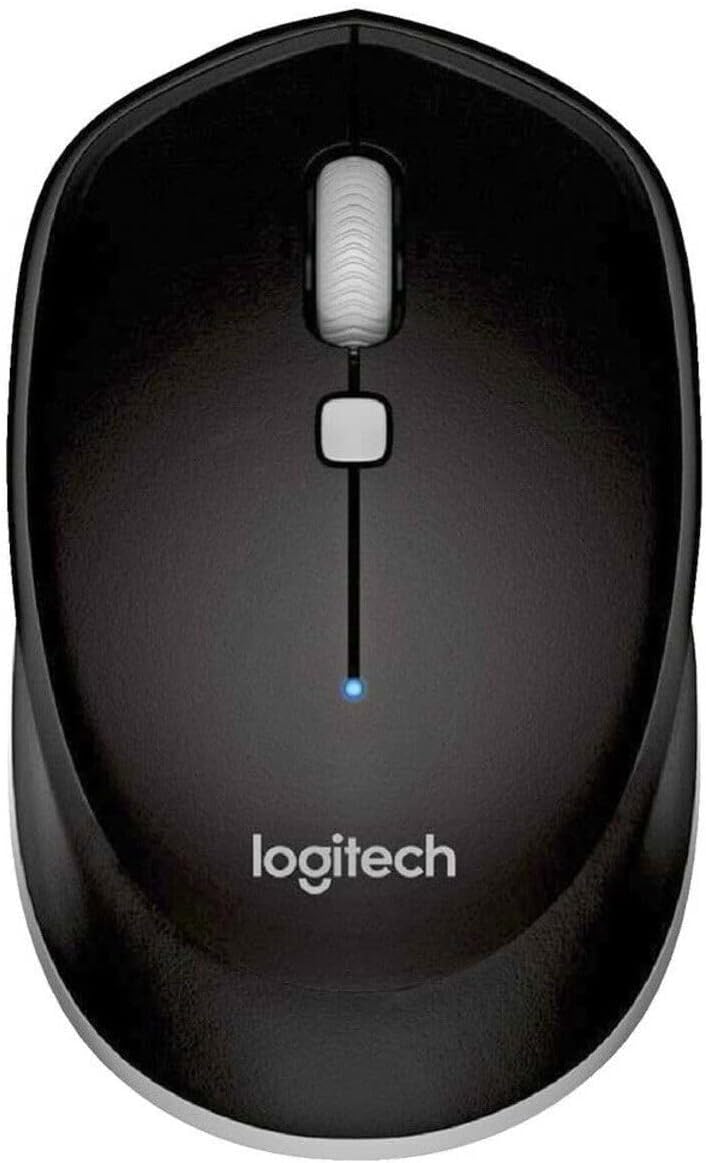
Image: Top-down view of the Logitech M337 mouse, highlighting the left and right click buttons, scroll wheel, and multi-function button.
Ambidextrous Design
The M337 mouse features a symmetrical design, making it comfortable for both left-handed and right-handed users. Its contoured shape fits naturally in the palm of your hand.

Image: A person using the Logitech M337 mouse alongside a laptop on a wooden desk, demonstrating its compact size and comfortable grip.

Image: A woman using the Logitech M337 mouse with her laptop at a cafe table, showcasing its portability and suitability for various environments.
Maintenance
Cleaning
To clean your mouse, gently wipe it with a soft, damp cloth. Avoid using harsh chemicals or abrasive cleaners, as these can damage the surface.
Battery Life
The M337 mouse is designed for long battery life, up to 10 months with typical use. Battery life may vary based on usage and computing conditions. When the battery is low, the LED indicator on the mouse may flash to alert you. Replace the AA battery when necessary.
Storage
When not in use for extended periods, it is recommended to turn off the mouse using the On/Off switch on the underside to conserve battery life.
Troubleshooting
- Mouse not responding:
- Ensure the mouse is powered on.
- Check the battery. Replace it if necessary.
- Ensure Bluetooth is enabled on your device.
- Try re-pairing the mouse with your device.
- Move the mouse closer to your device to ensure it's within the 10-meter range.
- Lagging or erratic cursor movement:
- Ensure the mouse is on a clean, non-reflective surface.
- Check for interference from other wireless devices.
- Re-pair the mouse.
- Update your device's Bluetooth drivers.
- Cannot pair the mouse:
- Ensure the mouse is in pairing mode (LED blinking rapidly).
- Remove any previous pairings of the M337 from your device's Bluetooth settings and try again.
- Restart your device and the mouse.
Specifications
| Feature | Detail |
|---|---|
| Model Number | M337 |
| Connectivity | Bluetooth Wireless |
| Wireless Range | Up to 10 meters (33 feet) |
| Sensor Technology | Laser-grade Optical Tracking |
| Battery Type | 1 x AA Battery |
| Battery Life | Up to 10 months |
| Dimensions (L x W x H) | 7.32 x 4.96 x 3.27 inches |
| Weight | 2.89 ounces |
| Color | Black |
| Manufacturer | GAXIWILO (Brand: Logitech) |
| First Available Date | January 21, 2016 |
Warranty and Support
For warranty information and technical support, please refer to the official Logitech website or contact Logitech customer service. Keep your proof of purchase for warranty claims.
You can find additional support resources, FAQs, and driver downloads by visiting the Logitech Support Page.
Related documentsM337


Ask a question about this manual
Ask about setup, troubleshooting, compatibility, parts, safety, or missing instructions. Manuals+ will review the question and use this page’s manual context to help answer it.