
Logitech M337
Logitech M337 Wireless Bluetooth Mouse User Manual
Model: M337
Introduction
The Logitech M337 Wireless Bluetooth Mouse is a compact and portable input device designed for use with virtually any Bluetooth-enabled computer, laptop, or tablet. It offers a comfortable curved shape, precise optical tracking, and a long battery life, making it ideal for on-the-go productivity across various operating systems including Mac, Windows, Chrome OS, and Android.
Setup
What's in the Box
- Logitech M337 Wireless Bluetooth Mouse
- 1 AA Battery (pre-installed or included separately)
- User Documentation
Battery Installation
- Locate the battery compartment on the underside of the mouse.
- Open the battery compartment cover.
- Insert the included AA battery, ensuring correct polarity (+/-).
- Close the battery compartment cover securely.
Bluetooth Pairing
The M337 mouse connects wirelessly via Bluetooth, freeing up USB ports. Follow these steps to pair your mouse with your device:
- Turn on the mouse using the On/Off switch located on the underside. The LED indicator on the top of the mouse should start blinking rapidly, indicating it's in pairing mode. If not, press and hold the Bluetooth connect button (usually near the battery compartment or on the top, below the scroll wheel) until the LED blinks.
- On your computer, laptop, or tablet, navigate to the Bluetooth settings:
- Windows: Go to Start > Settings > Devices > Bluetooth & other devices. Turn Bluetooth On, then click "Add Bluetooth or other device" and select "Bluetooth".
- macOS: Go to Apple menu > System Preferences > Bluetooth. Ensure Bluetooth is On.
- Chrome OS: Click the status area (bottom right) > Bluetooth > Enable Bluetooth.
- Android: Go to Settings > Connected devices > Connection preferences > Bluetooth. Turn Bluetooth On.
- In the Bluetooth device list, select "Logitech M337" or a similar name.
- Follow any on-screen prompts to complete the pairing process. The LED indicator on the mouse will turn solid blue for a few seconds and then turn off once successfully connected.
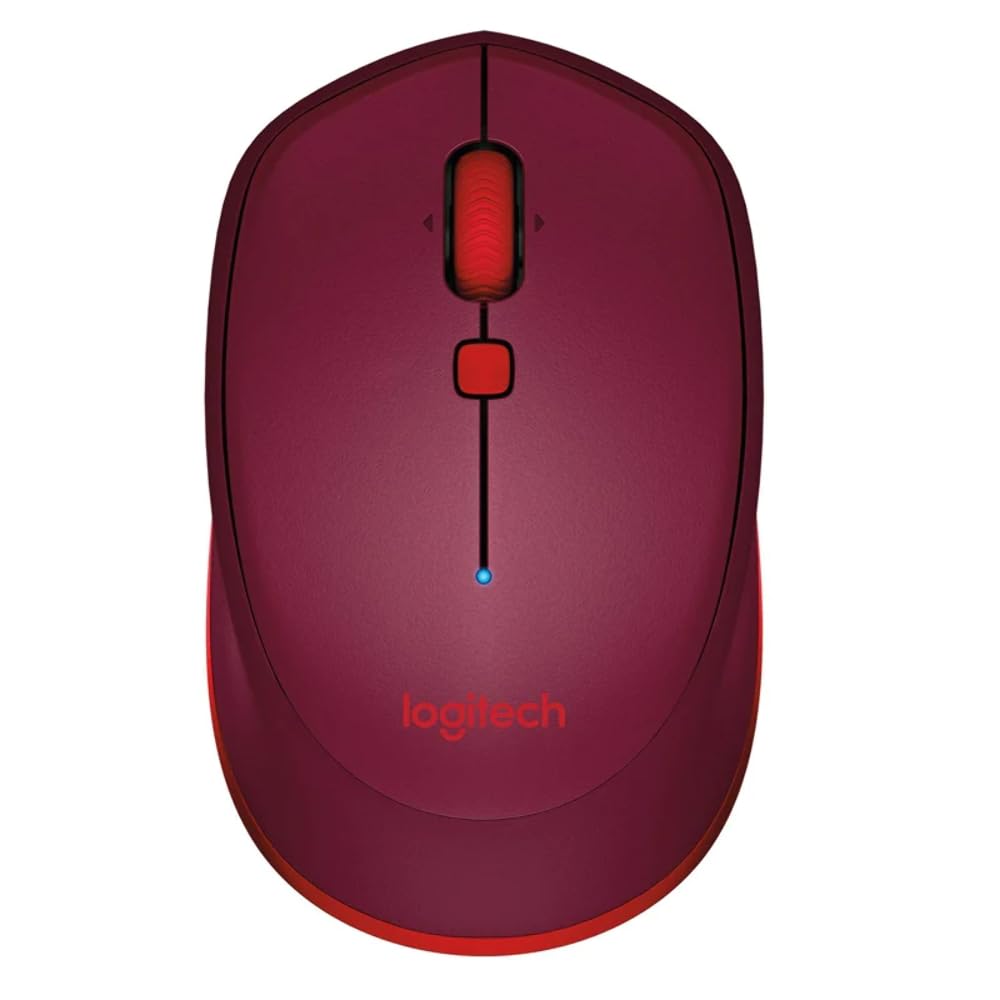
This image displays the Logitech M337 Wireless Bluetooth Mouse from a top-down perspective, highlighting its compact design, the red scroll wheel, and the central navigation button. The Logitech logo is visible at the bottom.
Operating the Mouse
Basic Functions
- Left Click: Primary button for selecting items and interacting with software.
- Right Click: Secondary button for context menus and additional options.
- Scroll Wheel: Scroll up or down through documents and web pages.
- Tilt Wheel: Tilt the scroll wheel left or right for horizontal scrolling (if supported by software).
- Navigation Button: The button located below the scroll wheel. By default, this button can be configured to perform various functions, such as opening the task view on Windows or Mission Control on Mac. Customization is available through Logitech Options software.
Comfort and Portability
The M337 features a comfortable curved shape with rubber grips, designed for extended use by both right and left-handed users. Its compact size allows for easy portability, fitting conveniently into laptop bags or pockets.

An angled view of the Logitech M337 mouse, showcasing its comfortable curved shape and the textured rubber grips on the sides, designed for both right and left-handed users.
Maintenance
Battery Replacement
The Logitech M337 mouse boasts an average battery life of up to 19 months. When the battery is low, the LED indicator on the mouse may blink red. To replace the battery, follow the battery installation steps outlined in the Setup section.
Cleaning
To maintain optimal performance and hygiene, periodically clean your mouse:
- Use a soft, lint-free cloth slightly dampened with water or a mild cleaning solution.
- Avoid using harsh chemicals, abrasive cleaners, or submerging the mouse in liquid.
- Gently wipe the surface of the mouse, paying attention to areas that come into frequent contact with your hand.
- For the optical sensor, use a dry cotton swab to carefully remove any dust or debris.
Troubleshooting
Connectivity Issues
- Mouse not connecting: Ensure the mouse is turned on and the battery has sufficient charge. Re-initiate pairing mode on the mouse and re-scan for Bluetooth devices on your computer.
- Intermittent connection: Move the mouse closer to your device. Ensure there are no large metal objects or other wireless devices causing interference between the mouse and your computer.
- Bluetooth not found on computer: Verify that your computer's Bluetooth is enabled and its drivers are up to date.
Tracking Problems
- Erratic cursor movement: Clean the optical sensor on the underside of the mouse. Ensure you are using the mouse on a clean, non-reflective, and uniform surface.
- No cursor movement: Check battery level. Ensure the mouse is properly paired.
Other Issues
- Buttons not responding: Check battery. If using Logitech Options software, ensure button assignments are correct.
- Scroll wheel not working: Clean around the scroll wheel to remove any debris.
Specifications
| Feature | Detail |
|---|---|
| Brand | Logitech |
| Model Number | M337 |
| Connectivity Technology | Bluetooth |
| Movement Detection Technology | Optical |
| Colour | Red |
| Power Source | Battery Powered (1 AA battery) |
| Average Battery Life | Up to 19 Months |
| Operating System Compatibility | Android, Chrome OS, Mac, Windows |
| Item Dimensions (LxWxH) | 18.6 x 12.6 x 8.3 cm |
| Item Weight | 82 g |
Warranty and Support
Warranty Information
The Logitech M337 Wireless Bluetooth Mouse typically comes with a 1 Year Limited Hardware Warranty from the date of purchase. Please retain your proof of purchase for warranty claims. The warranty covers defects in materials and workmanship under normal use.
Customer Support
For further assistance, technical support, or warranty claims, please visit the official Logitech support website or contact their customer service. You can usually find detailed FAQs, troubleshooting guides, and driver downloads on their website.
Logitech Support Website: support.logi.com
Related documentsM337


Ask a question about this manual
Ask about setup, troubleshooting, compatibility, parts, safety, or missing instructions. Manuals+ will review the question and use this page’s manual context to help answer it.