
Zyxel WAP6806-EU0101F
Zyxel Armor X1 AC2100 Dual Band Access Point/WLAN-repeater User Manual
Model: WAP6806-EU0101F
Introduction
This manual provides detailed instructions for setting up, operating, maintaining, and troubleshooting your Zyxel Armor X1 AC2100 Dual Band Access Point/WLAN-repeater. The Armor X1 is designed to extend your wireless network coverage and enhance connectivity with its dual-band AC2100 Wi-Fi speed and versatile operating modes.
Product Overview
The Zyxel Armor X1 features a sleek design with intuitive indicators and multiple ports for flexible network integration.
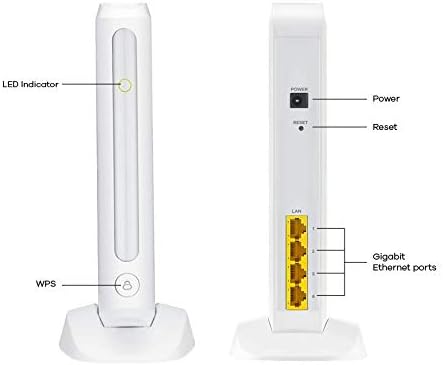
Image: Front and back view of the Zyxel Armor X1 device, highlighting key components. On the front, a long vertical LED Indicator and a WPS button are visible. On the back, from top to bottom, are the Power port, Reset button, and four Gigabit Ethernet ports labeled LAN 1 through LAN 4.
Components and Indicators
- LED Indicator: Displays the device's status (e.g., power, network connectivity, mode).
- WPS Button: For easy and secure connection to Wi-Fi devices without entering a password.
- Power Port: Connects the device to a power source using the provided power adapter.
- Reset Button: Used to restore the device to its factory default settings.
- Gigabit Ethernet Ports (LAN 1-4): Four ports for wired connections to devices such as computers, smart TVs, gaming consoles, or network-attached storage (NAS).
Setup
Follow these steps to set up your Zyxel Armor X1.
1. Power Connection
- Connect the power adapter to the Power port on the back of the Armor X1.
- Plug the other end of the power adapter into a wall outlet.
- Wait for the LED Indicator on the front to stabilize, indicating the device is powered on and ready.
2. Network Connection (Wired)
For wired connections, use the Gigabit Ethernet ports.
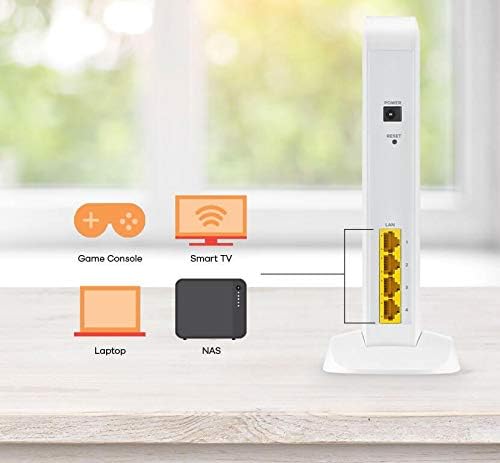
Image: The Zyxel Armor X1 shown with its back ports connected to various devices. Ethernet cables extend from the LAN ports to a Game Console, Smart TV, Laptop, and NAS (Network Attached Storage) device, illustrating typical wired connectivity.
- Connect an Ethernet cable from your router or modem to one of the LAN ports on the Armor X1 if operating in Access Point or Client mode.
- Connect your wired devices (e.g., PC, game console, smart TV) to the remaining LAN ports.
3. Initial Configuration (Wireless)
The Zyxel One Connect app simplifies the installation and management process.
- Download the Zyxel One Connect app from your mobile device's app store.
- Follow the in-app instructions to detect and configure your Armor X1. This typically involves connecting to the device's default Wi-Fi network and then setting up your preferred network name (SSID) and password.
- Alternatively, you can access the web-based management interface by connecting a computer to one of the LAN ports or wirelessly to the default Wi-Fi network, then opening a web browser and entering the device's default IP address (refer to the label on the device or the quick start guide for the default IP and login credentials).
Operating Modes
The Zyxel Armor X1 supports multiple operating modes to suit various network requirements.

Image: A diagram showing three operational modes for the Zyxel Armor X1. The top section illustrates Access Point mode, where the Armor X1 connects to a router and provides Wi-Fi to mobile devices on a different floor. The middle section shows Repeater mode, where the Armor X1 extends the Wi-Fi signal from a router to mobile devices. The bottom section depicts Client mode, where the Armor X1 receives a 5 GHz Wi-Fi signal from a router and provides a wired connection to a Smart TV. A speed dial indicating "2100 Mbps" is also present.
Access Point (AP) Mode
In AP mode, the Armor X1 connects to your existing wired network (e.g., router) and broadcasts a new wireless network. This is ideal for adding Wi-Fi capability to a wired-only network or extending Wi-Fi coverage in a large area by connecting the Armor X1 to an Ethernet port in a different room.
Repeater Mode
As a repeater, the Armor X1 wirelessly extends the range of your existing Wi-Fi network. It receives the wireless signal from your main router and re-broadcasts it, eliminating Wi-Fi dead zones. Place the Armor X1 within good range of your main router for optimal performance.
Client Mode
In Client mode, the Armor X1 connects wirelessly to your existing Wi-Fi network and provides wired network access through its Ethernet ports. This is useful for connecting wired-only devices (like smart TVs, gaming consoles, or desktop PCs) to your wireless network without running long Ethernet cables from your main router.
Maintenance
Proper maintenance ensures the longevity and optimal performance of your Zyxel Armor X1.
- Cleaning: Gently wipe the device with a soft, dry cloth. Do not use liquid cleaners or aerosols.
- Ventilation: Ensure the device is placed in a well-ventilated area, away from direct sunlight and heat sources, to prevent overheating.
- Firmware Updates: Regularly check the Zyxel support website for firmware updates. Firmware updates can improve performance, add new features, and fix bugs. Follow the instructions provided by Zyxel for safe firmware upgrades.
- Secure Placement: Place the device on a stable, flat surface to prevent accidental falls.
Troubleshooting
This section addresses common issues you might encounter with your Zyxel Armor X1.
No Power / LED Indicator Off
- Ensure the power adapter is securely connected to both the device and a working power outlet.
- Try a different power outlet.
No Internet Connection / Wi-Fi Not Broadcasting
- Check the status of the LED Indicator. Refer to the device's quick start guide for LED status meanings.
- If in AP or Client mode, ensure the Ethernet cable from your main router/modem is securely connected and that your main internet connection is active.
- If in Repeater mode, ensure the Armor X1 is within good wireless range of your main router.
- Restart the Armor X1 by unplugging and re-plugging the power adapter.
- Verify your Wi-Fi settings (SSID, password) through the Zyxel One Connect app or web interface.
Device Loses Configuration / Switches Mode Unexpectedly
Some users have reported issues with the device losing its configuration or switching back to Repeater mode. While this is not typical behavior, consider the following:
- Ensure the device is receiving stable power. Avoid connecting it to outlets with frequent power fluctuations.
- Perform a firmware update to the latest version available from Zyxel's official website. Firmware updates often address stability issues.
- After configuring, ensure you save the settings properly within the web interface or app.
- If the issue persists, perform a factory reset using the Reset button and reconfigure the device. If the problem continues, contact Zyxel support.
Slow Wi-Fi Speed
- Ensure the Armor X1 is placed optimally, away from obstructions and interference sources (e.g., microwaves, cordless phones).
- Check if your devices are connected to the appropriate band (2.4 GHz for wider range, 5 GHz for higher speed).
- Verify your internet service provider's speed.
- Reduce the number of connected devices or bandwidth-intensive activities.
Specifications
Detailed technical specifications for the Zyxel Armor X1 AC2100 Dual Band Access Point/WLAN-repeater.
| Brand | Zyxel |
| Model Number | WAP6806-EU0101F |
| Series | Armor X1 |
| Dimensions (L x W x H) | 20.3 x 20.3 x 4.8 cm |
| Weight | 635 g |
| Wireless Standard | 802.11ac/n/b/g (AC2100) |
| Frequency Bands | Dual-band (2.4 GHz, 5 GHz) |
| Data Transfer Rate | Up to 1733 Mbps |
| Ethernet Ports | 4 x Gigabit RJ-45 |
| Antennas | Six internal antennas |
| Operating Modes | Access Point (AP), Repeater, Client |
| Special Features | QoS, Firewall, Easy Setup (Zyxel One Connect App), WPS |
| Power Consumption | 10.2 watts |
| Color | White |
| Compatible Devices | Smartphones, tablets, laptops, computers, smart TVs, gaming consoles, printers, surveillance cameras |
Warranty and Support
For warranty information, please refer to the warranty card included with your product or visit the official Zyxel website. Zyxel provides technical support and resources to assist you with any product-related inquiries or issues.
- Online Support: Visit the Zyxel support portal for FAQs, troubleshooting guides, and firmware downloads.
- Contact Support: For direct assistance, refer to the contact information provided on the Zyxel website for your region.
Ask a question about this manual
Ask about setup, troubleshooting, compatibility, parts, safety, or missing instructions. Manuals+ will review the question and use this page’s manual context to help answer it.