
M-AUDIO Code 25
M-Audio Code 25 USB MIDI Keyboard Controller Instruction Manual
Model: Code 25 | Brand: M-AUDIO
1. Product Overview
The M-Audio Code 25 is a 25-key USB MIDI Keyboard Controller designed to provide extensive control over music software and MIDI hardware. It features velocity- and pressure-sensitive keys with aftertouch, 16 assignable velocity-sensitive pads, 5 assignable faders, 4 assignable 360° encoders, and an X/Y Touchpad for dynamic parameter control. The controller supports four assignable zones for flexible instrument triggering and includes an LCD for instant parameter feedback. Power is supplied via USB or an optional 9VDC power adapter.
2. Key Features
- 25 full-size, velocity-sensitive keys with aftertouch, powered by USB connection to computer.
- 16 fully assignable velocity-sensitive trigger pads for beat production, clip launching, and more.
- 5 assignable faders for controlling your DAW, virtual instruments, and plugins.
- LCD provides instant parameter feedback.
- X/Y Touchpad for additional and direct interaction with effects and instrument plugin parameters.
- Four assignable keyboard zones for maximizing flexibility.
- Includes Ableton Live Lite software.
3. Setup
3.1 Unpacking and Initial Inspection
Carefully remove the M-Audio Code 25 from its packaging. Inspect the unit for any signs of damage that may have occurred during shipping. Ensure all included accessories are present: USB Cable, Software Installation Card, Quickstart Guide, and Safety & Warranty Manual.
3.2 Connecting to a Computer
- Connect the included USB cable from the Code 25's USB port to an available USB port on your computer. The Code 25 is USB-powered and typically does not require an external power adapter when connected to a computer.
- Your computer should automatically detect the Code 25 as a MIDI device. For Windows systems, drivers may be automatically installed. For macOS, it is generally class-compliant and requires no additional drivers.
- If prompted, follow any on-screen instructions for driver installation. It is recommended to visit the M-Audio website for the latest drivers and software updates.
3.3 Software Installation
- Use the provided Software Download Cards to register your product and download the included software, such as Ableton Live Lite.
- Install the software according to the instructions provided by the software manufacturer.
- Configure your Digital Audio Workstation (DAW) to recognize the M-Audio Code 25 as a MIDI input device. Refer to your DAW's user manual for specific instructions on MIDI device setup.
4. Operating the Code 25
4.1 Keys and Aftertouch
The Code 25 features 25 full-size, velocity-sensitive keys with aftertouch. Velocity sensitivity means the volume or intensity of a note changes based on how hard you press the key. Aftertouch allows for additional expressive control by applying pressure to a key after it has been pressed, which can be assigned to parameters like vibrato or filter cutoff in your software.
4.2 Pads
The 16 velocity-sensitive pads are ideal for triggering samples, playing drums, or launching clips. They are multicolor-backlit, providing visual feedback. Pads can be assigned to different MIDI notes or functions within your DAW.
4.3 Faders and Encoders
The Code 25 includes 5 assignable 30mm faders and 4 assignable 360° encoders. These controls can be mapped to various parameters in your software, such as volume levels, pan, filter cutoff, resonance, or effect sends. Multiple banks are accessible via dedicated left/right buttons, expanding the number of parameters you can control.
4.4 X/Y Touchpad
The 55mm x 55mm touch-sensitive X/Y Touchpad allows for intuitive and simultaneous control of two parameters (one along the X-axis and one along the Y-axis). This is particularly useful for manipulating effects or instrument parameters in real-time, adding dynamic expression to your music.
4.5 Assignable Zones
The keyboard can be split into four assignable zones. This feature allows you to control different instruments or sounds from different sections of the keyboard simultaneously. For example, you could trigger a bass sound from the lower keys and a lead synth from the upper keys, or layer multiple sounds in a single zone.
5. Media Resources
5.1 Product Images
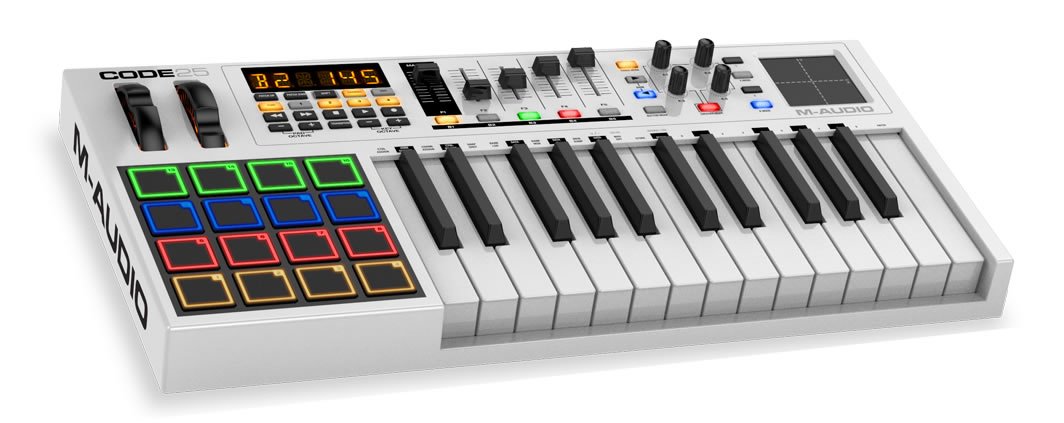


5.2 Official Product Videos
M-Audio Code 25 | 25-Key USB MIDI Keyboard Controller with X/Y Touch Pad (16 Drum Pads / 5 Faders...
This video provides an overview of the M-Audio Code 25, demonstrating its key features including the 25-key keyboard, 16 drum pads, 5 faders, and the X/Y touchpad. It highlights the controller's versatility for music production and performance.
M-Audio || Introduction & Overview on the Code Series
An in-depth introduction and overview of the M-Audio Code Series, detailing the design philosophy and comprehensive features across the range of keyboard controllers.
M-Audio Code Series Keyboards // Software Preset Editor
This video demonstrates the software preset editor for the M-Audio Code Series keyboards, showing how users can customize and manage their controller settings efficiently from a computer interface.
6. Specifications
| Specification | Value |
|---|---|
| Item Weight | 6.83 pounds |
| Product Dimensions | 10 x 20.9 x 2.8 inches |
| ASIN | B016ZNYPBA |
| Date First Available | July 29, 2015 |
| Color Name | White |
| Compatible Devices | Windows desktop and laptop computers, possibly Windows tablets |
| Connector Type | USB |
| Hardware Interface | USB |
| Supported Software | VIP3.0 |
| Musical Style | Electronic |
| Instrument Key | Any |
| Number of Keyboard Keys | 25 |
| Mixer Channel Quantity | 5 |
| Size | 25 |
| Proficiency Level | All |
| Hardware Platform | Windows |
| Standing screen display size | 4.3 |
| Brand | M-AUDIO |
| Number of Keys | 25 |
| Connectivity Technology | USB |
| Special Feature | Backlit Drum Pad |
| Model Name | Code 25 |
7. Troubleshooting
7.1 No Power/Not Responding
- Ensure the USB cable is securely connected to both the Code 25 and your computer.
- Try connecting to a different USB port on your computer.
- If using a USB hub, ensure it is a powered hub.
- If available, try using an optional 9VDC, 1A, center-positive power adapter (not included) to power the unit.
7.2 Not Recognized by DAW
- Verify that the Code 25 is listed and enabled as a MIDI input device in your DAW's preferences or settings.
- Check the M-Audio website for the latest drivers or firmware updates for your operating system.
- Restart your computer and DAW.
7.3 Controls Not Working as Expected
- Ensure the correct preset is loaded on the Code 25 for your specific software or setup.
- Check MIDI mapping settings within your DAW to confirm that faders, encoders, pads, and the X/Y touchpad are correctly assigned to the desired parameters.
- Perform a factory reset if custom settings are causing issues (refer to the full user manual for instructions).
8. Maintenance
- Cleaning: Use a soft, dry cloth to clean the surface of the Code 25. Do not use abrasive cleaners, solvents, or strong detergents.
- Storage: Store the unit in a cool, dry place away from direct sunlight, extreme temperatures, and high humidity.
- Handling: Avoid dropping the unit or subjecting it to strong impacts. Do not place heavy objects on top of the controller.
9. Warranty and Support
For detailed warranty information and technical support, please refer to the Safety & Warranty Manual included with your product or visit the official M-Audio website. You can typically find support resources, FAQs, and contact information for customer service there.
Product registration is recommended to ensure you receive the latest updates and support from M-Audio.
Related documentsCode 25


Ask a question about this manual
Ask about setup, troubleshooting, compatibility, parts, safety, or missing instructions. Manuals+ will review the question and use this page’s manual context to help answer it.