
1. Introduction and Overview
The Compaq DL360 G2 System Board, model 252355-001, is a critical component designed for the Compaq ProLiant DL360 G2 server. This two-way system board serves as the central hub for connecting and managing the server's various hardware components, including processors, memory, and expansion cards. Understanding its layout and proper handling is crucial for optimal server performance and longevity.
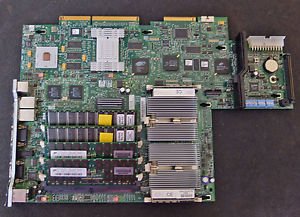
Image 1.1: The Compaq DL360 G2 System Board, model 252355-001, showcasing its various slots and connectors.
2. Setup and Installation
Proper installation of the system board is vital for server stability and functionality. Always ensure the server is powered off and disconnected from all power sources before beginning any installation or removal procedures. Wear an anti-static wrist strap to prevent electrostatic discharge (ESD) damage to sensitive components.
2.1 Preparing the Server Chassis
- Open the server chassis according to the Compaq ProLiant DL360 G2 server manual.
- Ensure all internal cables and components that might obstruct the system board installation are carefully disconnected or moved aside.
2.2 Installing the System Board
- Carefully align the system board with the standoffs in the server chassis.
- Gently lower the board into place, ensuring all mounting holes align with the standoffs.
- Secure the system board with the appropriate screws, tightening them just enough to hold the board firmly without overtightening.
2.3 Component Installation
- Processors (CPUs): Install compatible Intel Xeon processors into the CPU sockets. Ensure proper alignment and secure the retention mechanisms.
- Memory (RAM): Insert DDR SDRAM modules into the available memory slots (2 slots available). Refer to the server manual for correct memory population rules.
- Expansion Cards: Install any necessary PCI or PCI-X expansion cards into their respective slots.
- Cabling: Reconnect all power cables, data cables (e.g., SATA 2), and front panel connectors to the system board.
3. Operating the System Board
Once the system board and all components are securely installed, the server can be powered on. The system board facilitates the communication and operation of all connected hardware.
3.1 Initial Power-On
- Close the server chassis and reconnect the power cables.
- Press the power button on the server.
- Observe the POST (Power-On Self-Test) sequence. The server should display boot messages on a connected monitor.
3.2 BIOS/UEFI Configuration
During the POST sequence, you can typically press a specific key (e.g., F2, Delete, F10) to enter the BIOS/UEFI setup utility. Here, you can configure boot order, system time, hardware settings, and other parameters relevant to the system board and connected devices.
3.3 Operating System Installation
After configuring the BIOS/UEFI, you can proceed with installing your preferred operating system. The system board will manage the interaction between the OS and the server's hardware.
4. Maintenance
Regular maintenance helps ensure the longevity and reliable operation of your Compaq DL360 G2 System Board and the entire server.
- Dust Removal: Periodically open the server chassis and use compressed air to gently remove dust buildup from the system board, CPU heatsinks, and fan assemblies. Dust can impede airflow and lead to overheating.
- Connection Checks: Ensure all cables (power, data, internal connectors) are securely seated. Loose connections can cause intermittent issues.
- Firmware Updates: Check the official Compaq (or HP, as Compaq was acquired by HP) support website for any available BIOS or firmware updates for the DL360 G2 server. Firmware updates can improve stability, performance, and compatibility. Follow update instructions carefully.
- Environmental Control: Operate the server in a clean, temperature-controlled environment to prevent excessive heat and humidity, which can degrade electronic components.
5. Troubleshooting
If you encounter issues with your server, the following general troubleshooting steps may help identify the problem. For detailed diagnostics, refer to the Compaq ProLiant DL360 G2 server's official service manual.
- No Power: Verify that the power supply unit (PSU) is connected and functioning. Check all power cables to the system board.
- No POST/Display: Ensure the CPU(s) and RAM modules are correctly installed and seated. Try booting with minimal components (one CPU, one RAM stick) to isolate the issue. Check for diagnostic LEDs or beep codes on the system board, if available, and consult the server manual for their meanings.
- System Instability/Crashes: This can be caused by various factors. Check for overheating (ensure fans are working and heatsinks are clean). Test memory modules for errors. Ensure all drivers and firmware are up to date.
- Peripheral Detection Issues: If a hard drive or expansion card is not detected, verify its connection to the system board and check BIOS/UEFI settings.
6. Specifications
| Brand | Compaq |
| Model Number | 252355-001 (DL360 G2) |
| Memory Clock Speed | 667 MHz |
| Memory Slots Available | 2 |
| System Bus Standard Supported | SATA 2 |
| UPC | 724627196303 |
| Manufacturer | Compaq |
7. Warranty and Support
For specific warranty information regarding your Compaq DL360 G2 System Board, please refer to the documentation provided at the time of purchase or contact your reseller. As this is an older component, warranty coverage may vary.
For technical support, driver downloads, and additional documentation for the Compaq ProLiant DL360 G2 server, please visit the official support website of Hewlett Packard Enterprise (HPE), which now manages Compaq's server product lines.


